Reservations
Reserve a shared device when a test must use a specific resource during a planned window.
Create a reservation
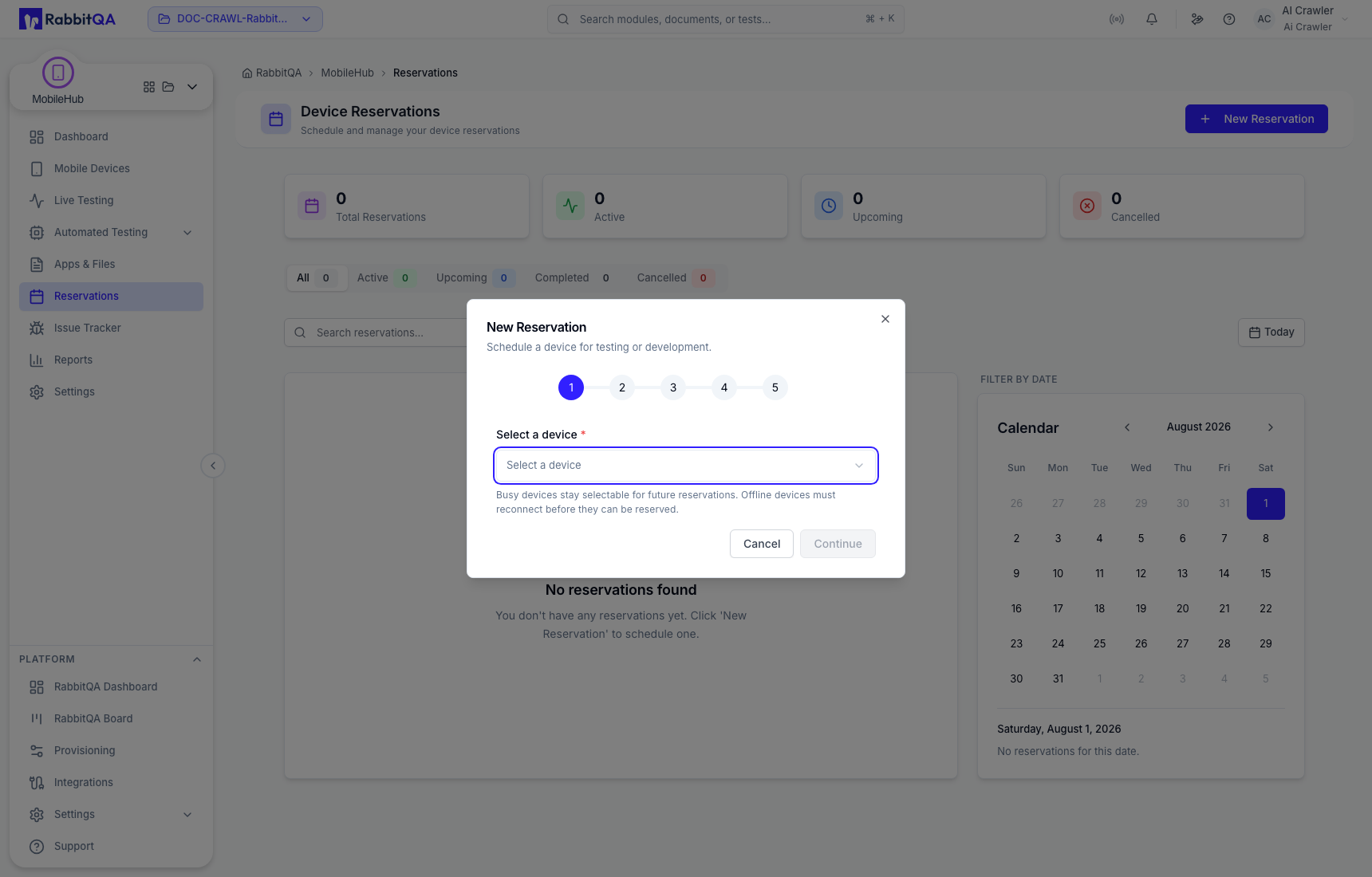
- Select New Reservation.
- Choose an available device.
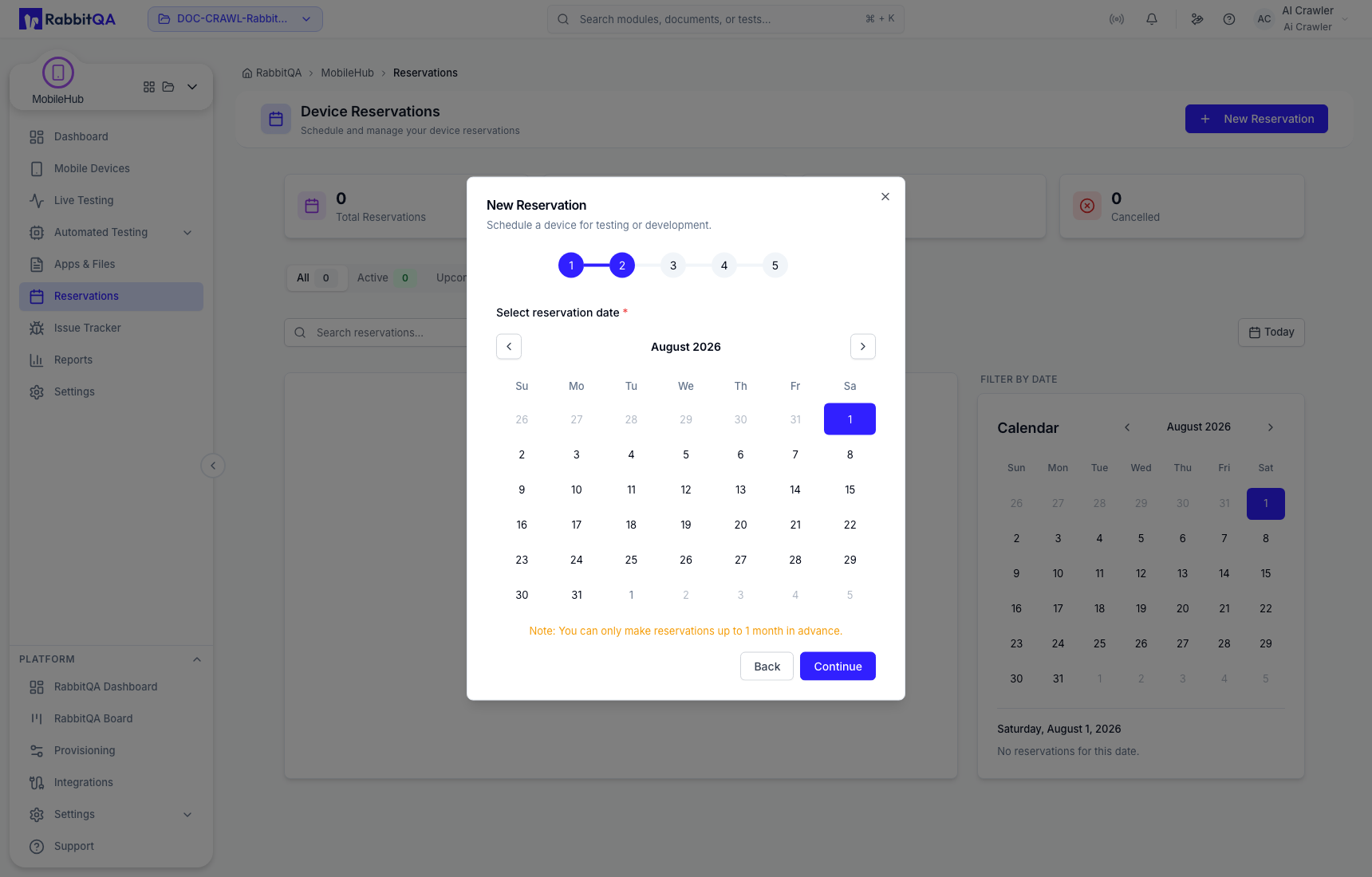
- Pick the date and duration.
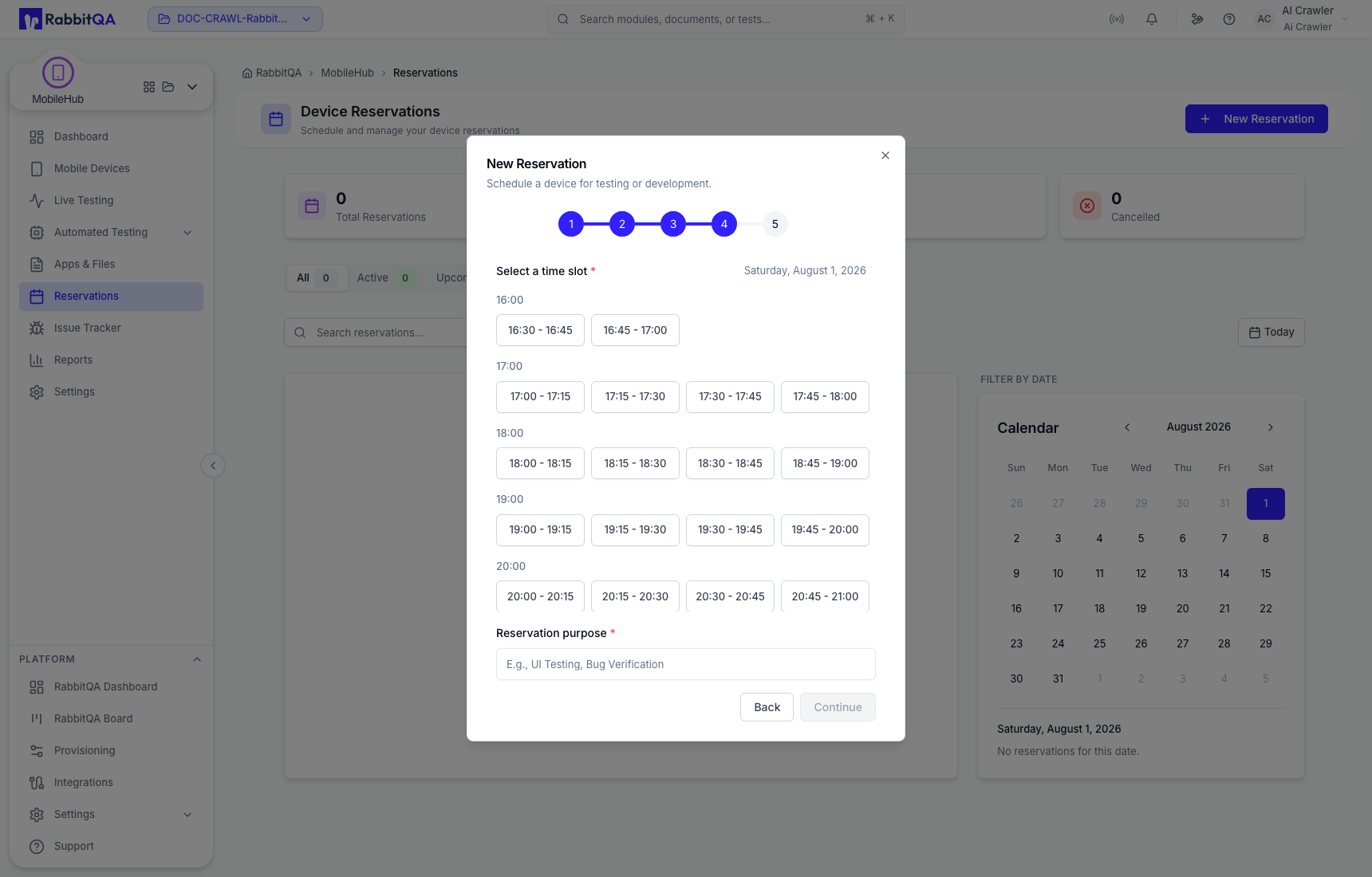
- Select an available time slot.
- Add a clear purpose, review the summary, and confirm.
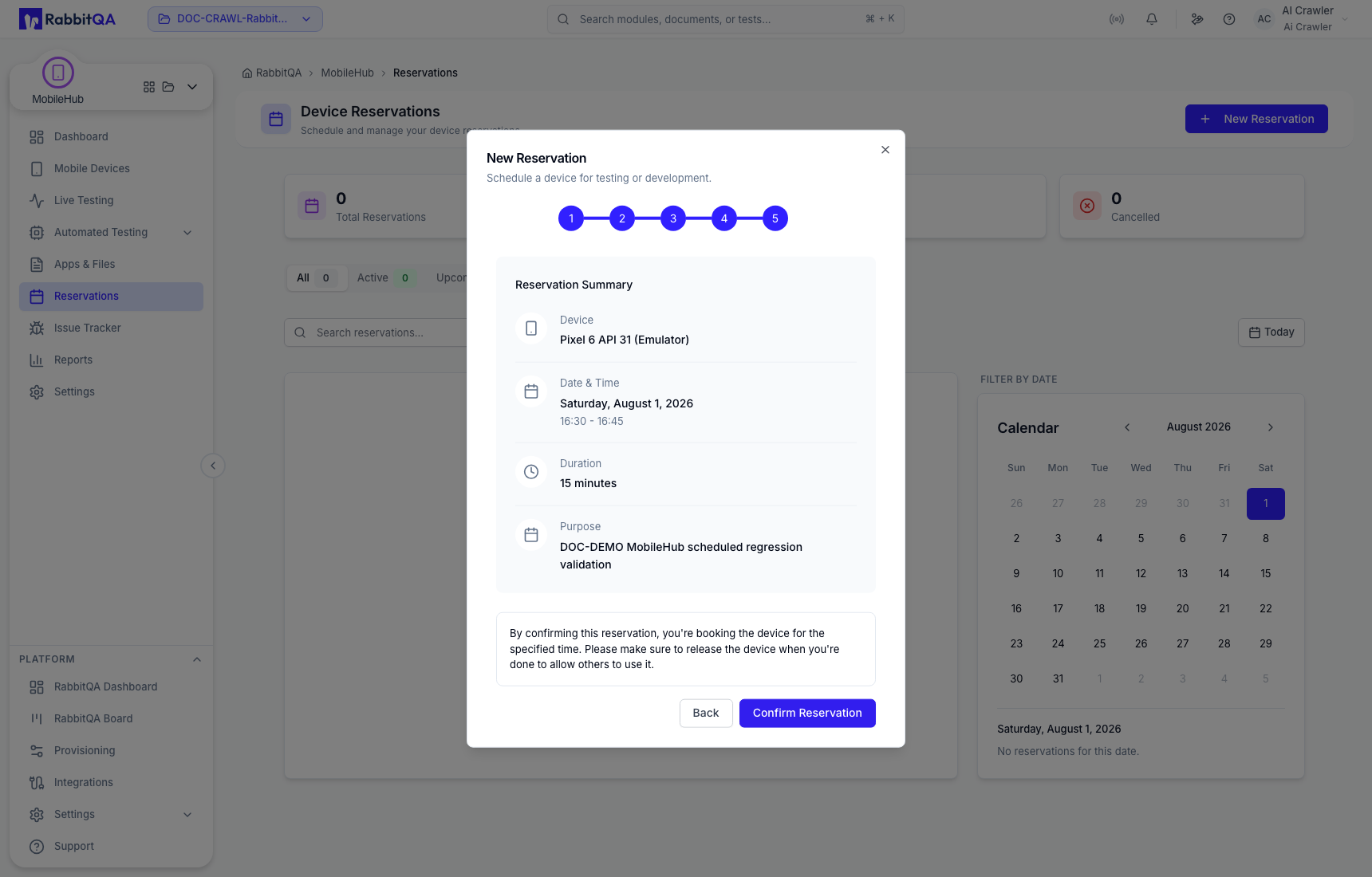
The confirmed booking appears under upcoming reservations.
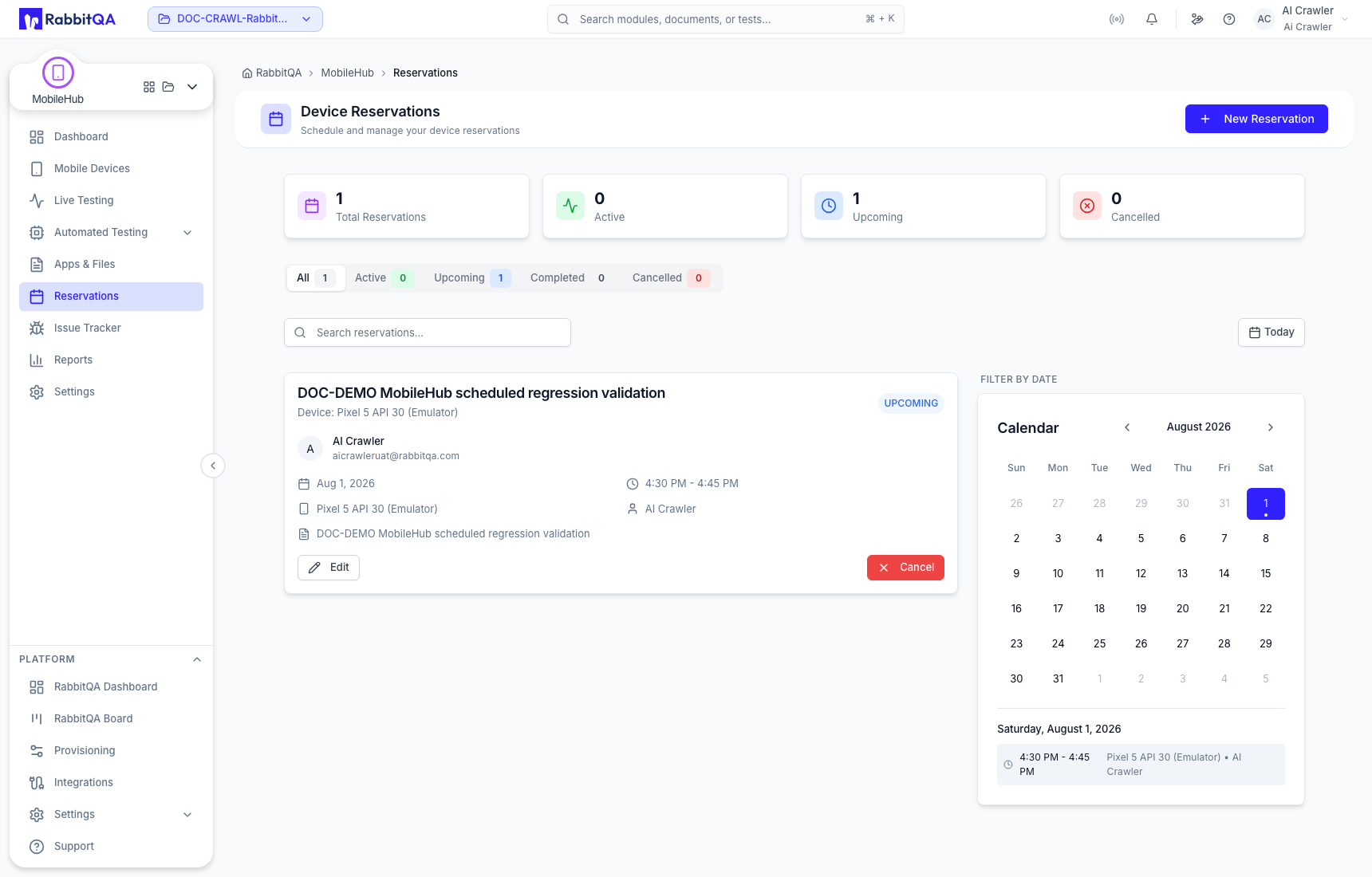
Change or cancel a booking
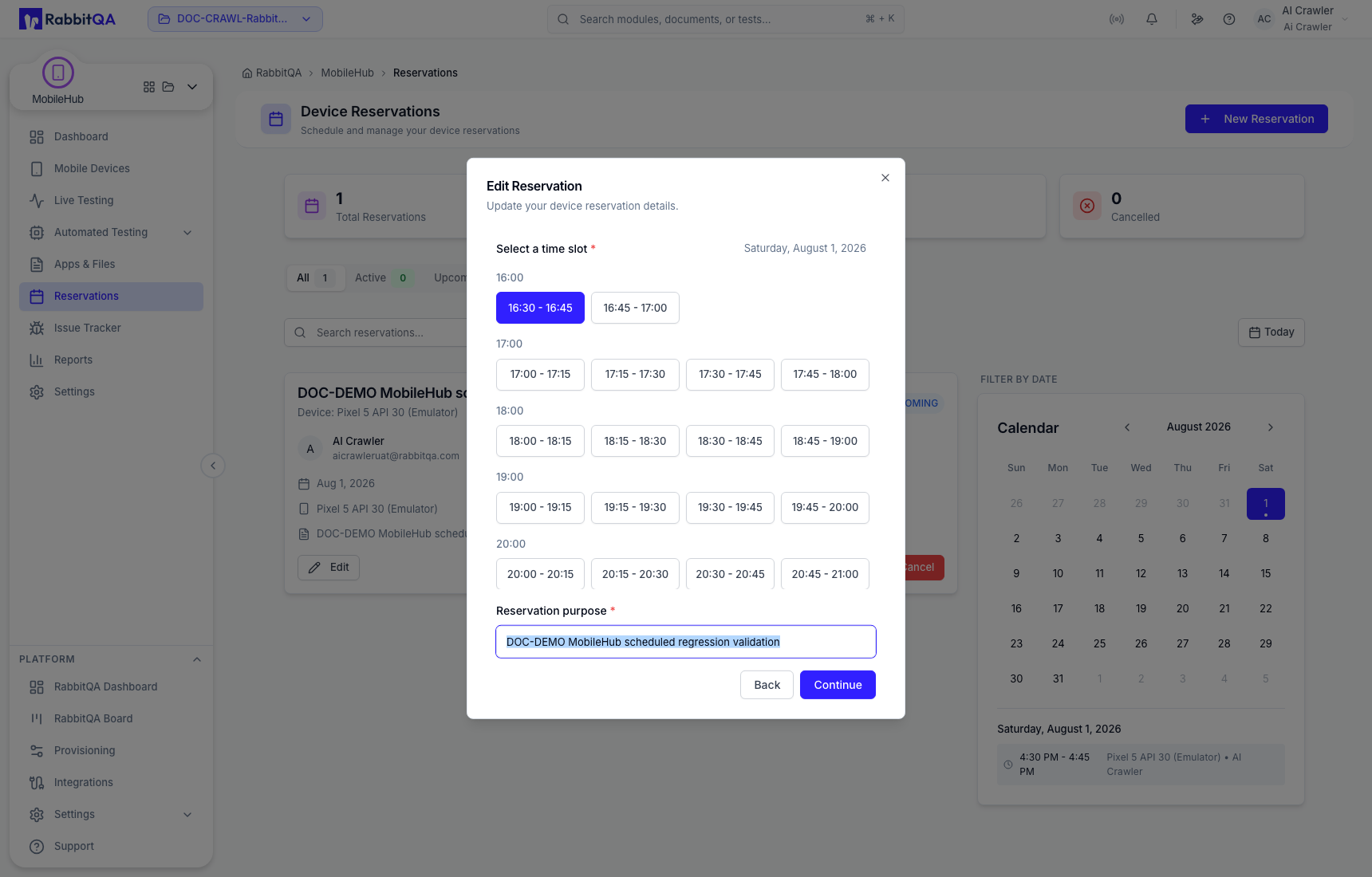
Open an upcoming reservation to edit its time or purpose. Availability is recalculated before the update is saved.
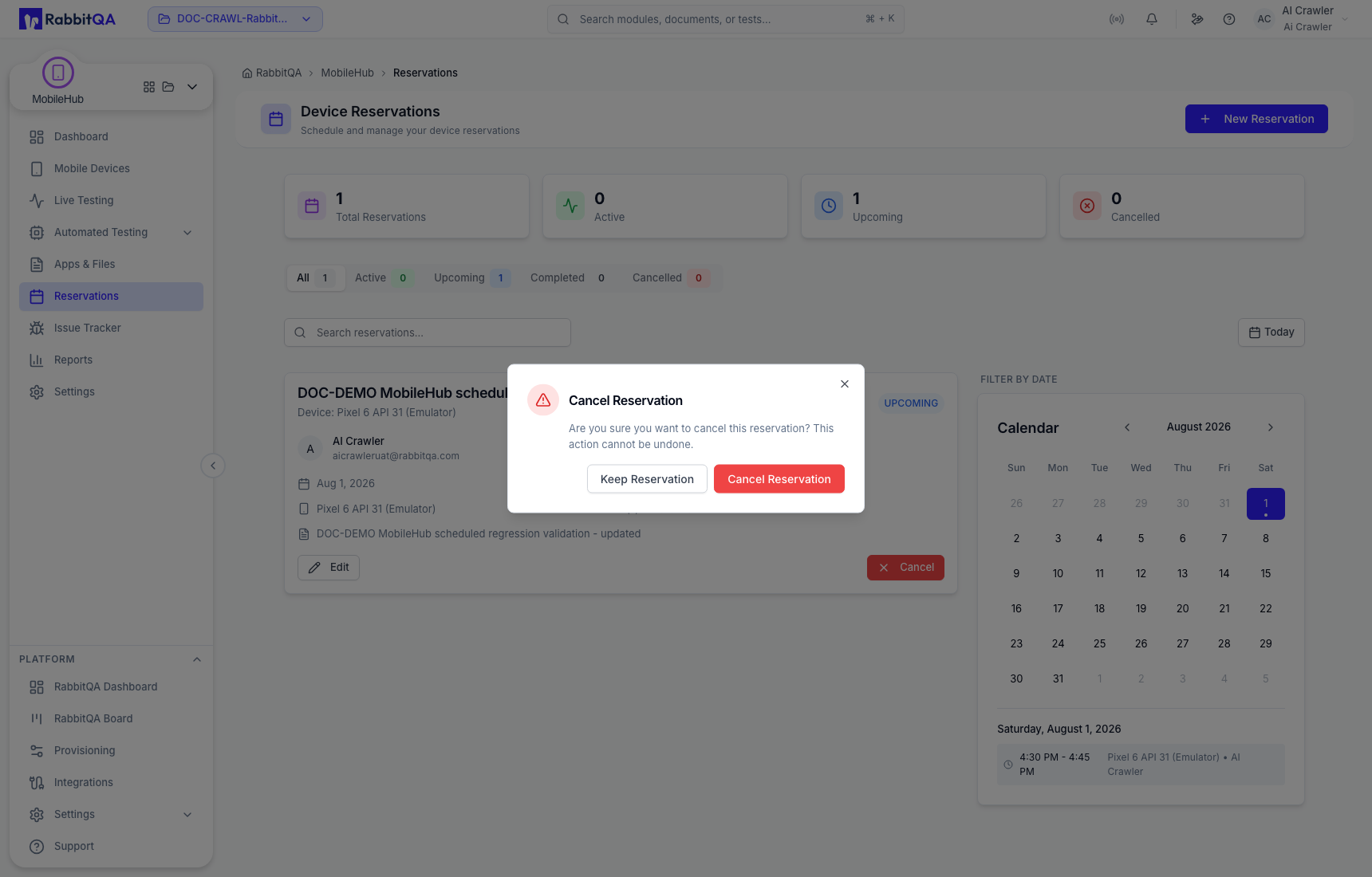
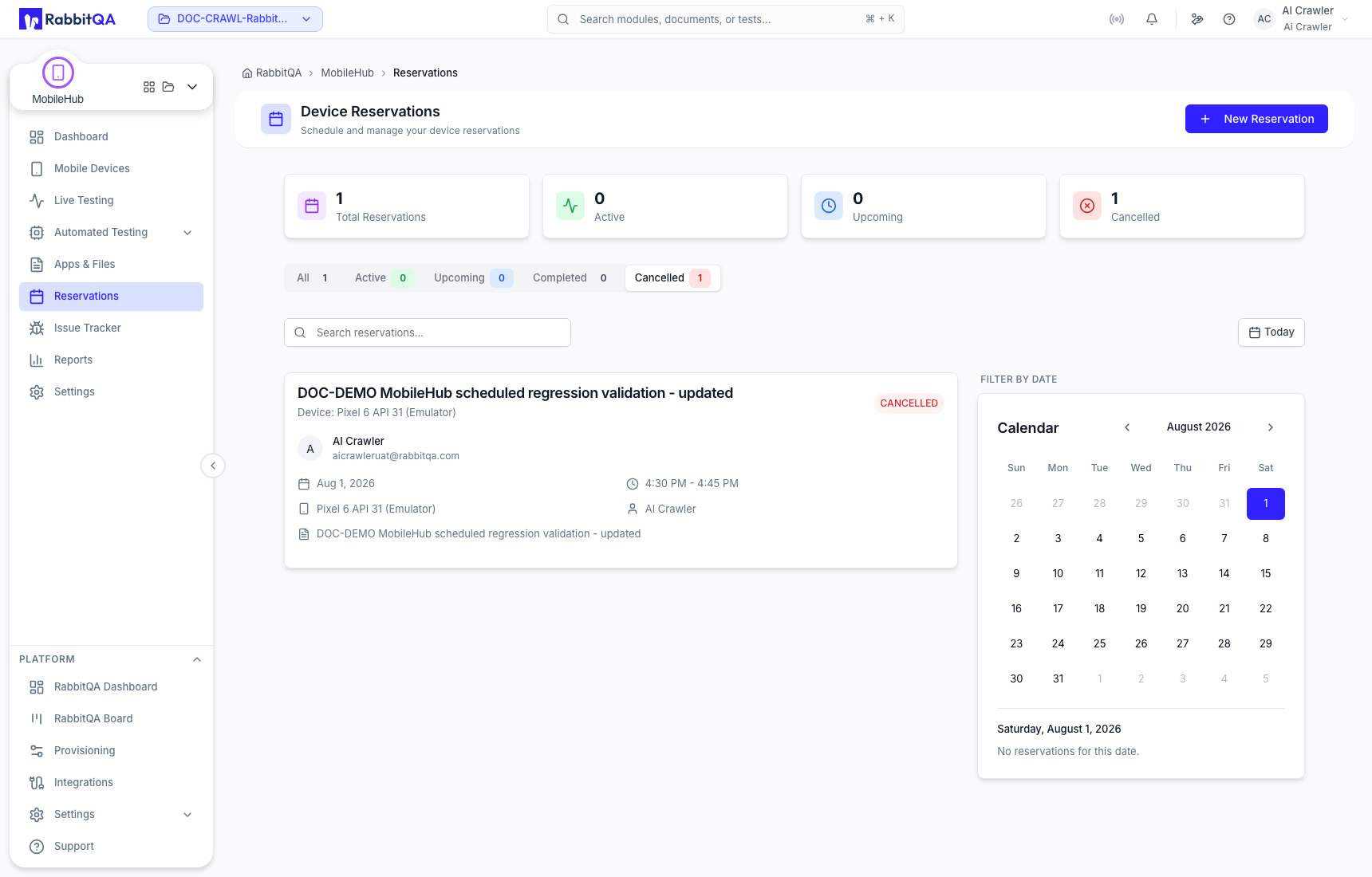
Cancel a booking that is no longer required. Confirming cancellation releases the reserved time and moves the record to history.
Team etiquette
Use a recognizable purpose, reserve only the time you need, and cancel early when plans change. This keeps scarce devices available to the rest of the team.
