Reservations
Schedule and manage device reservations for guaranteed access.
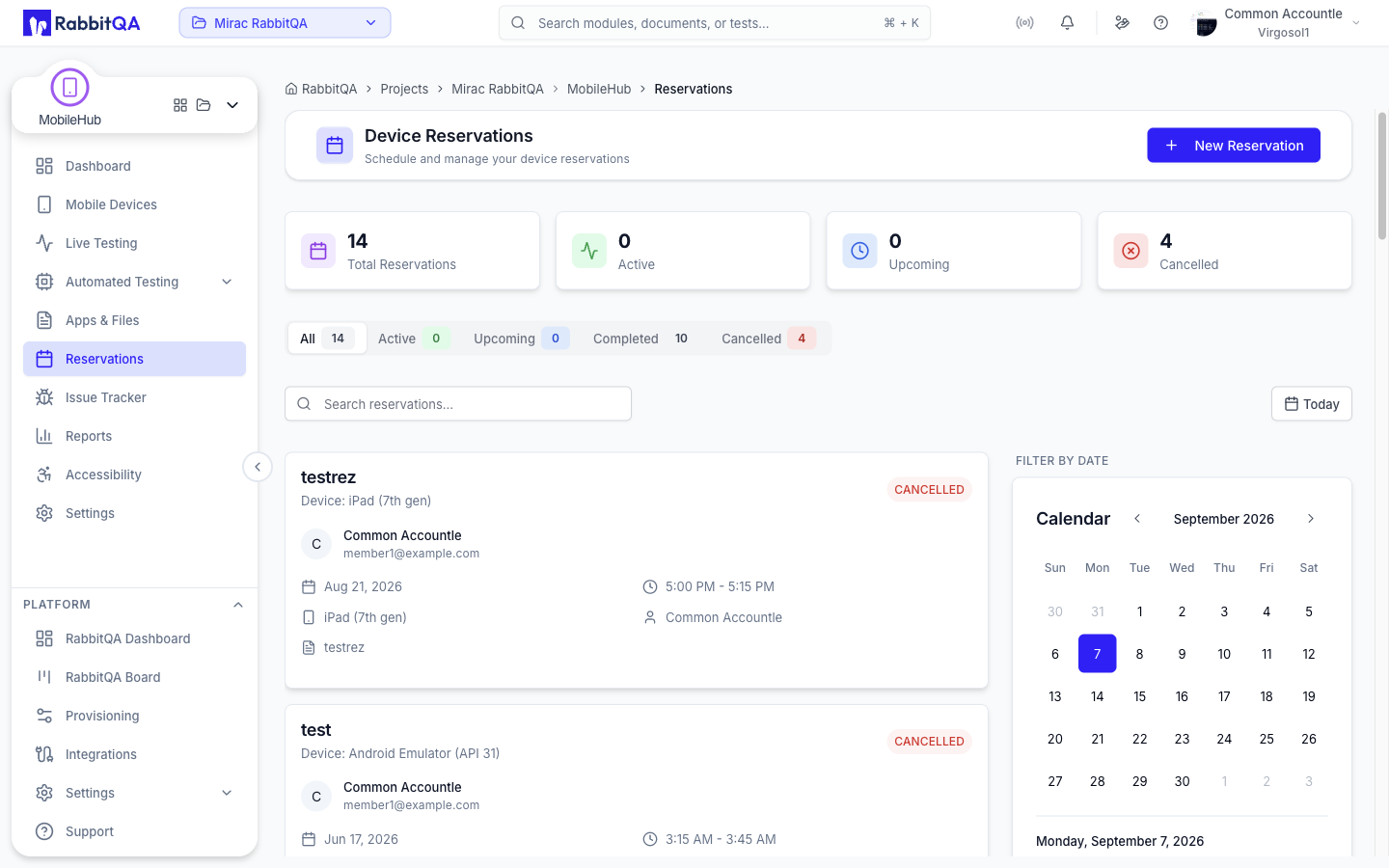
Overview
The Reservations page allows you to schedule device time in advance. This ensures you have guaranteed access to specific devices when you need them, preventing conflicts with other team members.
Why Use Reservations?
| Benefit | Description |
|---|---|
| Guaranteed Access | Reserve devices ahead of time to ensure availability |
| Scheduled Testing | Plan your testing schedule and coordinate device usage |
| Quick Start | When your reservation time arrives, start testing immediately |
| Flexible Management | Edit, extend, or cancel reservations as your schedule changes |
Reservation Status
Reservations go through different states during their lifecycle:
| Status | Color | Description |
|---|---|---|
| Upcoming | Blue | Scheduled for a future time. You can edit or cancel. |
| Active | Green | Currently in progress. The device is reserved for you. |
| Completed | Gray | Reservation time has ended normally. |
| Cancelled | Red | Reservation was cancelled before it started. |
Creating a Reservation
To create a new reservation:
- Click the "New Reservation" button in the header
- Select the device you want to reserve
- Choose the start date and time
- Set the duration (how long you need the device)
- Optionally add a note describing the purpose
- Click "Create Reservation" to confirm
The system automatically checks for conflicts. If the device is already reserved during your selected time, you'll be notified and asked to choose a different time slot.
Reservation Actions
| Action | Available When | Description |
|---|---|---|
| Start Testing | Active reservation | Begin your test on the reserved device |
| Edit | Upcoming reservation | Modify the reservation time or duration |
| End Early | Active reservation | Release the device before scheduled end |
| Cancel | Upcoming reservation | Cancel the reservation entirely |
Calendar View
The calendar sidebar provides a visual overview of your reservations:
- Days with reservations are marked with dots
- Click a date to filter reservations for that day
- Hover over dates to see a preview of reservations
- Navigate between months using the arrow buttons
Filtering & Search
Status Tabs
Filter reservations by status: Active, Upcoming, Completed, Cancelled, or All. Each tab shows a count badge.
Search
Search by device name, reservation note, or any other text in the reservation.
Date Filter
Click the date button or select a date from the calendar to filter reservations for a specific day.
Best Practices
Avoid over-reserving devices. Release them early if you finish before the scheduled end time so others can use them.
Include a note about what you'll be testing. This helps team members understand device usage and coordinate better.
If your plans change, cancel upcoming reservations promptly so the device becomes available for others.
Review the calendar to find available time slots and avoid conflicts with existing reservations.
