FileHub
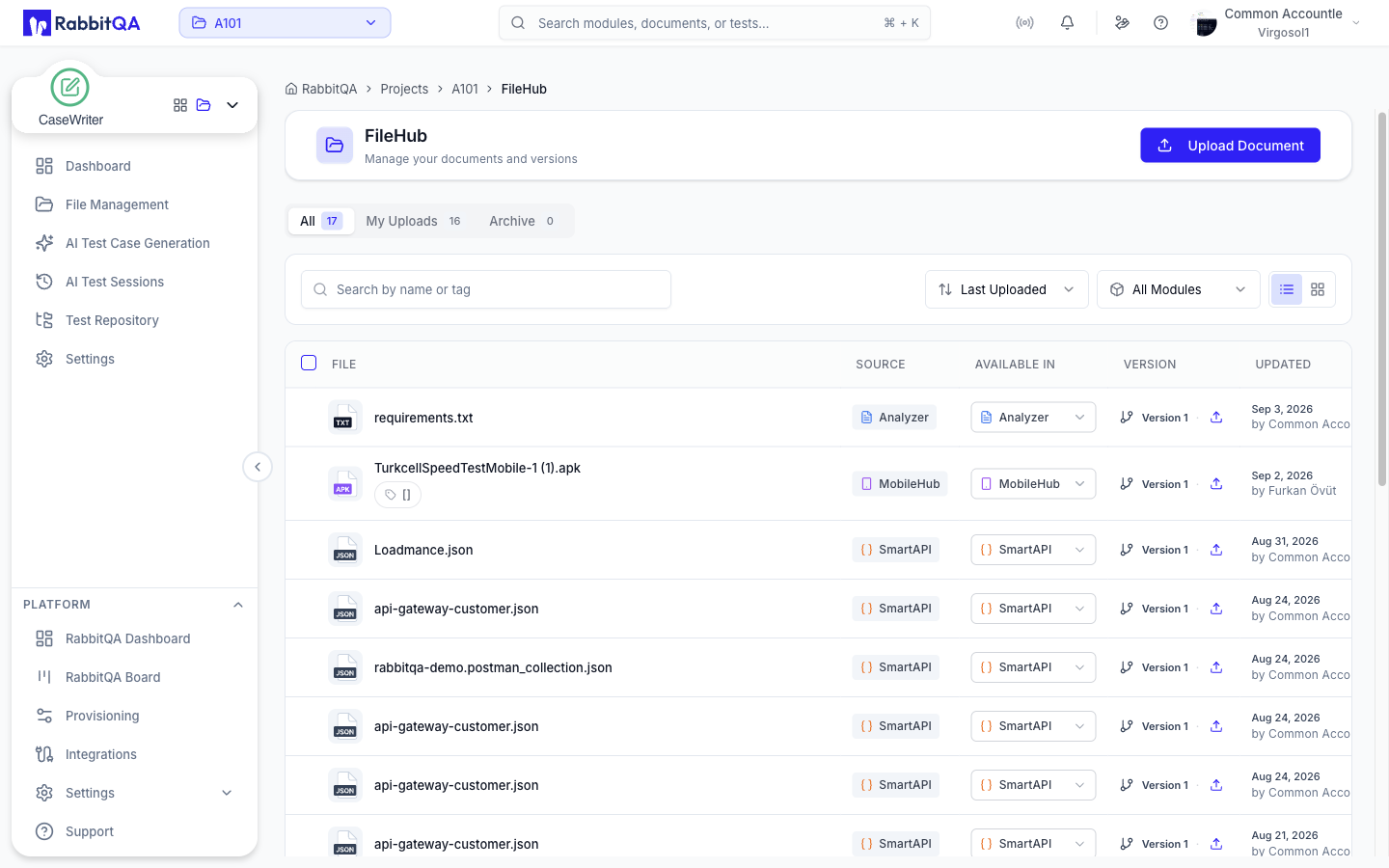
FileHub is the single list of every document in your workspace, whichever module put it there.
A requirements document uploaded in Analyzer, a specification used by Smart PBI, an app build sent to MobileHub and a file uploaded directly into FileHub all appear in the same list, each labeled with where it came from.
Open it from the card at the top of the sidebar, at /filehub.
Why it exists
Before FileHub, a document lived inside whichever module uploaded it, and finding it again meant remembering which module that was. FileHub inverts that: documents are workspace assets, and the module is one of their attributes.
That also means a document uploaded once can be used by several modules rather than uploaded repeatedly.
The list
Three tabs divide the documents:
| Tab | Shows |
|---|---|
| All | Every active document in the workspace |
| My Uploads | Only the active documents you uploaded |
| Archive | Documents that have been archived rather than deleted |
Each tab shows a count, so you can see at a glance how much is archived.
Filtering and sorting
The toolbar filters by module, so you can narrow to just Analyzer documents or just files uploaded straight into FileHub; the filter matches a document whose source is that module or that is available in it. Search matches the document name or any of its tags. The toolbar also carries a list/grid view toggle.
Sorting offers:
| Sort | Behavior |
|---|---|
| Last Uploaded | Newest upload first — the default |
| Last Updated | Most recently changed first |
| Name (A–Z) / Name (Z–A) | Alphabetical |
The default is upload order rather than update order on purpose: sorting by update moves a document to the top whenever anyone adds a version or edits a tag, which makes a familiar list rearrange itself underneath you.
Filtering, sorting and paging all happen on the server, so the list stays responsive on a workspace with a large document set.
Working with a document
Preview
Documents open in the browser without downloading. Images, PDFs, Word documents, spreadsheets, presentations, CSV, JSON and plain text all render in place.
Versions
A document keeps its version history.
Uploading a new file against an existing document adds a version rather than replacing it, and you can open or download any earlier version.
A new version has to be the same file type as the document it belongs to, so a history never mixes a .png with a .json.
Editing
Edit file info changes a document's name and tags without re-uploading it. Renaming does not create a new version — the file itself is untouched.
Downloading
Downloads are served through short-lived pre-signed links rather than public URLs, so a link cannot be forwarded to someone without access.
Bulk actions
Select several rows to act on them together: set which modules they are available in, archive or restore them, or delete them.
Uploading
Upload Document adds a document directly to FileHub rather than through a module. Alongside the file you can set a name, tags, and the modules the document is available in. These appear in the list with FileHub itself as the source.
Where documents come from
Modules that accept file input register their documents here:
- Analyzer — requirement documents for analysis and scoring
- Smart PBI — sources for backlog generation
- CaseWriter — sources for test case generation
- SmartRequest — request attachments and supporting documents
- DataCrate — uploaded datasets
- SmartAPI — uploaded API specification files
- MobileHub — application builds and session files
Because Analyzer's File Management screen is also mounted under CaseWriter and Smart PBI, a document uploaded in any of the three appears once in FileHub, not three times.
Where a document came from and where it can be used are separate: a document can be made available in Analyzer, CaseWriter, Smart PBI, SmartAPI, DataCrate, AutoRunner, and MobileHub, whichever module uploaded it. Analyzer, CaseWriter, Smart PBI, SmartAPI and DataCrate each accept only certain file types, so one that cannot take the file's type is not offered; AutoRunner and MobileHub accept any type.
Limitations to be aware of
FileHub is still being completed, and a few behaviors are not yet what you would expect:
- The list and the tab counts are workspace-scoped, but operations addressed by document ID — including the bulk ones — are scoped to the company only.
- The file types a module accepts are enforced by the upload form, not by the API, so a document can still end up mapped to a module that would not have accepted it.
- Deleting a document propagates to the owning module on a best-effort basis, so a deletion can occasionally leave one side stale.
Treat FileHub as the place to find and read documents; do destructive cleanup deliberately rather than in bulk.
Related
- Workspaces — the boundary documents belong to
- Platform Architecture — where FileHub sits among the services
