Device Control
When a live session is connected, the browser forwards supported pointer, keyboard, and toolbar actions to the selected remote device.
Core controls
- Click or tap, drag, swipe, scroll, and long-press in the streamed device view.
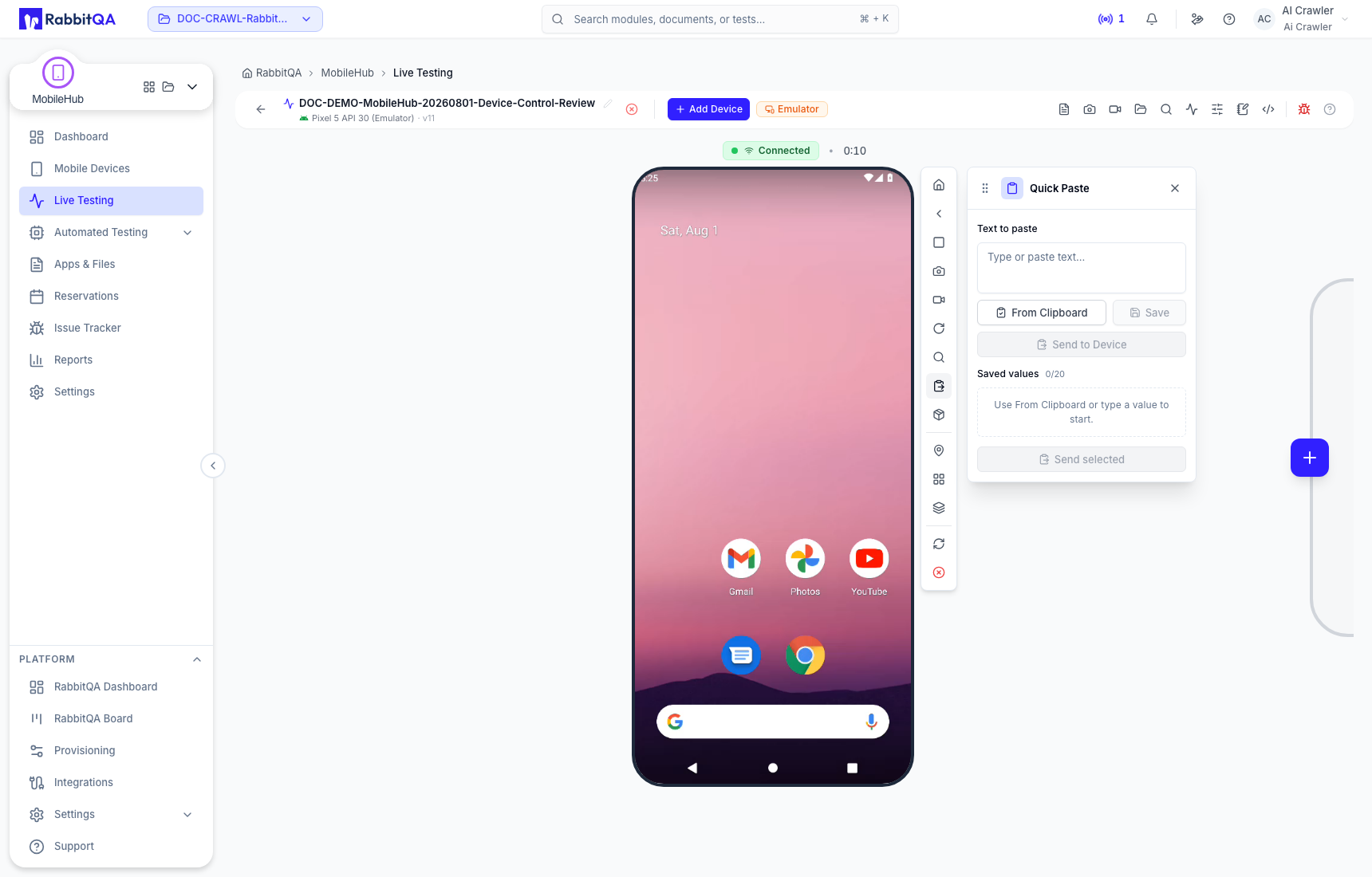
- Send text with keyboard focus or Quick Paste.
- Use Android navigation or the equivalent platform controls when available.
- Capture a screenshot, start or stop recording, rotate, change volume, or toggle audio.
- Enter fullscreen, reconnect the stream, or end the test.
Install and manage applications
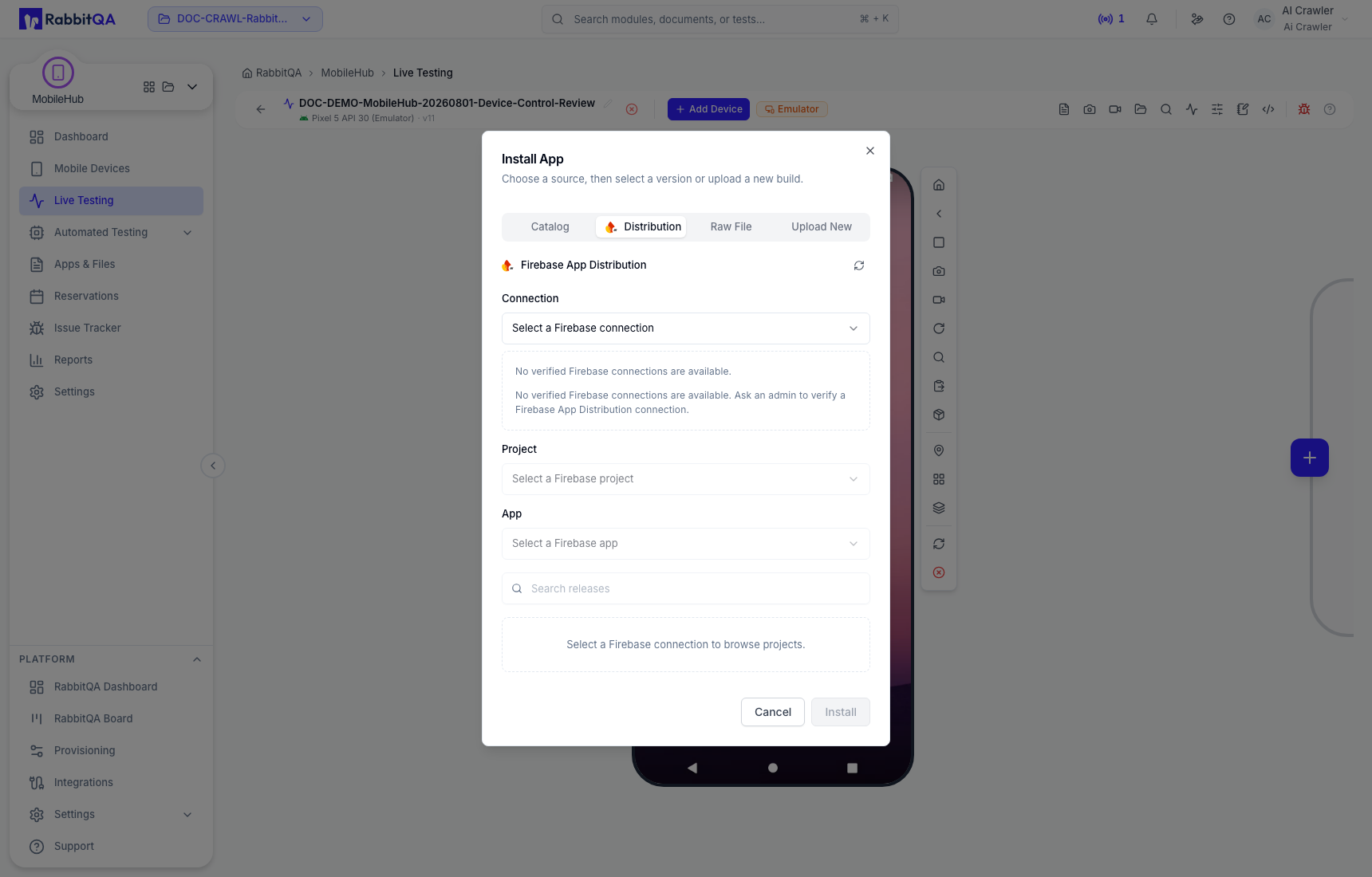
Choose the installation source supported by the current workspace. This can include an uploaded MobileHub app/file or another configured distribution source.
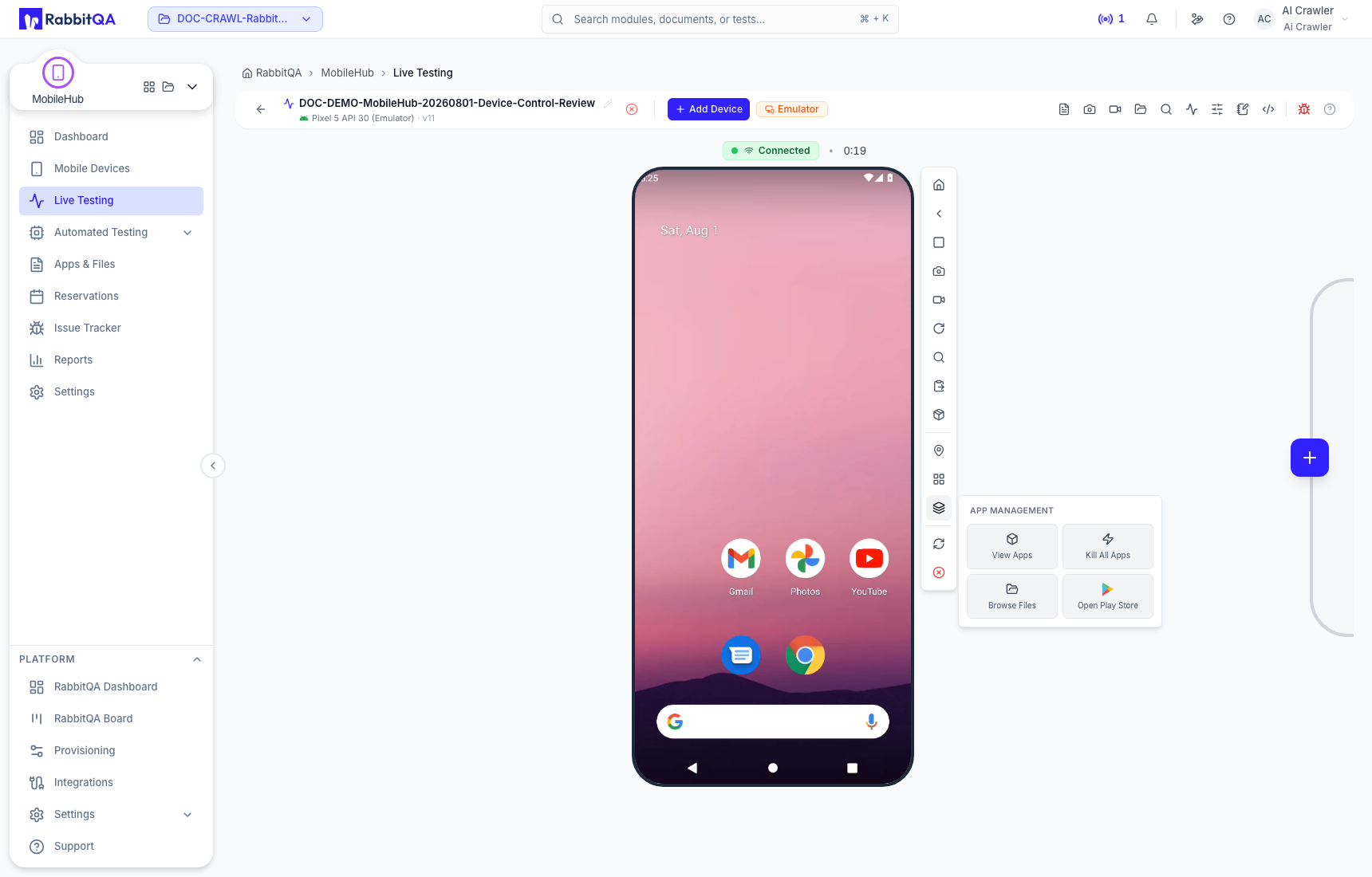
The app-management tools expose actions only when supported by the current platform and permissions.
Extended tools
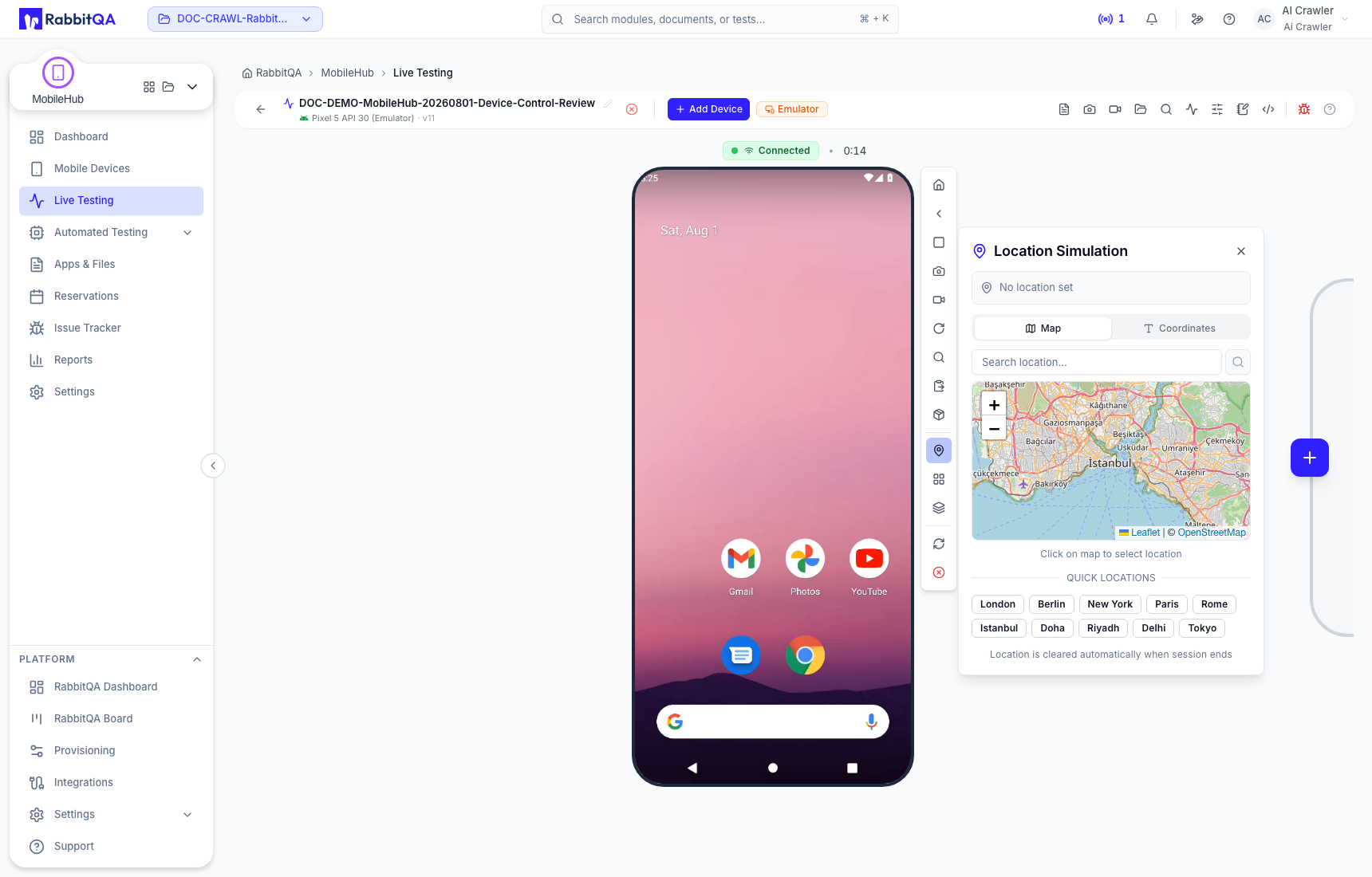
- Location supplies coordinates for location-aware testing.
- App Toolkit exposes supported instrumentation features.
- Developer tools provide platform-specific connection help.
- Shake, volume, audio, and keyboard controls simulate common device interactions.
- Inspector exposes the UI hierarchy when enabled.
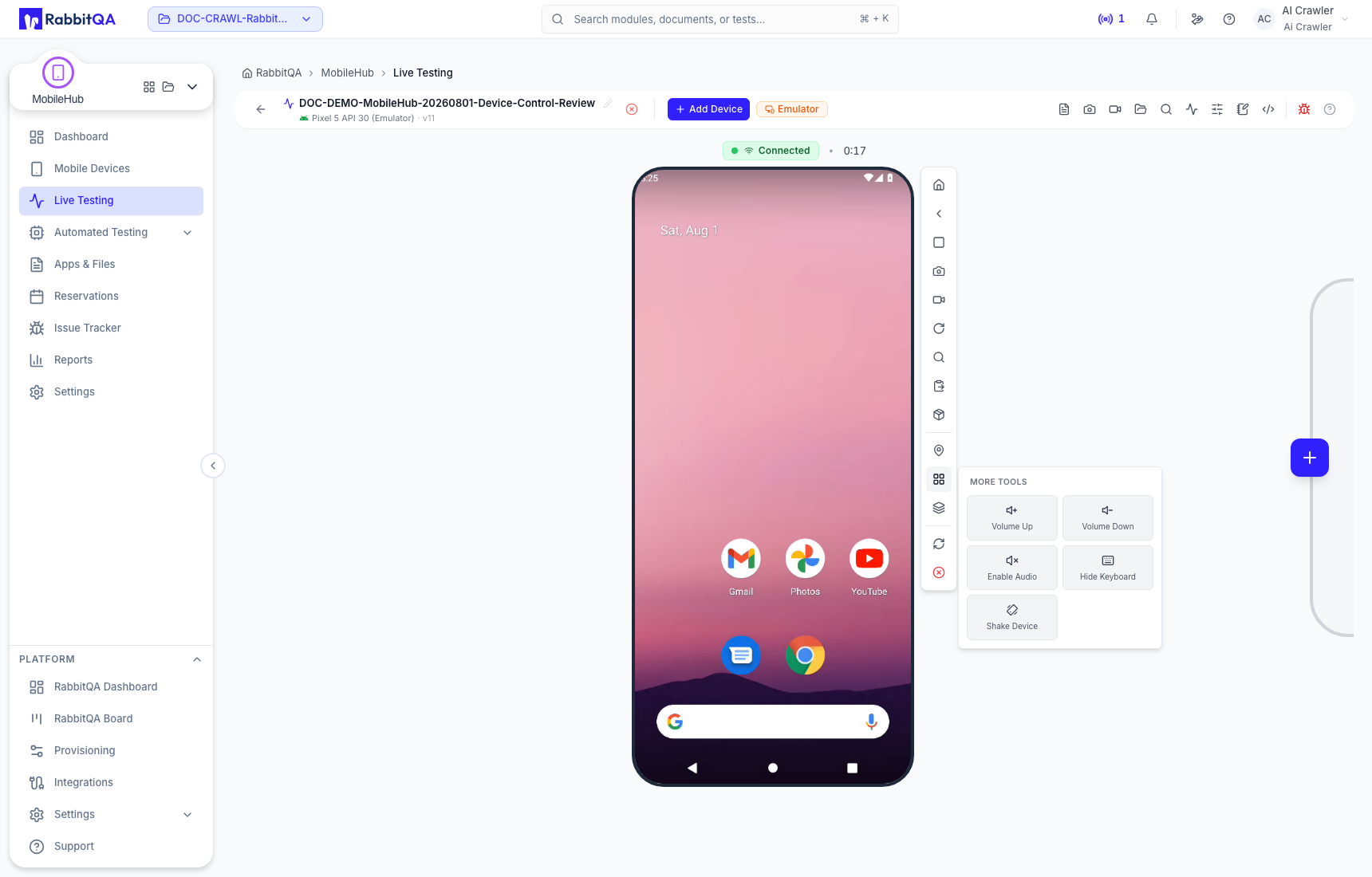
Real devices, emulators, simulators, Android, and iOS do not expose identical controls. MobileHub hides or disables actions that the current session cannot support.
View-only access
Shared viewers can observe a session when sharing is enabled, but control depends on the share mode and permissions. Do not share session links outside the intended audience; a session may expose application content and test evidence.
