Issue Tracker Integration
Create a new issue or link session evidence to an existing one without leaving MobileHub.
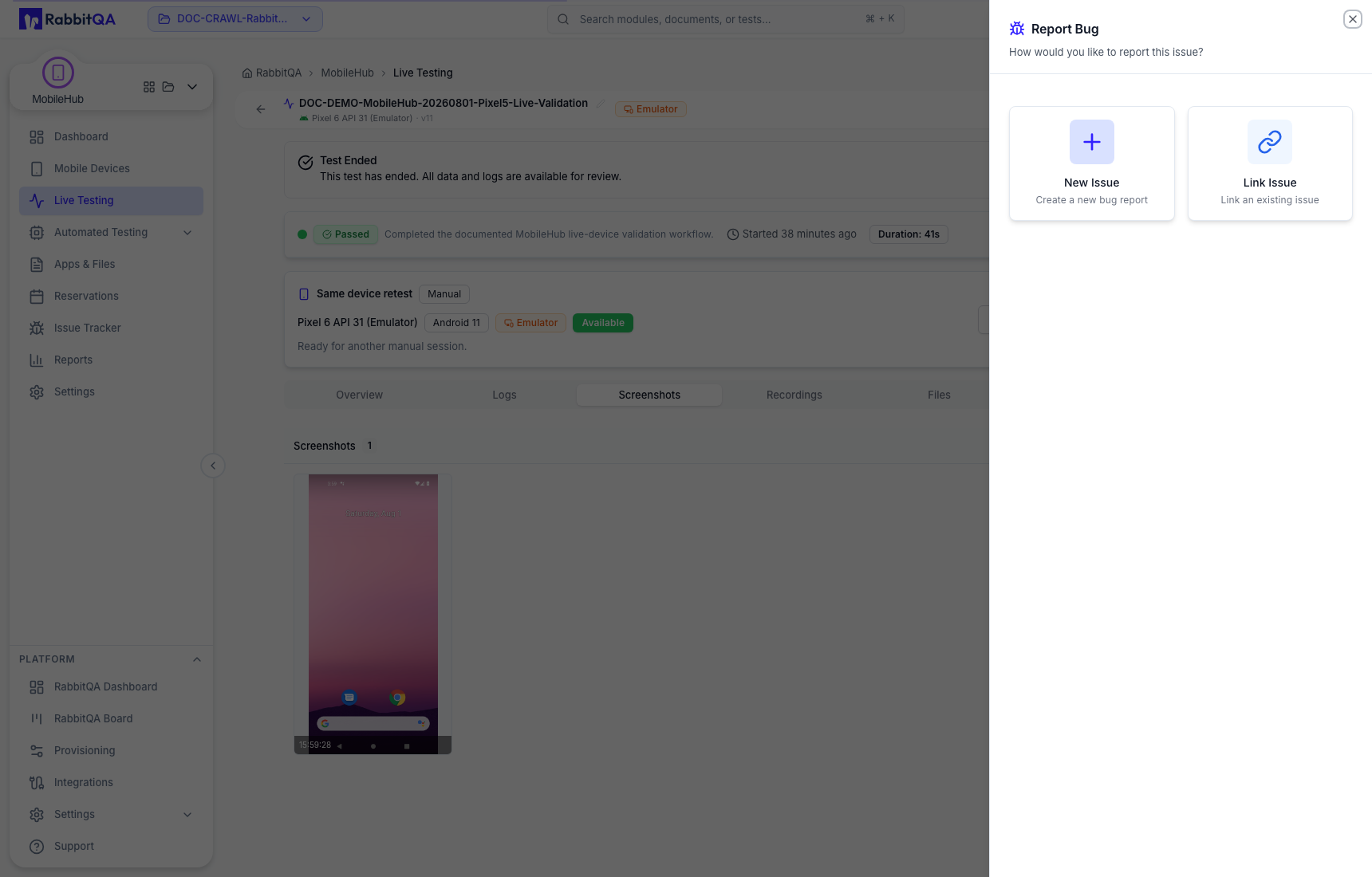
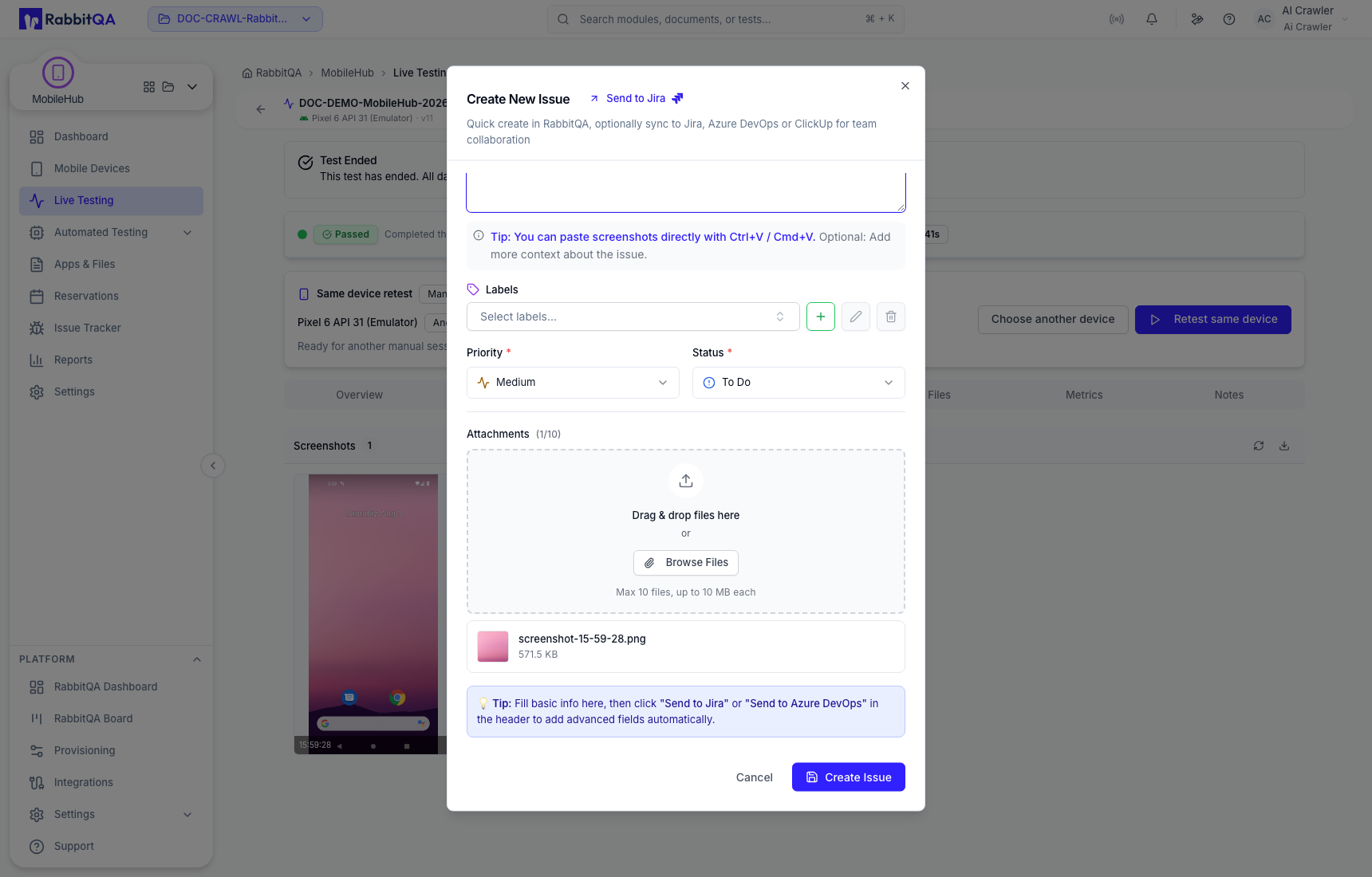
Create an issue from a screenshot
- Open a retained screenshot and choose the issue action.
- Select New issue or Link existing issue.
- Associate a test plan and, when applicable, a test run.
- Select session media to attach.
- Enter the summary and description.
- Set labels, priority, status, and other fields exposed by the selected provider.
- Review and submit.
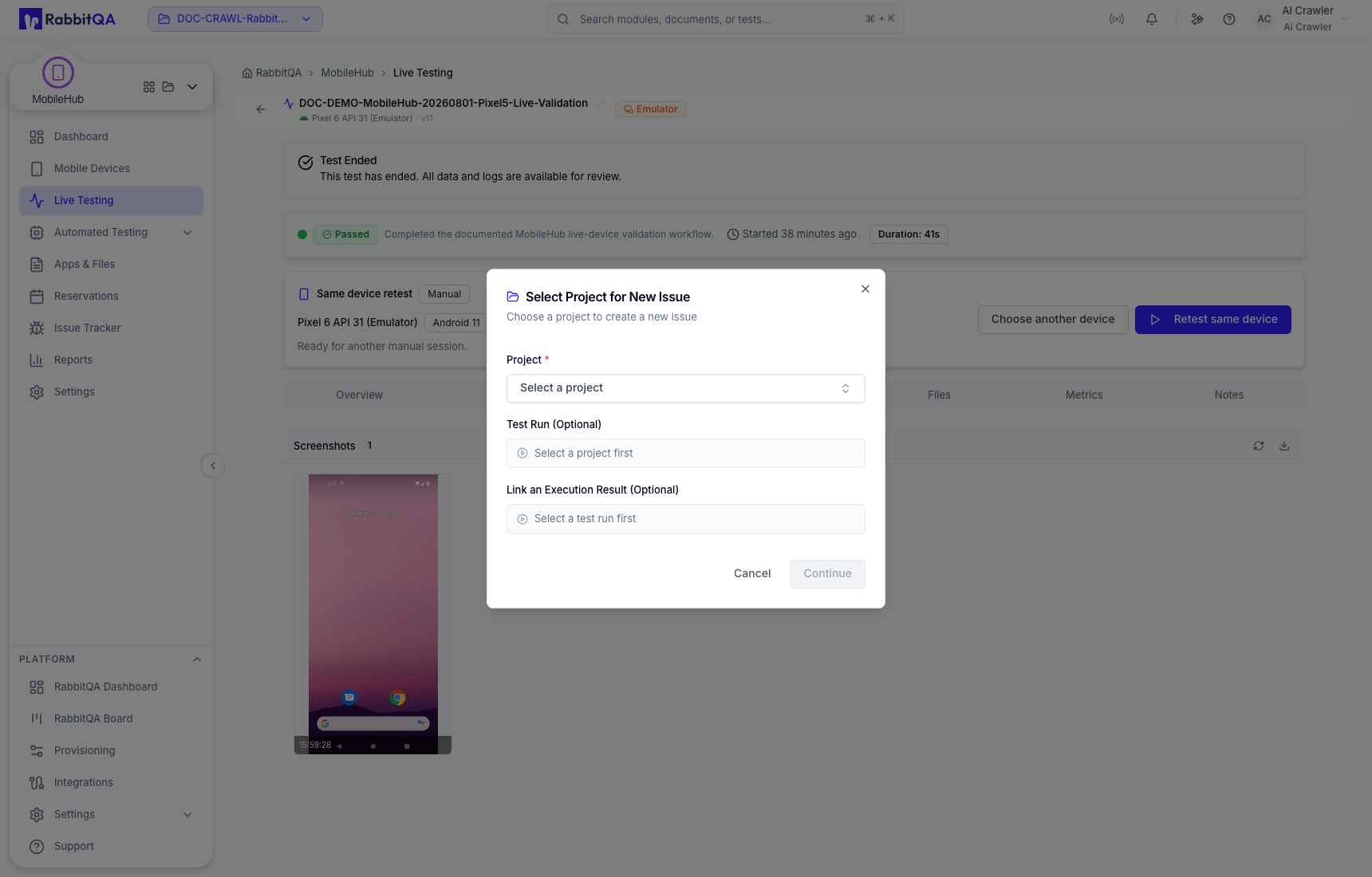
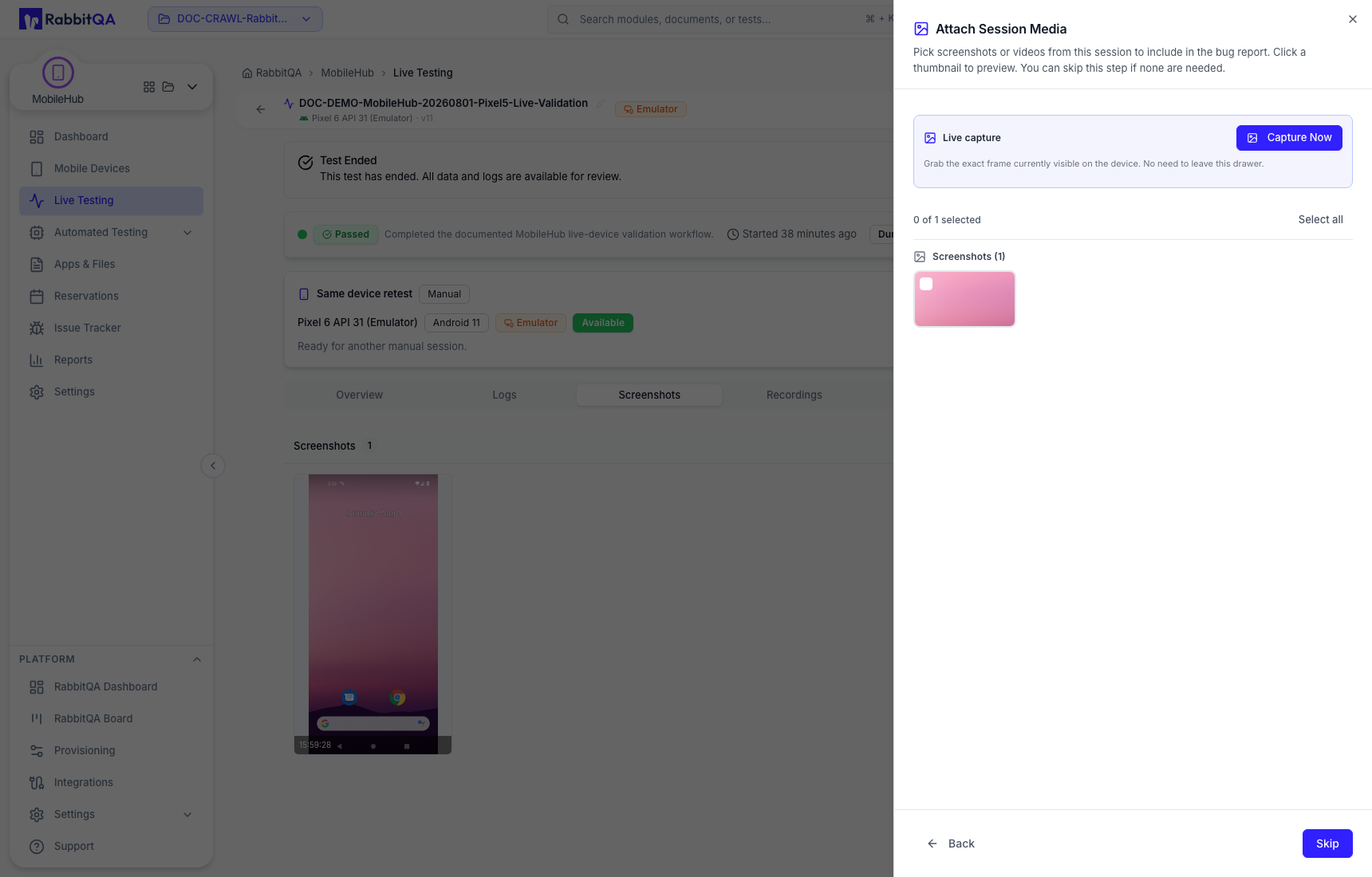
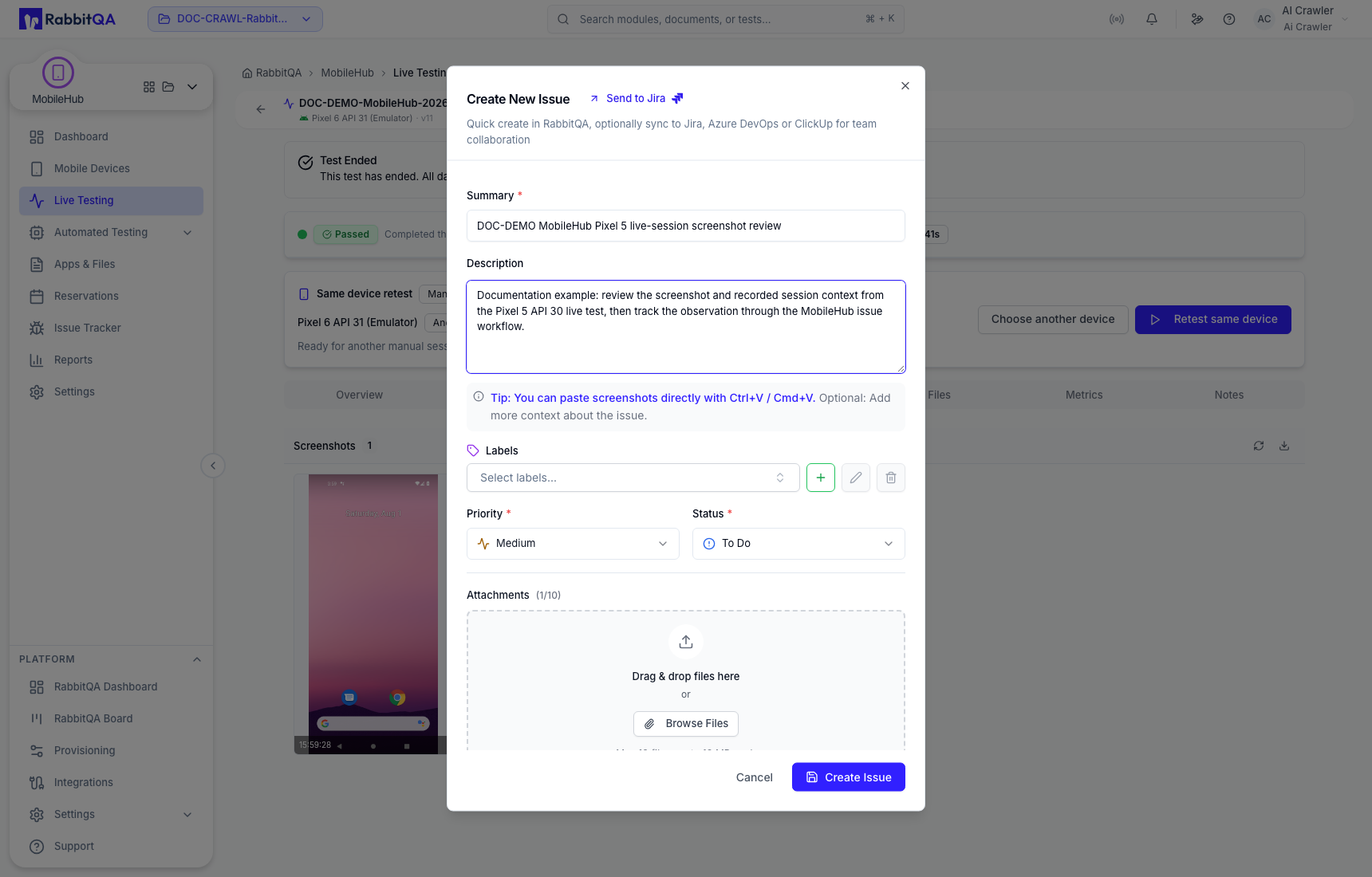
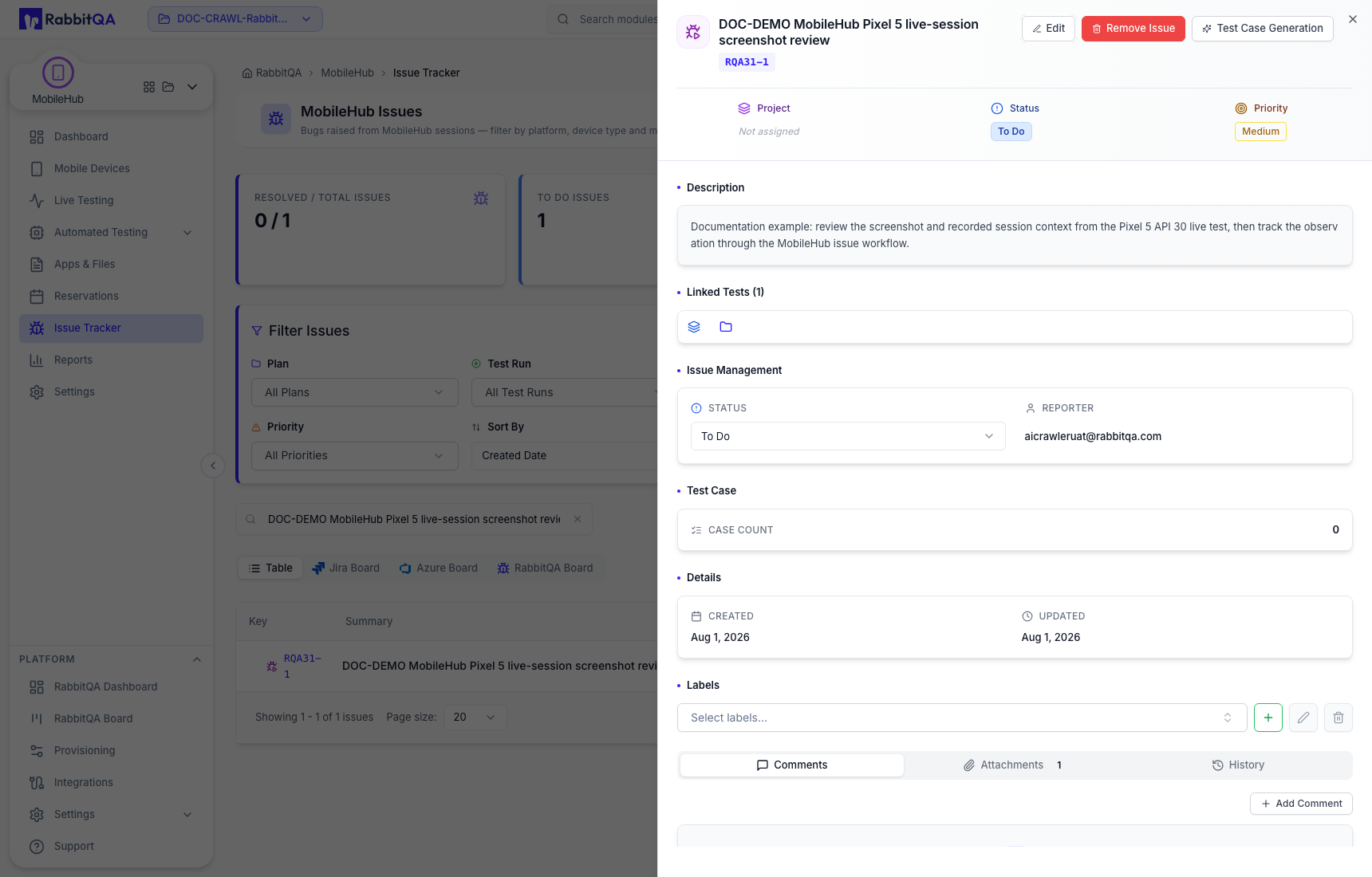
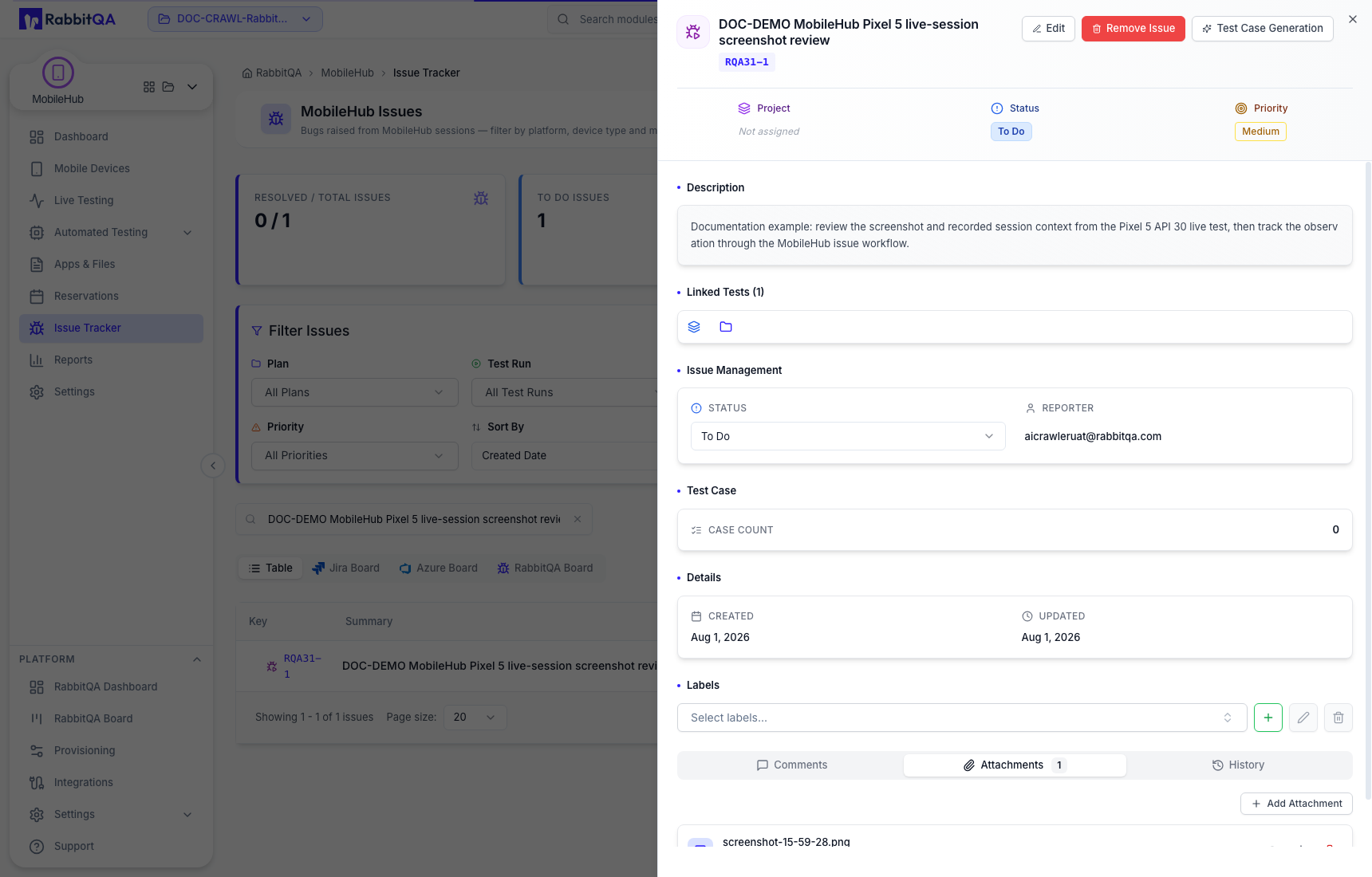
After creation, the detail view keeps the issue fields, comments, and linked evidence together.
Boards and providers
The Issue Tracker can expose the RabbitQA-native board and configured Jira or Azure DevOps boards. Provider availability and editable fields depend on the organization's integration settings.
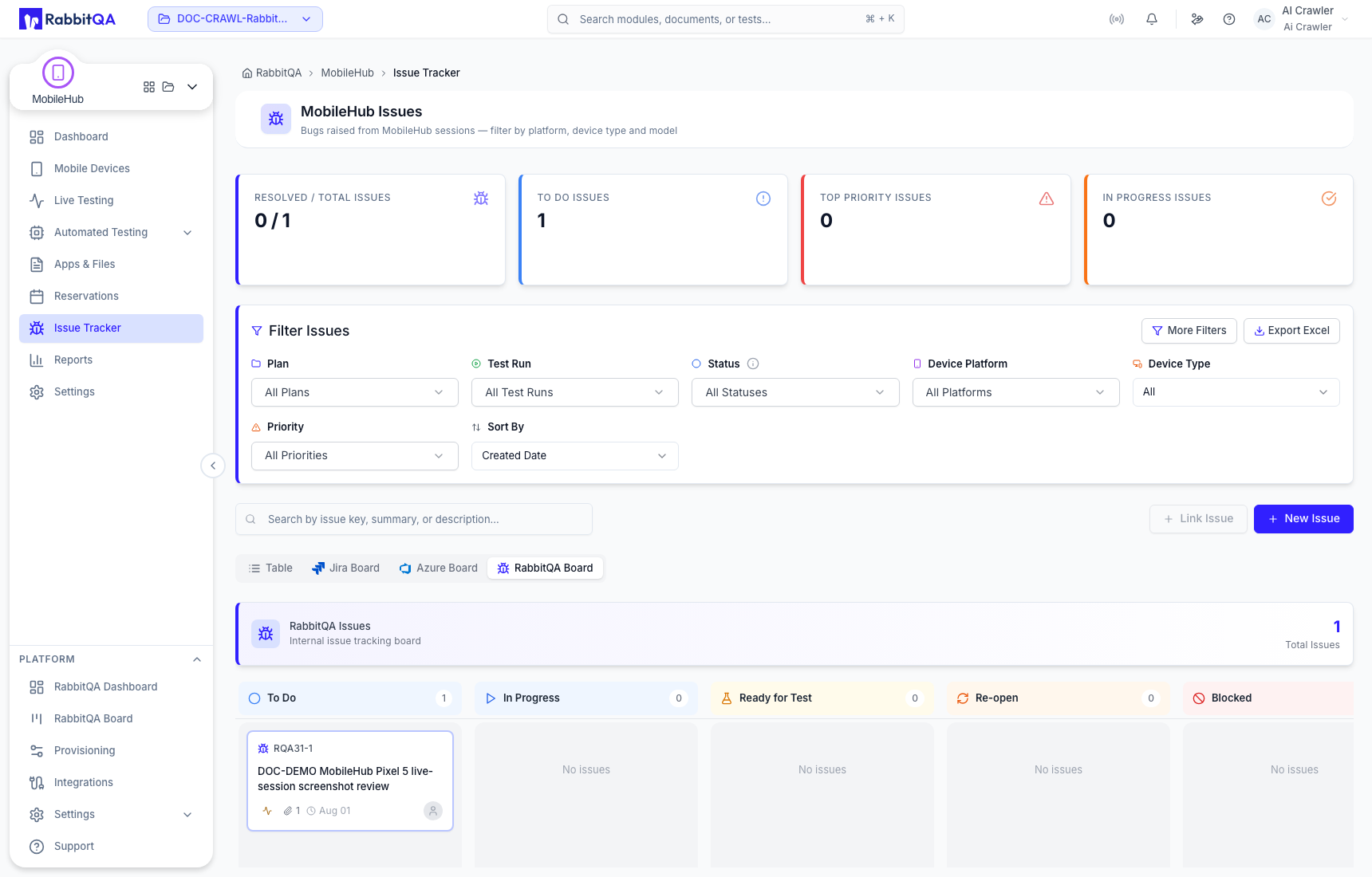
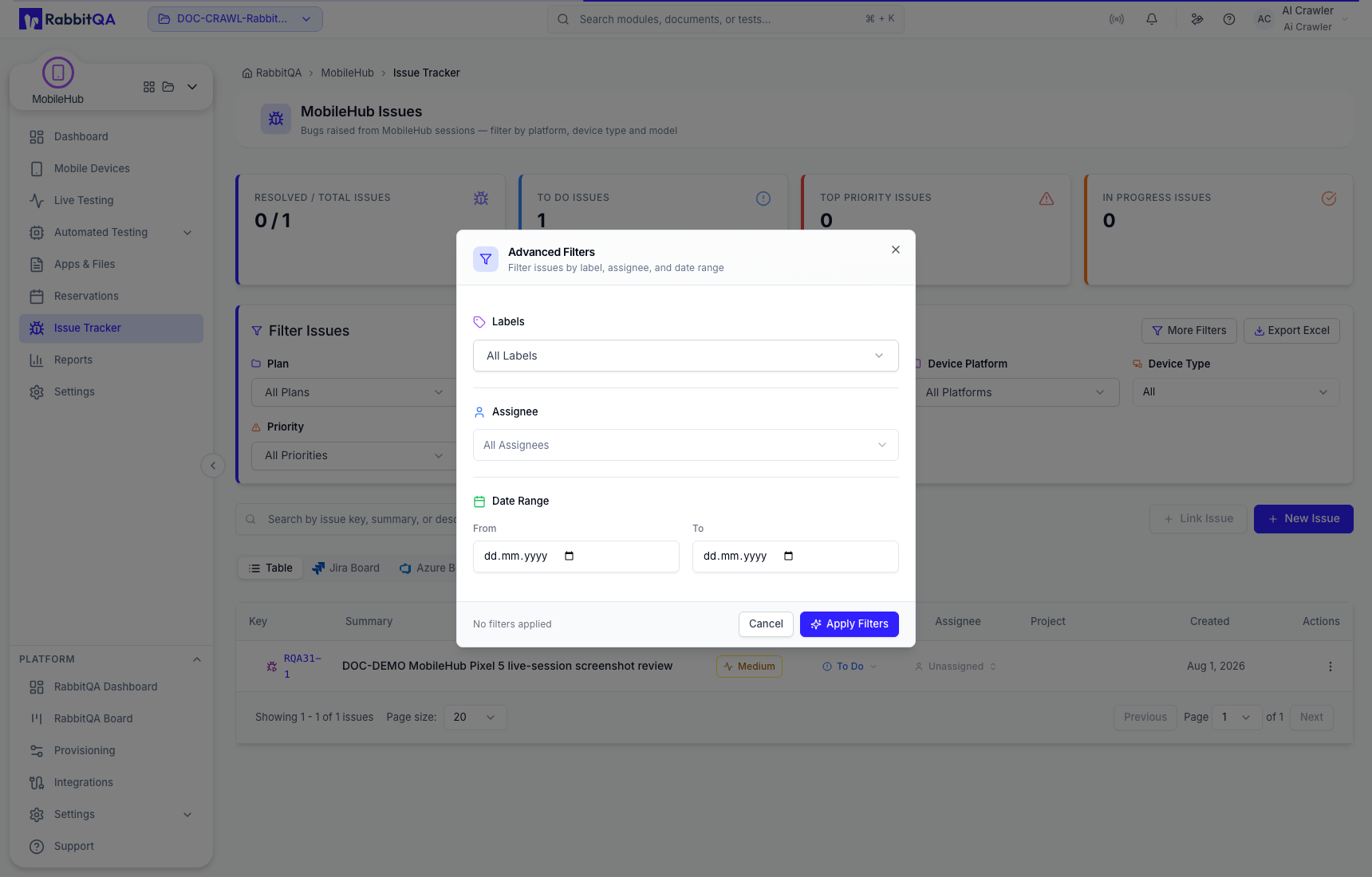
Use search and advanced filters to narrow by provider, project, status, priority, assignee, label, or other available fields.
Sensitive evidence
Screenshots and recordings may contain account, application, or test data. Attach only the evidence needed for the issue and confirm the destination project's audience.
