Settings
Settings defines the selected project's starting values for new Smart PBI generations. A user can still change these values in Advanced Configuration for one session.
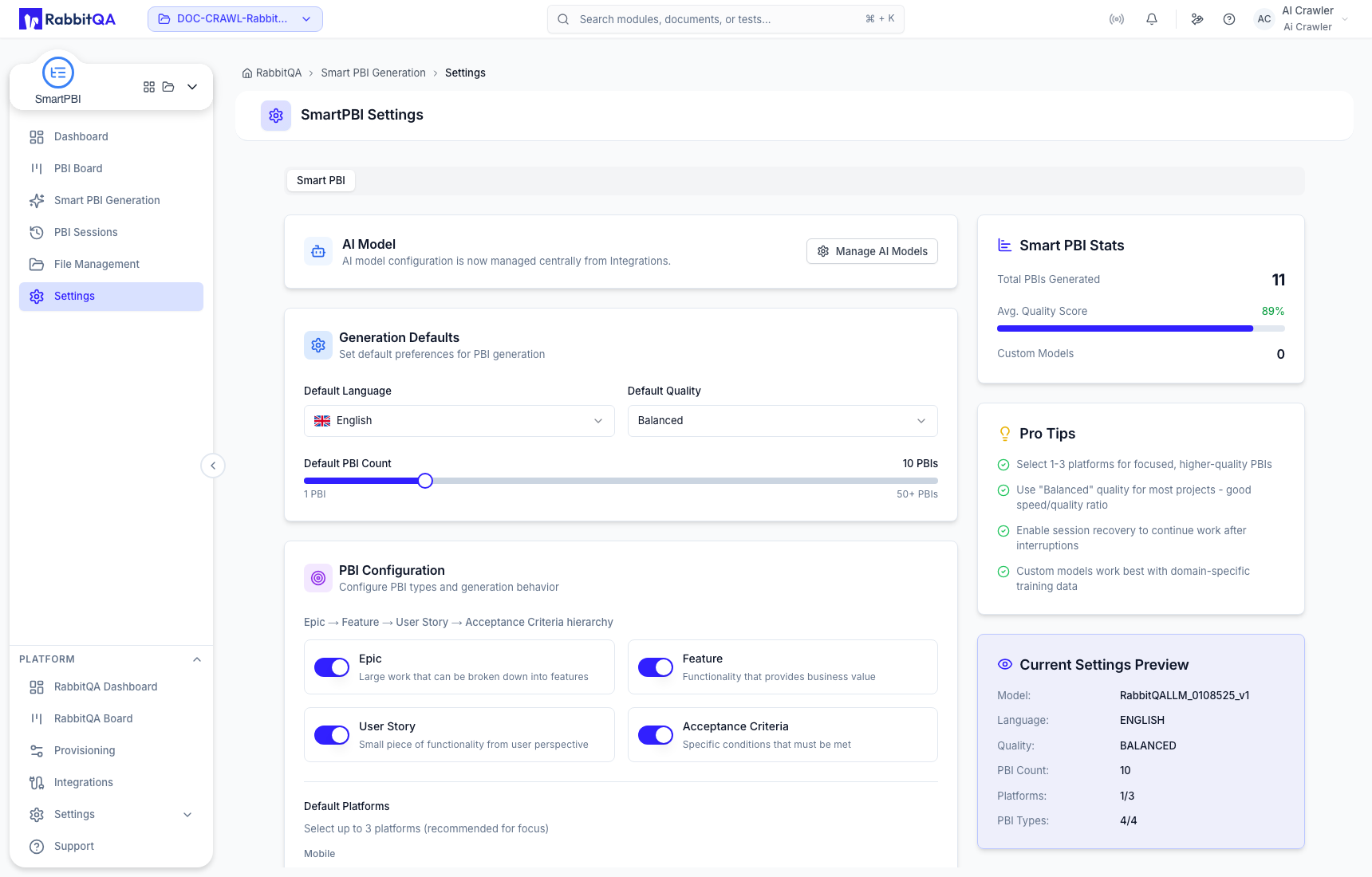
AI-model boundary
Smart PBI displays the active centrally managed model and provides Manage AI Models as a path to the integration-managed configuration. Model credentials and provider administration do not live inside Smart PBI Settings.
Only users authorized to manage integrations should change model configuration. A model change can affect other AI-assisted workflows beyond the current generation.
Generation defaults
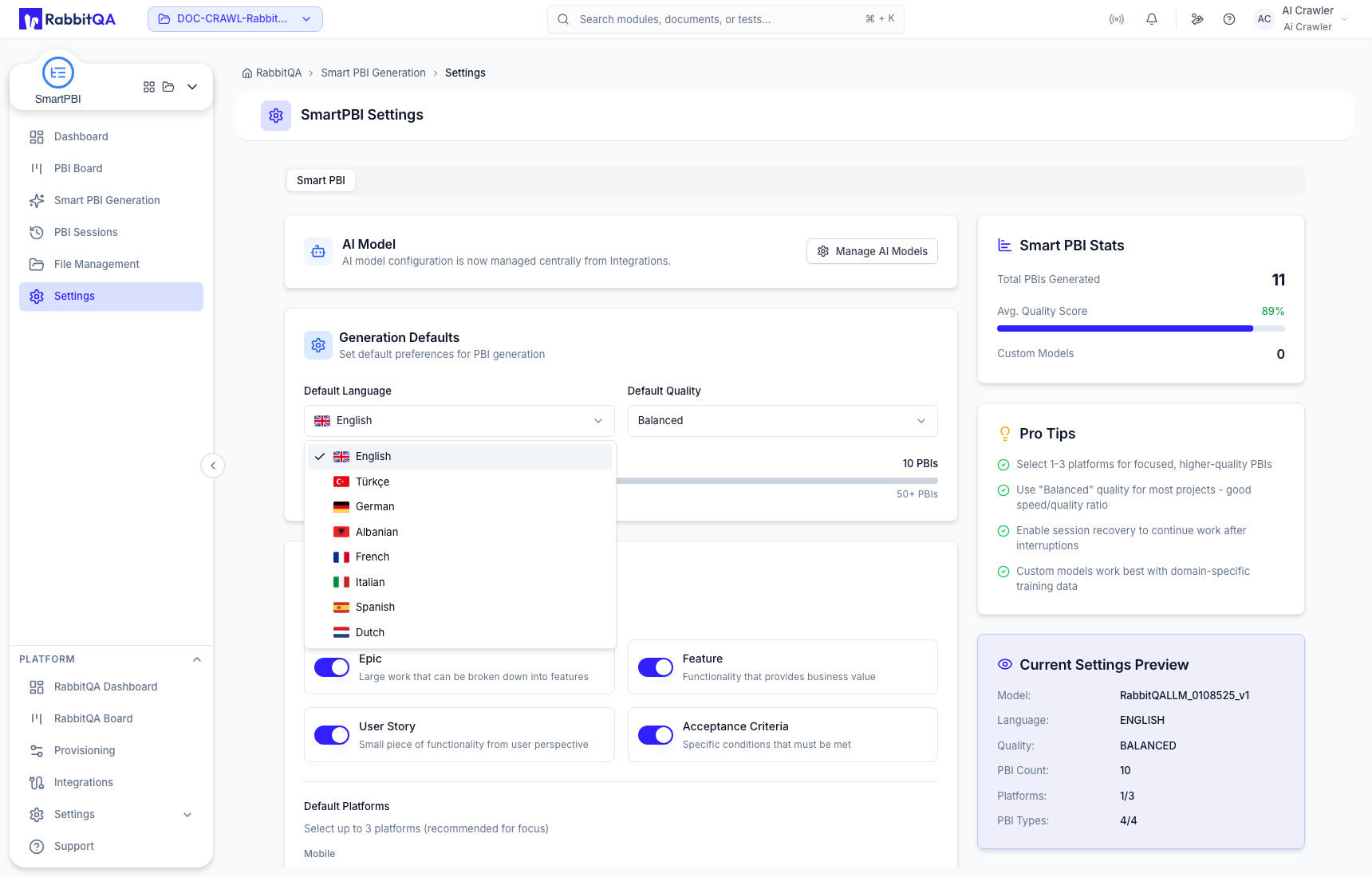
Output language
Current options are English, Türkçe, German, Albanian, French, Italian, Spanish, and Dutch. The selection controls new generated content; it does not translate existing sessions or the documentation site.
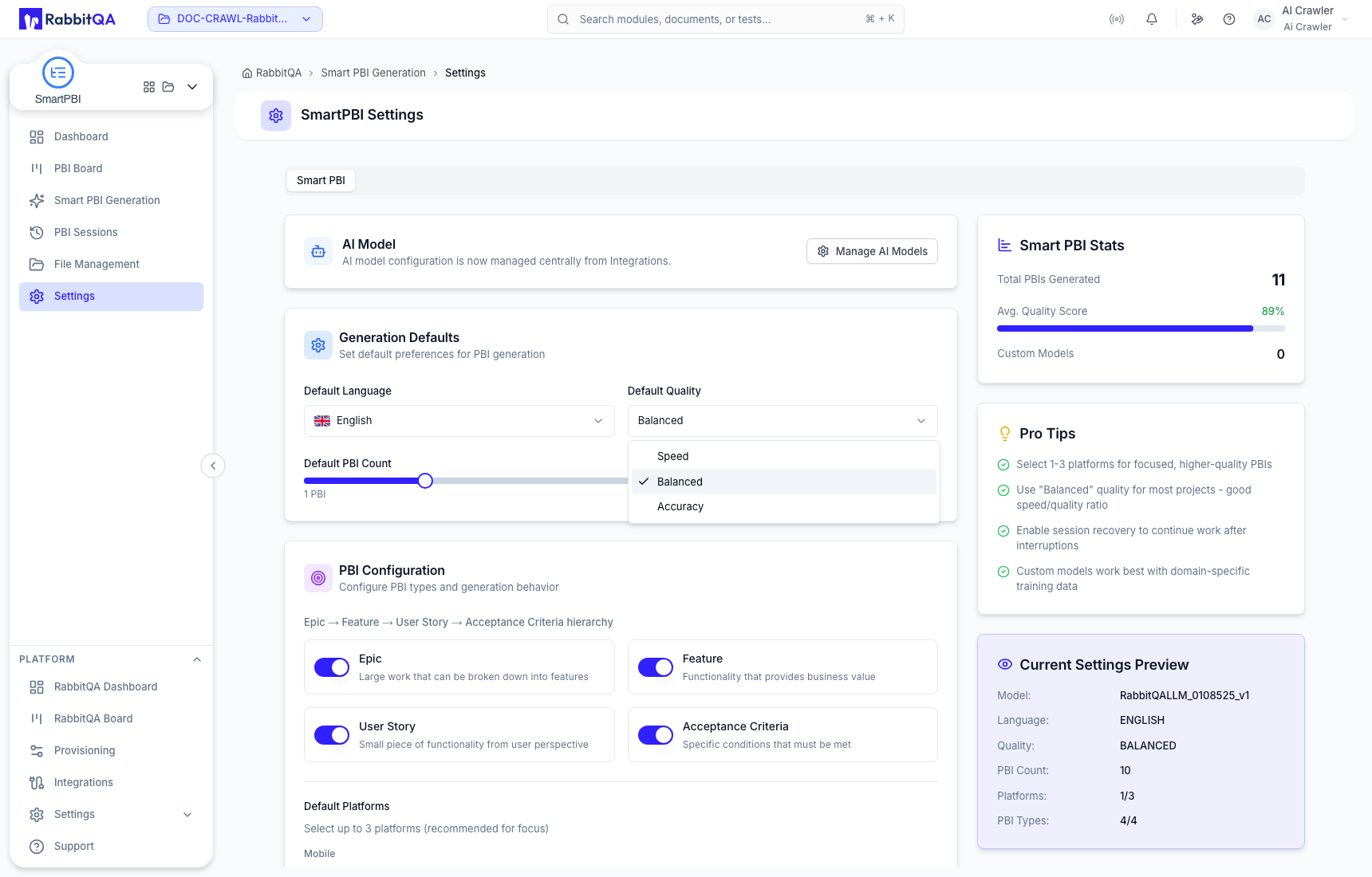
Quality profile and item count
Choose Speed, Balanced, or Accuracy. Balanced is the general-purpose middle profile; use another value only when the intended speed/detail tradeoff is understood. Default PBI Count sets the starting requested count and remains editable for a specific generation.
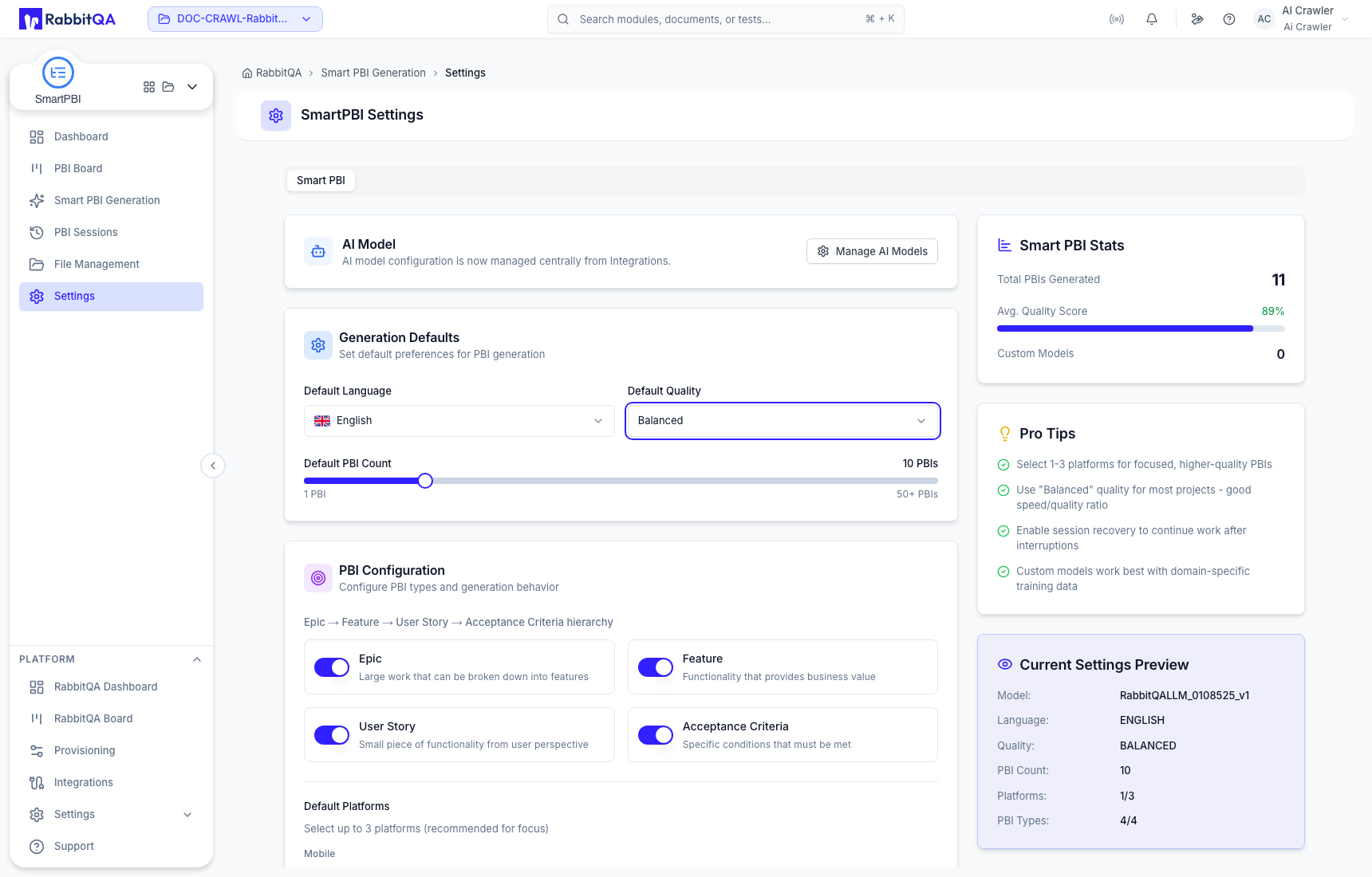
Hierarchy types
Enable the levels that should appear in a normal generation:
- Epic
- Feature
- User Story
- Acceptance Criteria
The complete default produces the Epic → Feature → User Story → Acceptance Criteria structure. If a level is disabled, verify that the resulting relationship model still fits downstream planning.
Target platforms
Choose up to three relevant platforms. Current groups and options are:
| Group | Platforms |
|---|---|
| Mobile | iOS, Android |
| Web and API | Web Application, Web API, REST API, Microservice |
| Desktop and Gaming | Desktop App, Game, AR/VR |
| Infrastructure | Cloud Platform, Database |
| Embedded and IoT | Embedded System, IoT Device |
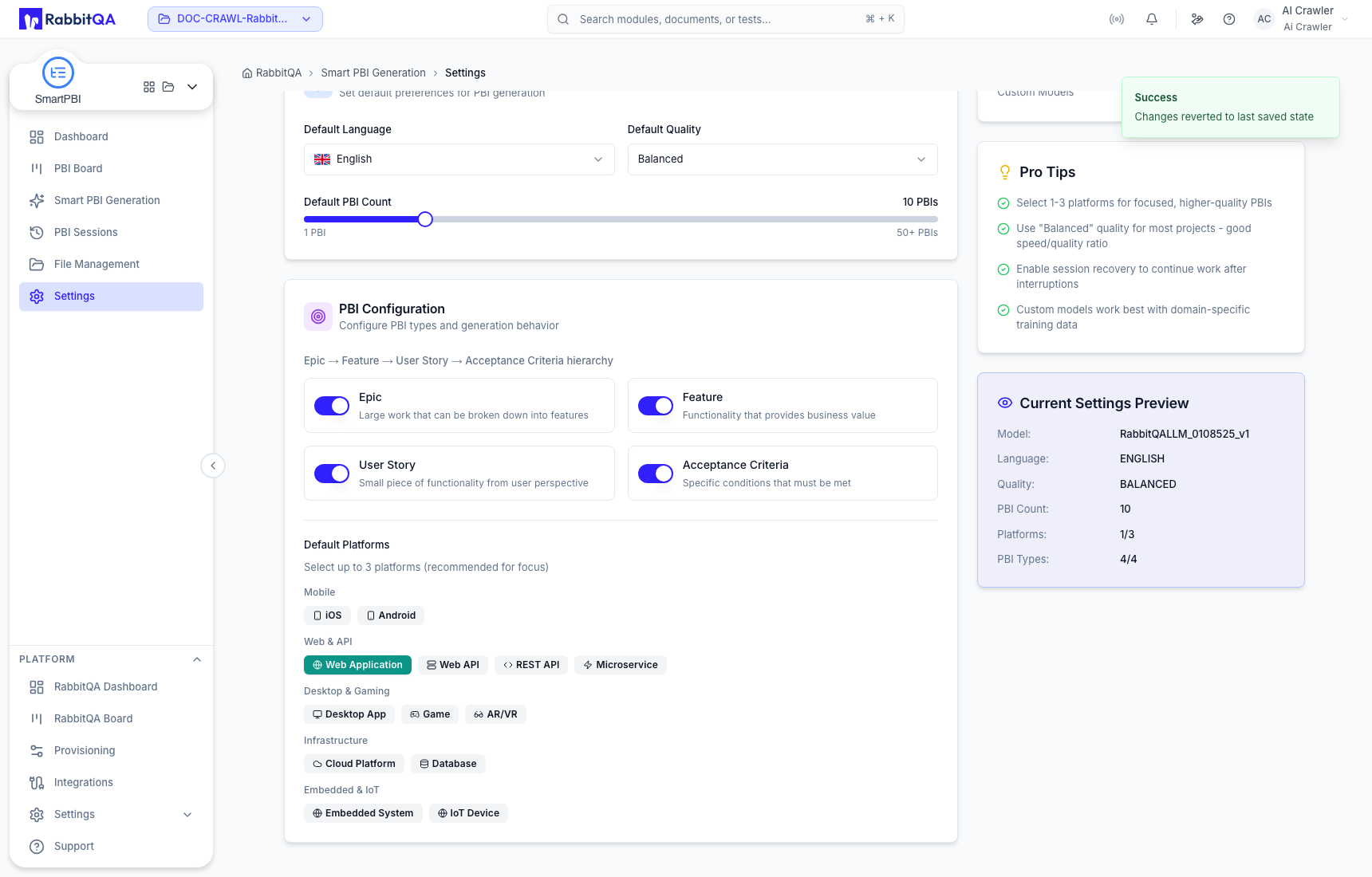
Selecting fewer, relevant targets normally provides clearer context than selecting unrelated platforms to make the configuration appear comprehensive.
Save or discard changes
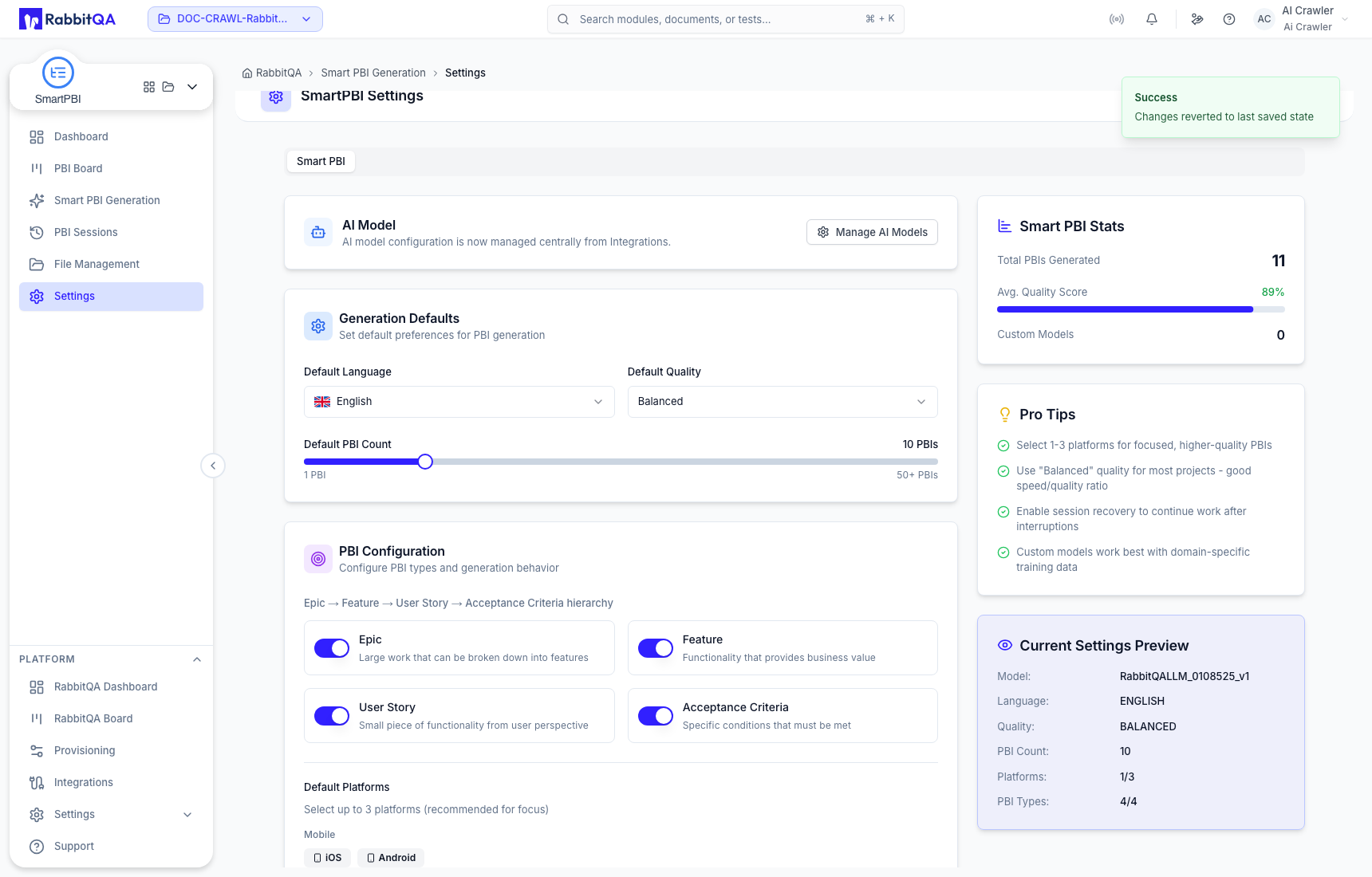
Editing a value exposes an unsaved-changes bar with Reset to Defaults and Save Settings.
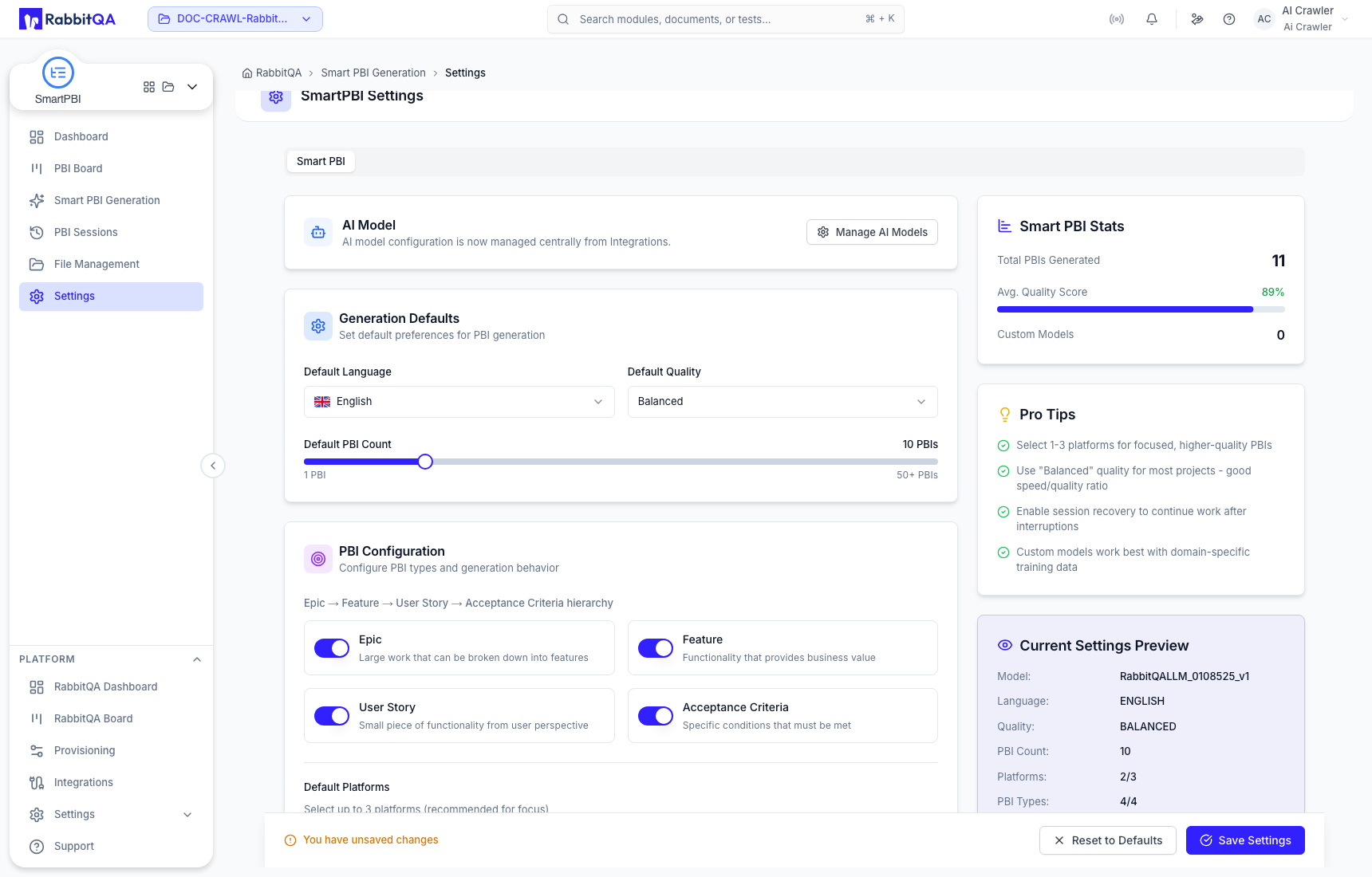
- Save Settings persists the displayed values as project defaults.
- Reset to Defaults reverts the draft to the last saved state.
Wait for the success notification before treating a save or reset as complete. The preview panel is most useful as a final check of model, language, quality, count, platform count, and enabled types.
Reusable presets
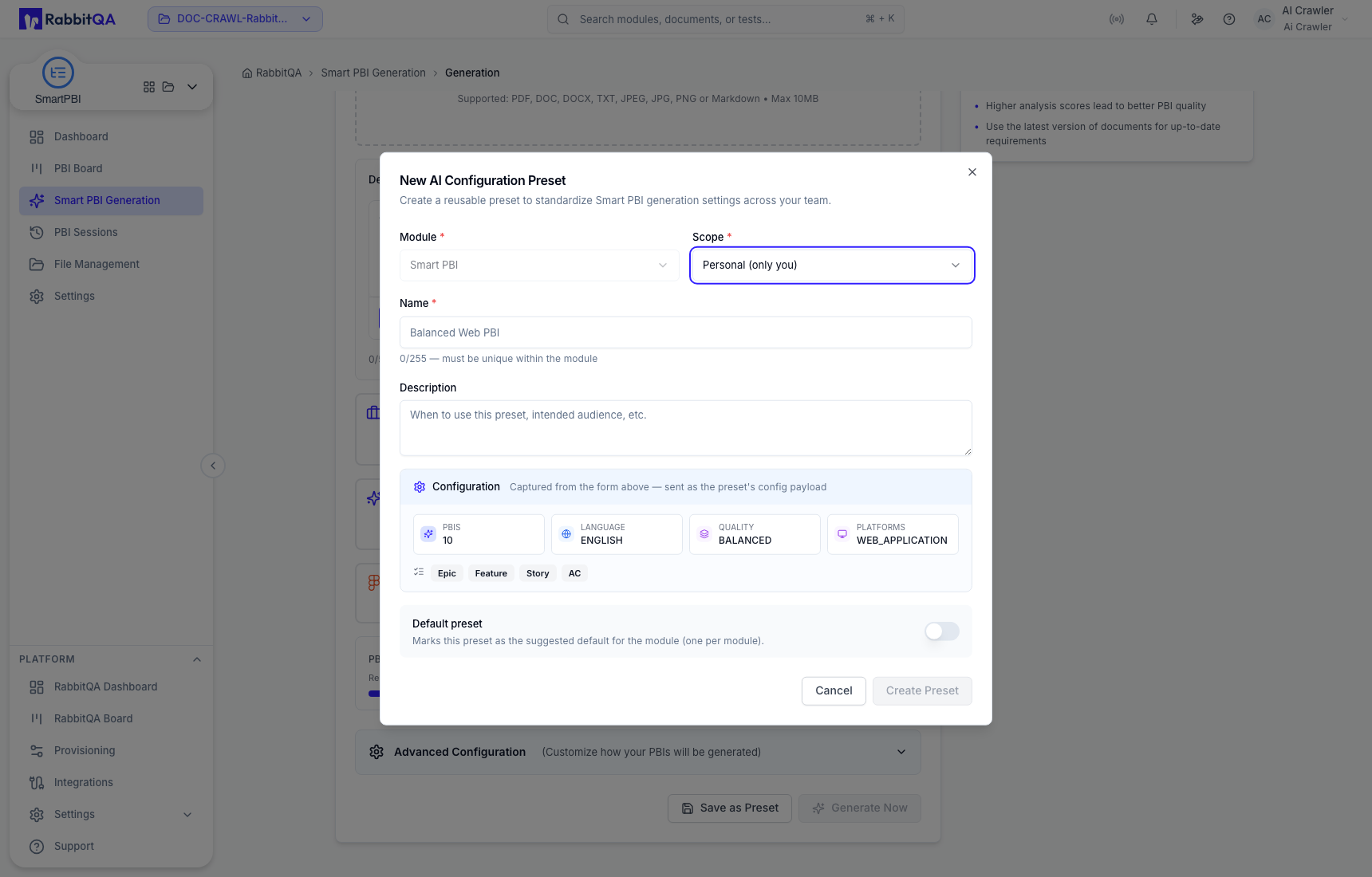
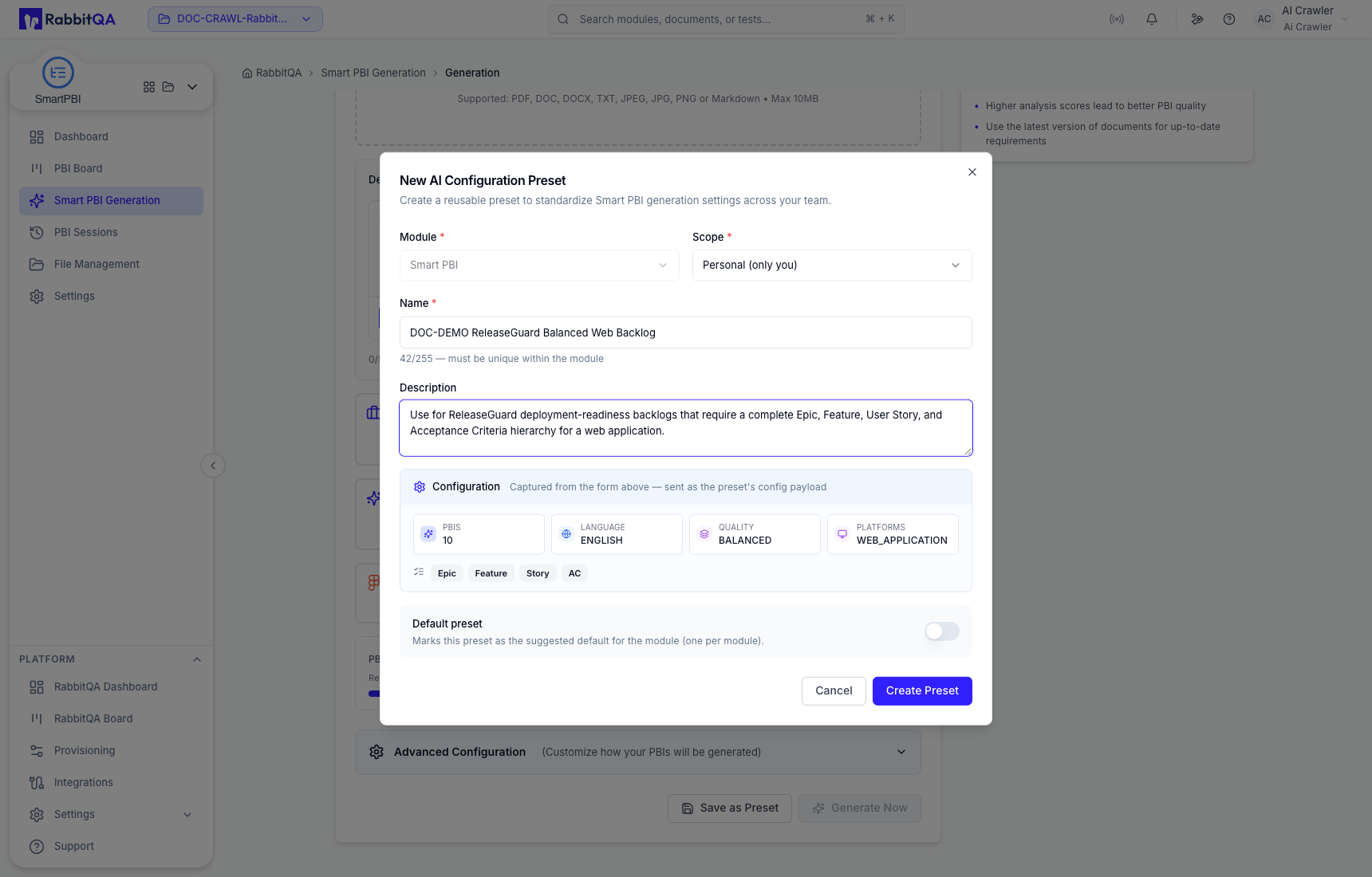
A preset is a named configuration captured from Smart PBI Generation. It is separate from project defaults and from a completed PBI Session.
- Configure the generation form.
- Select Save as Preset.
- Review the captured model, language, quality, platforms, item count, and hierarchy.
- Choose the available scope and enter a unique, descriptive name.
- Add a description that explains when the preset should be used.
- Mark it as the module's default preset only if it should become the suggested starting point.
- Select Create Preset.
Project defaults prefill normal new generations. A preset applies a named configuration on demand. Load Config or Regenerate PBIs starts from a saved session's configuration and source context. Always verify the resulting form before Generate Now.
