Settings
Settings holds the defaults every new generation session starts from.
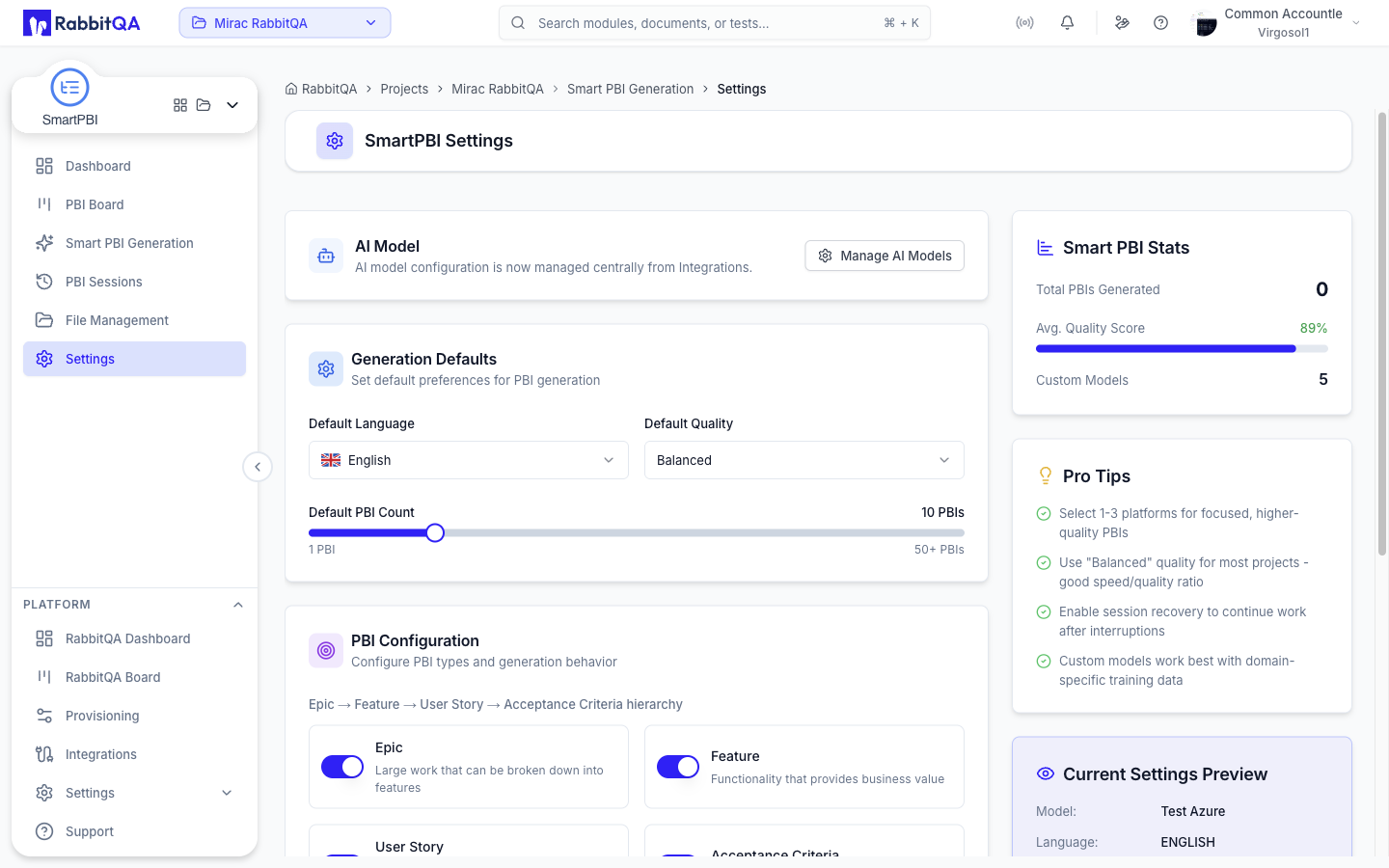
/smart-pbi/settings opens the shared Analyzer settings screen with its Smart PBI tab selected.
Because Smart PBI has only one tab on that screen, no tab bar is drawn — you land straight on the form below.
Opening the page needs analyzer:settings:read.
Editing anything on it needs analyzer:settings:update; without that key the form renders read-only.
Default AI Model
The AI Model dropdown sets the model new sessions use.
It lists the models available to your company, then any custom models your company has added under a Custom Models heading, then Add Custom Model. Choosing Add Custom Model, or the Manage Models button beside the dropdown, takes you to the platform's AI Models integration screen — custom models are created and maintained there, not here.
Generation Defaults
Default Language
Sets the language generated backlog items are written in.
| Language |
|---|
| English |
| Türkçe |
| German |
| Albanian |
| French |
| Italian |
| Spanish |
| Dutch |
Default Quality
Sets the speed-versus-accuracy tradeoff for generation.
| Level | Meaning |
|---|---|
| Speed | Fastest generation |
| Balanced | Marked as the recommended option |
| Accuracy | Most thorough analysis |
Default PBI Count
A slider from 1 to 50 sets how many backlog items a session aims to produce by default.
PBI Configuration
PBI types
Four switches control which levels of the Epic → Feature → User Story → Acceptance Criteria hierarchy a session generates.
| Type | Description in the UI |
|---|---|
| Epic | Large work that can be broken down into features |
| Feature | Functionality that provides business value |
| User Story | Small piece of functionality from user perspective |
| Acceptance Criteria | Specific conditions that must be met |
Two rules apply:
- Acceptance Criteria depends on User Story. Turning User Story off disables and clears Acceptance Criteria, and its description changes to Requires User Story to be enabled.
- At least one of Epic, Feature, or User Story must stay on. The form will not save a configuration with all three off.
The combination you pick decides the shape of the generated backlog — see Hierarchy modes.
Default Platforms
Platforms give the AI context about what is being built. They are grouped into five categories.
| Category | Platforms |
|---|---|
| Mobile | iOS, Android |
| Web & API | Web Application, Web API, REST API, Microservice |
| Desktop & Gaming | Desktop App, Game, AR/VR |
| Infrastructure | Cloud Platform, Database |
| Embedded & IoT | Embedded System, IoT Device |
The form recommends selecting up to three platforms for focus. At least one platform must remain selected — deselecting the last one raises At least one platform must be selected.
Side panel
Three cards sit beside the form.
| Card | Contents |
|---|---|
| Smart PBI Stats | Total PBIs generated, and how many custom models are configured |
| Pro Tips | Short guidance on getting better generation results |
| Current Settings Preview | A read-back of the model, language, quality, types, and platforms as currently set |
Saving
Changing anything raises a You have unsaved changes bar with save and cancel actions. Saved values become the starting point for the next generation session; you can still override any of them inside the wizard for a single run.
Related settings
Some things a session depends on are configured outside this page.
| What | Where |
|---|---|
| Custom AI models | The platform's AI Models integration screen |
| Jira and Azure DevOps connections | The platform's integrations |
| Documents available as generation sources | File Management |
