PBI Board
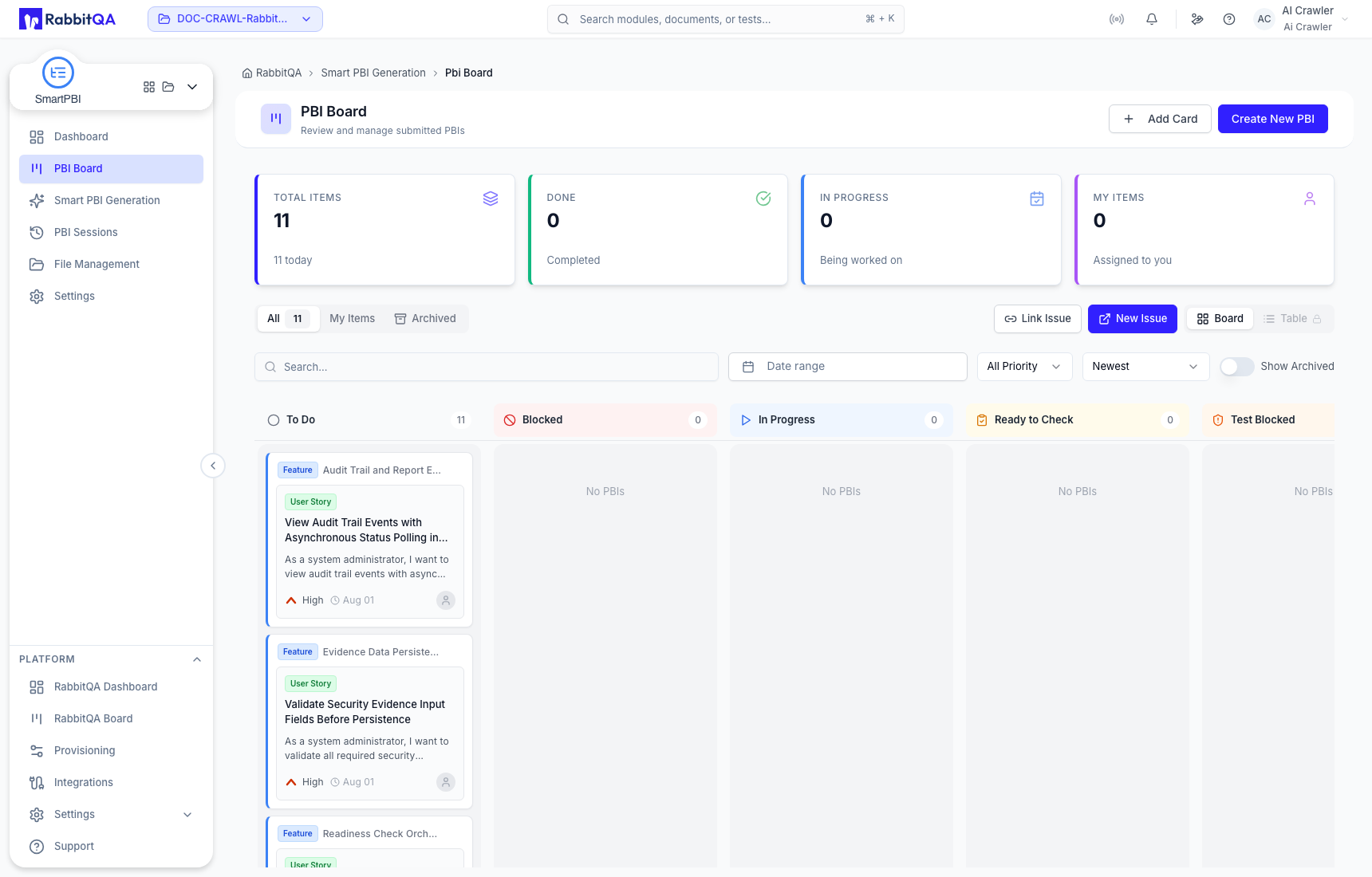
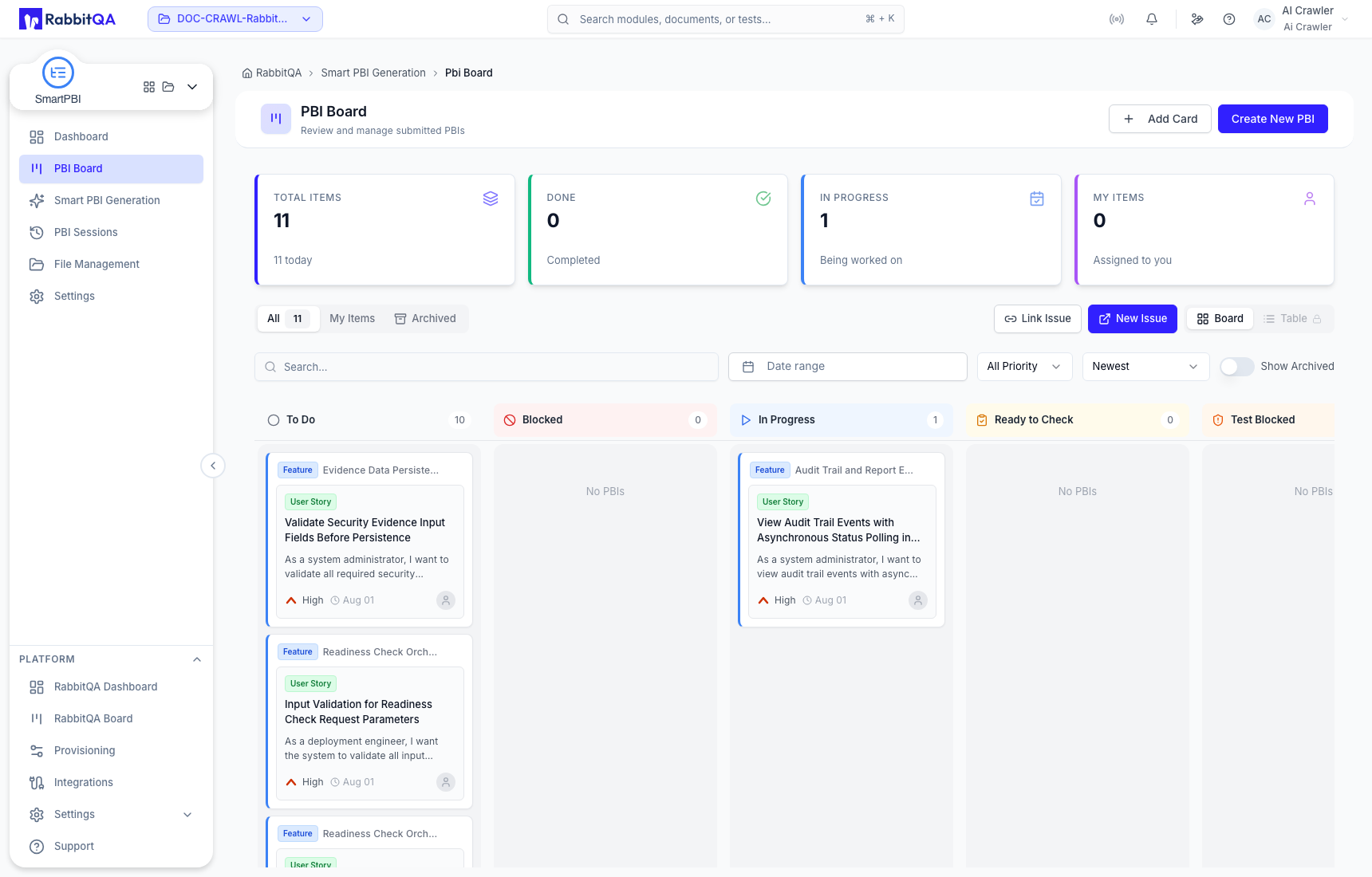
The PBI Board is the durable backlog workspace for Epics, Features, and User Stories. Items may be transferred from a completed Smart PBI Session or created manually. Board changes are saved records, not temporary generation edits.
Find the intended work
The header summarizes total, active, in-progress, and completed work for the selected project. Use the following controls together:
| Control | Use |
|---|---|
| All | Show all active work that matches the remaining filters. |
| My Items | Restrict results to items assigned to you. |
| Archived | Show archived items separately from the active board. |
| Search | Match a title or backlog function. |
| Date range | Restrict items by the selected date interval. |
| Priority | Filter by Critical, Very High, High, Medium, or Low. |
| Sort | Change the board ordering without changing item data. |
| Show Archived | Include archived records alongside active work. |
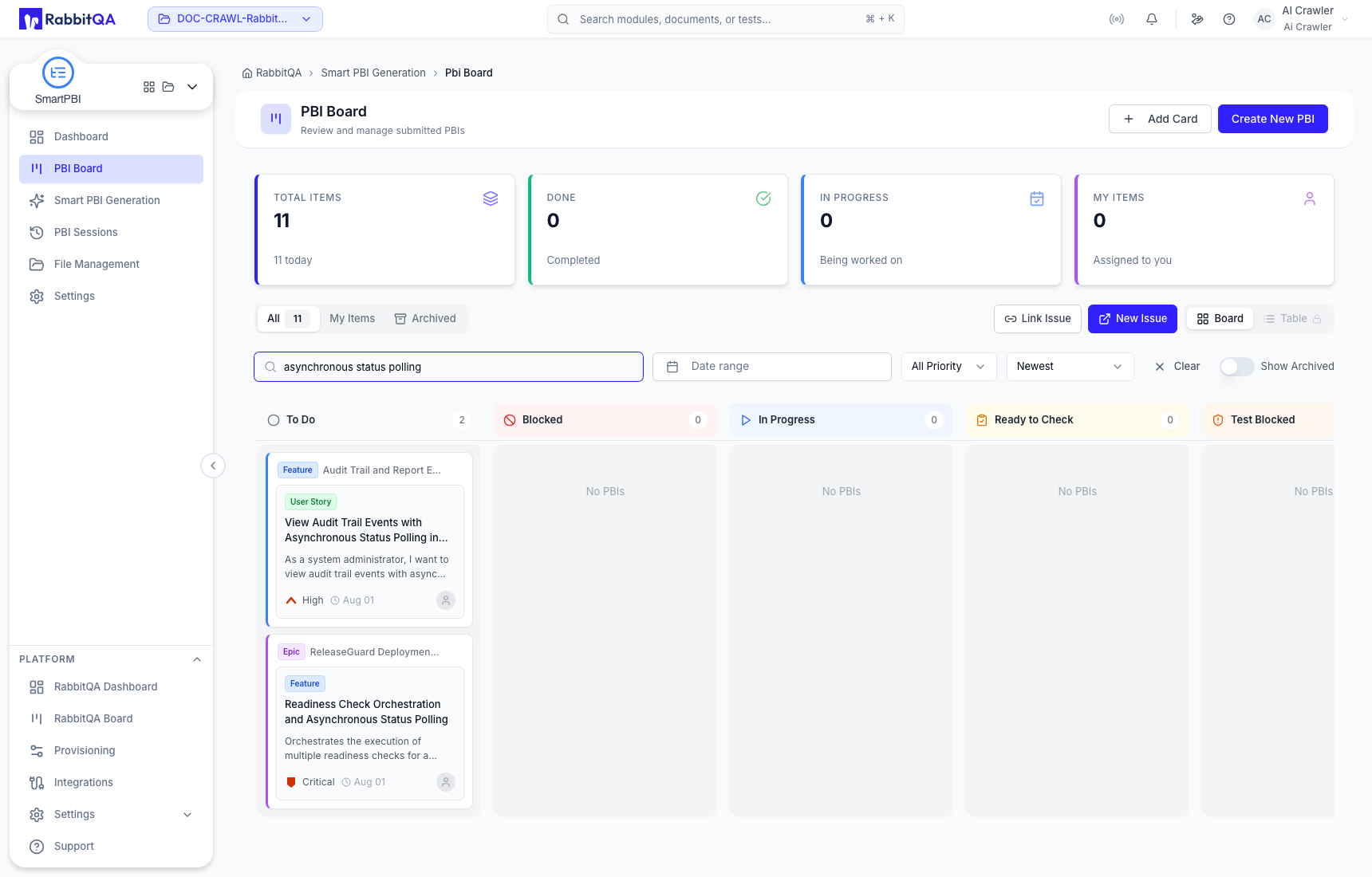
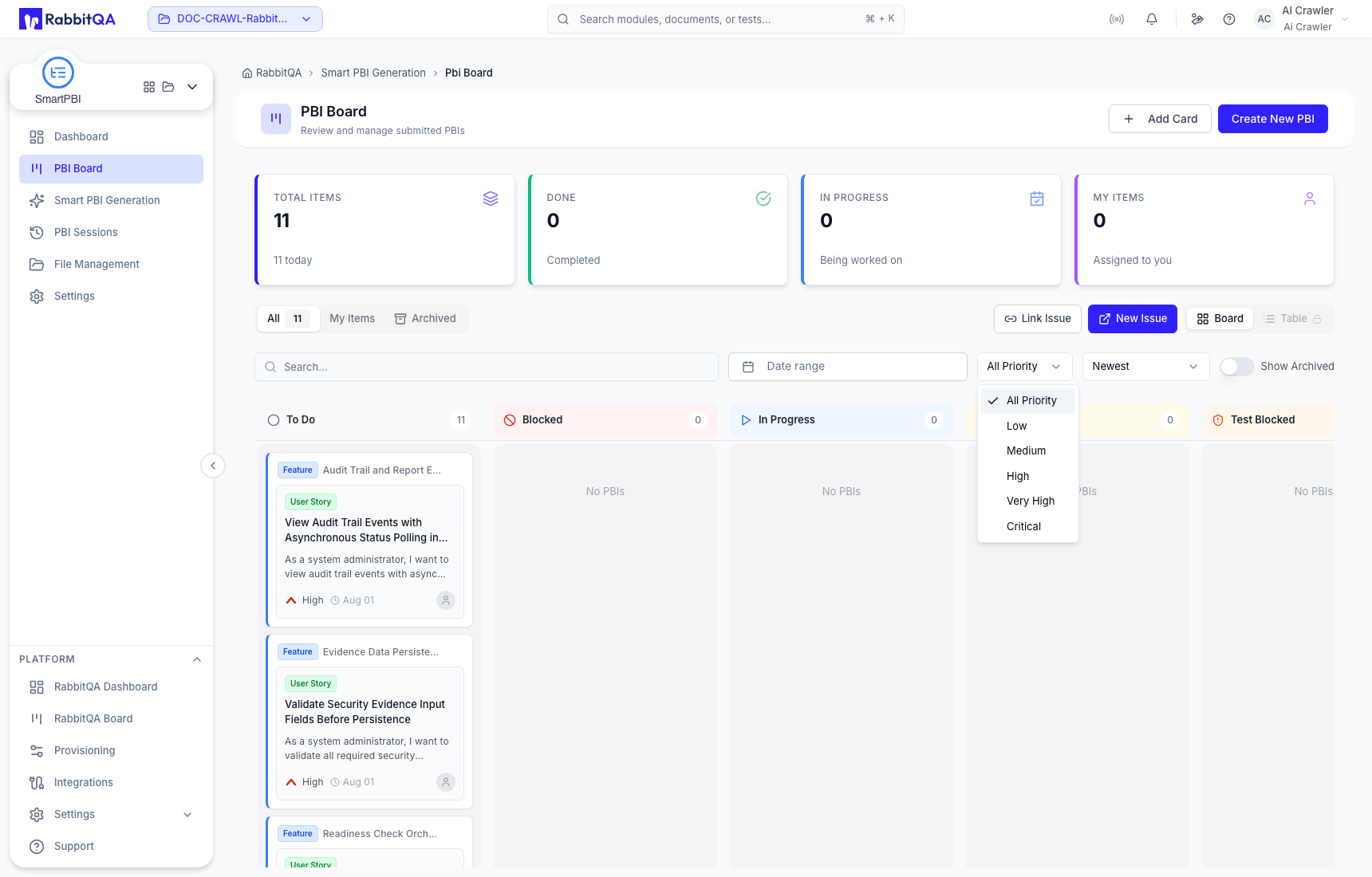
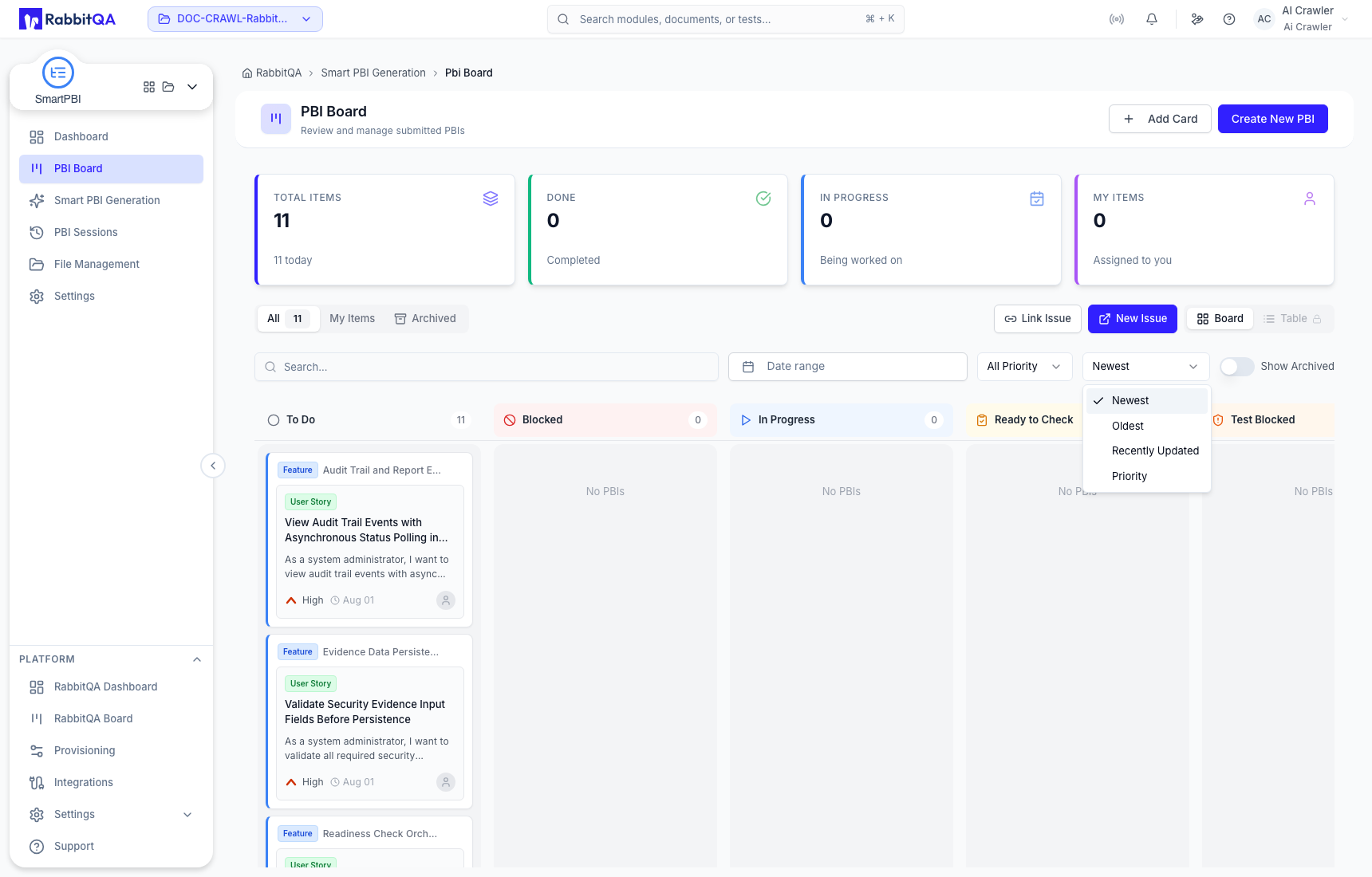
The active presentation is Board. A disabled Table control may be visible; do not rely on it as an available workflow.
Create a manual PBI
Choose Add Card or Create New PBI when a reviewed item must be added without transferring a generated hierarchy.
- Choose No session for a standalone item or associate an existing PBI Session.
- Choose Epic, Feature, or User Story.
- Complete the fields appropriate to that type.
- For a Feature or User Story, select the correct parent when the hierarchy requires one.
- Review optional Jira mapping only when Jira is configured.
- Save the item.
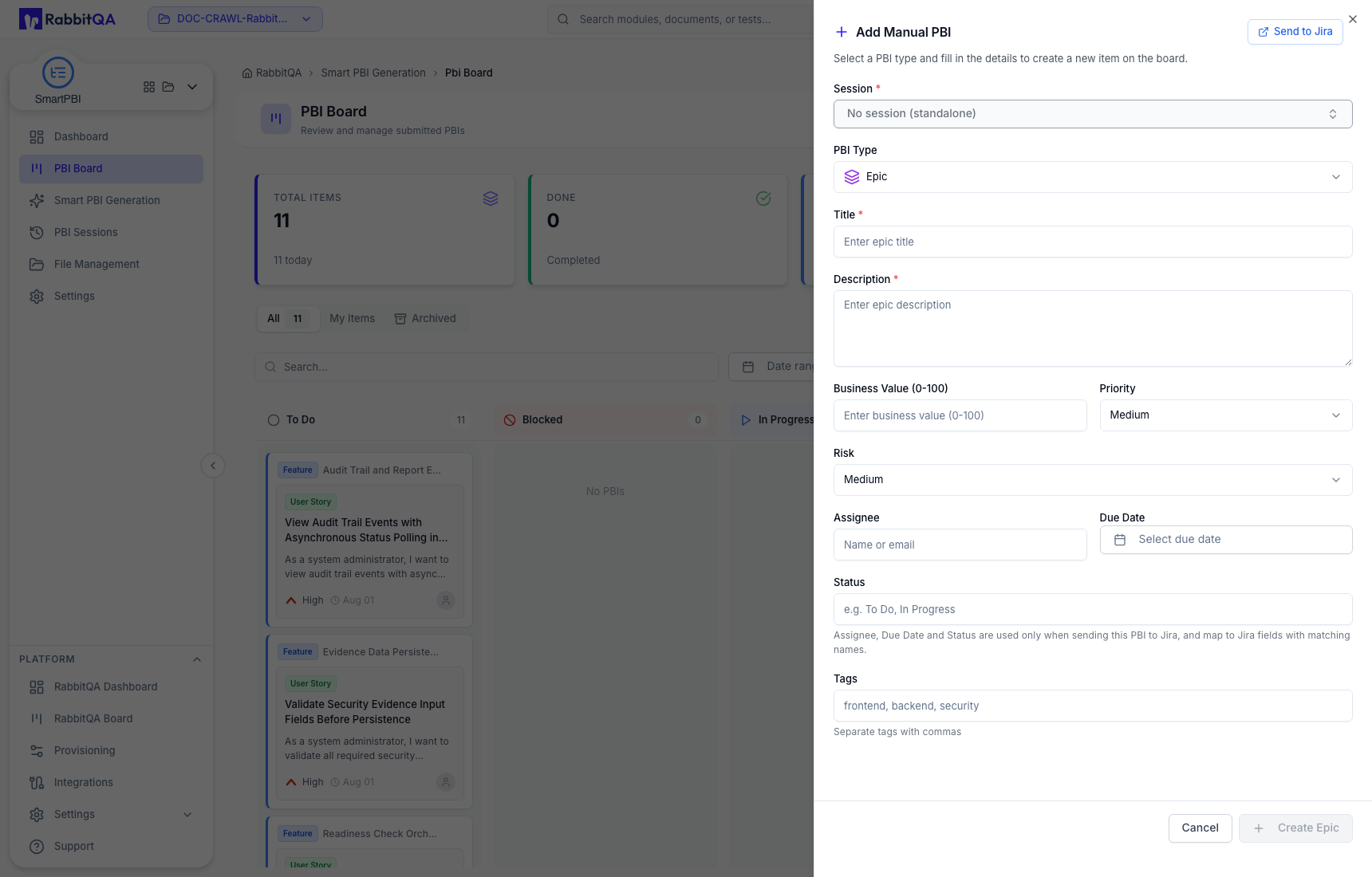
A User Story supports title, description, parent Feature, story points, priority, risk, assignee, due date, status, tags, and Acceptance Criteria. Add each testable condition before creation.
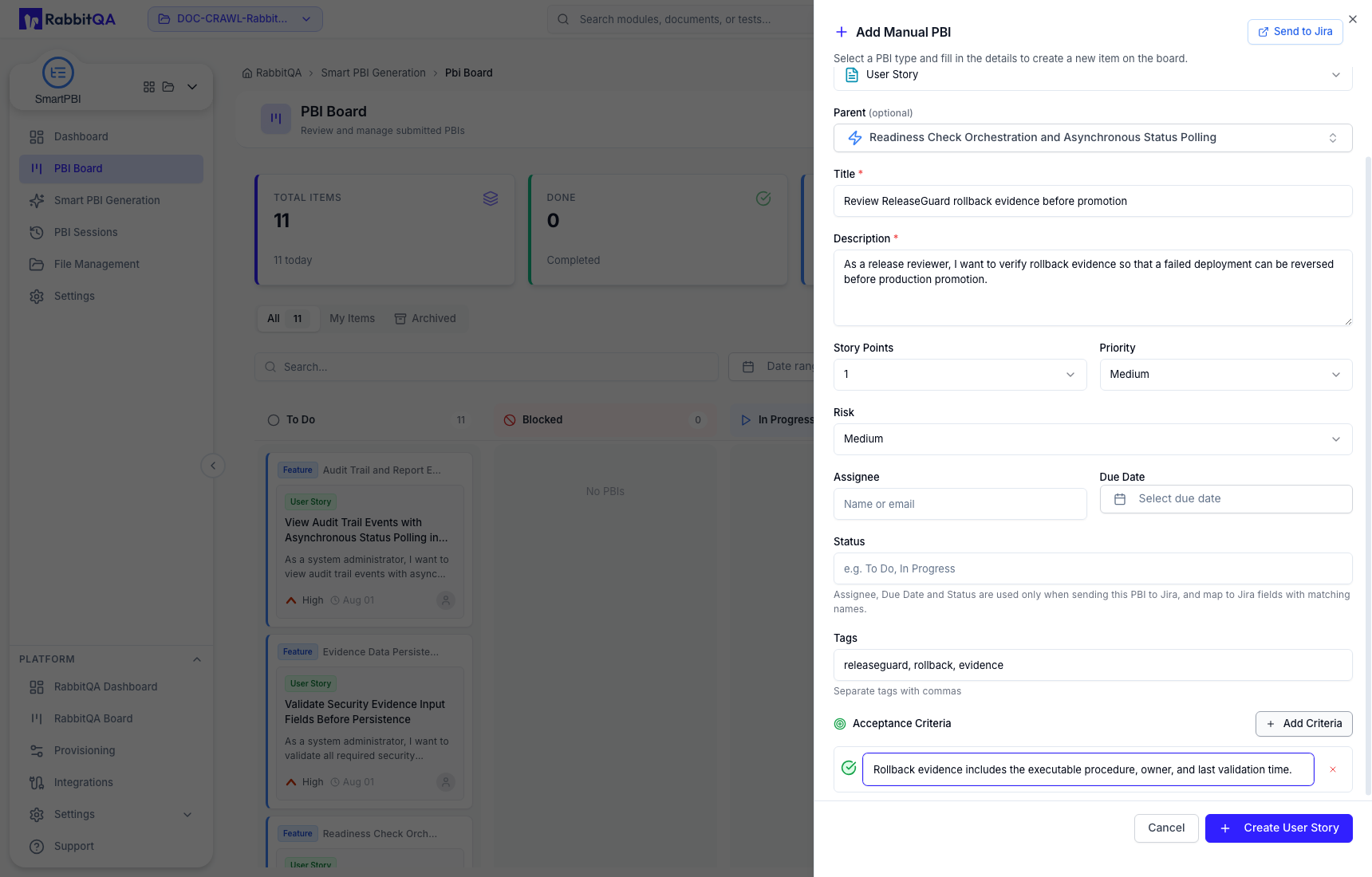
Use the session relationship when the manual item belongs to an existing generated backlog. Use No session only when the item is genuinely independent; it removes useful traceability otherwise.
Review and edit a board item
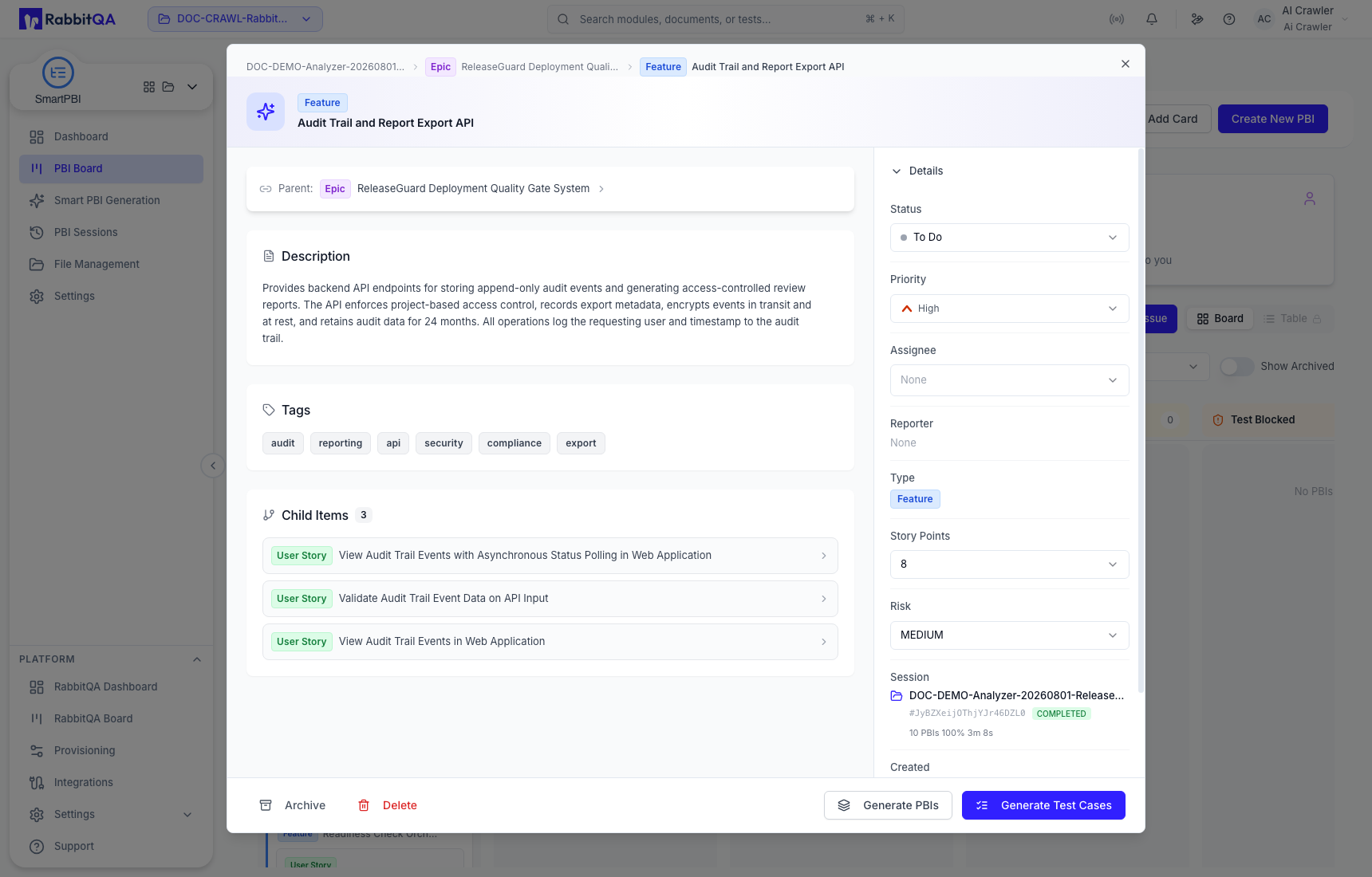
Open View Details to see the parent, description, Acceptance Criteria, tags, workflow state, priority, assignee, reporter, type, story points, risk, session, and available item actions.
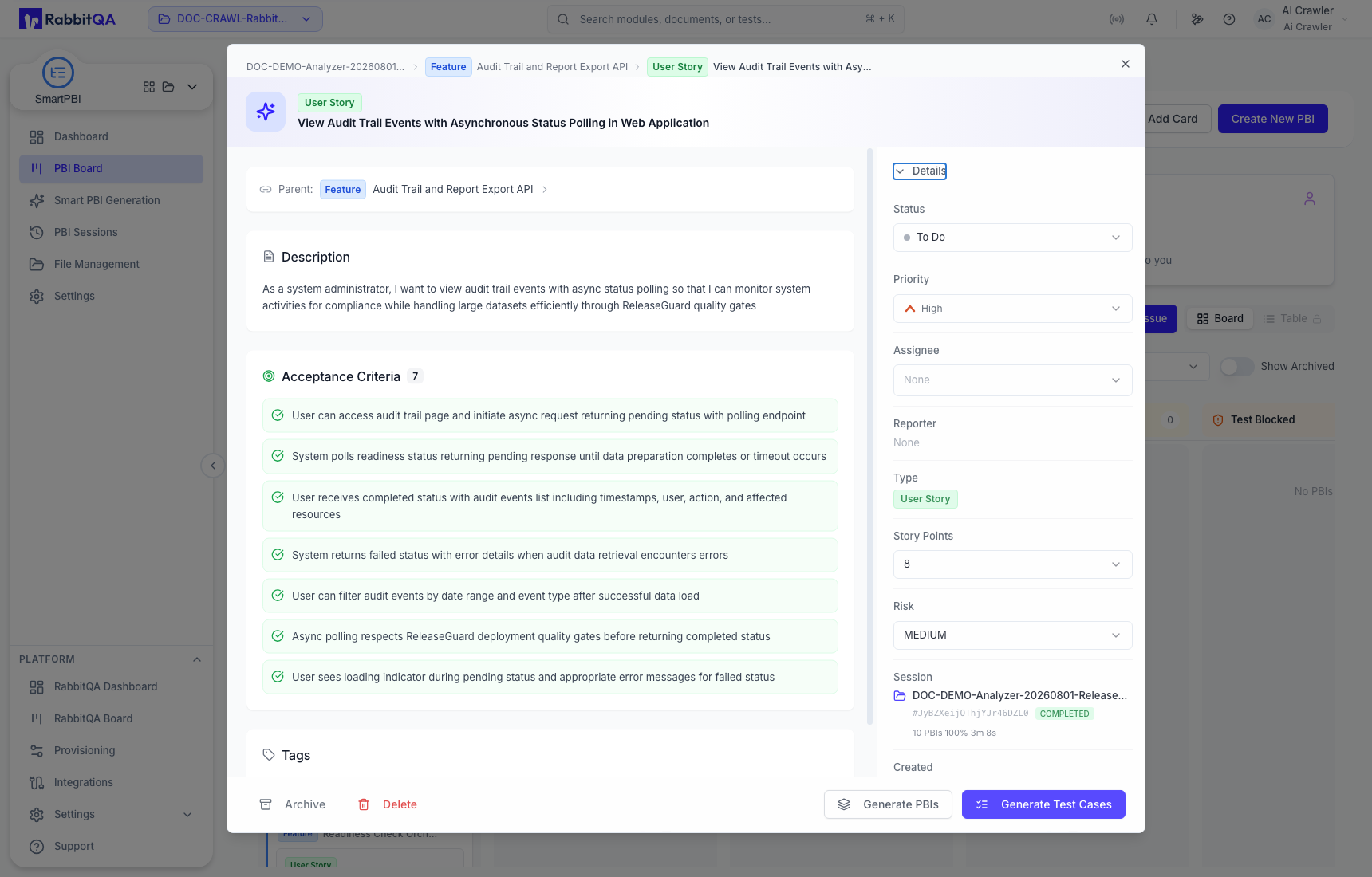
The detail drawer supports inline maintenance of title, description, Acceptance Criteria, and tags. Read the saved value after each change; these updates affect the durable board item immediately.
Workflow status
Current statuses are:
- To Do
- Blocked
- In Progress
- Ready to Check
- Test Blocked
- Test In Progress
- Done
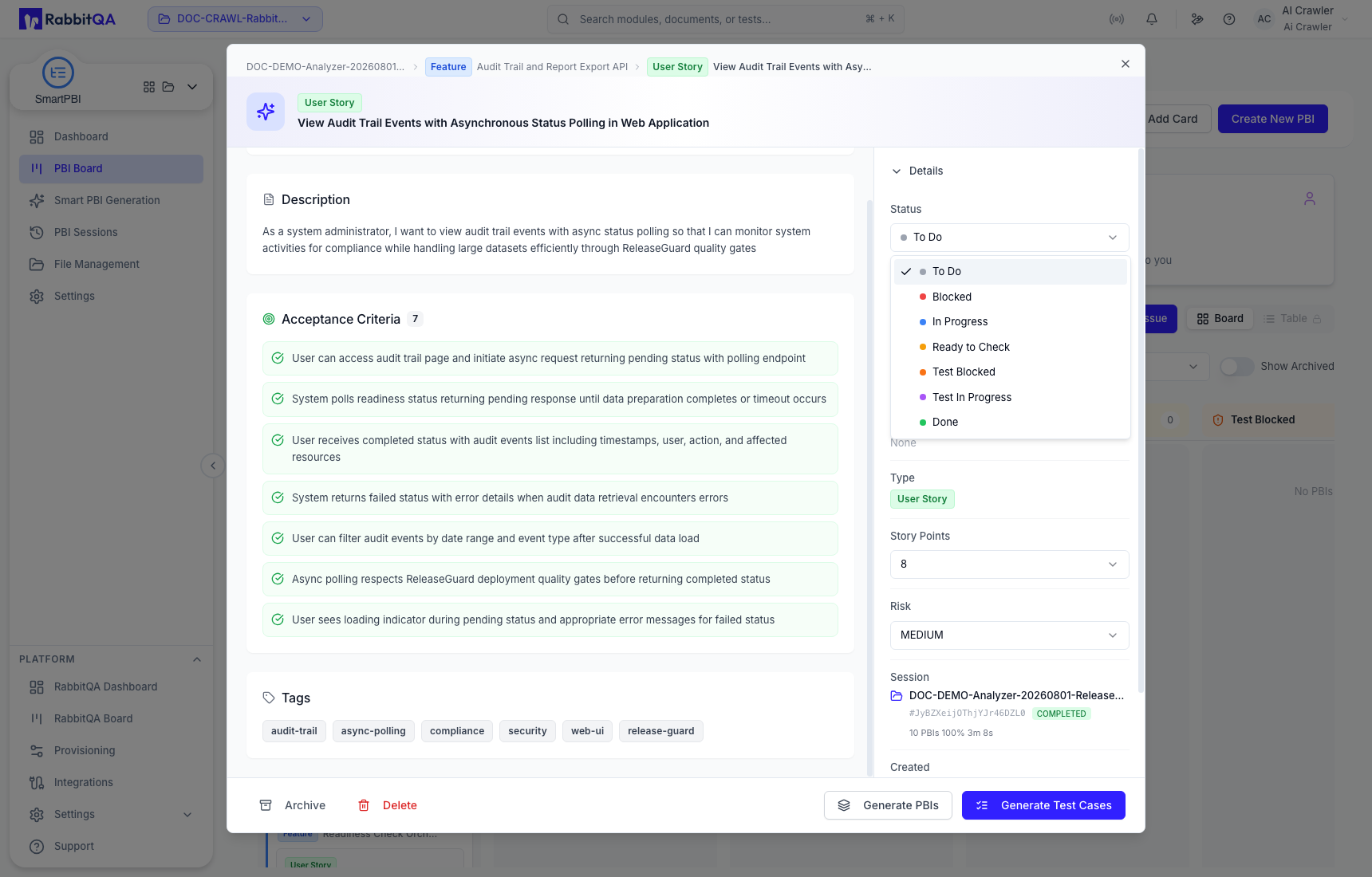
Choose the status that reflects actual delivery state. A status update changes the card's board column and column counts. If you change status only to inspect available transitions, restore the original value before leaving the item.
Delivery fields
| Field | Current options or meaning |
|---|---|
| Priority | Critical, Very High, High, Medium, or Low. |
| Assignee | An eligible project user; assignment is separate from reporter identity. |
| Story points | 0, 1, 2, 3, 5, 8, 13, or 21 for User Story estimation. |
| Risk | Low, Medium, or High for delivery uncertainty or impact. |
| Parent and children | Preserve hierarchy and provide navigation to related items. |
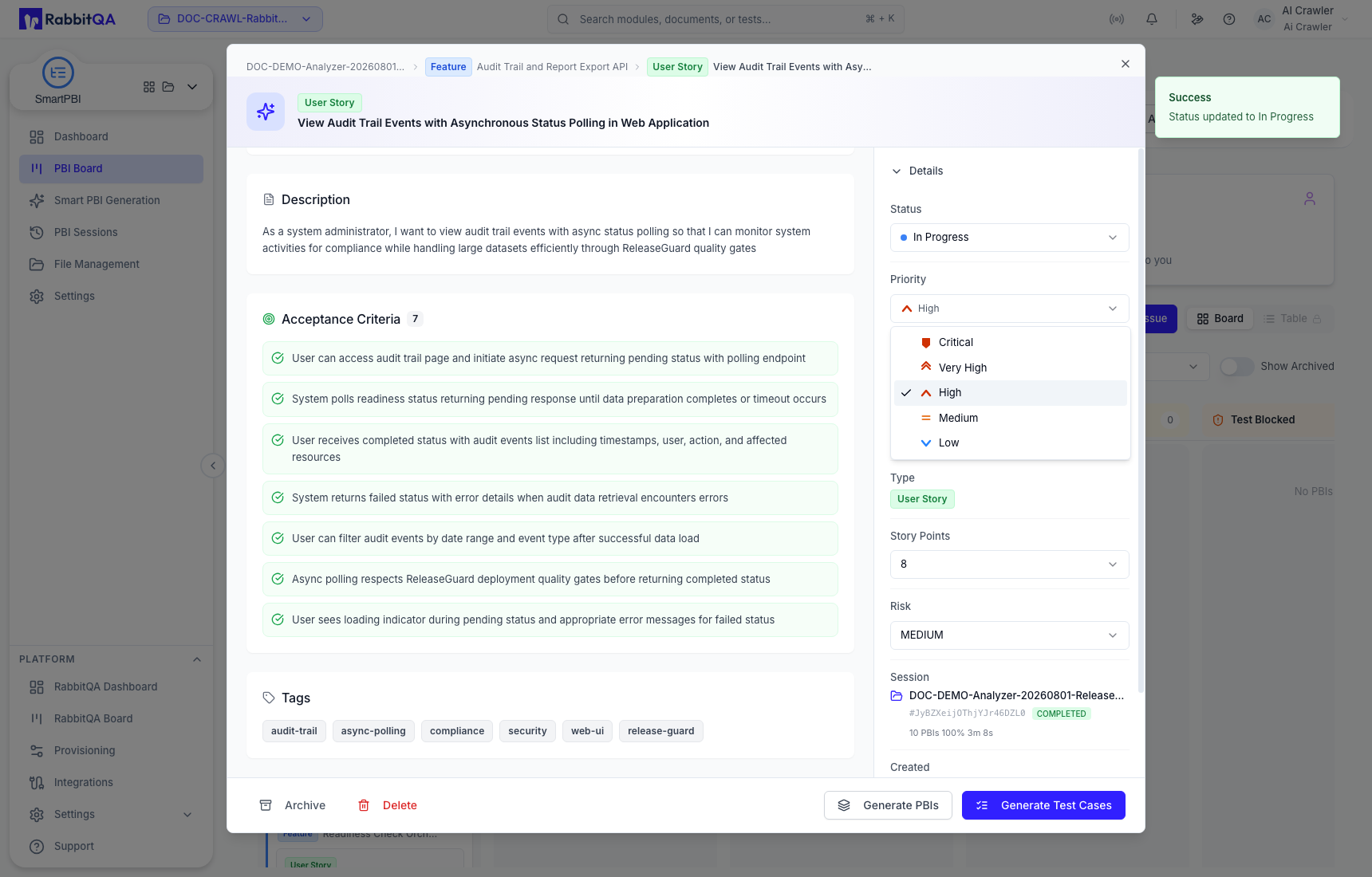
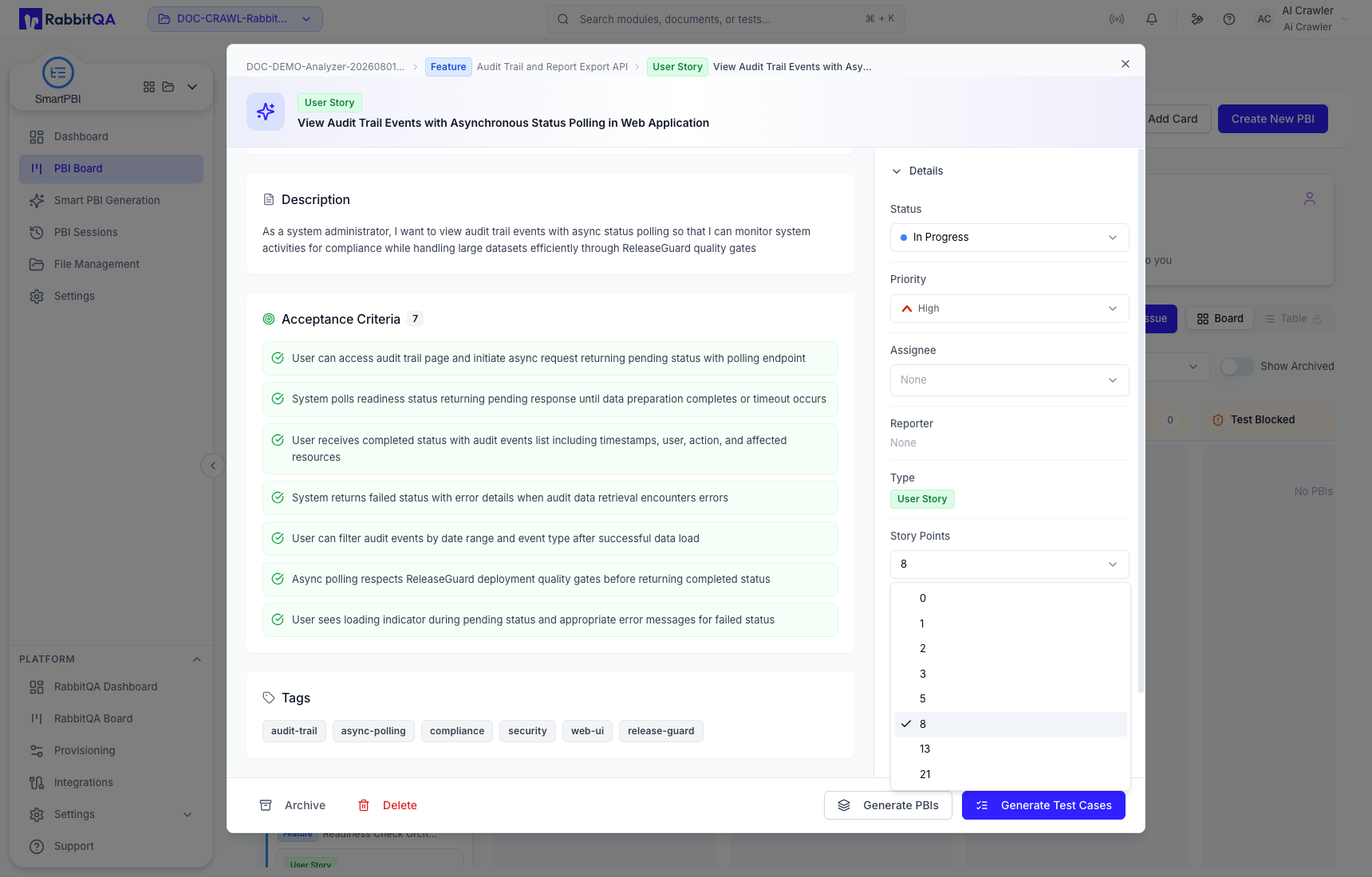
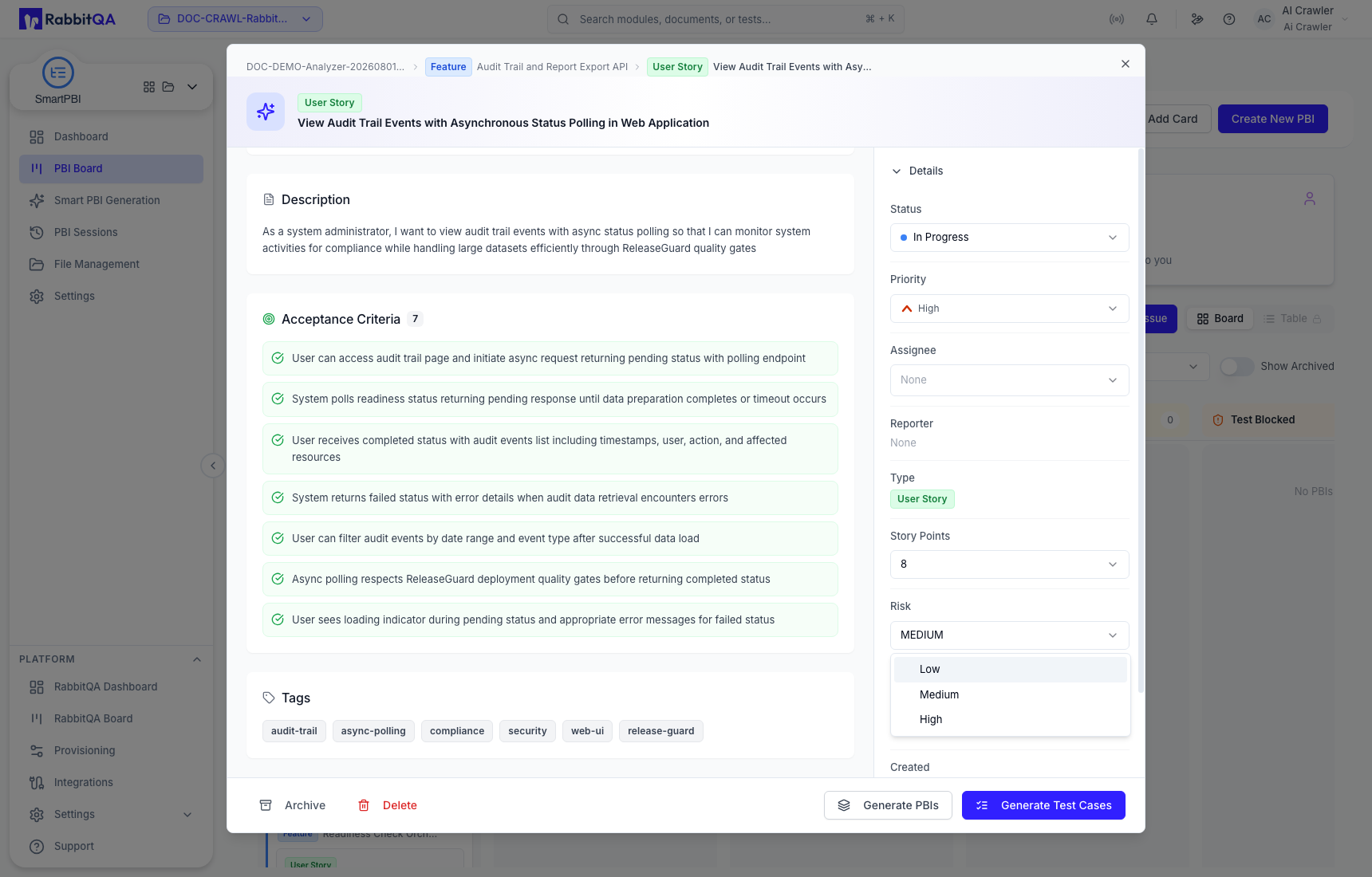
Risk, priority, story points, and workflow status answer different questions. Do not use one as a substitute for another.
Item actions
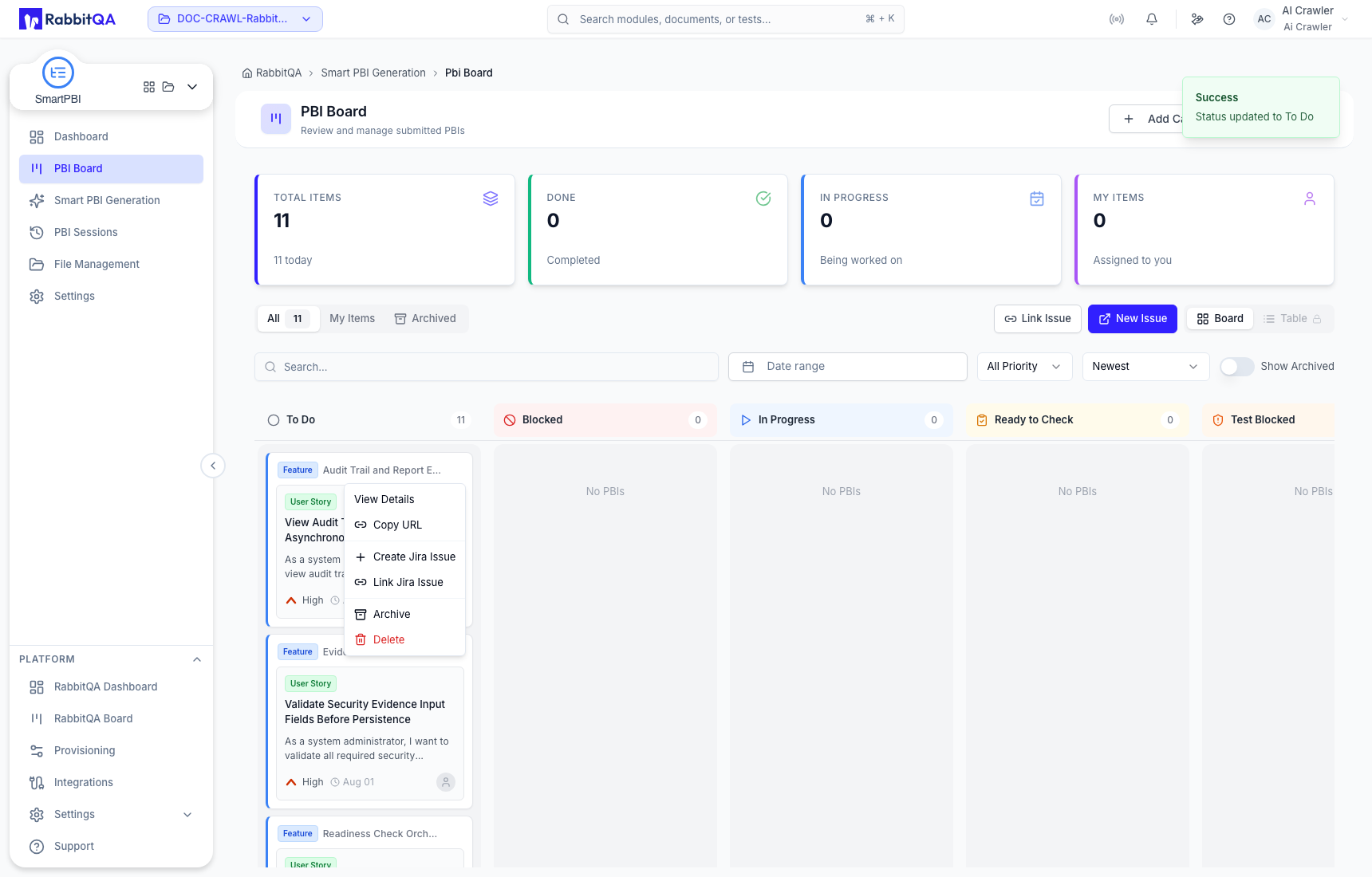
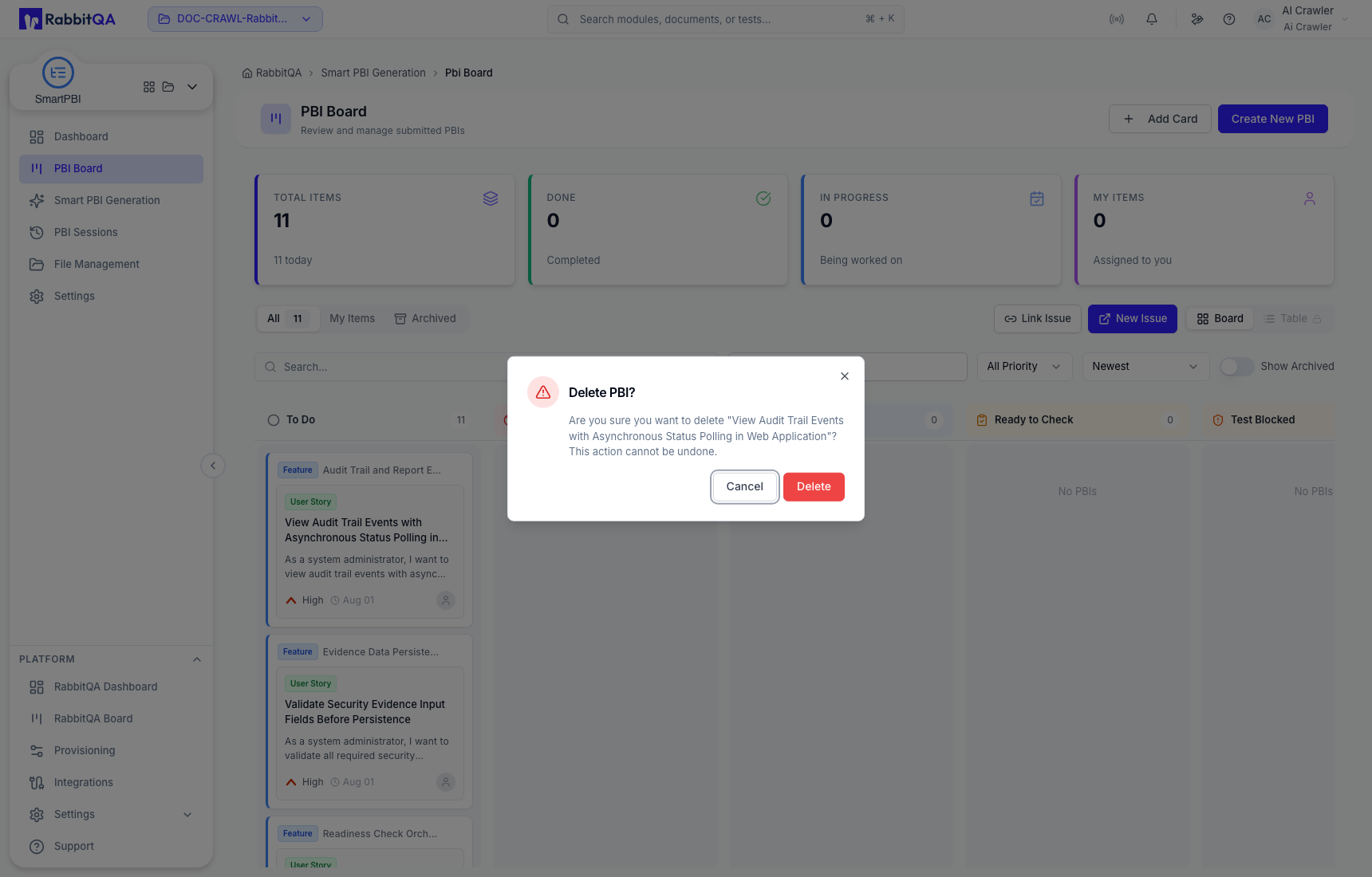
Open a card's action menu only after confirming its title. The menu provides View Details, Copy URL, Create Jira Issue, Link Jira Issue, Archive, and Delete.
Jira actions
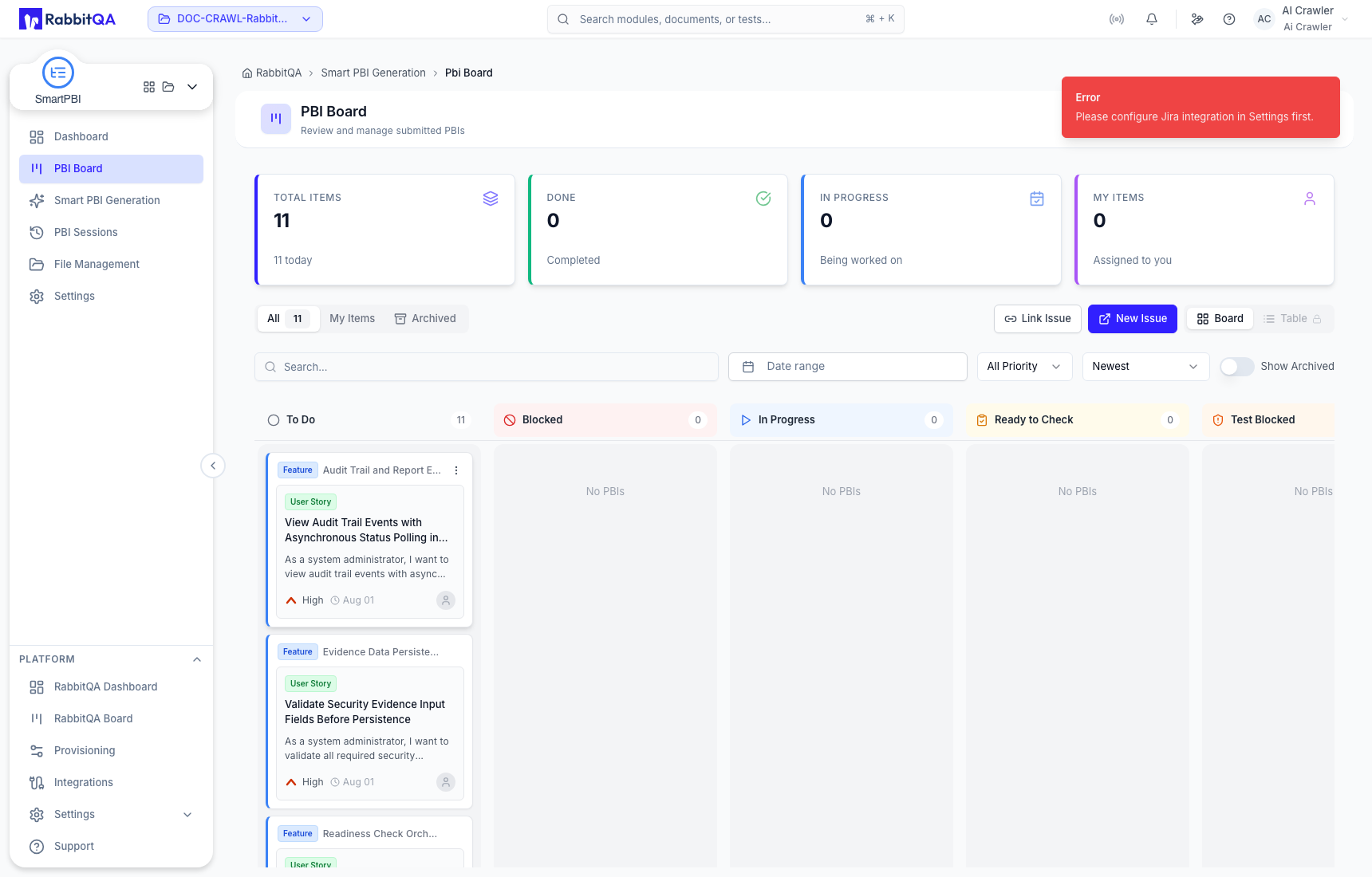
Create and link actions require a configured Jira integration. The standalone Link Issue and New Issue controls have the same requirement. If Smart PBI displays a configuration message, no Jira issue was created or linked.
Archive versus delete
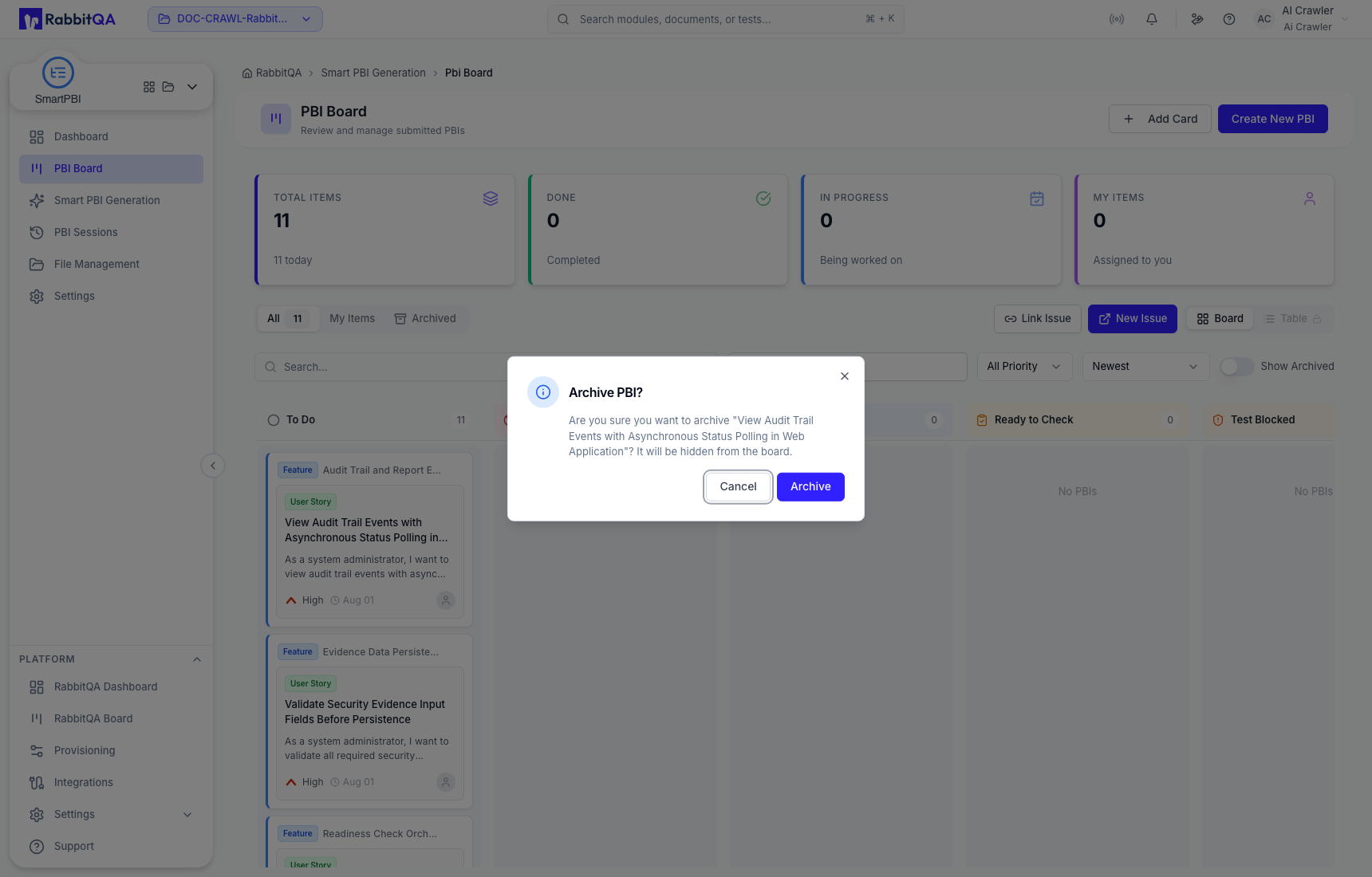
- Archive removes an item from normal active views and is the recoverable lifecycle choice.
- Delete permanently removes the selected board item.
Both actions require confirmation. Verify the title and consequences in the dialog.
Continue the work
The detail drawer can use a reviewed board item as source for another Smart PBI generation or for CaseWriter. These actions prepare context; they do not immediately generate a new hierarchy or test cases. See Handoffs and integrations.
