AutoRunner Transfer
SmartAPI can prepare generated tests as Postman-compatible artifacts and hand them to AutoRunner for execution setup. Transfer is available from a generated session after review.
Before transfer
Confirm that:
- the session ID, source, and generated paths are correct;
- requests, assertions, captures, variables, and flows have been reviewed;
- no real secrets are stored in the session;
- an AutoRunner project configured for Postman exists; and
- you know which target project and optional environment should receive the assets.
Select the target
Choose Transfer to AutoRunner and select a compatible AutoRunner project. The dialog summarizes the number of test cases, requests, and flows to be transferred.
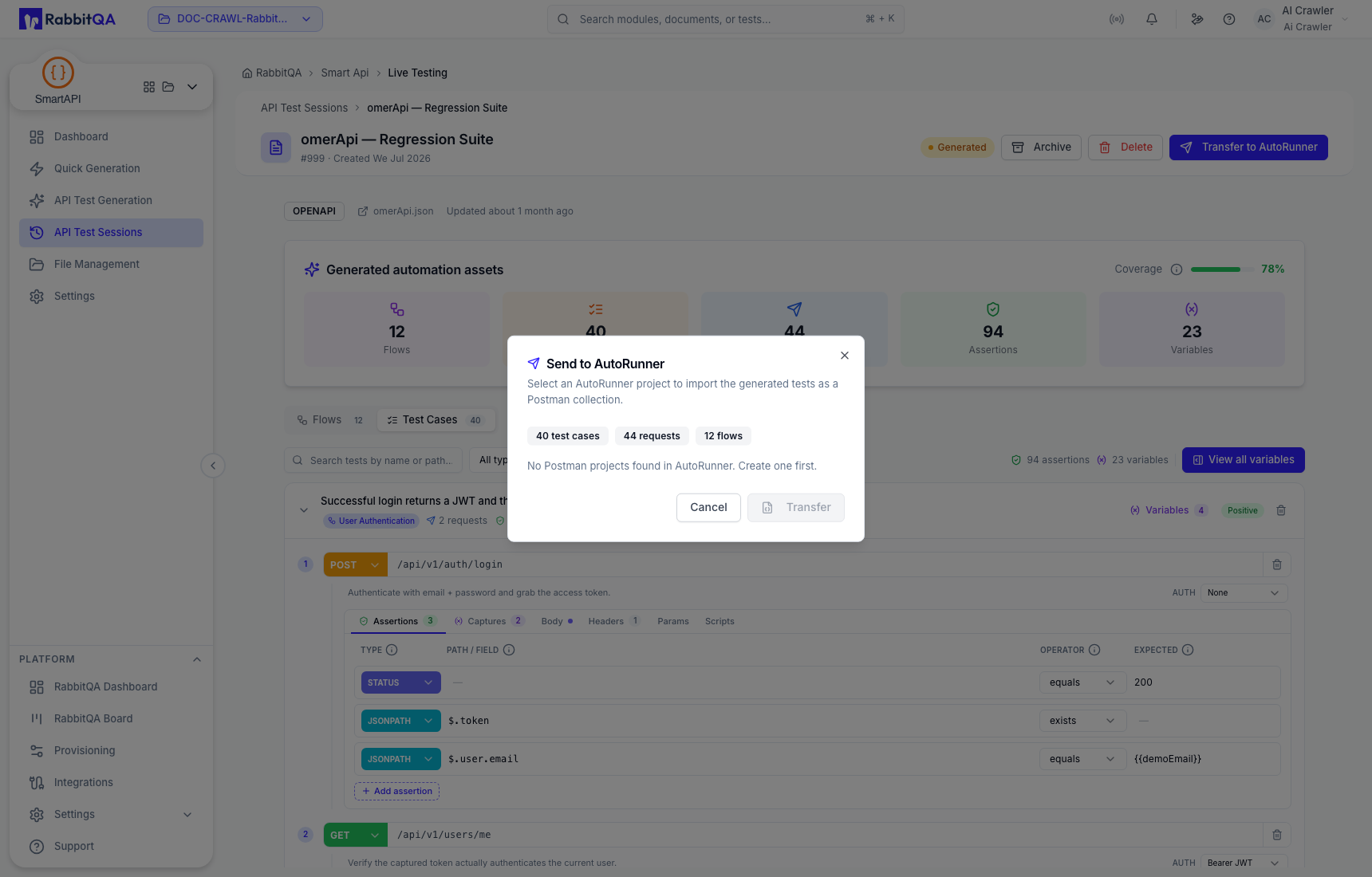
If the dialog reports that no Postman projects are available, create or configure the target in AutoRunner first. Transfer remains disabled until a compatible target can be selected.
What transfer does
The SmartAPI side prepares Postman collection and environment artifacts and records transfer state. The browser workflow then uploads the artifacts to the selected AutoRunner project and prepares the AutoRunner scenario, run-profile, and suite context.
A Transferred SmartAPI status means the handoff was prepared or completed. It does not mean the tests ran or passed. Open AutoRunner to validate imported scenarios, select runtime values, create or check the suite, and execute it.
Verify in AutoRunner
After transfer:
- Open the selected AutoRunner project.
- Confirm that the imported collection and scenarios belong to the SmartAPI session.
- Map environment values and secrets through the execution configuration.
- Review scenario order and request data.
- Confirm or create the run profile and suite.
- Execute only against an authorized environment and review the run report.
See AutoRunner for execution-side guidance.
