SmartAPI Quick Start
This workflow starts with an API source and ends with a generated session ready for review. It does not transfer or execute the tests automatically.
Before you start
Confirm that:
- the correct RabbitQA project is active;
- your source contains a supported API description or valid cURL request;
- secrets have been replaced with variables or safe placeholders;
- you know whether Sanity, Smoke, or Regression coverage is appropriate; and
- you have permission to upload sources and create sessions.
1. Add or select a source
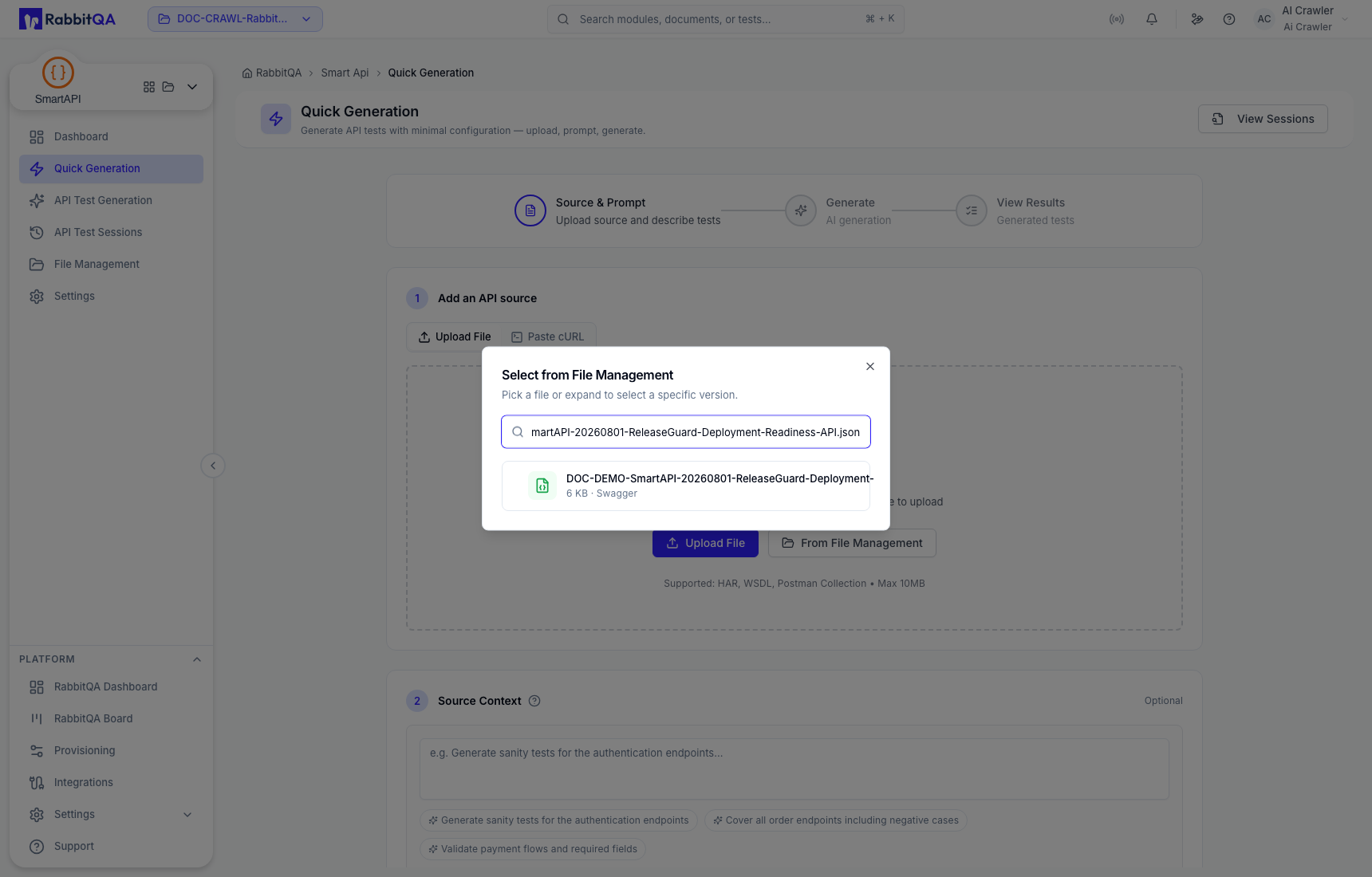
Open SmartAPI → Quick Generation. Choose one of these source paths:
- select Upload File and upload a supported source;
- select From File Management to reuse a managed source; or
- select Paste cURL, paste a request, and choose Add cURL. Repeat to add more requests.
2. Add generation guidance
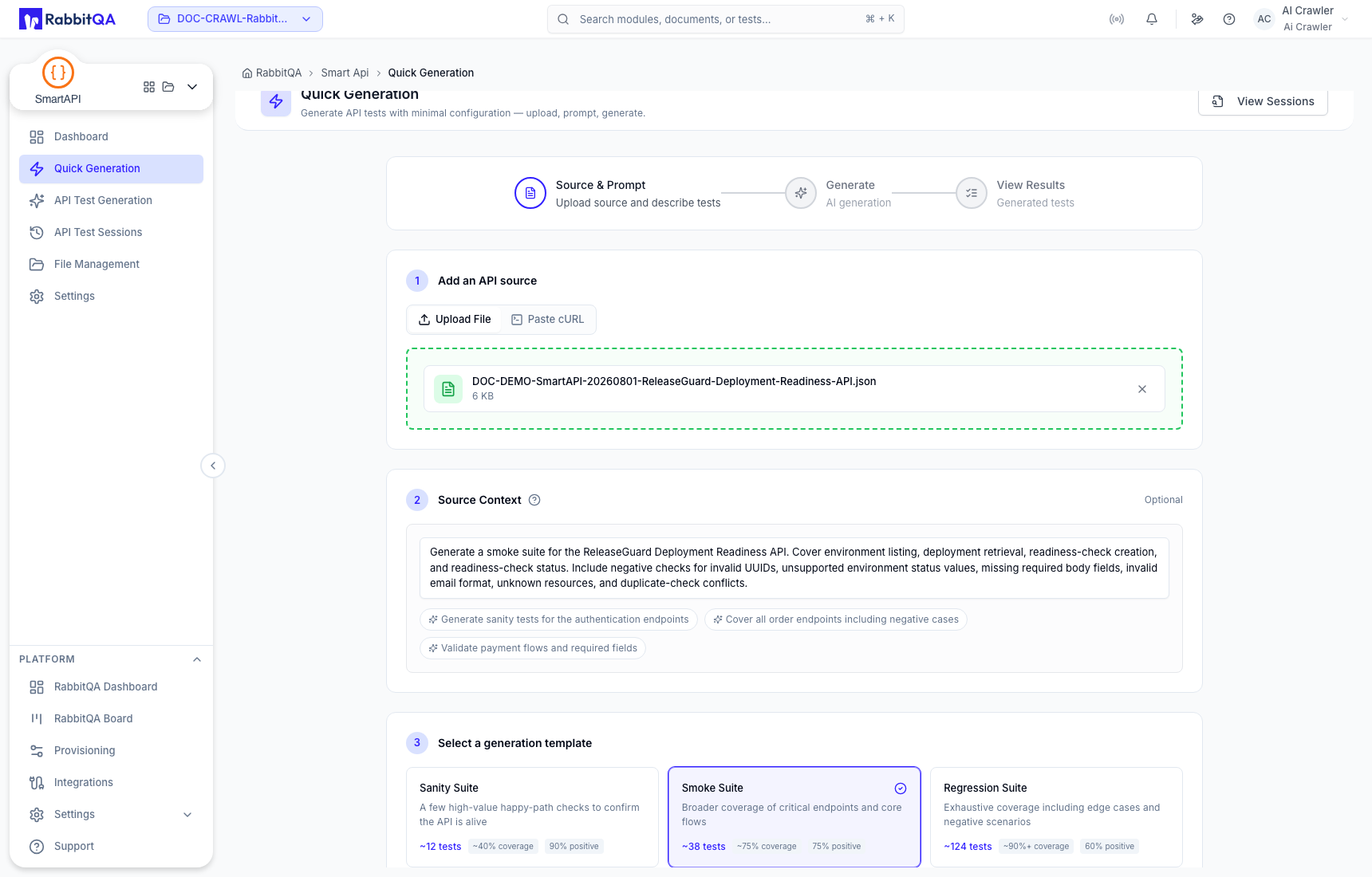
Use Source Context to describe the intended behavior, constraints, or coverage. Do not place passwords, tokens, or private customer data in the prompt.
Choose a template:
| Template | Typical use |
|---|---|
| Sanity Suite | A small check that the most important contract paths are usable. |
| Smoke Suite | Wider critical-path coverage for a build or deployment gate. |
| Regression Suite | Broader positive and negative coverage for repeated validation. |
3. Generate
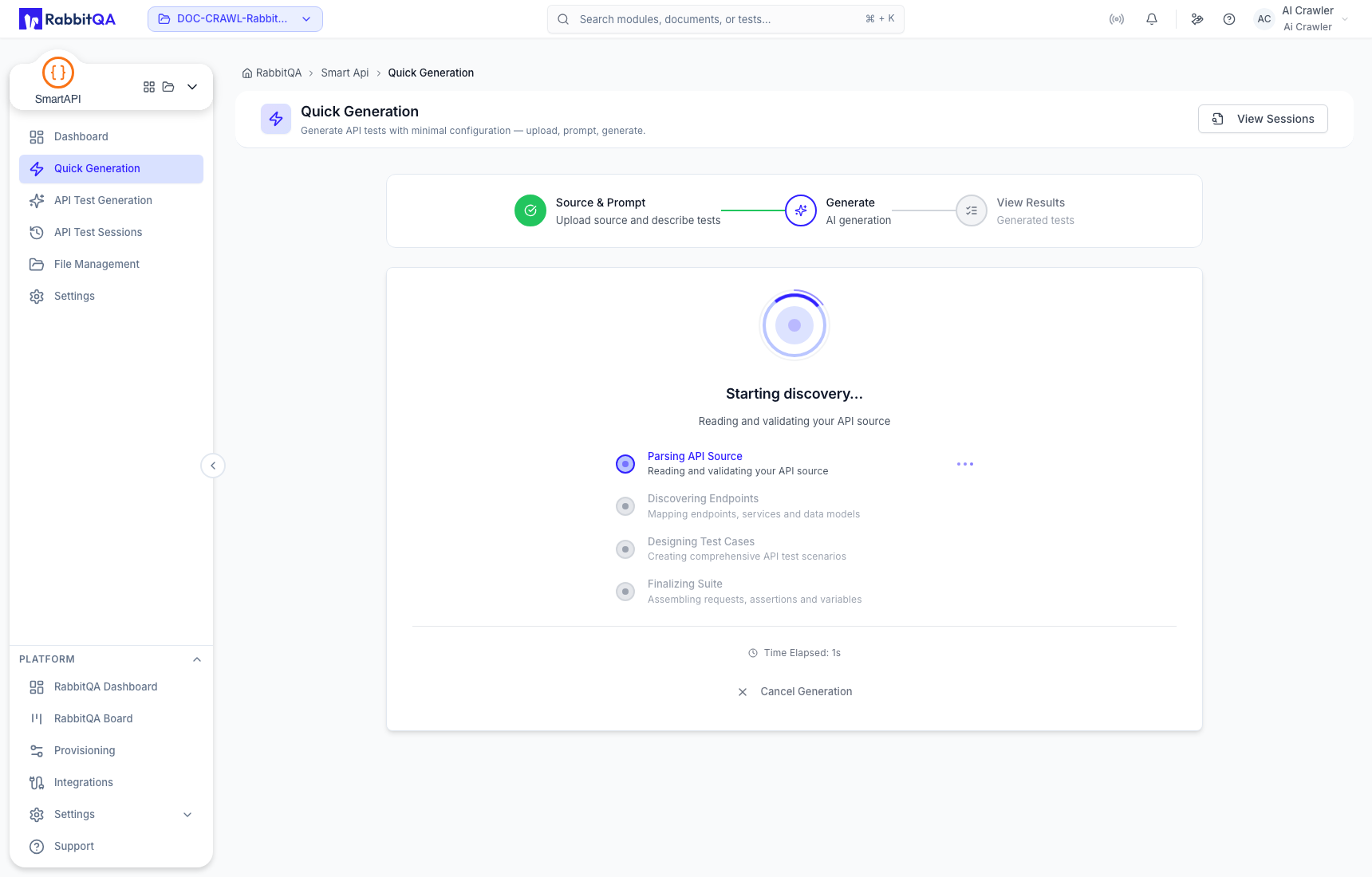
Select Generate Tests after the source and template are valid. SmartAPI creates a session, discovers the source, and generates assets. Keep the page open while the progress step is active.
4. Verify the result
The immediate result summarizes the endpoints, services, tests, and flows recognized for the run. Treat this as an initial view; open the persisted session for the final saved counts.
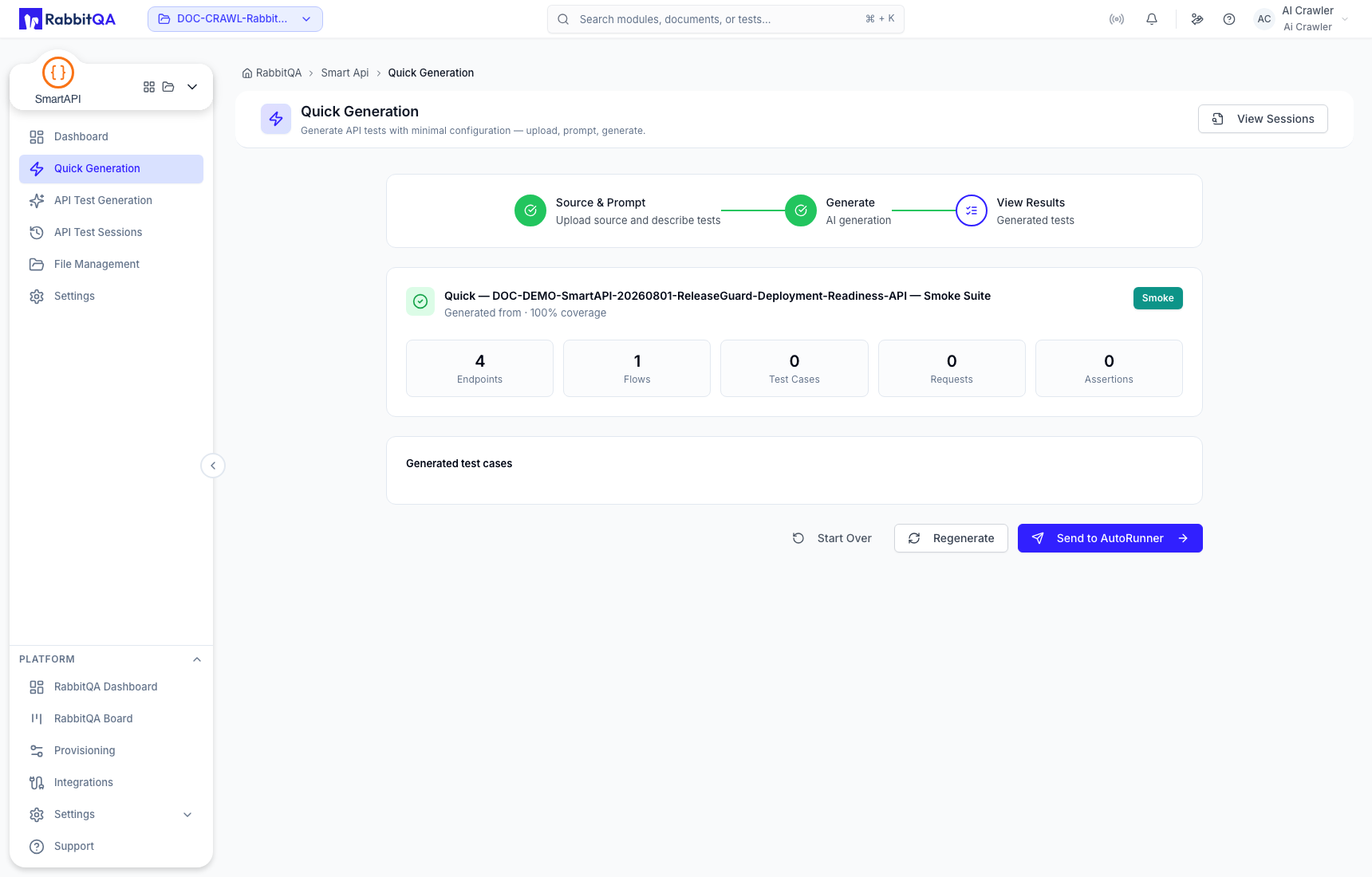
Check that:
- the session name and ID are present;
- endpoint paths belong to the intended source;
- service and endpoint counts are plausible;
- the selected template is reflected in the result; and
- no real credentials appear in generated requests.
Select View Session or open API Test Sessions and find the run by name or ID.
5. Review before transfer
Open the session and inspect generated tests, request order, assertions, captures, variables, and flows. Correct contract assumptions before using Transfer to AutoRunner.
For a workflow with separate discovery and design checkpoints, use API Test Generation.
