Test Datas
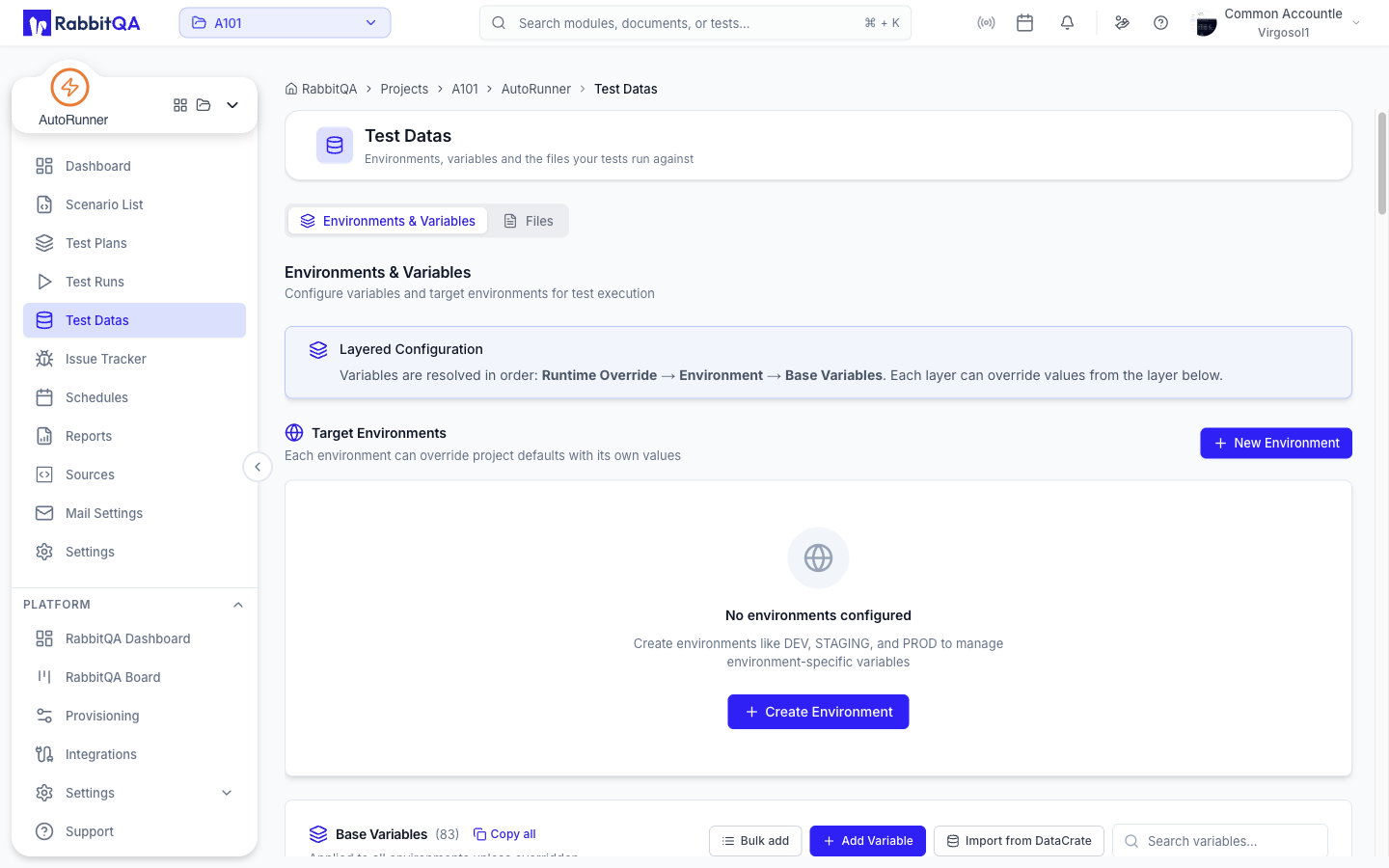
Test Datas holds the environments, variables, and files your tests run against. It has two tabs: Environments & Variables and Files.
Variable Resolution
Variables resolve in a fixed order, from most specific to least:
Runtime Override → Environment → Base Variables
A runtime override set on a run profile wins over an environment value, which wins over a base variable.
Environments & Variables
Target Environments
Each environment can override the workspace defaults with its own values.
| Action | What it does |
|---|---|
| New Environment | Creates an environment with a name, description, and an optional default flag |
| Compare | Compares up to three environments side by side |
| Import from Postman | Imports a Postman environment file. Available for Postman sources. |
Each environment card carries a menu with Edit, Set as Default, Download Postman Environment, and Delete.
Selecting a card opens the environment sheet, where you search, edit, and import its variables.
The default environment cannot be deleted while other environments exist. Delete is greyed out with the reason beneath it: set another environment as default first, then delete this one. A workspace's only environment is always the default, and that one can be deleted.
Base Variables
Base variables apply across the workspace unless an environment or run profile overrides them.
| Action | What it does |
|---|---|
| Add Variable | Adds a single key and value |
| Bulk add | Pastes many variables at once as KEY: value lines |
| Import from DataCrate | Pulls values from your Data Repository |
| Copy all | Copies every variable as KEY: value lines |
Bulk input accepts : or = as the delimiter, treats # lines as comments, and skips duplicates.
The variable dialog has:
| Field | Notes |
|---|---|
| Key | For example API_KEY or BASE_URL |
| Value | The value to inject at run time |
| Mark as Masked | Stores the value as a secret |
Masked Values
A value marked as masked renders as dots rather than text.
Revealing or copying a masked value requires the autorunner:testdata:reveal permission.
Without it:
- The reveal (eye) control is not shown.
- The copy control is not shown.
- The inherited-value hint on an override is masked too.
Masking is enforced on the server, not only in the browser, so a user without the permission never receives the value.
Editing variables requires the autorunner:testdata:write permission.
Save credentials, tokens, and API keys as masked variables rather than as plain values in a scenario.
Smart Data Sources
A variable can draw its value from a DataCrate library or ruleset instead of a fixed string. Use the data-source icon in the Key field to pick one.
A variable sourced this way can enable auto-refresh, so its value regenerates from DataCrate after each run. See DataCrate.
Files
Test Data Files are the files your scenarios read at run time.
| Action | What it does |
|---|---|
| Upload Files | Drag and drop, or browse, to add files |
| Import DataCrate | Imports files from your Data Repository |
| Refresh | Reloads the list |
The list shows a total file count and size, plus a search box.
| Column | Content |
|---|---|
| Name | File name, its type badge, and a FileHub badge when the file is registered centrally |
| Size | File size |
| Uploaded | Upload date and the uploader |
Row actions are Preview, Download, and — with delete permission — Delete.
Preview Support
| File type | Behavior |
|---|---|
| JPG, JPEG, PNG | Rendered inline |
| Rendered inline | |
| DOCX | Converted and rendered inline |
| XLSX, XLS, DOC, PPT, PPTX | Download only |
| Other | Previewed as text |
FileHub
A file with the FileHub badge is registered centrally. Deleting it here also removes its AutoRunner availability in FileHub.
Next Steps
- Settings — Run profiles that select an environment
- Test Plans — Override the environment for one plan
- Run Detail — See which variables a run actually resolved
- DataCrate — Manage the data these variables and files come from
