Test Plans
A test plan is a workspace-owned selection of scenarios that you run as a unit. Because plans belong to the workspace rather than to one source, a single plan can combine scenarios from several sources.
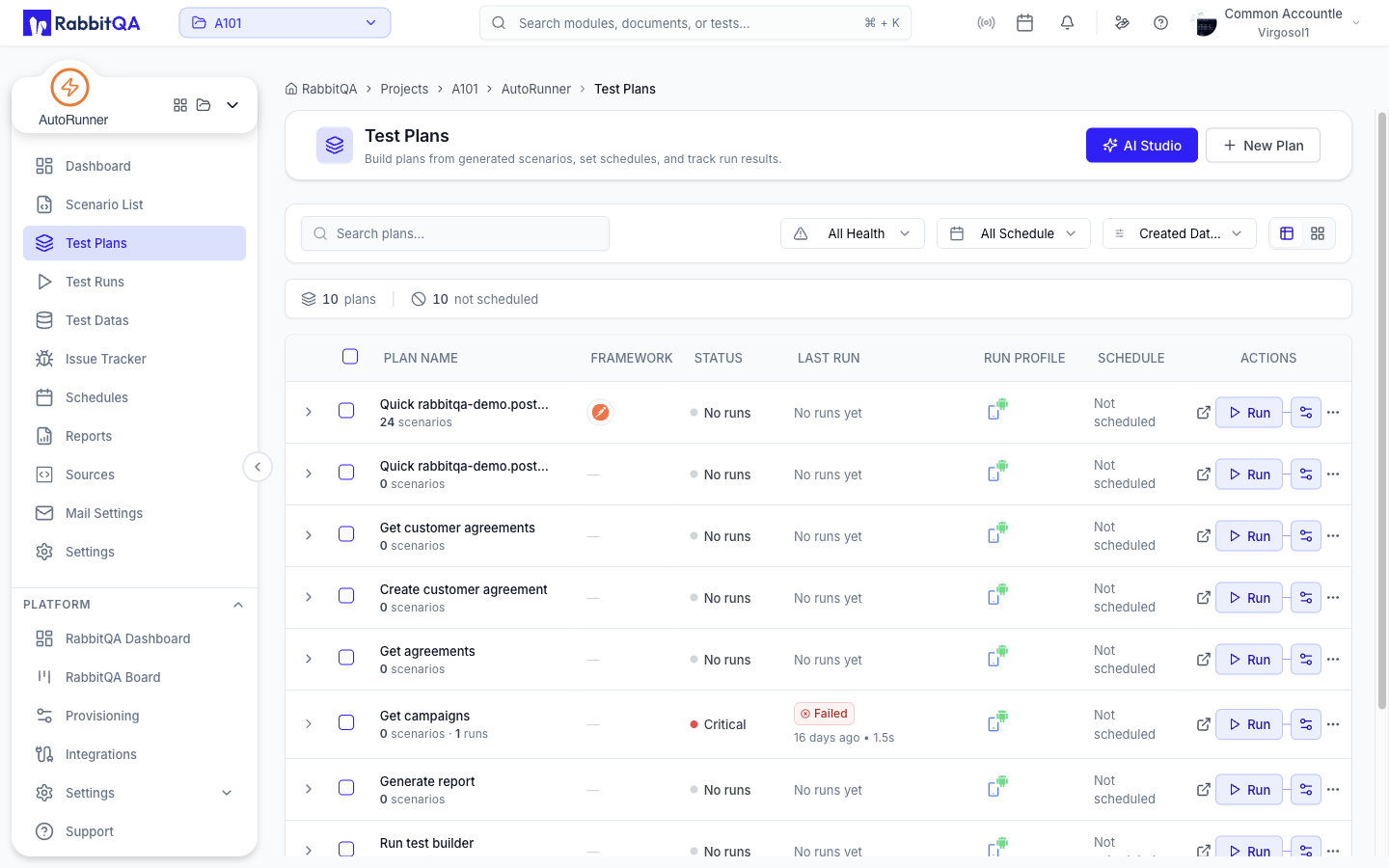
Plan List
The page header offers New Plan, plus the AI Studio and AI Editor shortcuts.
Filters
| Control | Options |
|---|---|
| Search plans | Free text over plan names |
| Health | All Health, Critical, Needs attention, Healthy |
| Schedule | All Schedule, Scheduled, Not scheduled, Overdue |
| Sort by | Name (A-Z / Z-A), Last Run (New-Old / Old-New), Created Date (New-Old / Old-New) |
Columns
| Column | Content |
|---|---|
| Plan Name | The plan name |
| Framework | The frameworks the plan's scenarios use |
| Status | Current health and run state |
| Last Run | The most recent run, or "No runs yet" |
| Run Profile | The plan's default run profile |
| Schedule | "Scheduled" or "Not scheduled" |
The chevron on each row expands an inline table of that plan's recent runs.
Running a Plan
Each row has a run button plus a Run Profiles dropdown. Use the dropdown to run against a profile other than the plan's default, or to create a profile inline.
Row Actions
| Action | Notes |
|---|---|
| View Test Plan Detail | Opens the plan detail page |
| Schedule | Creates a schedule for the plan |
| Edit Test Plan | Changes name, scenarios, and profiles |
| Duplicate | Copies the plan |
| Stop Run | While the plan has a run in progress |
| Delete Test Plan | Removes the plan |
Selecting several plans enables a bulk delete. Deleting a plan also removes its scheduled runs.
Creating a Plan
| Field | Required | Notes |
|---|---|---|
| Plan Name | Yes | Use a descriptive name that reflects what the plan covers |
| Select Scenarios | Yes | A split-panel selector fed by the whole workspace tree, so you can pick scenarios from more than one source |
| Default Run Profile | — | The profile applied every time this plan runs. You can add a profile inline. |
| Environment Profile Override | — | Overrides the profile's environment for this plan |
| Plan Variables | — | Variables scoped to this plan |
A status line under the selector confirms how many scenarios will be added.
Create at least one run profile in Settings before you create your first plan. A plan needs a run profile to execute.
Duplicate scenario selections are allowed only for Service (API) sources.
Plan Detail
Open a plan to get four tabs.
Overview
Trend charts and triage lists for the plan:
- Pass Rate Trend — over the last completed runs.
- Result Trend — outcomes per run as the plan grows.
- Run Duration Trend — total execution time per run.
- Recent Runs and Needs Attention, which reads "All scenarios healthy" when nothing is degrading.
Runs
The plan's run history, with search and an Advanced toggle revealing Status, Result, Environment, and Trigger filters. Active filters appear as chips. Bulk re-run and stop are available here.
See Test Runs for the same controls at workspace level.
Scenarios
Every scenario in the plan, with search and a refresh action.
| Column | Content |
|---|---|
| Scenario | The scenario name |
| Stability | How consistently it passes |
| Avg Time | Average execution time |
| Last Run | The most recent outcome |
Rows expand for more detail.
Config
A read-only summary of the run profile applied every time the plan runs:
- Targets — where the tests run, and how many targets.
- Execution — speed, limits, and retries.
- Screenshots — the visual evidence captured per step.
If no profile is set, the tab reads "No run profile configured". Change the profile by editing the plan or in Settings.
Next Steps
- Test Runs — Watch and analyze what the plan produced
- Schedules — Run the plan on a cadence
- Settings — Run profiles and the quality gate threshold
- CI/CD Integration — Start the plan from a pipeline
