API Test Generation
API Test Generation separates source loading, discovery review, test design, and generated results. Use it when you want more checkpoints than Quick Generation provides.
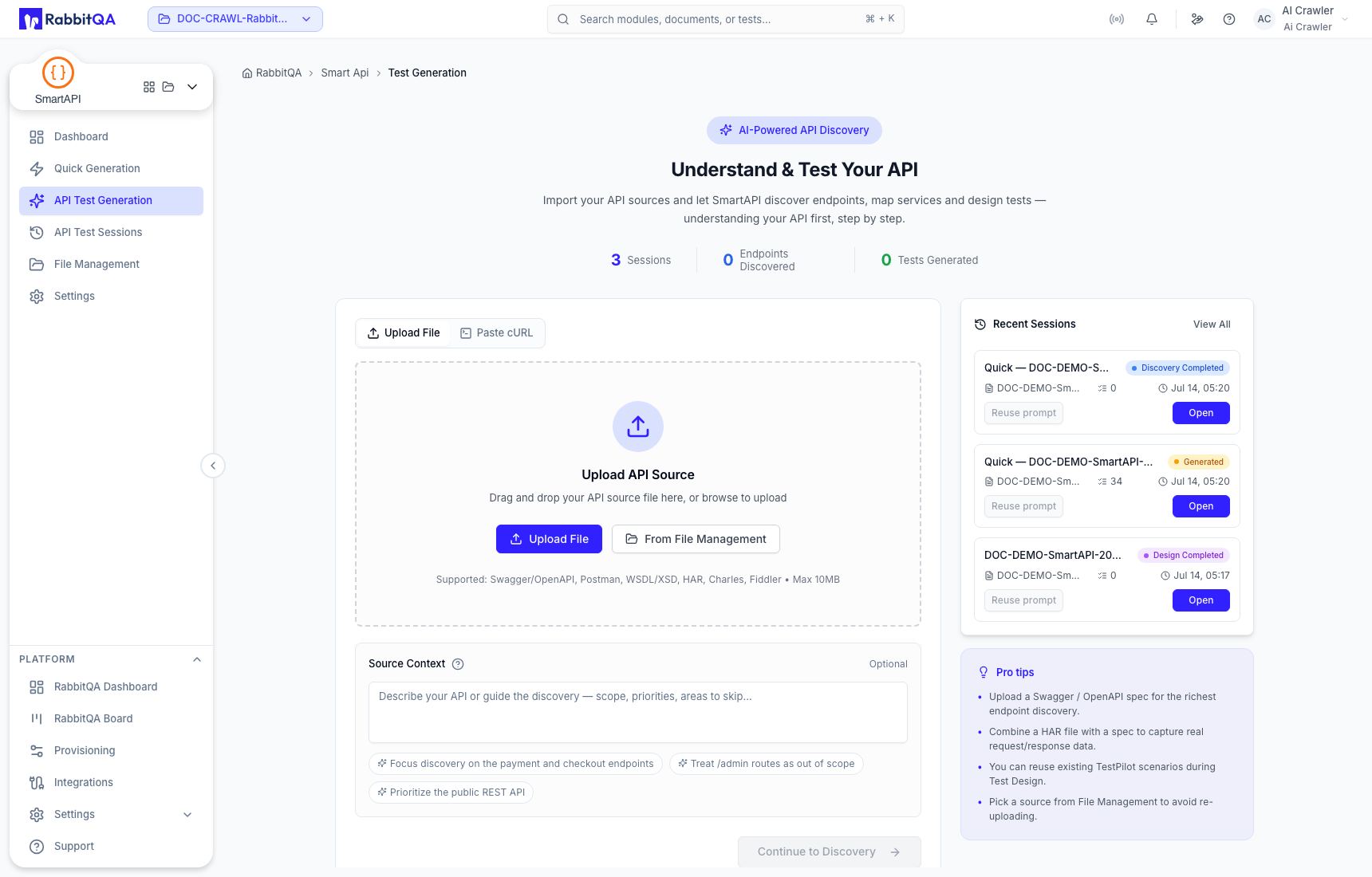
1. Add a source
Upload a supported source, select a managed file, or paste cURL. The input view supports OpenAPI or Swagger, Postman, WSDL or XSD, HAR, Charles, and Fiddler-derived sources.
Add optional Source Context to describe relevant business behavior or coverage. Select Continue only after the displayed source is the one you intend to analyze.
2. Review discovery
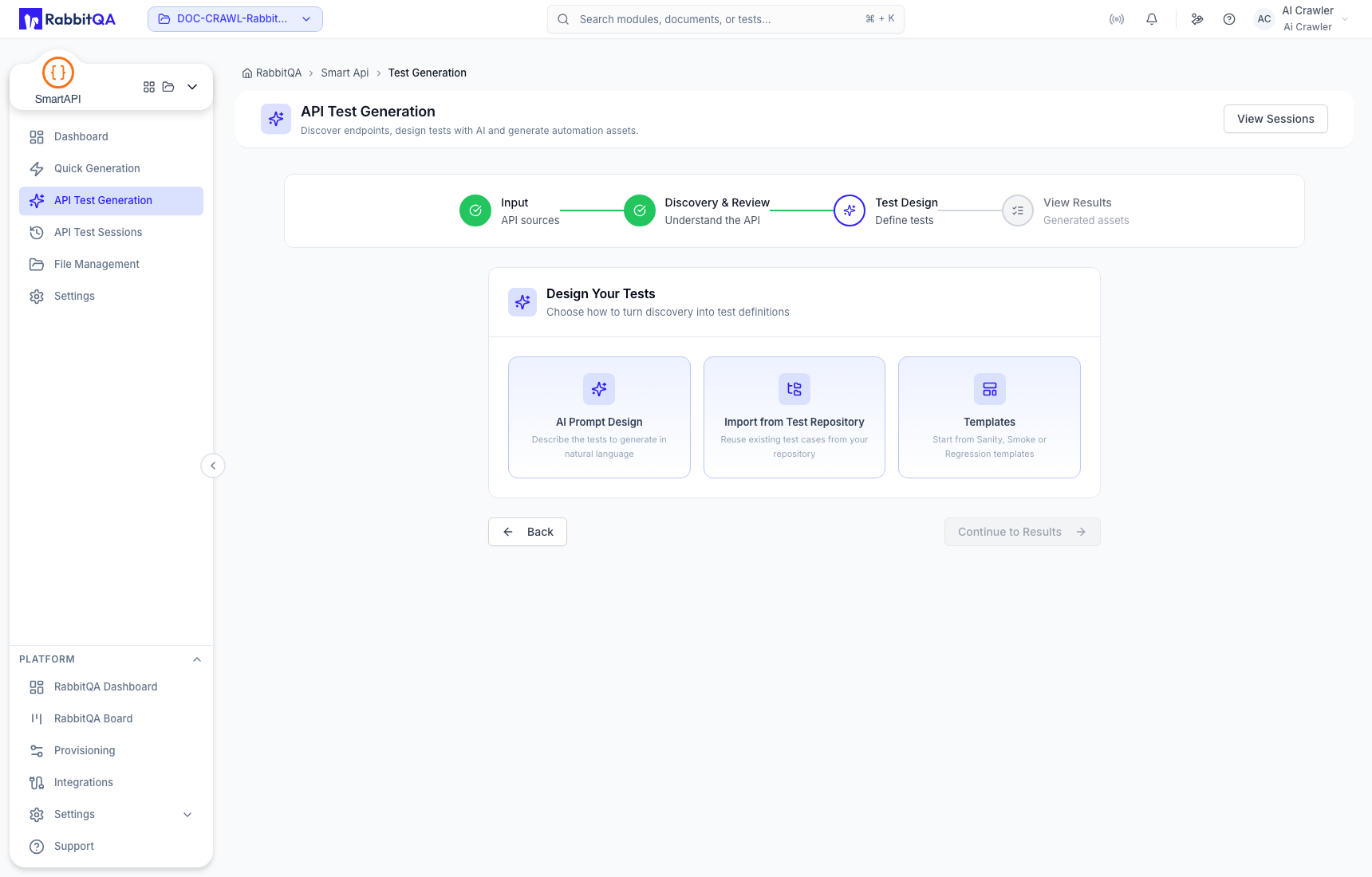
The discovery stage can present endpoint inventory, services, flows, and service relationships. Search for a known path and compare the result with the source contract before accepting the inventory.
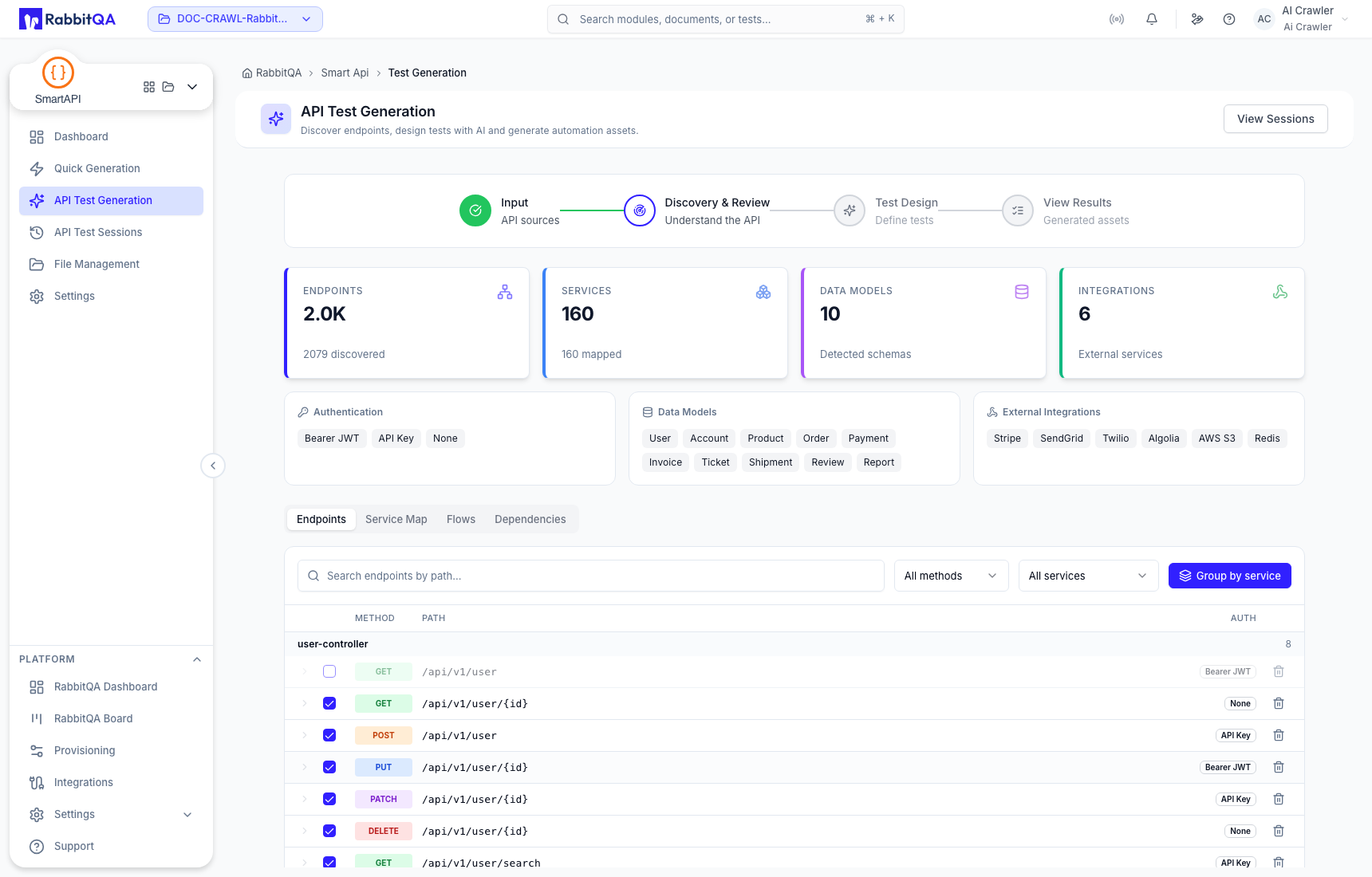
Staged discovery can show reference information while live integration work is in progress. Verify the session ID, source name, recognizable paths, endpoint count, and service count. If a known path is absent or unrelated endpoints appear, do not treat the view as a source-derived result.
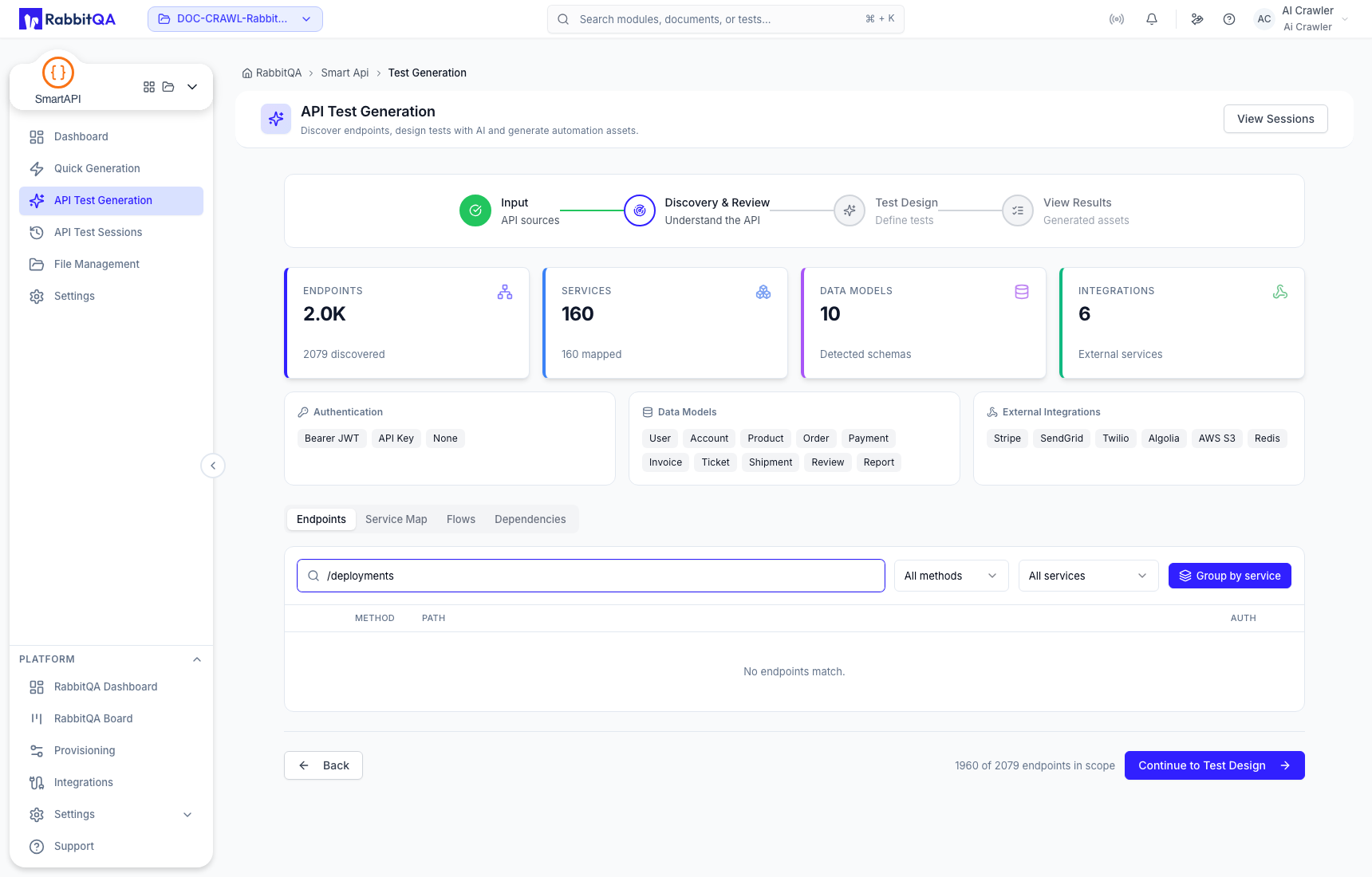
3. Choose a design method
The staged design step provides these methods:
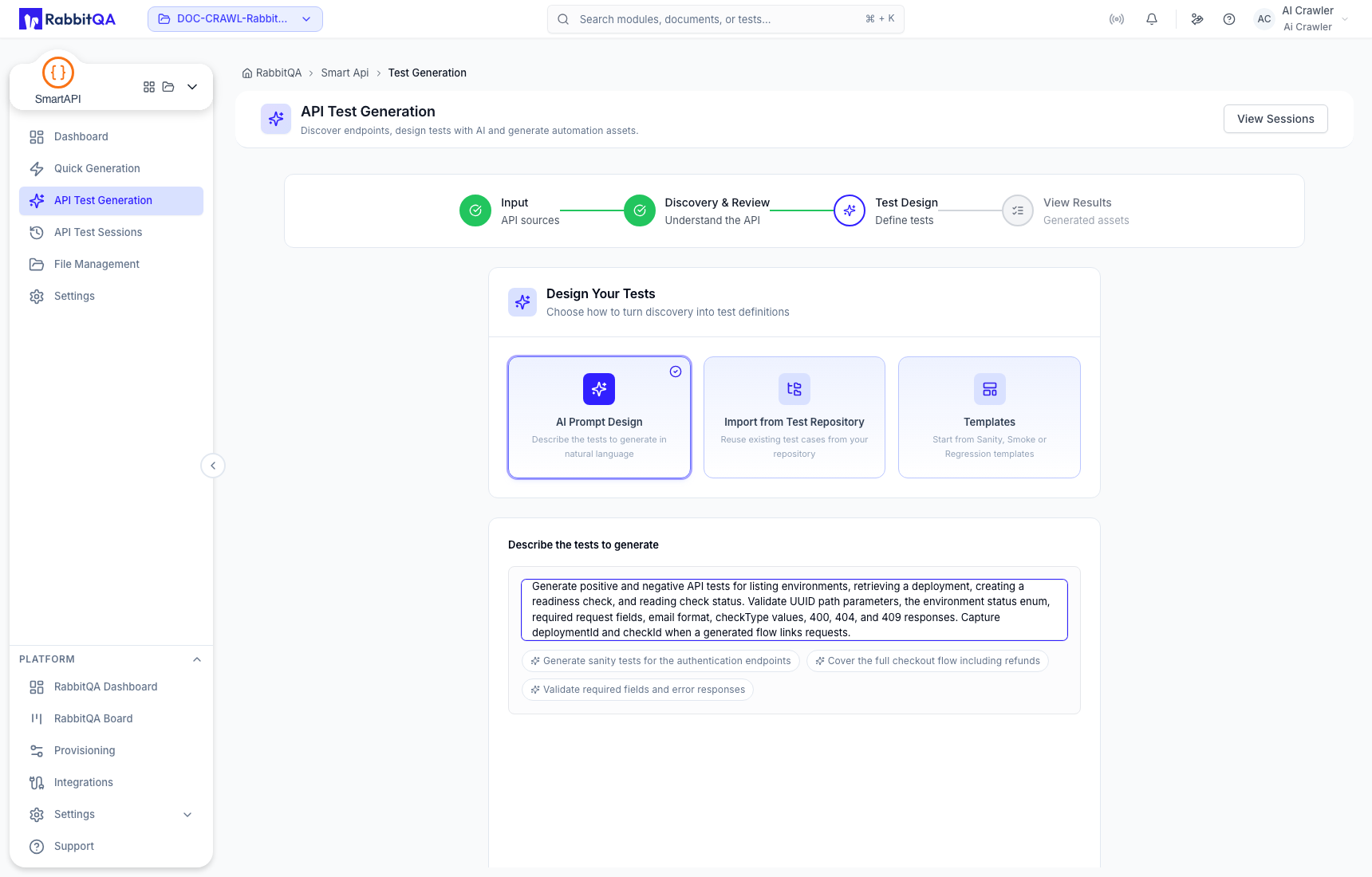
- AI Prompt — describe the scenarios or rules to cover;
- Import from Test Repository — reuse eligible TestPilot scenarios when the project mapping and source data are available; or
- Templates — choose Sanity, Smoke, or Regression coverage.
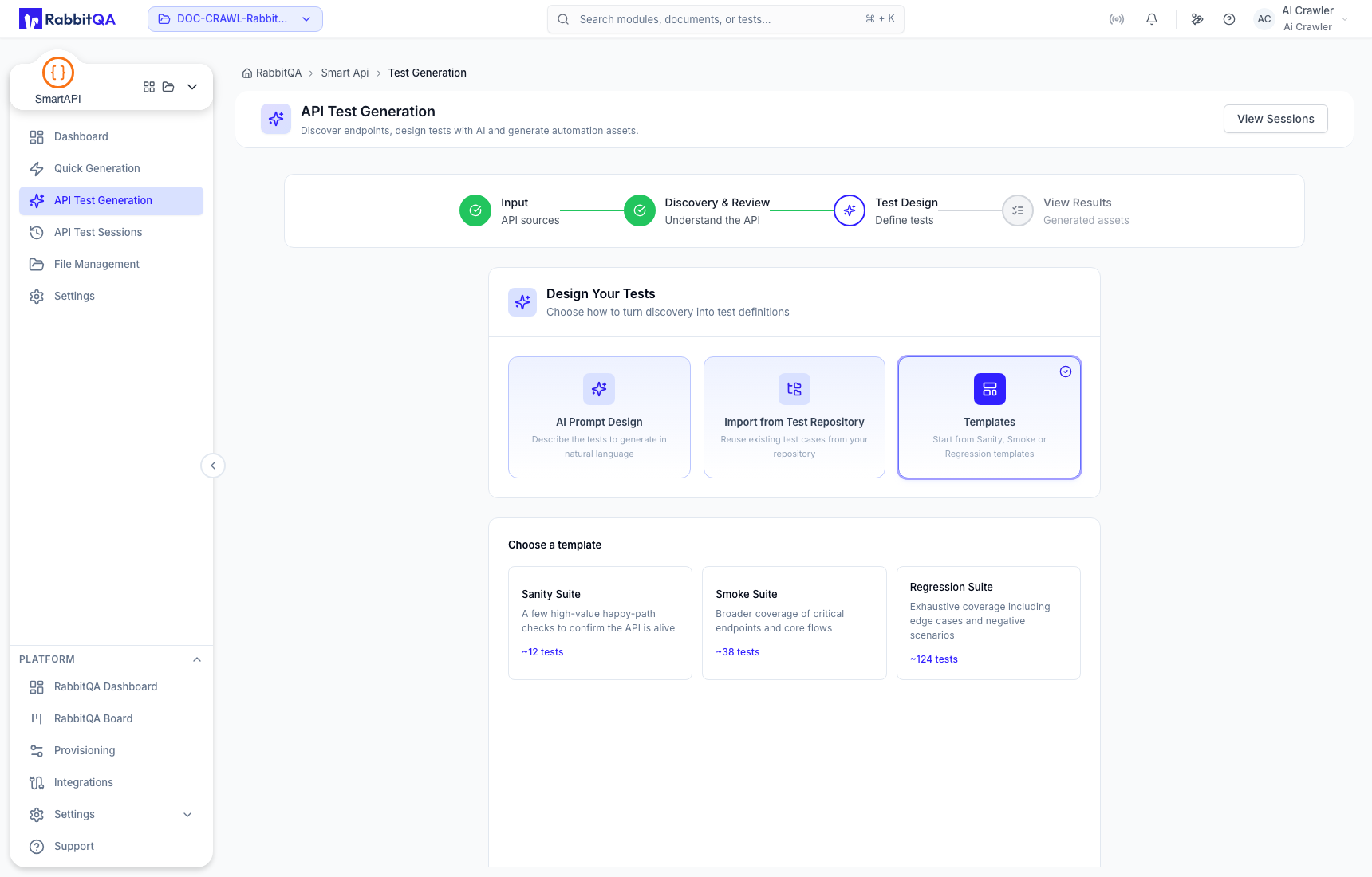
When using AI Prompt, be explicit about critical paths, negative cases, authorization behavior, and exclusions. Keep all secrets out of the prompt.
4. Review generated results
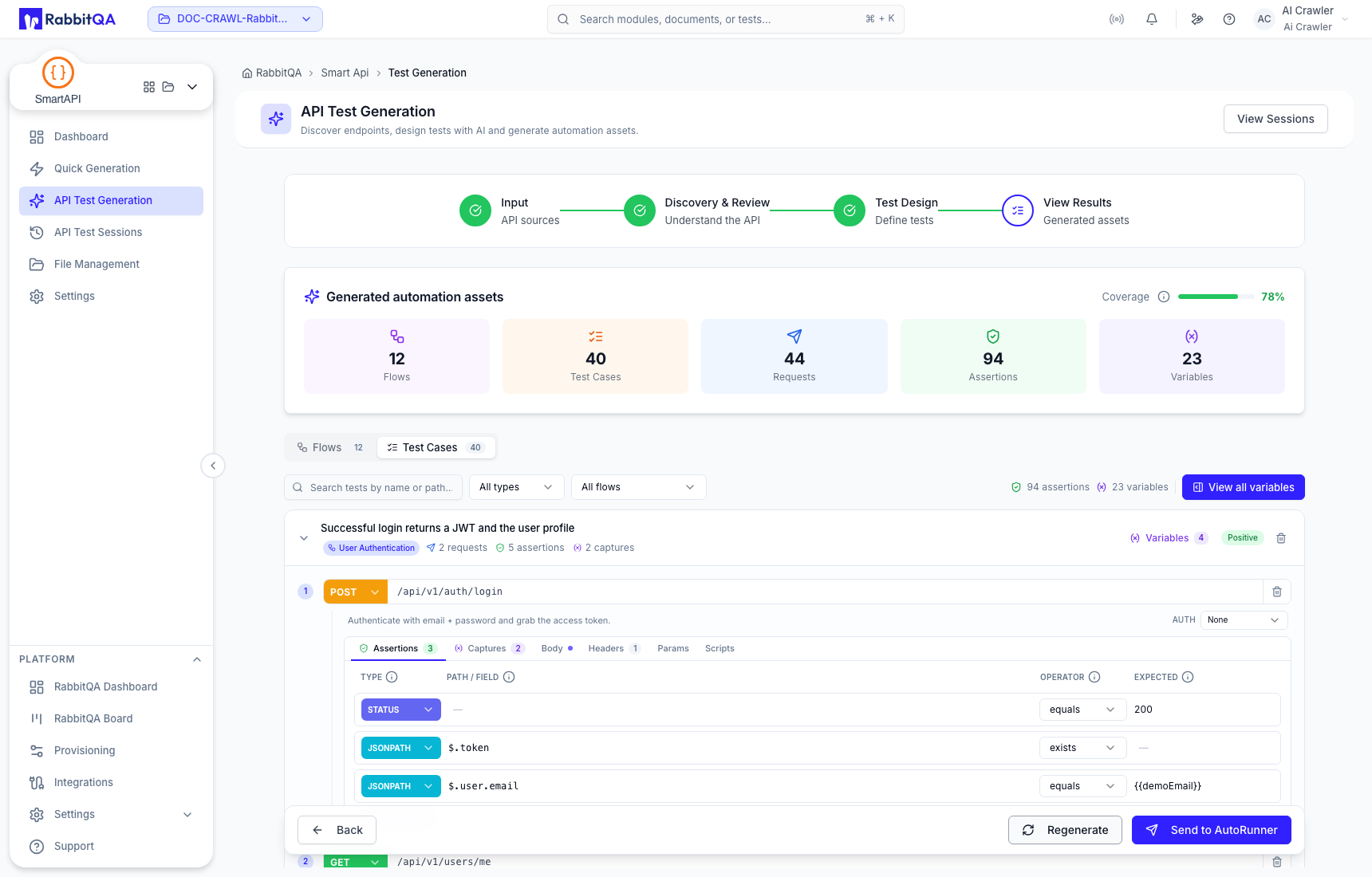
The result stage can summarize flows, test cases, requests, assertions, and variables. Review the asset counts and open individual items before saving, regenerating, or transferring.
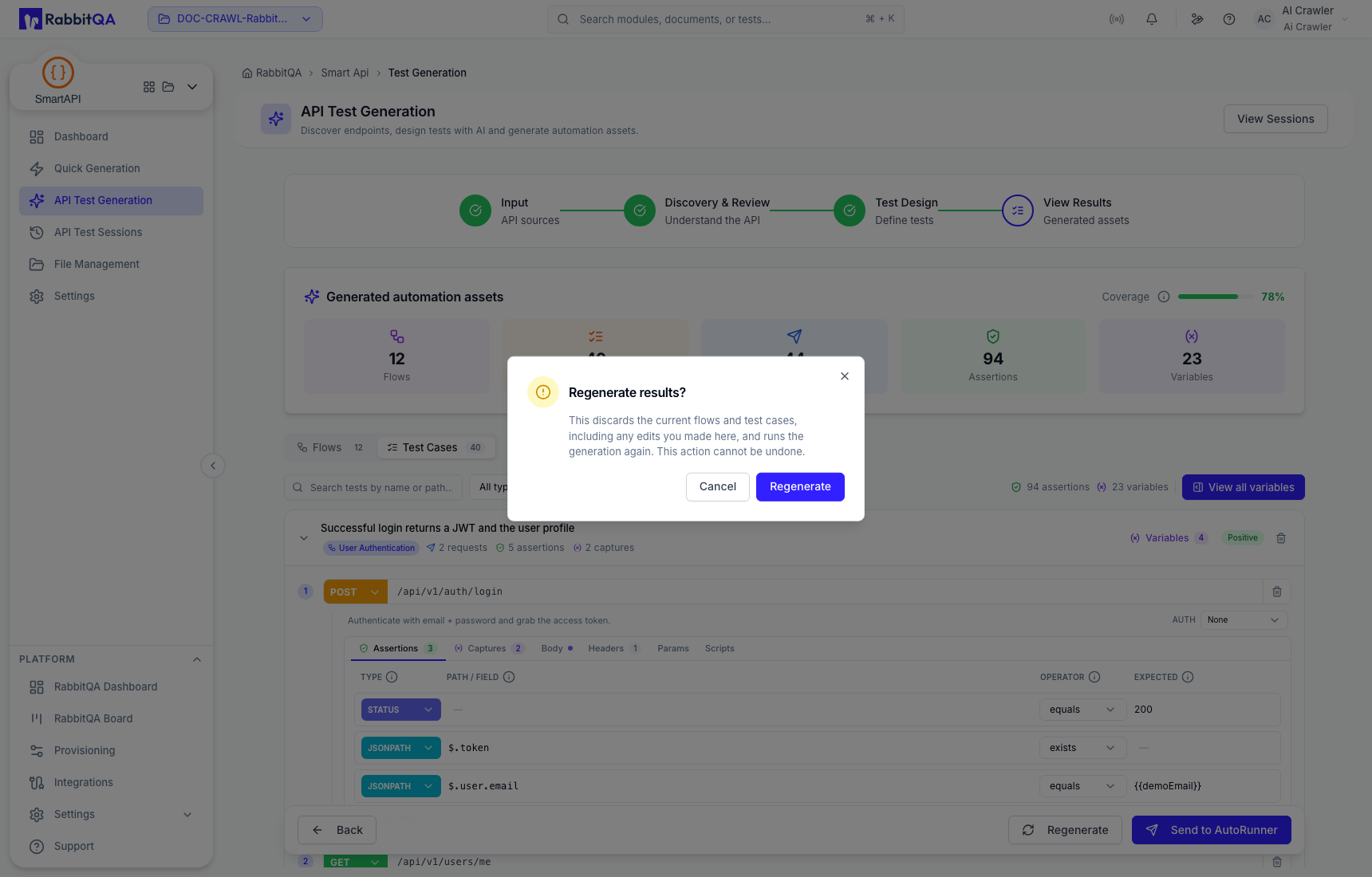
If Regenerate is available, read the confirmation carefully: replacement removes the current generated results for the session. Preserve any manual corrections outside that replacement scope before continuing.
Completion gate
Continue only when:
- displayed source and session identity match the intended run;
- discovered paths and service groupings are plausible;
- the design method and prompt represent the test objective;
- generated requests contain no real credentials; and
- the asset set has been reviewed for contract and sequencing errors.
Use API Test Sessions to return to the persisted run.
