Settings
AutoRunner settings cover run profiles, source connections, and notifications.
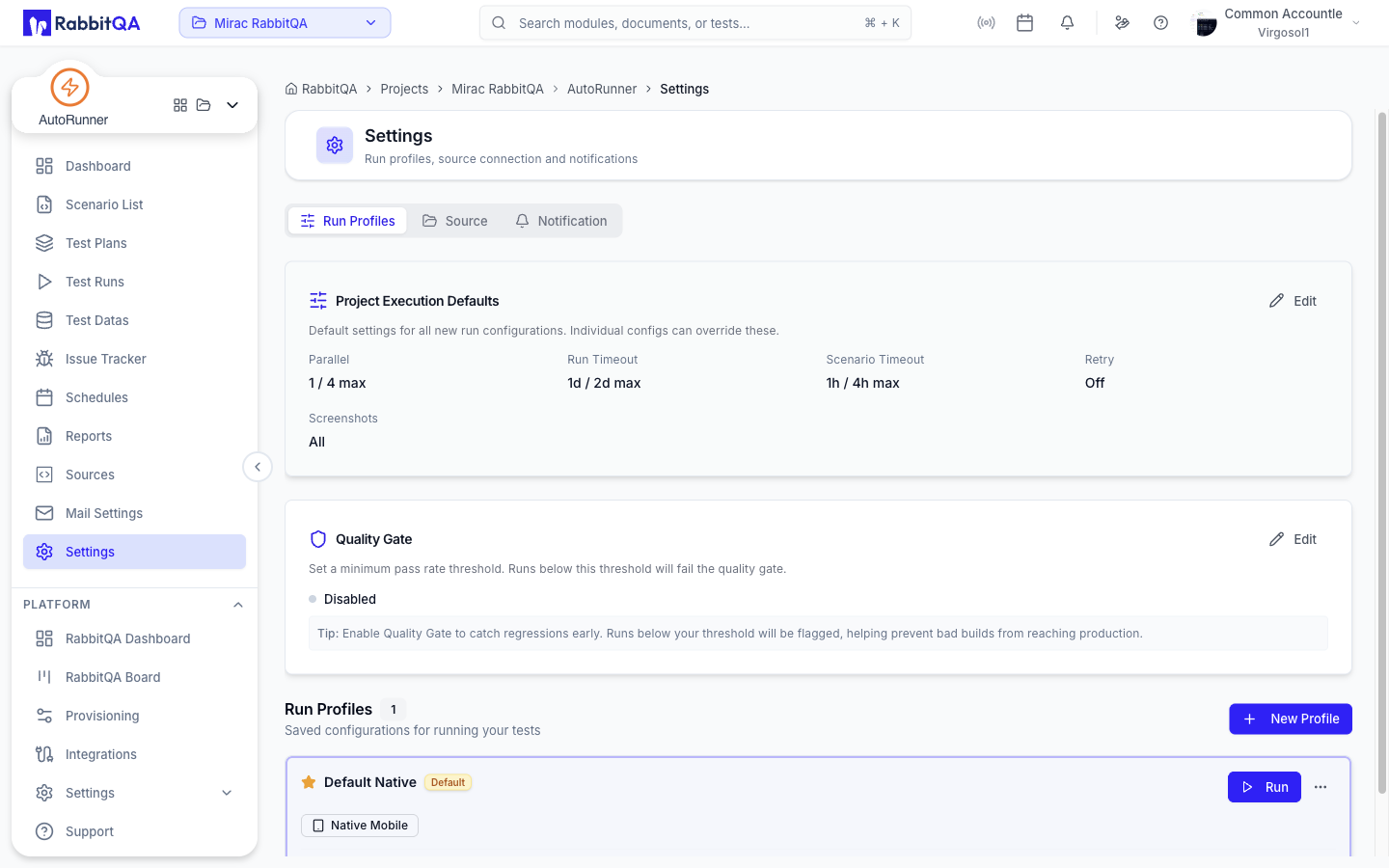 The page has three tabs, each with its own URL:
| Tab | Path |
|---|---|
| Run Profiles | /autorunner/settings/run-profiles |
| Source | /autorunner/settings/source |
| Notification | /autorunner/settings/notification |
Opening /autorunner/settings lands on Run Profiles.
Run Profiles
This tab has three sections.
Project Execution Defaults
Defaults for every new run configuration. An individual profile can override them, up to the limits set here.
Select Edit to see two panels.
| Panel | Fields |
|---|---|
| Limits (cannot be exceeded) | Max Parallel, Max Run Timeout, Max Scenario Timeout |
| Defaults (can be overridden) | Default Parallel, Default Run Timeout, Default Scenario Timeout |
Two switches complete the section: Screenshot on Fail and Screenshot on Pass.
Quality Gate
Set a minimum pass rate. Runs below the threshold are marked as failing the quality gate.
- Enable Quality Gate turns the gate on, starting at 80%.
- Pass rate threshold sets the percentage.
A failed quality gate is reported on the run and in reports.
It does not stop the run, block a later run, or block a merge or deployment.
To act on a gate result, read qualityGatePassed from the API in your pipeline — see CI/CD Integration.
Run Profiles
Saved configurations describing how tests are executed. Select New Profile to create one, or use a card's menu for Edit, Clone, Set as Default, and Delete.
The profile form contains:
| Field | Notes |
|---|---|
| Name | For example, "Production Desktop Test" |
| Description | Optional |
| Engine | A specific engine, or no specific engine |
| Execution Targets | At least one target is required |
| Environment | An environment profile, or project defaults only |
| Runtime Variables | Key and value pairs applied for this profile |
Under Shared Capabilities:
- Headless Mode — run browsers without a visible UI.
- Window Size — the browser viewport.
- A Selenium hub URL, when you point at your own grid.
Under Advanced Settings:
- Parallel Execution — how many scenarios run at once.
- Run Timeout and Scenario Timeout.
- Retry on Failure and the retry count.
- Screenshot on Pass and Screenshot on Fail.
Profiles with an API execution target also expose Newman/Postman Parameters: Iterations, Request Timeout, Total Timeout, Script Timeout, Delay Between, Allow Insecure SSL, and Ignore Redirects.
Under Notifications, a profile either follows the workspace default or sets its own Recipient Type — None, Send to Me, Admin & Managers, or Everyone in Project — plus an explicit Recipients email list.
Source
Pick a source from the Source selector, then manage its connection. The selection is kept in the page URL.
Repository Sources
| Card | Content |
|---|---|
| Repository Configuration | SCM provider, repository path, and BDD/specs path. Edit opens the settings sheet. |
| Branch Settings | The active branch, the last sync time, and Sync Now. |
| Sync History | Previous syncs and their outcome. |
A source with no repository shows No Repository Connected and a Connect Repository action.
Postman Sources
The Collection card manages the Postman collection file — upload, download, and preview. AI Collection Builder opens the assisted collection flow.
Updating the collection file re-parses the scenarios. Make sure the collection is valid Postman v2.1 format before you upload it.
See Sources for connecting a source in the first place.
Notification
Workspace-level email notification settings.
- Email Notifications switches notifications on or off.
- Recipients chooses who is notified: Send Me, Admin and Manager, Everyone, or Manual Selection.
- Choosing Manual Selection reveals Email Addresses, a comma-separated list.
Manage opens Mail Settings, where you choose which events send mail and edit the templates.
Next Steps
- Mail Settings — Per-event notification control and templates
- Test Datas — Environments and variables the profiles select
- Test Plans — Assign a default run profile to a plan
- Sources — Connect and disconnect sources
