Uploaded Files and Datasets
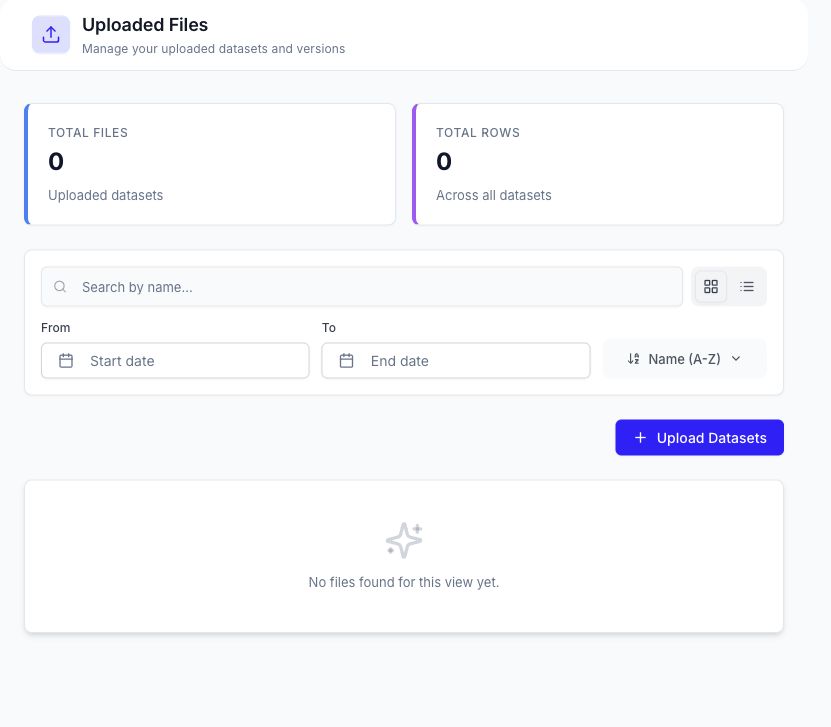
Uploaded Files is the entry point for datasets supplied by users. It shows dataset totals, row totals, search and date filters, sorting, upload controls, and the available actions for each dataset.
Supported Uploads
The current upload form accepts:
- CSV (
.csv) - Excel (
.xlsxand.xls) - JSON (
.json), including a header-only JSON definition
The upload dialog reads a preview, detects columns where possible, and lets you confirm the dataset name and upload settings before submission.
Find a Dataset
Use the controls above the dataset cards to:
- Search by dataset name.
- Limit results by start and end date.
- Change the sort order.
- Refresh the list.
- Select multiple datasets for a bulk delete when that action is available.
Each card identifies the dataset, file, current version, row count, upload time, uploader, and file size returned by the current workspace.
Dataset Actions
| Action | Result |
|---|---|
| Open the card | Opens the dataset detail page and its current version. |
| Run Test | Creates and submits a table-generation session using the dataset and opens the new session. |
| Smart Data Generation | Opens dataset generation with the selected dataset preloaded. |
| Download | Downloads the current dataset file. |
| Versions | Lists stored versions and allows a new version upload. |
| Data Modifications | Opens subset and negative-path generation tools for the selected dataset. |
| Delete | Permanently deletes the dataset after confirmation. |
Dataset Details and Versions
The detail page shows file metadata, the current version, stored versions, a data preview when the format is supported, and the actions available for that dataset.
Uploading a new version preserves the dataset identity while adding a new version record. Select the required version before previewing or downloading it.
Data Modifications
The Data Modifications dialog provides two source-derived workflows:
- Create a subset by applying the supported row and column filters.
- Create negative-path data from the selected dataset and advanced options.
Both workflows create new DataCrate output rather than editing the uploaded source file in place.
Run Test, version upload, data modification, bulk delete, and delete change workspace data. Confirm the selected dataset and workspace before continuing.
Next Steps
- Use a dataset as a source in Smart Data Generation.
- Track created runs in Data Sessions.
- Browse saved dataset artifacts in the Data Repository.
