Scheduling
Schedules automate Test Plan execution. A schedule cannot run a standalone AI generation; it needs one or more saved Test Plans.
Create a schedule
Select AutoRunner > Schedules > New Schedule. The drawer has two stages:
- Test Plan Selection; and
- Schedule Configuration.
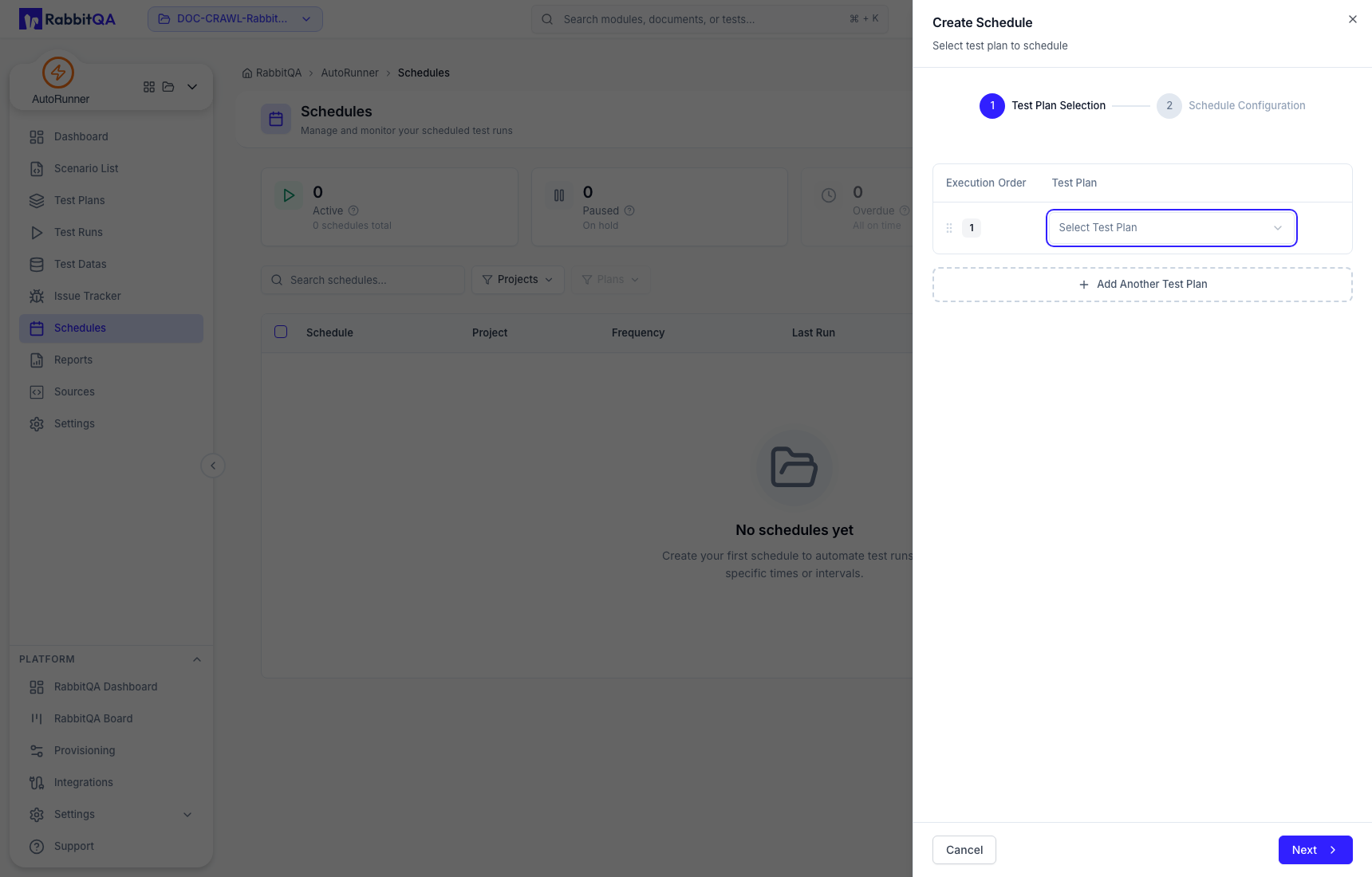
You can add multiple Test Plans and order them. Configuration can include waiting time between plans and parallel execution where the current deployment and plan combination support it.
Time configuration
Verify:
- start date and time;
- time zone;
- frequency or Cron-builder result;
- end condition; and
- exclusion dates or excluded time ranges.
The time zone is part of the schedule. Recheck it after daylight-saving changes or when a team assumes a different local time.
Monitor schedules
The Schedules page summarizes active, paused, and overdue items and supports project, plan, search, and sort filters. A saved schedule proves configuration exists; it does not prove a runner will be available or that the target will accept the actions.
Before enabling
- Execute each plan manually with the intended profile and environment.
- Confirm runner capacity and access to required repositories, browsers, devices, and files.
- Verify test data cleanup and retry safety.
- Ensure notification recipients and issue integrations are appropriate.
- Review cross-source plans in the deployed workspace before scheduling them.
Use idempotent setup and cleanup, bounded test accounts, and safe target data. Pause the schedule before changing a source, environment, credential, or destructive scenario.
