Test Execution
Test Execution is where assigned repository cases are performed and given durable results. Select the intended Test Plan and Test Run before interpreting any counts or changing a record.
Read the run state
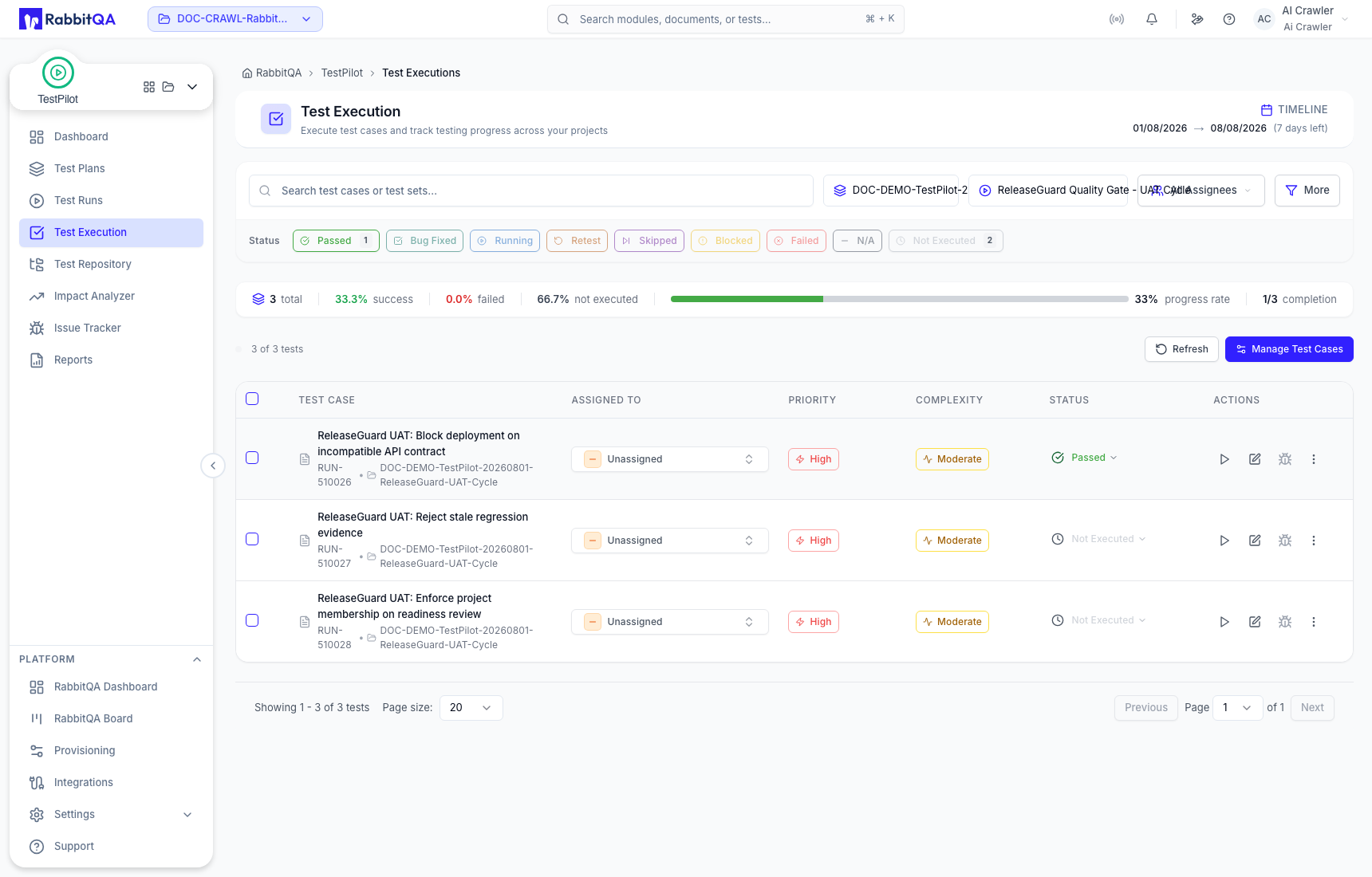
The page header and summary show the timeline, status counts, total assigned cases, success and failed rates, not-executed rate, progress, and completion.
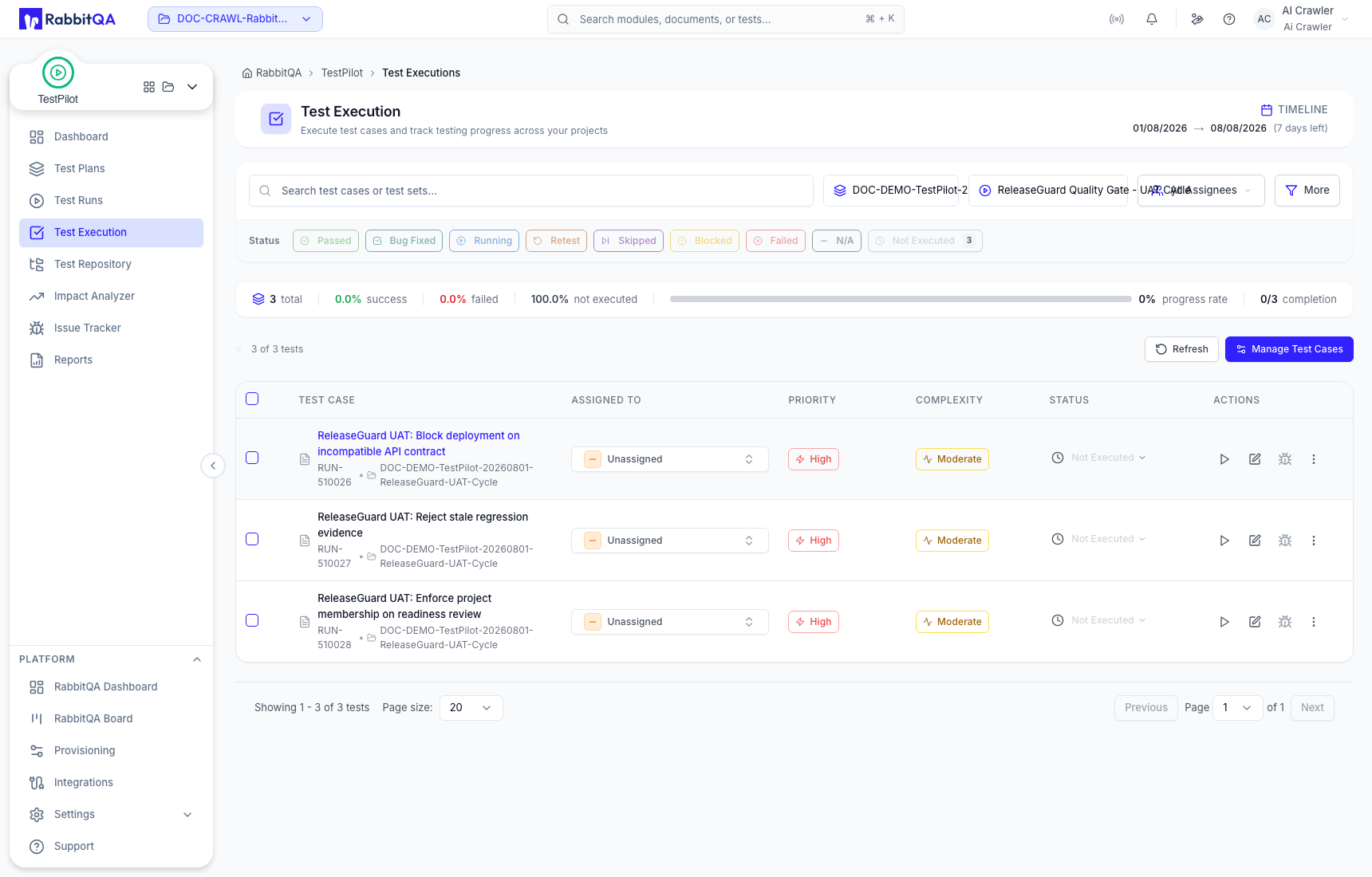
Each row identifies the case, Test Set, assignee, priority, complexity, status, and available actions. A newly assigned case begins as Not Executed.
Search and filter
Use the plan, run, assignee, status, and search controls to isolate the current work. More opens advanced filters for Priority, Complexity, and Test Sets & Cases.
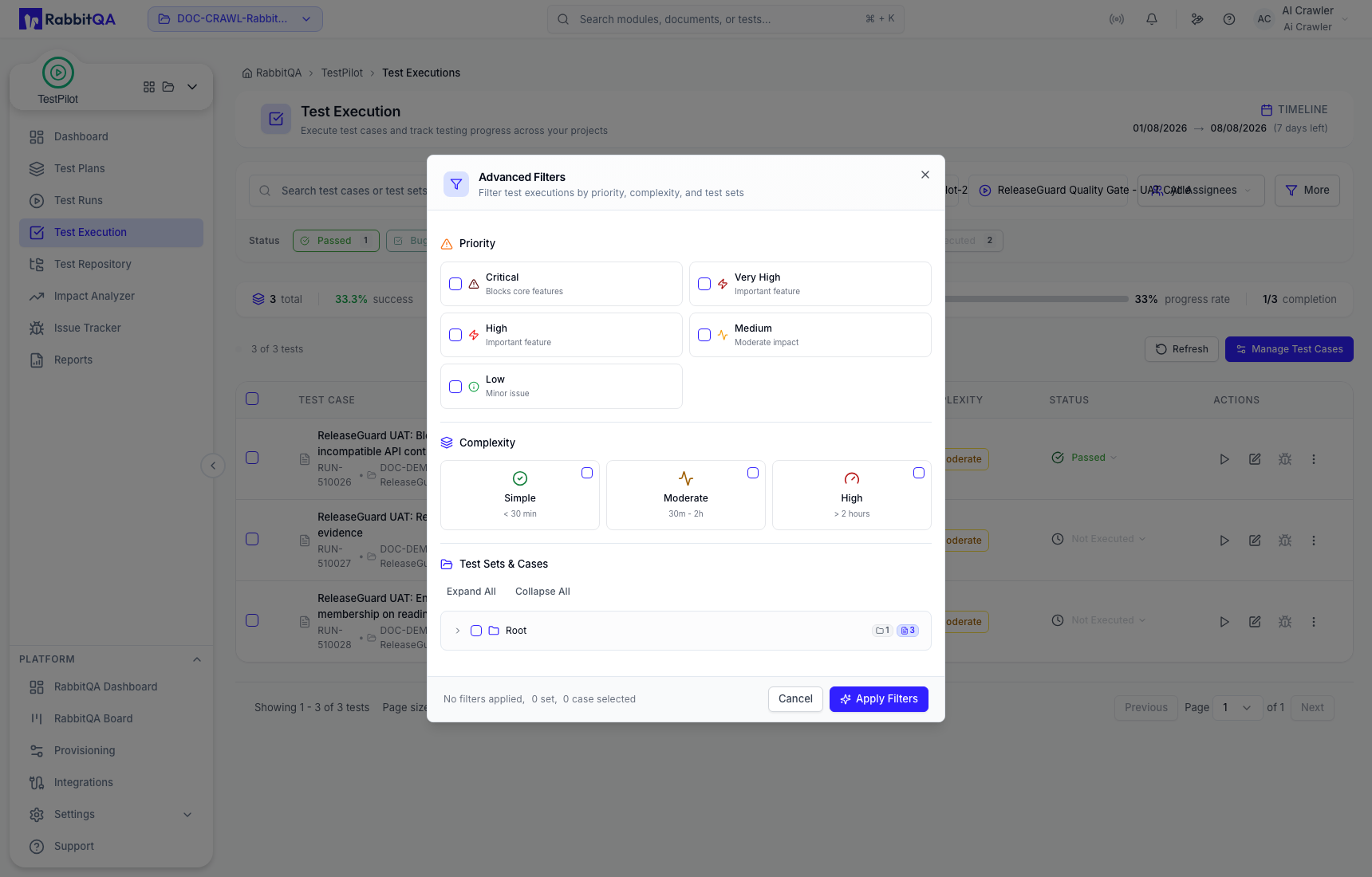
Filters, sorting, Expand All, and Collapse All change the displayed scope; they do not change results.
Assign or bulk-update executions
Select only the intended rows. The bulk bar reports the selection count and provides Update Status and Assign To. Choose the fields to change, review the selection again, then select Apply Changes.
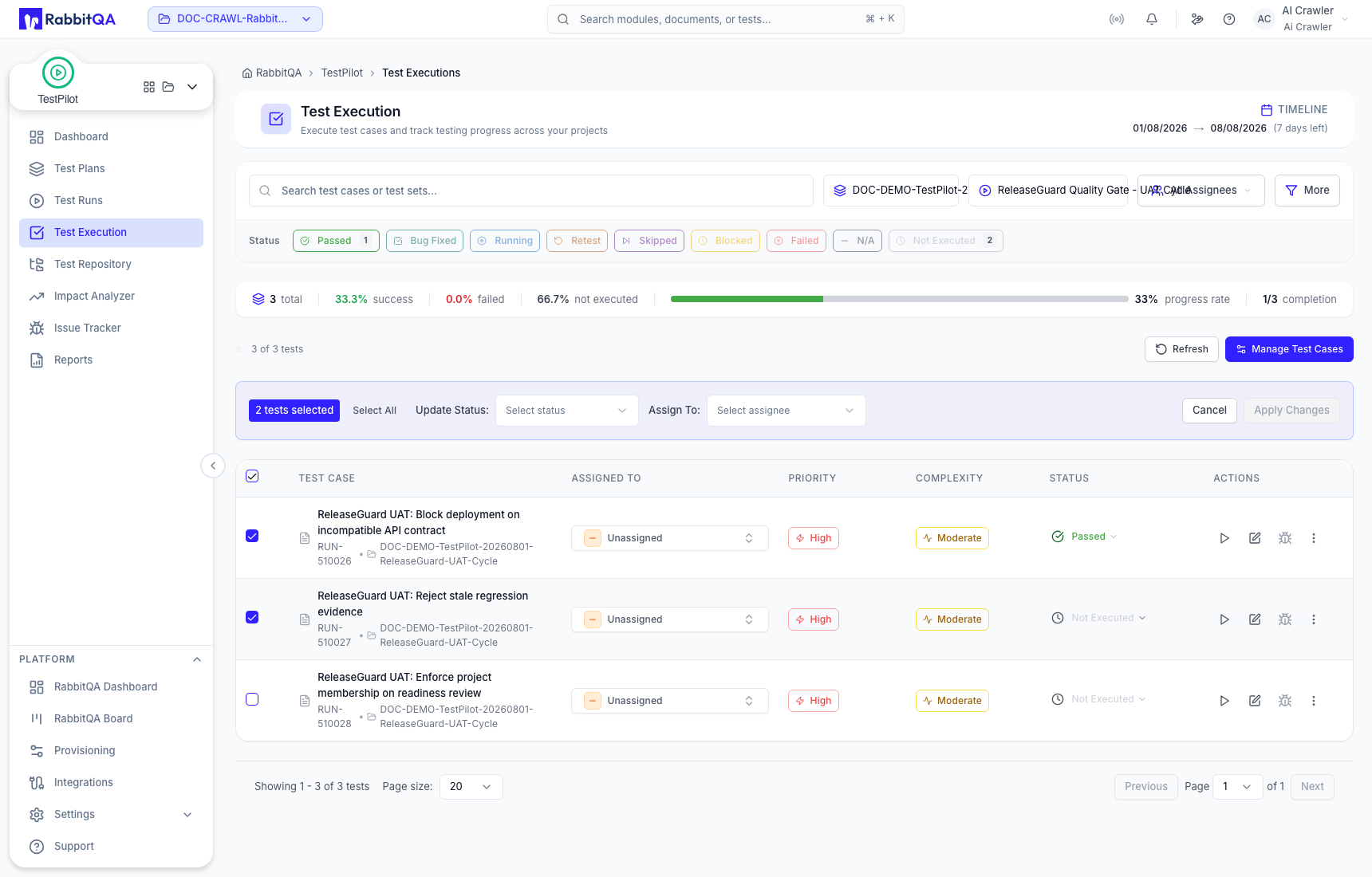
For one record, use the row's assignee or status control. Current execution states include Passed, Bug Fixed, Running, Retest, Skipped, Blocked, Failed, N/A, and Not Executed.
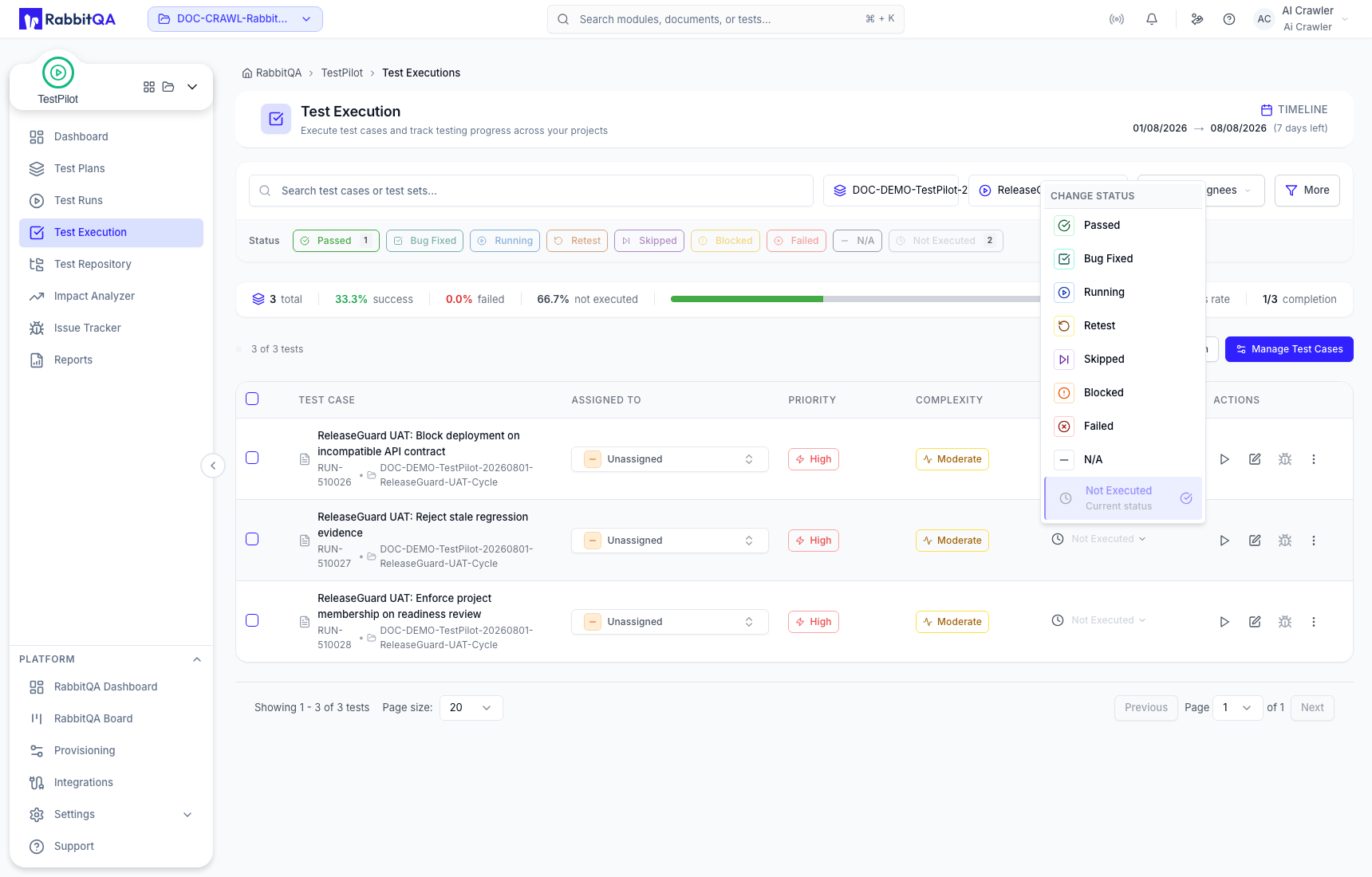
Use a result or lifecycle state that reflects the observed execution. Do not bulk-pass cases merely to make progress complete.
Execute and save a case
- Open Execute for the case.
- Verify the case title, Test Set, description, and prerequisites.
- Perform each action and compare the observation with its expected result.
- Set each step outcome.
- Select an overall result that agrees with the step evidence.
- Enter a Test Result Description.
- Attach supporting files when the evidence must travel with the result.
- Select Save Result.
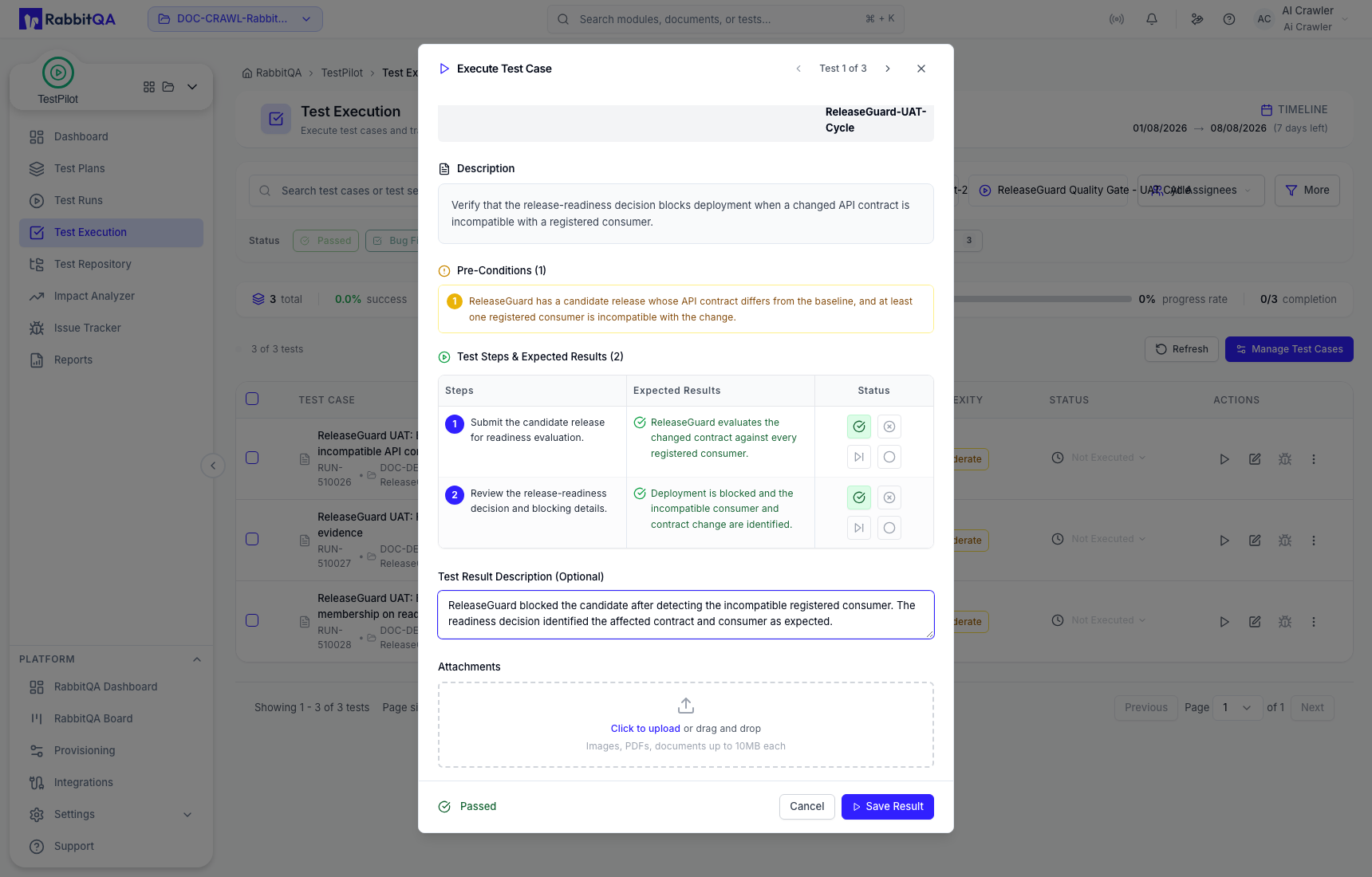
After save, confirm the result in the list and compare completion with the total assigned cases.
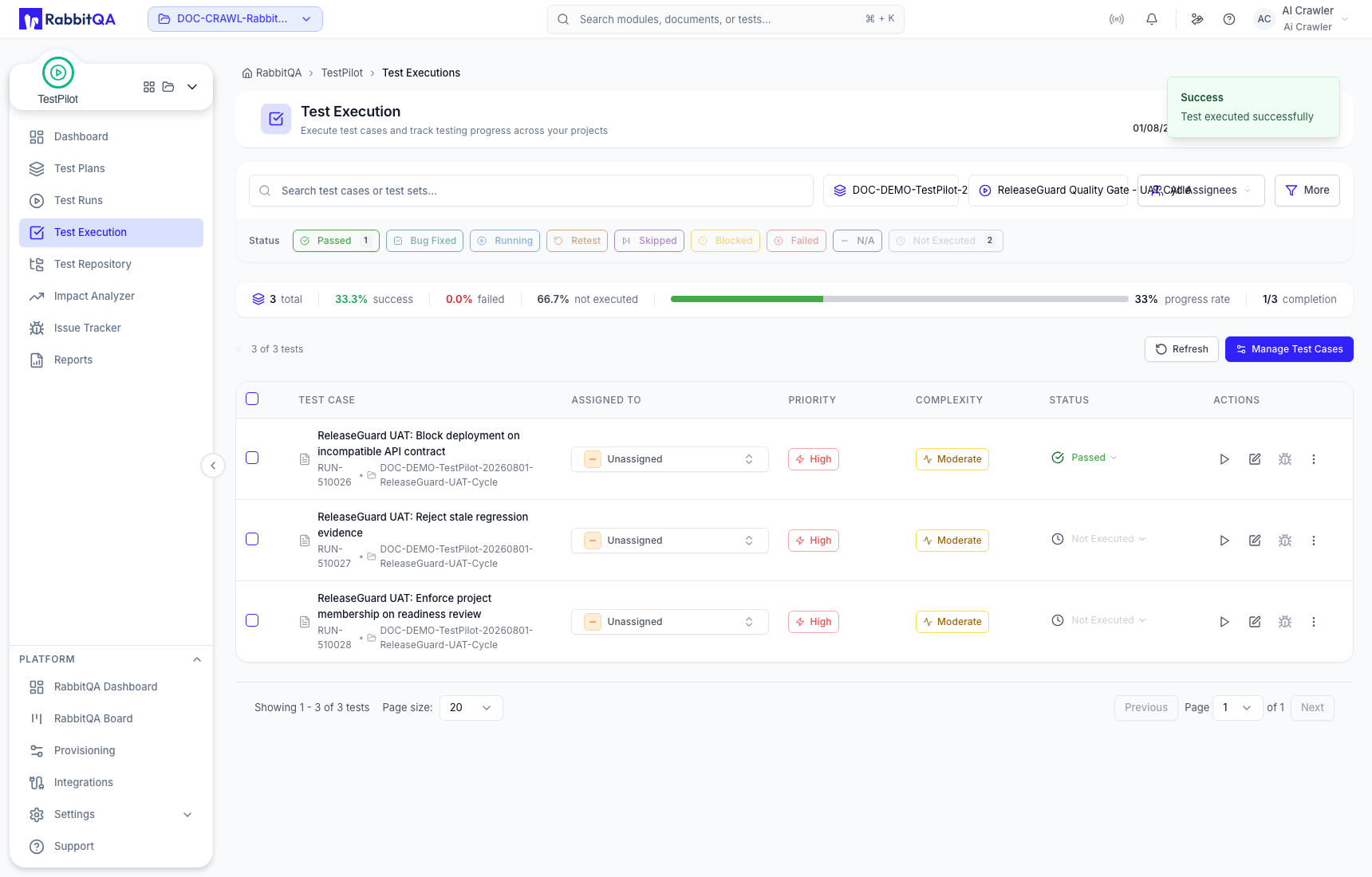
In the example, the only completed case Passed, while two cases remain Not Executed. The completed-result pass rate can be 100%, but progress remains 1 of 3.
Review a saved execution
Open a row's detail action to review the full record.
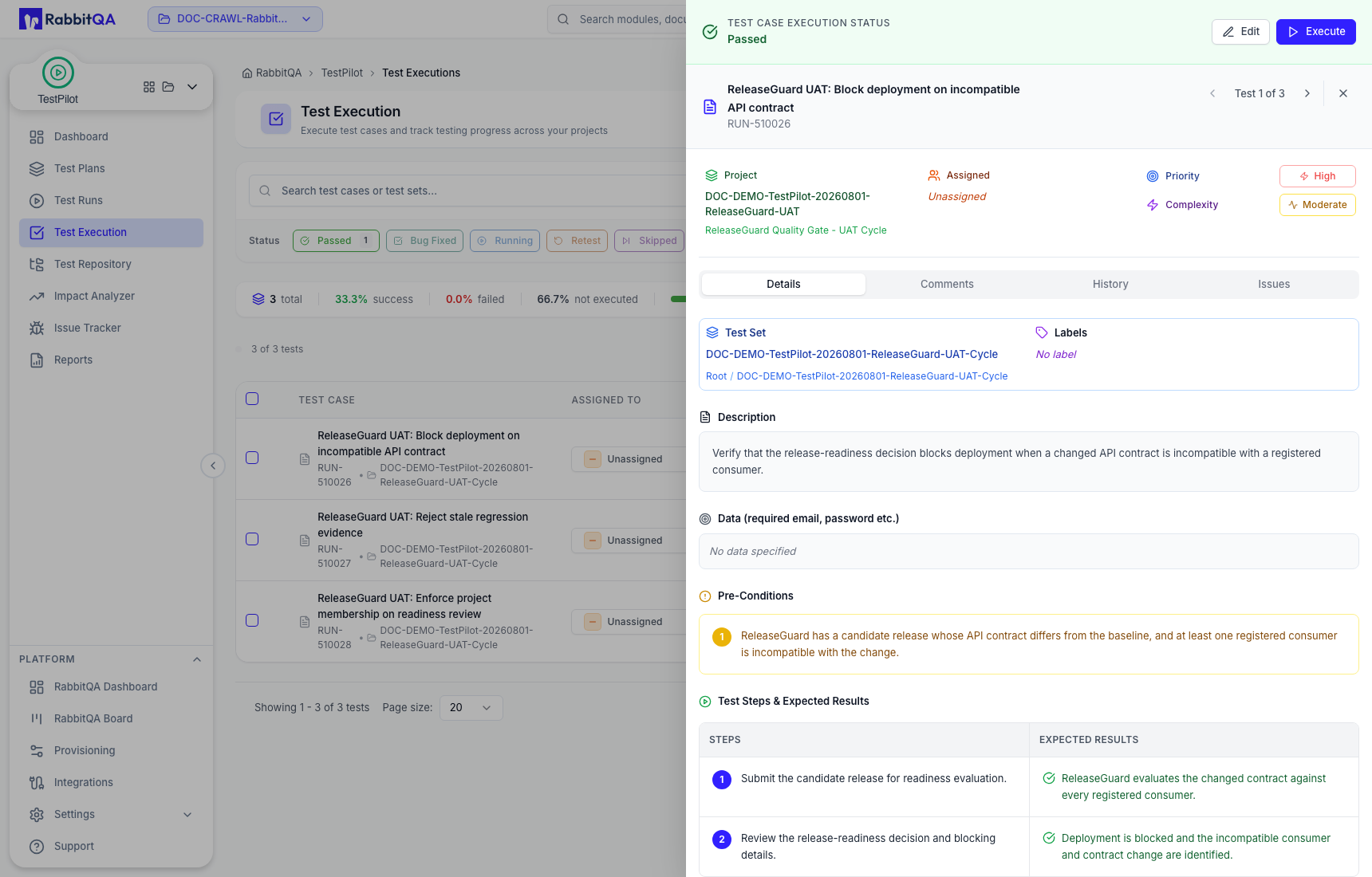
| Tab | What it contains |
|---|---|
| Details | Status, case/run context, assignee, priority, complexity, Test Set, labels, data, preconditions, steps, and expected results. |
| Comments | The saved Test Result Description for this execution; it is not a discussion thread. |
| History | Audit entries with user, timestamp, field, prior value, and resulting value. |
| Issues | Defects linked to this execution result. |
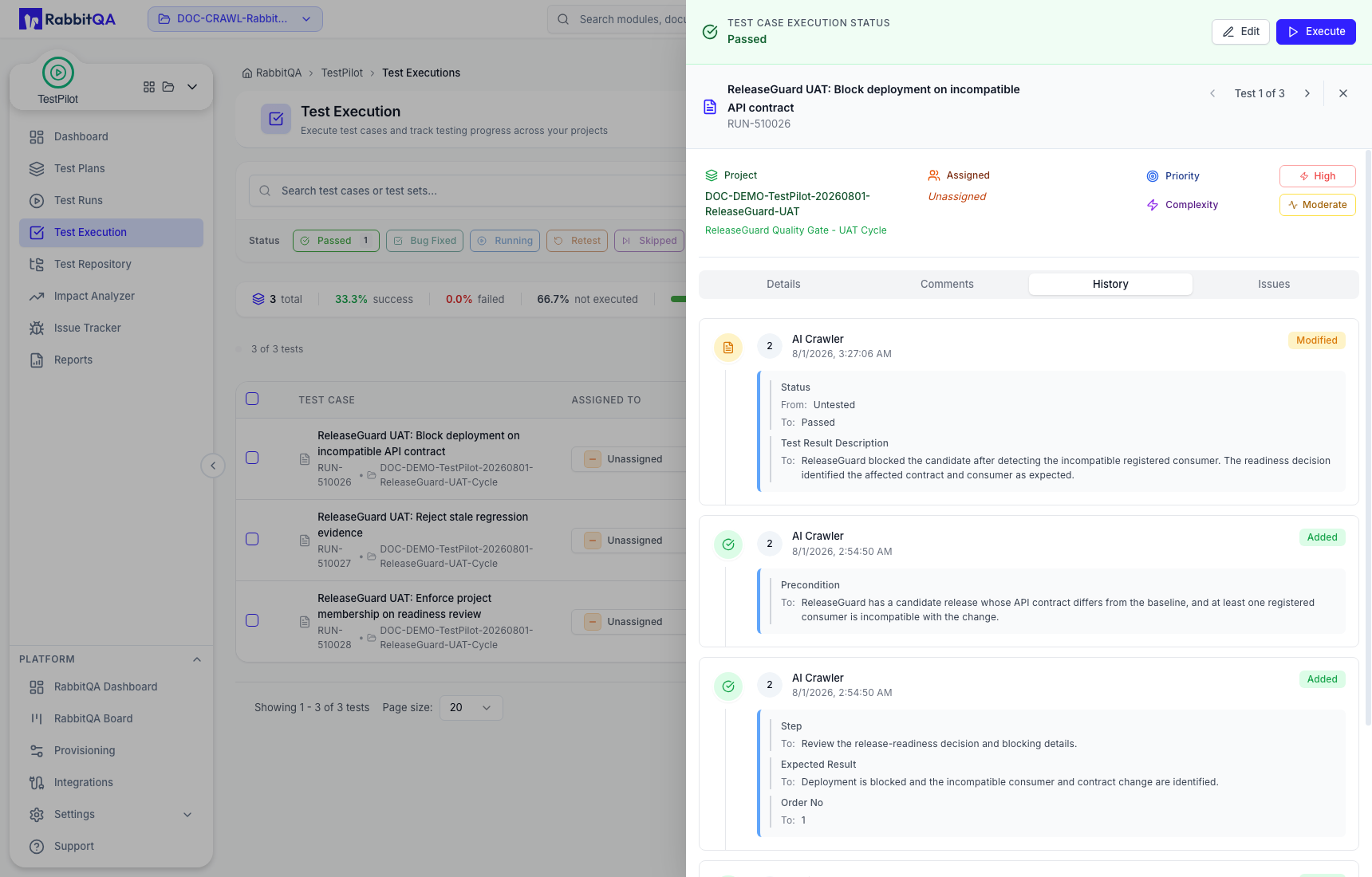
Use Previous Test Case and Next Test Case to remain inside the selected run.
Edit maintained case details
From the execution detail, Edit can update the maintained case's details, preconditions, steps, expected results, and current result description. Save only when the corrected definition remains repeatable and the result narrative agrees with the persisted status and evidence.
Remember the boundary:
- edit the maintained case for reusable test intent;
- use the Test Result Description for what happened in this execution;
- use History as audit evidence, not editable free text.
Failed results and issues
When observed behavior fails the expectation, select Failed, record step outcomes, and explain the failure. Create New Issue and Link Issue are available before Save Result.
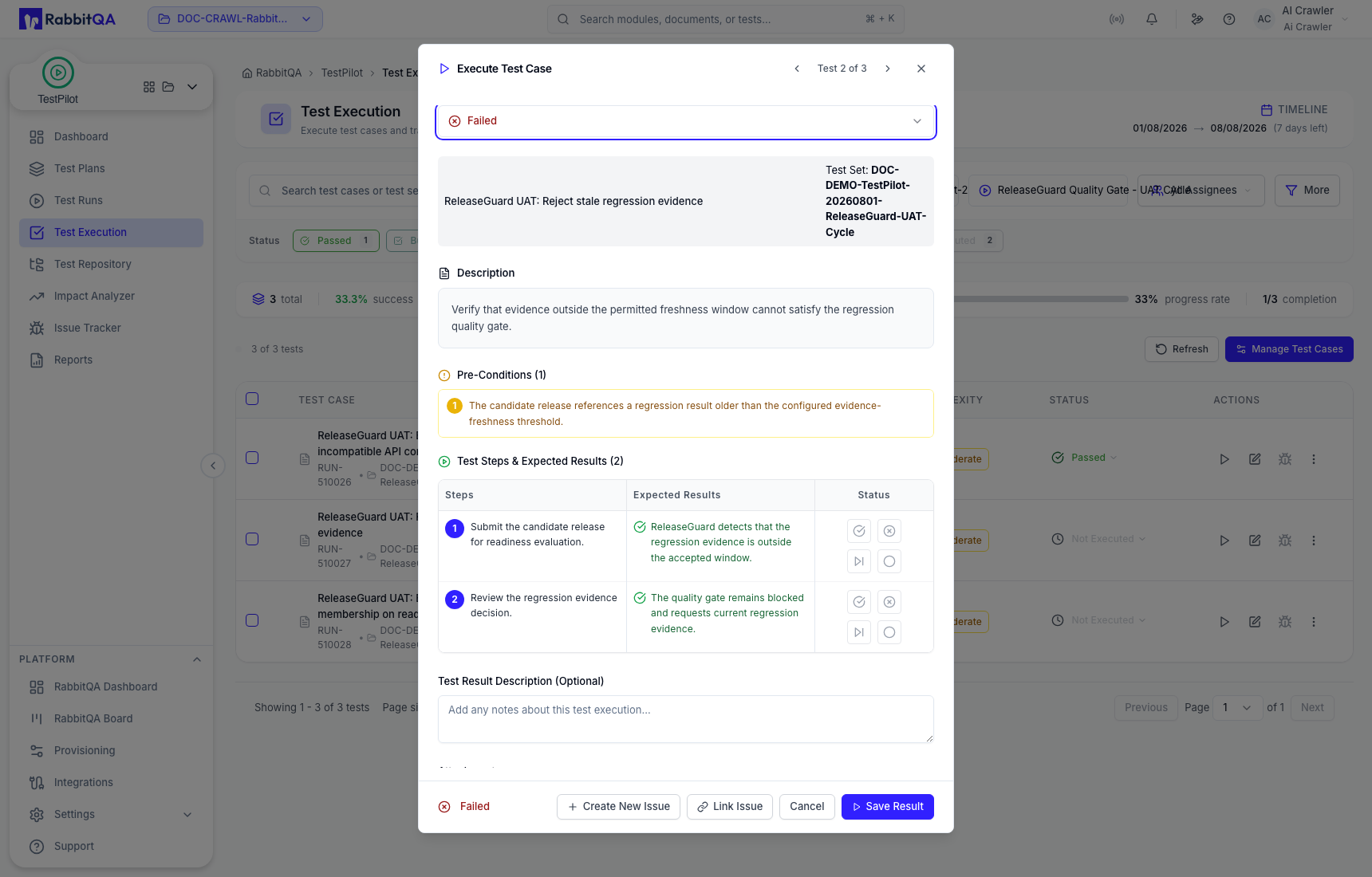
Creating a RabbitQA issue has its own Summary, Description, Labels, Priority, Status, and Attachments controls. External send actions depend on the configured integration.
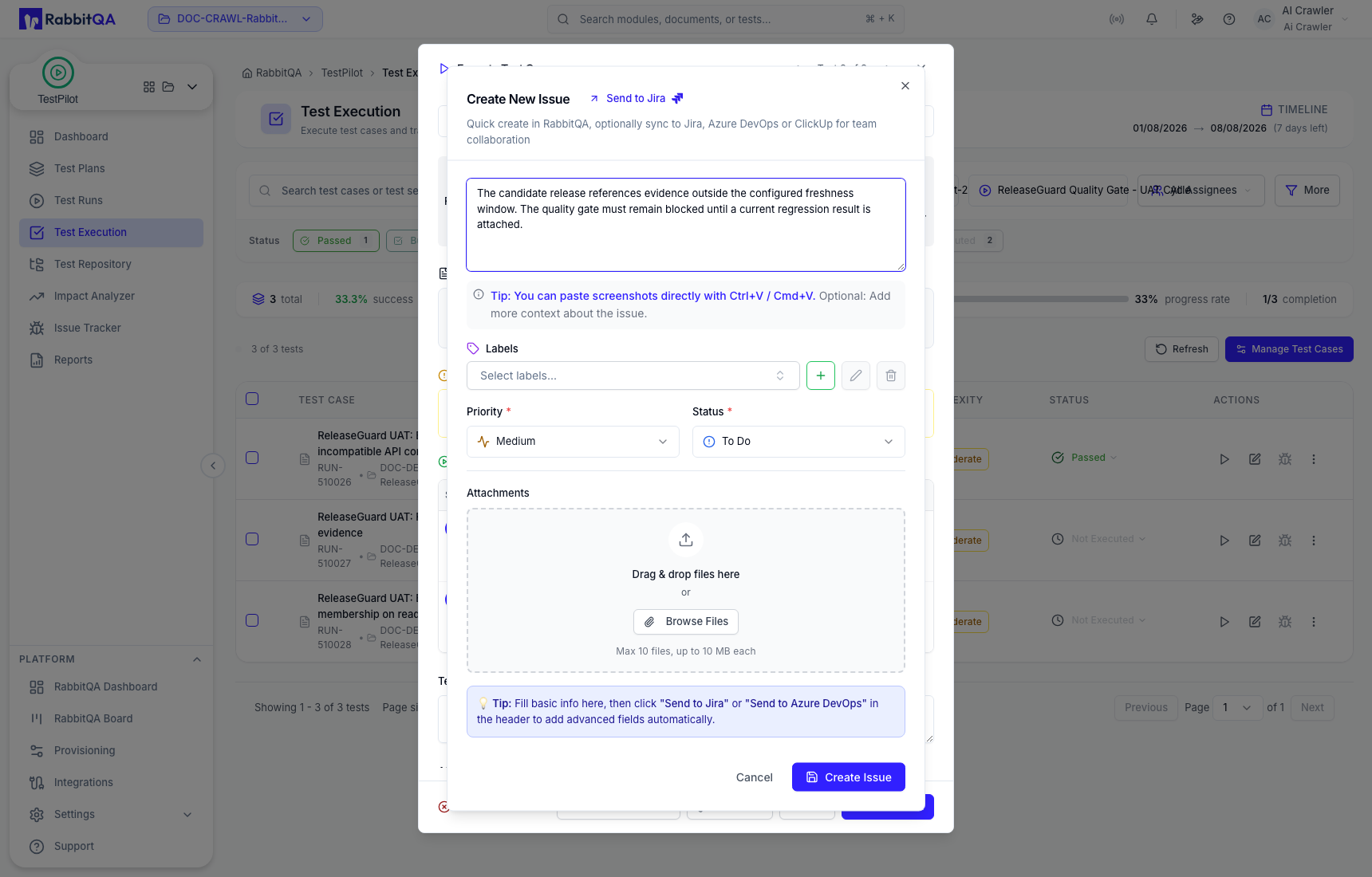
Create Issue saves the issue. Save Result saves the execution. Completing one does not automatically complete the other.
Leave without saving
Closing a changed execution opens Unsaved Changes.
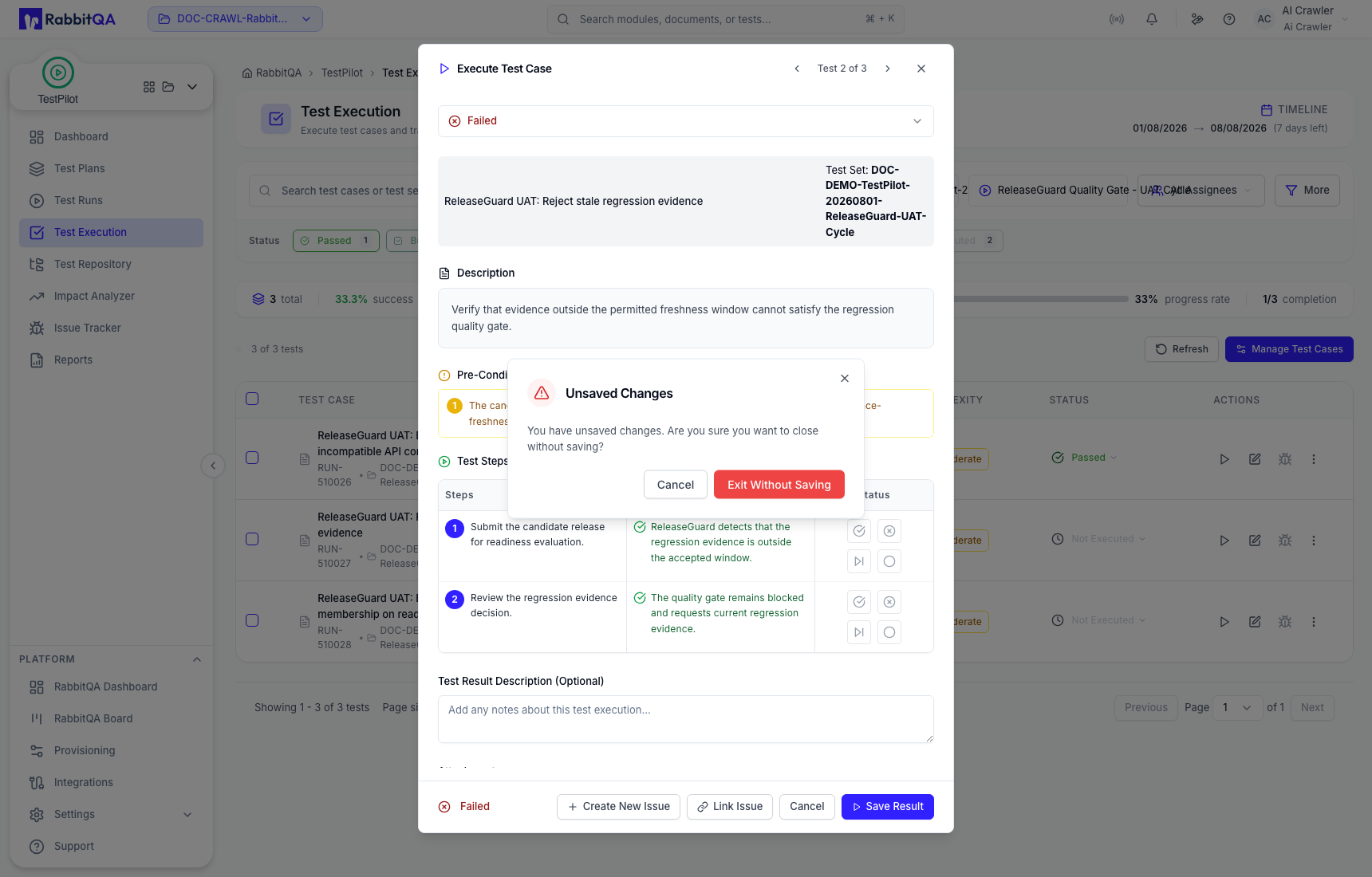
- Cancel returns to the draft.
- Exit Without Saving discards the proposed result, step changes, note, and uncommitted issue interaction.
After discarding, verify that the list, progress, dashboard, and report state remain unchanged.
If no executions appear
Confirm that:
- the correct Test Plan and Test Run are selected;
- repository cases were assigned to the run;
- current filters are not hiding them;
- your role permits viewing the selected project and run.
Use Manage Test Cases to add missing scope. Creating a repository case alone is not enough.
