TestPilot Quick Start
This guide follows the current path from a maintained repository case to a saved manual result and run report.
Before you begin
- Confirm the intended RabbitQA project is selected and has TestPilot enabled.
- Confirm your role permits the required plan, run, case-assignment, result, and issue actions.
- Prepare the test objective, environment, dates, steps, expected results, and evidence source.
1. Prepare reusable cases
Open Test Repository. Create a Test Set under Root or another maintained parent, then create the cases needed for the cycle. Each case should have a specific title, priority, complexity, description, preconditions, ordered actions, and observable expected results.
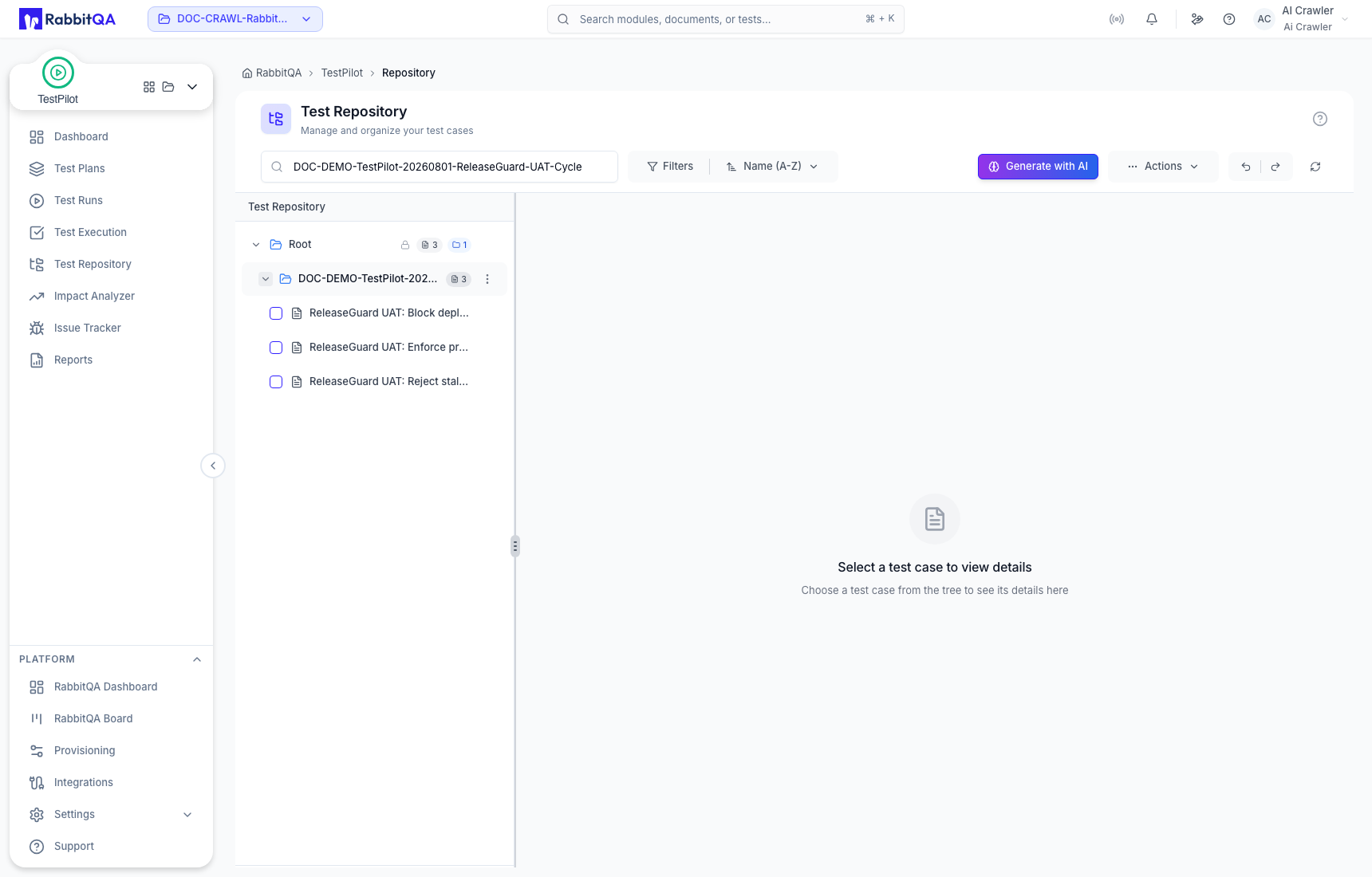
The repository is shared with CaseWriter. You do not need to copy a case into a separate TestPilot repository.
2. Create a Test Plan
Open Test Plans, select New Plan, and define the broader quality objective. Enter a name and description, then choose the type, platform, environment, priority, and date range.
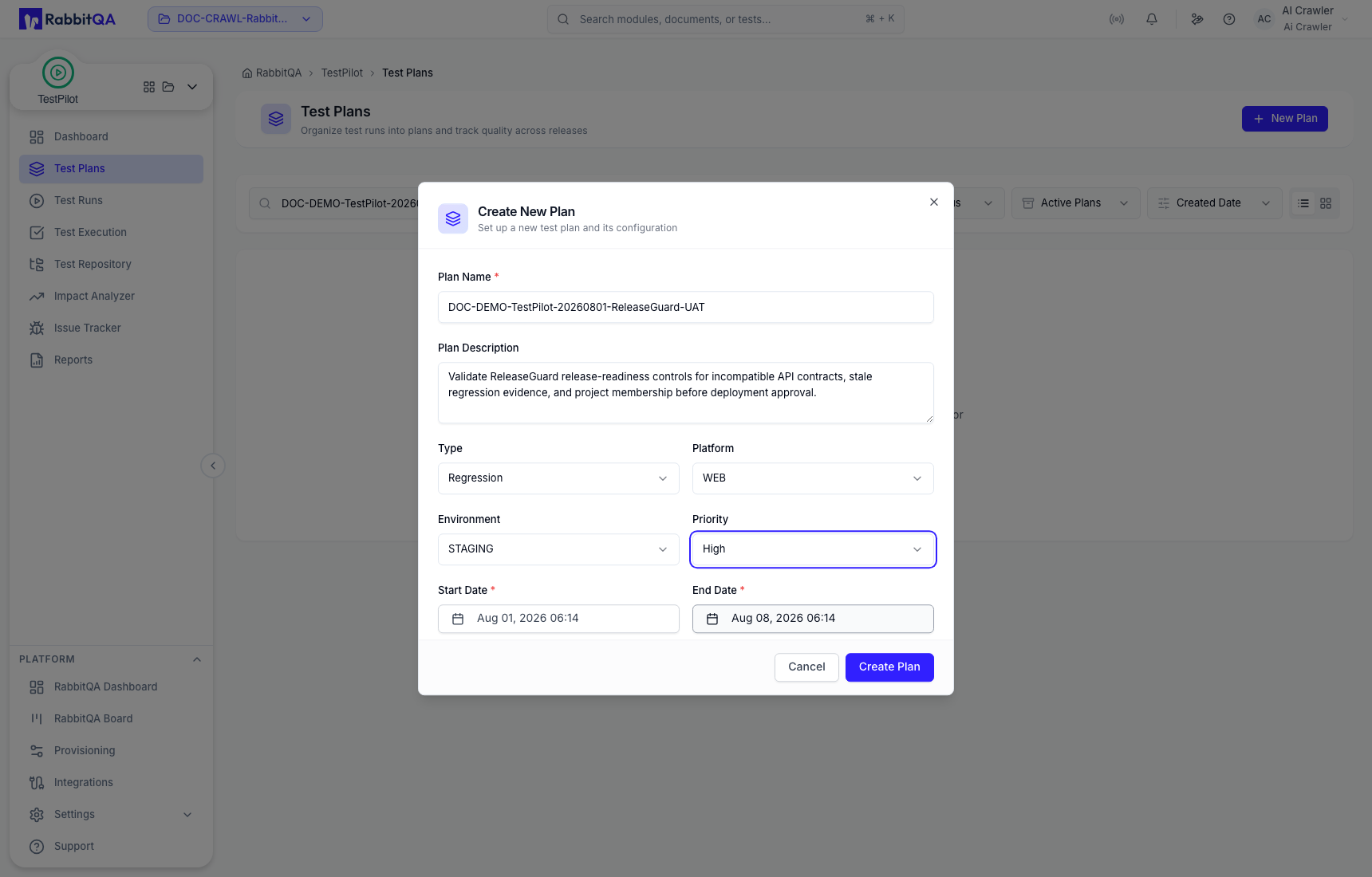
Creating the plan does not assign or execute any cases.
3. Create and scope a Test Run
Open Test Runs, select New Test Run, choose the Test Plan, and configure the run. Keep Create Now selected. Search the available repository tree and add only the cases intended for this execution cycle.
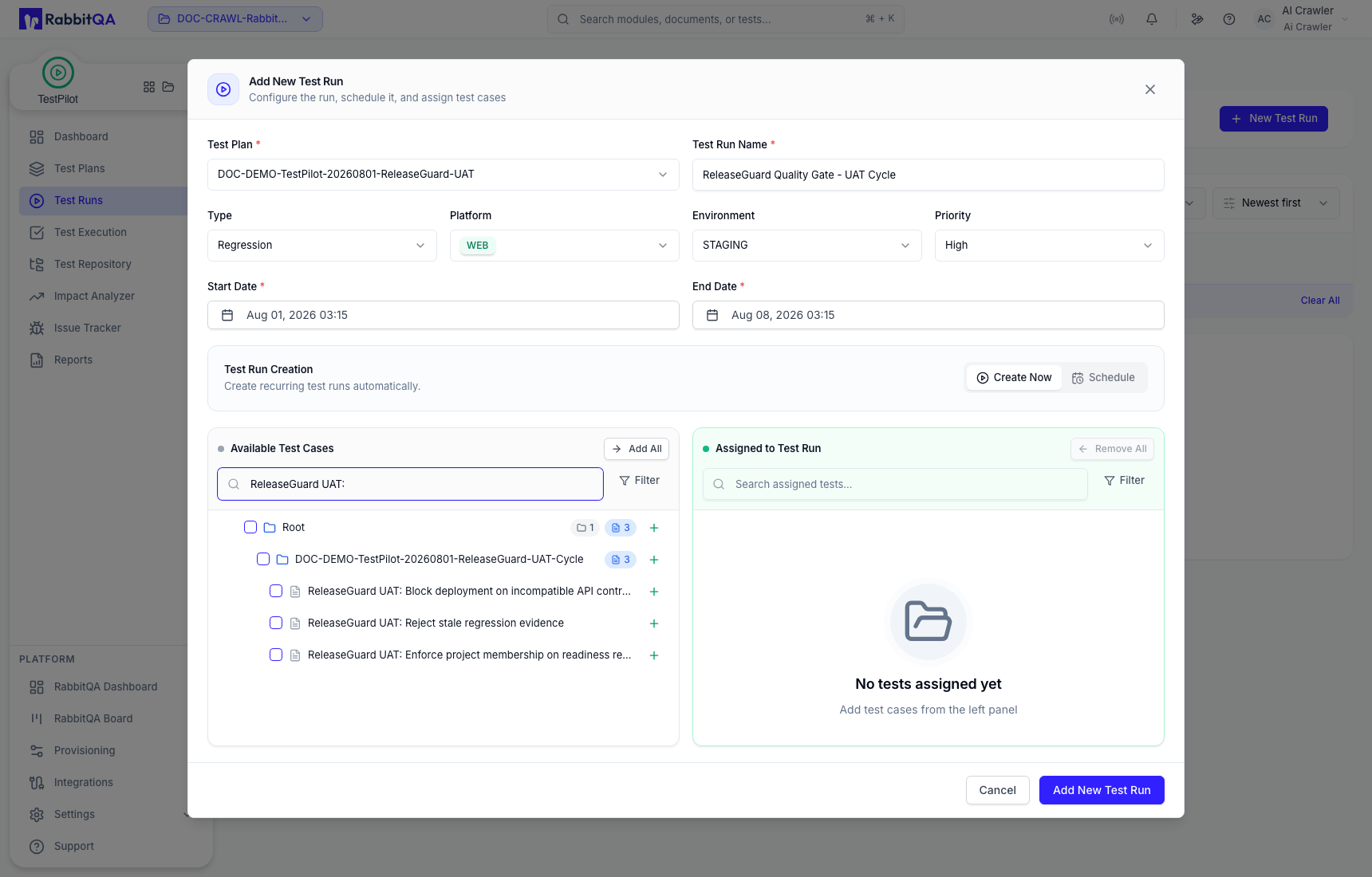
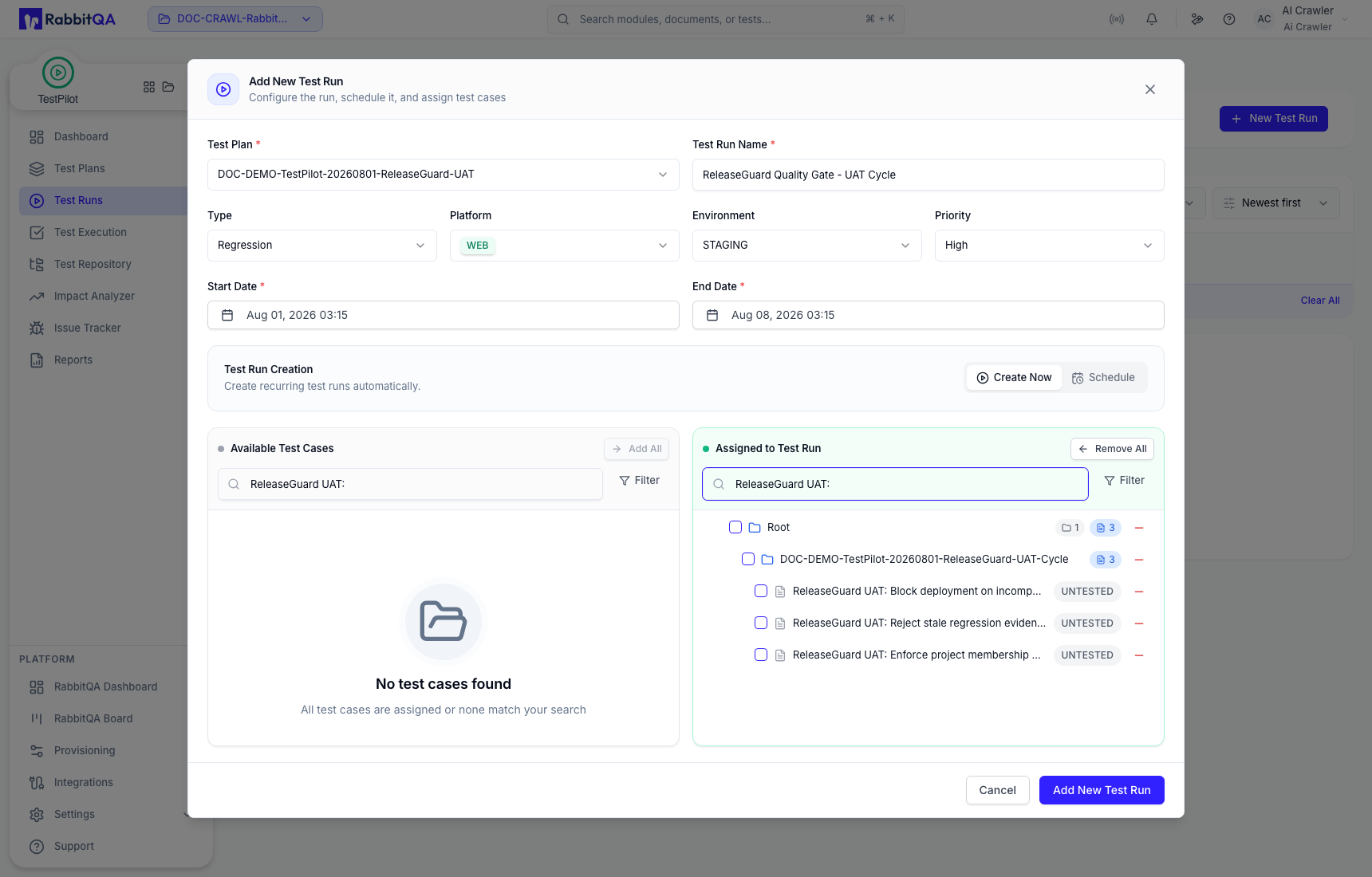
Verify the Assigned to Test Run panel before selecting Add New Test Run. Assignment creates the execution records that appear in Test Execution.
The current Schedule tab exposes recurrence fields, but the form does not yet save a persistent recurring schedule. Use Create Now for a run created here.
4. Execute and save a result
Open Test Execution and select the Test Plan and Test Run. Open a case with Execute, verify its context, perform each step, and mark step outcomes from observed behavior.
Set an overall result, add a Test Result Description, attach evidence when needed, and select Save Result.
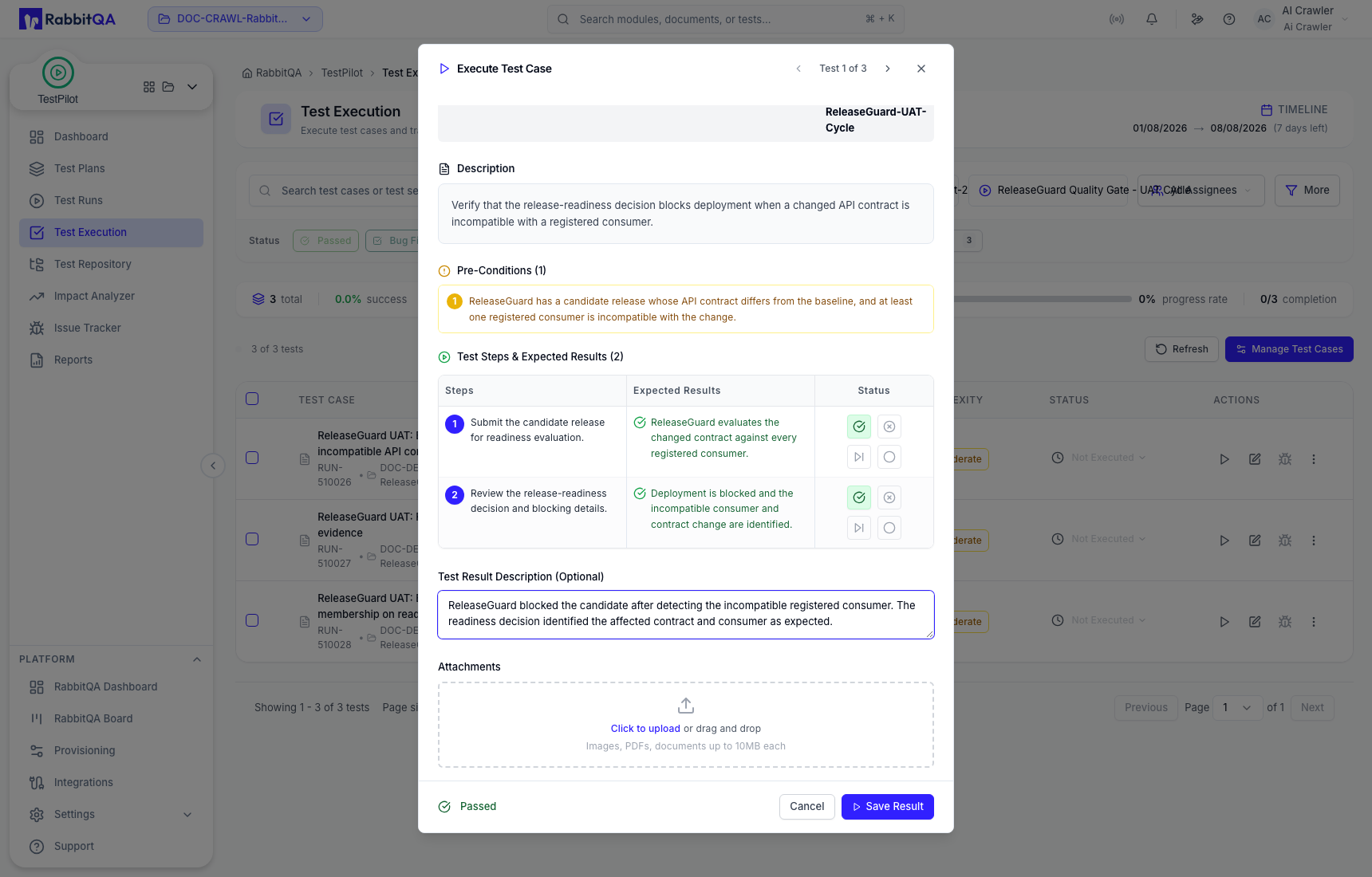
Do not treat a draft status as saved. Closing a changed execution and selecting Exit Without Saving leaves dashboard, progress, and reports unchanged.
5. Review progress and report
Use the Dashboard for plan and recent-run indicators. For authoritative run evidence, open Reports, select the Test Plan, then select the Test Run.
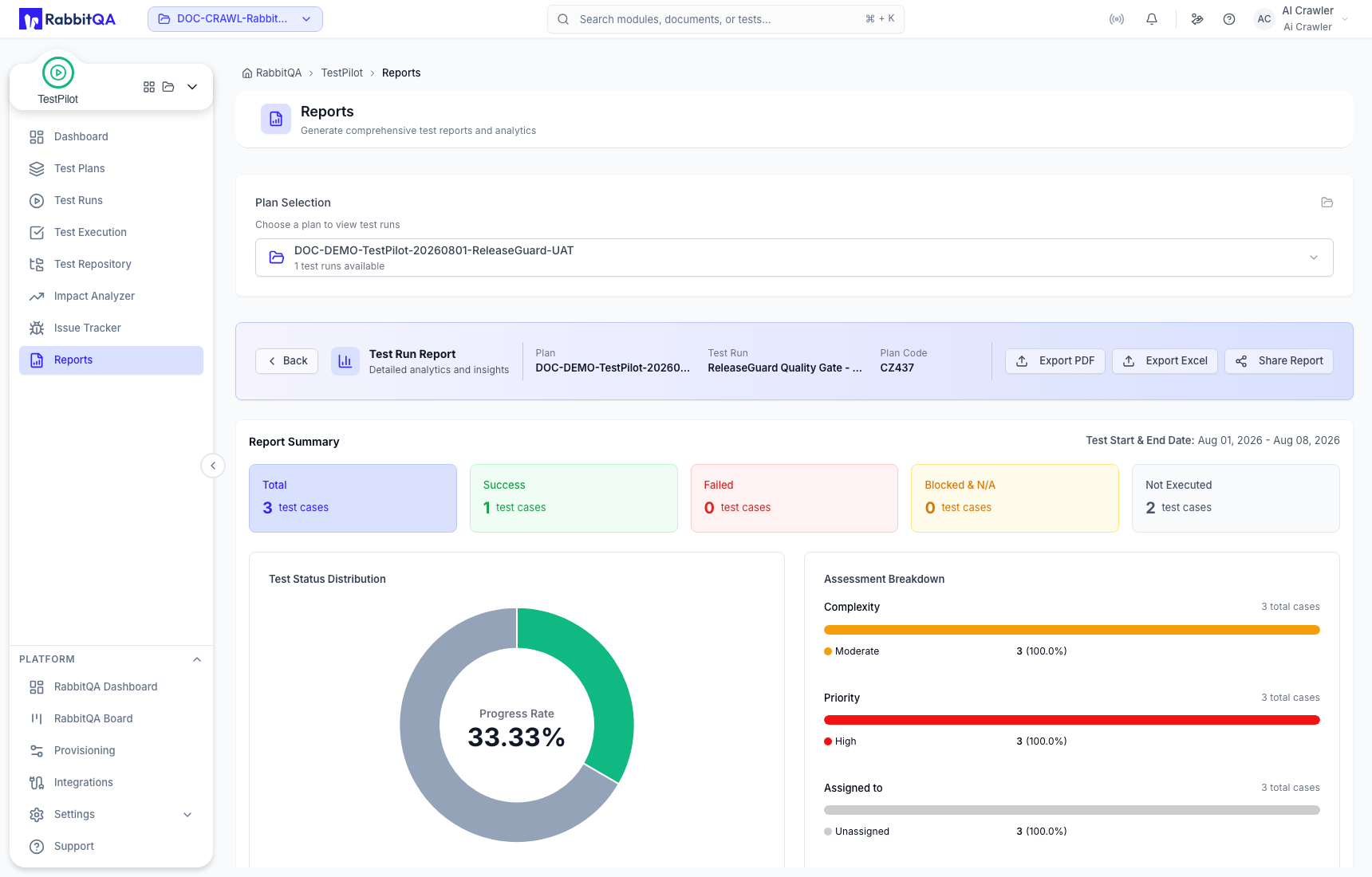
Compare the summary with the case table, then use Export PDF, Export Excel, or Share Report as appropriate.
What to do next
- Dashboard: interpret pass rate separately from completion.
- Test Plans: manage lifecycle, health, progress, and plan actions.
- Test Runs: edit, clone, and manage case assignments.
- Test Execution: filter, bulk-update, execute, and audit cases.
- Issue Tracker: create or link issues with plan, run, and execution context.
