TestPilot Quick Start
This guide takes you from an empty workspace to a finished test report.
Before you start
- TestPilot must be enabled for the project you are working in.
- You need
testpilot:testset:createto create plans and runs, andtestpilot:testresult:updateto record results. - You need test cases in the repository. If you have none, create them in CaseWriter first.
Step 1: Create a test plan
A plan groups the runs for a release, sprint, or product area.
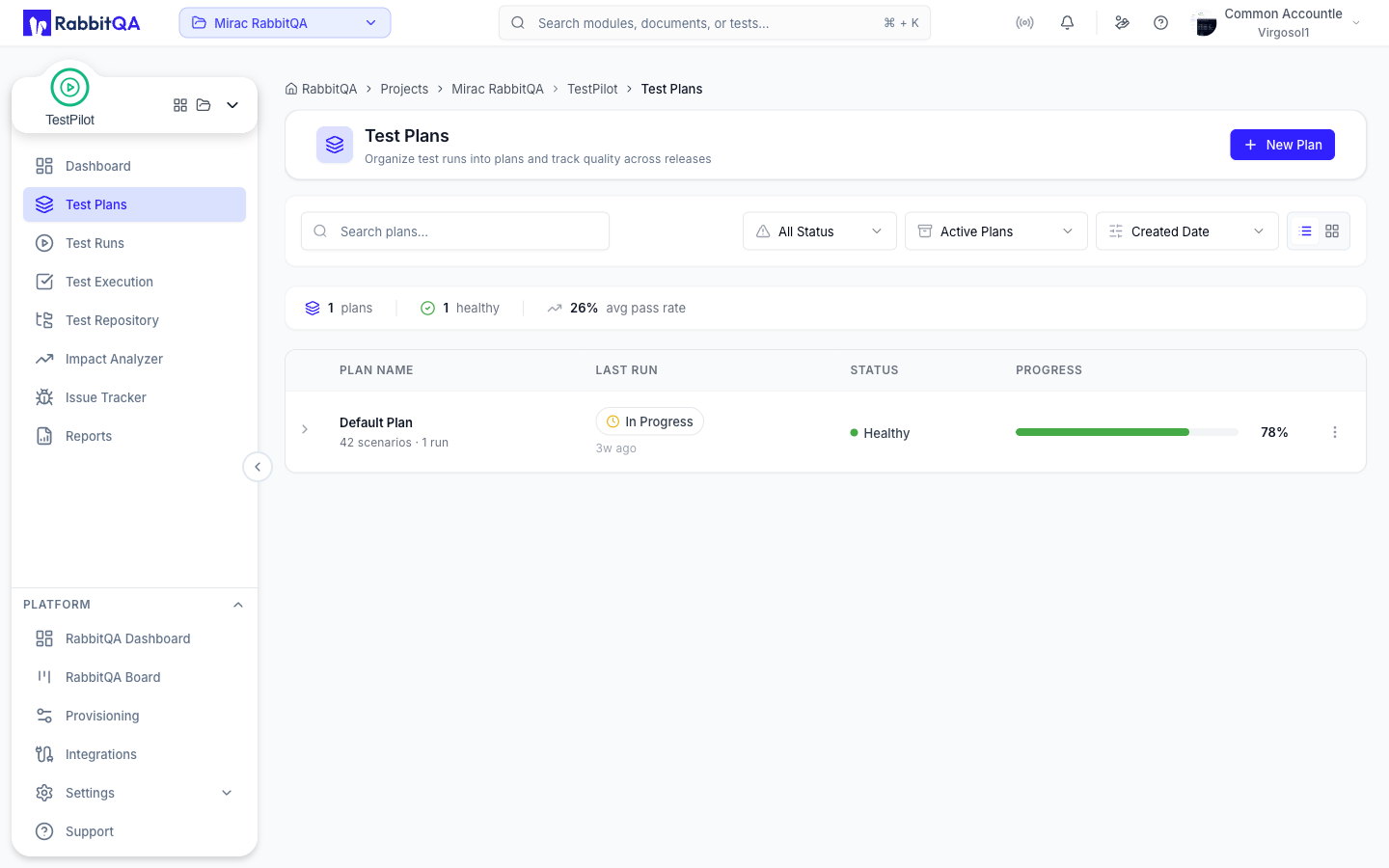
- Go to TestPilot > Test Plans.
- Click New Plan.
- Enter a Plan Name, for example
Sprint 23 - Payments, and optionally a Plan Description. - Set the Type, Platform, Environment, and Priority.
- Set the Start Date and End Date.
- Optionally select the test cases the plan covers from Available Test Cases.
- Click Create Plan.
Step 2: Create a test run
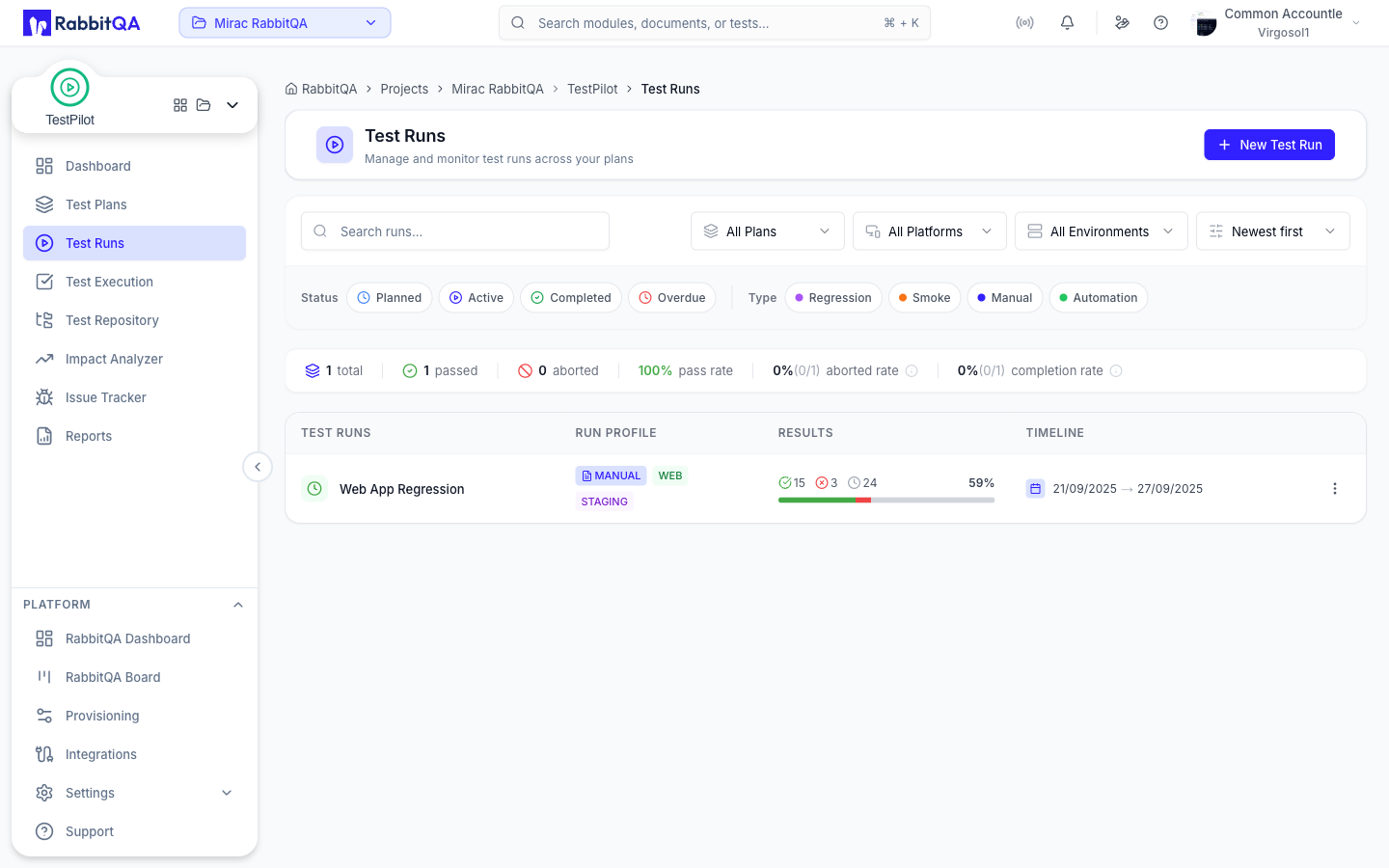
With the plan selected on the Test Runs page, New Test Run creates a run straight from the plan's own settings.
To set the run up yourself instead:
- Go to TestPilot > Test Runs with All Plans selected.
- Click New Test Run.
- Choose the Test Plan - this is required and cannot be changed later.
- Enter a Test Run Name.
- Set the Type, Platform (one or more), Environment, and Priority.
- Set the Start Date and End Date.
- Under Test Run Creation, leave Create Now selected to open the run immediately, or choose Schedule to create the run on a recurring basis.
- Optionally assign test cases now from Available Test Cases.
- Click Add New Test Run.
Step 3: Add test cases
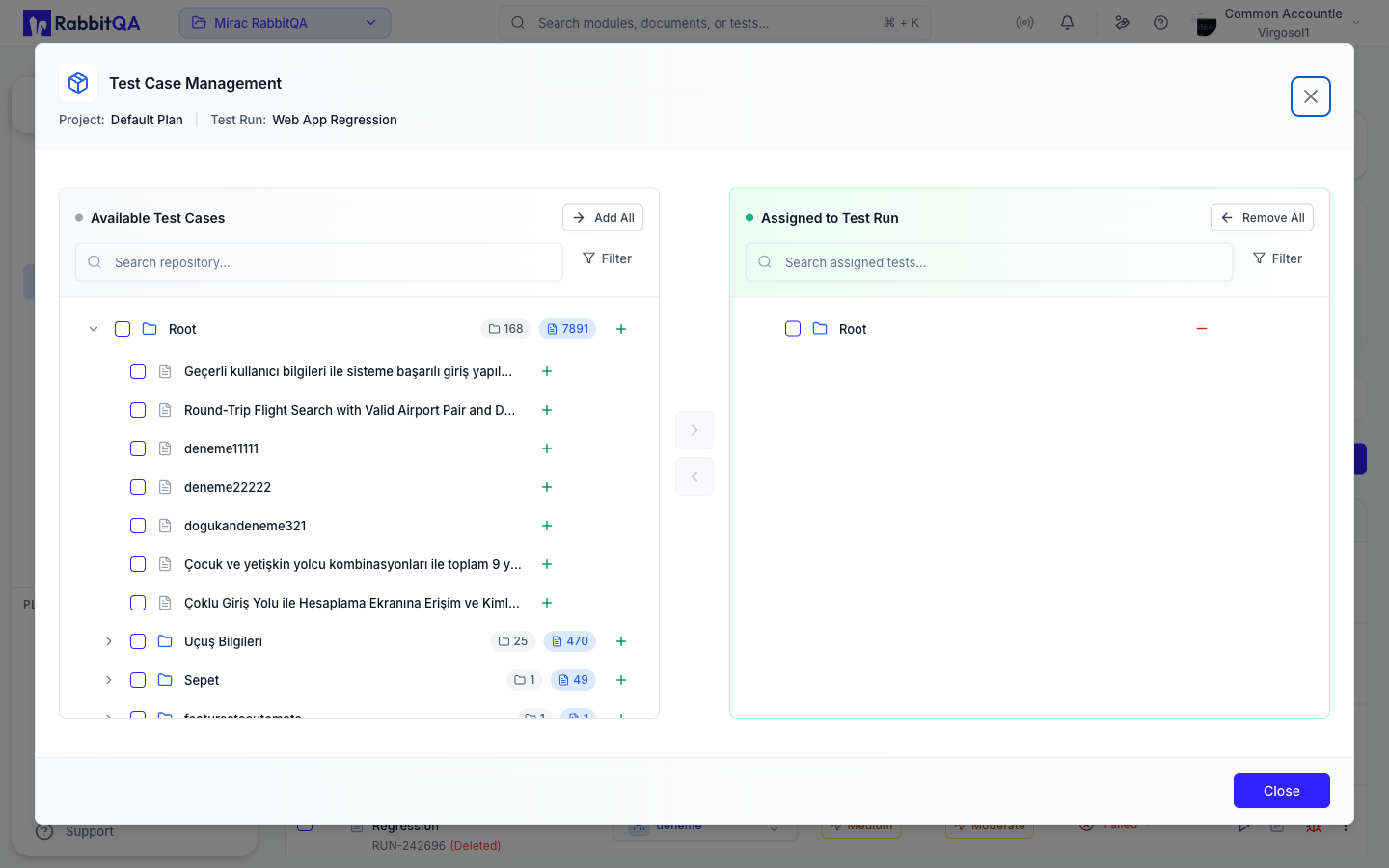
If you chose a plan that already carries test cases, the run is seeded with them. To adjust the selection:
- Open the run's Test Executions page and click Manage Test Cases. The same dialog is available from the Manage Test Cases entry in a run's action menu on the Test Runs page.
- Browse or search Available Test Cases on the left. Folders show how many sub-folders and cases they hold, so you can add a whole branch at once.
- Move the ones you want into Assigned to Test Run, individually with the + action, a branch at a time, or all at once with Add All. Remove All clears the assigned side.
- Click Close.
The left panel is filtered by the run's platforms. Test cases with no platform recorded are always listed, so nothing is hidden from you.
Step 4: Assign the work
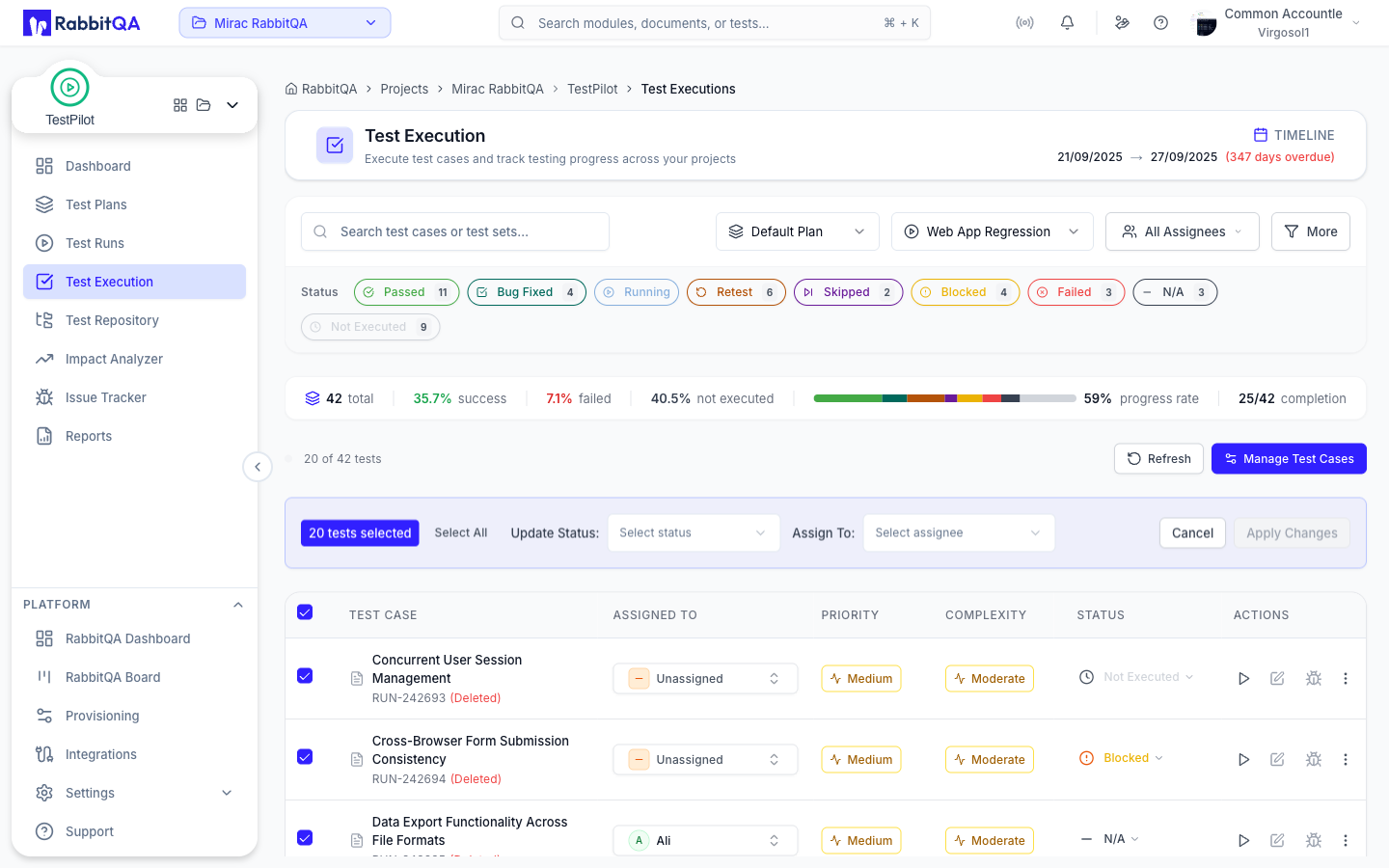
- Click the run to open Test Executions.
- Select the rows you want to hand out, or use Select All.
- In the bar that appears, pick a person or group under Assign To. The same bar carries Update Status, so you can also move a batch of tests to a new status in one action.
- Click Apply Changes, or Cancel to drop the selection.
You can also set an assignee one row at a time in the Assigned To column.
Step 5: Execute and record results
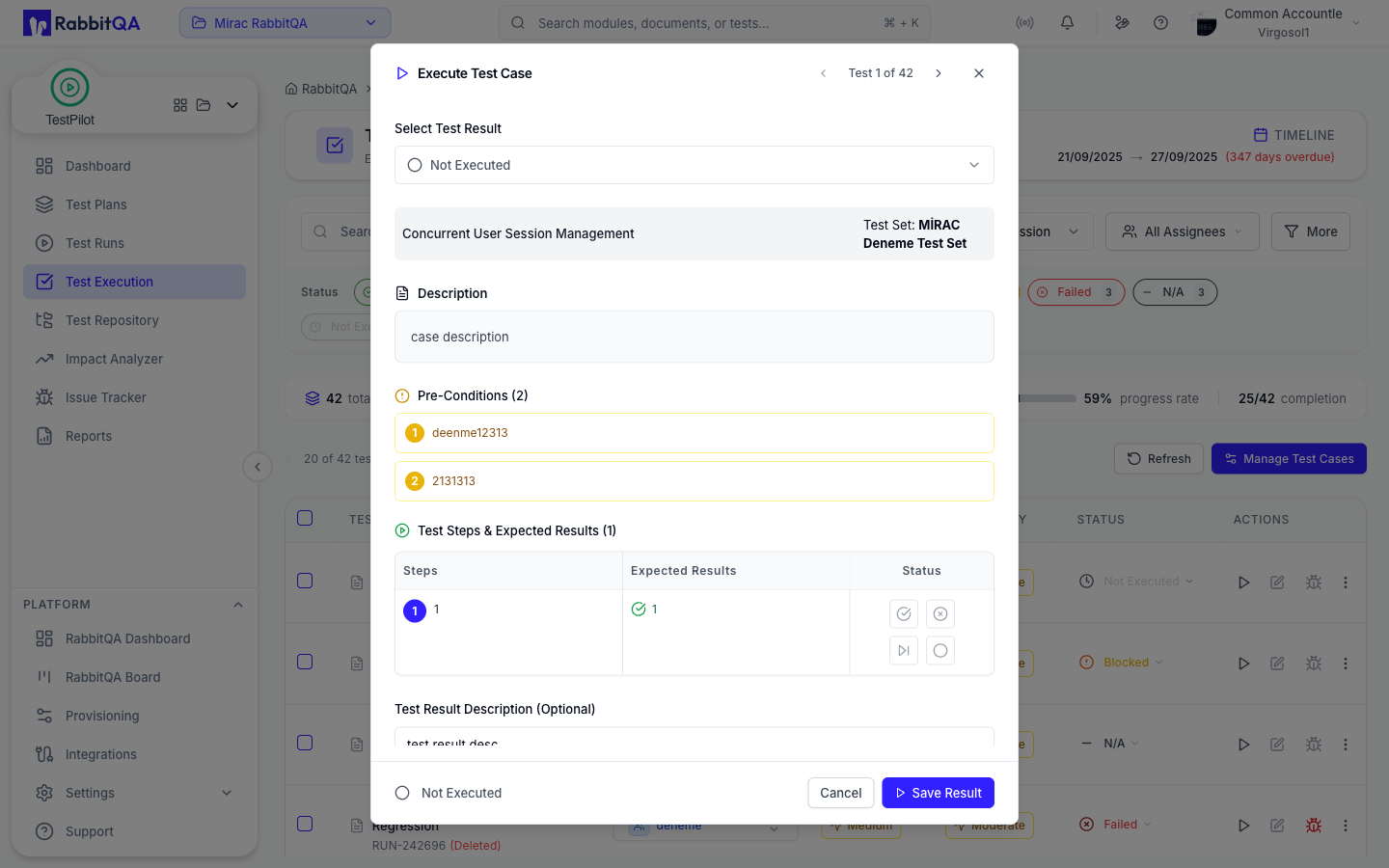
- Click the play action on a row to open Execute Test Case.
- Read the description, pre-conditions, and steps.
- Perform the steps, marking each one with the status actions in the Status column of the Test Steps & Expected Results table.
- Set the overall result in Select Test Result at the top. Marking a step failed sets the run result to Failed for you.
- Add notes in Test Result Description and attach evidence under Attachments.
- Click Save Result.
- The header shows your position in the run, for example
Test 1 of 42. Use the arrows beside it to move to the next or previous test case without closing the form.
If a test fails, use the bug action on its row to raise an issue. The form arrives prefilled with the failing step and the test's attachments.
Step 6: Report
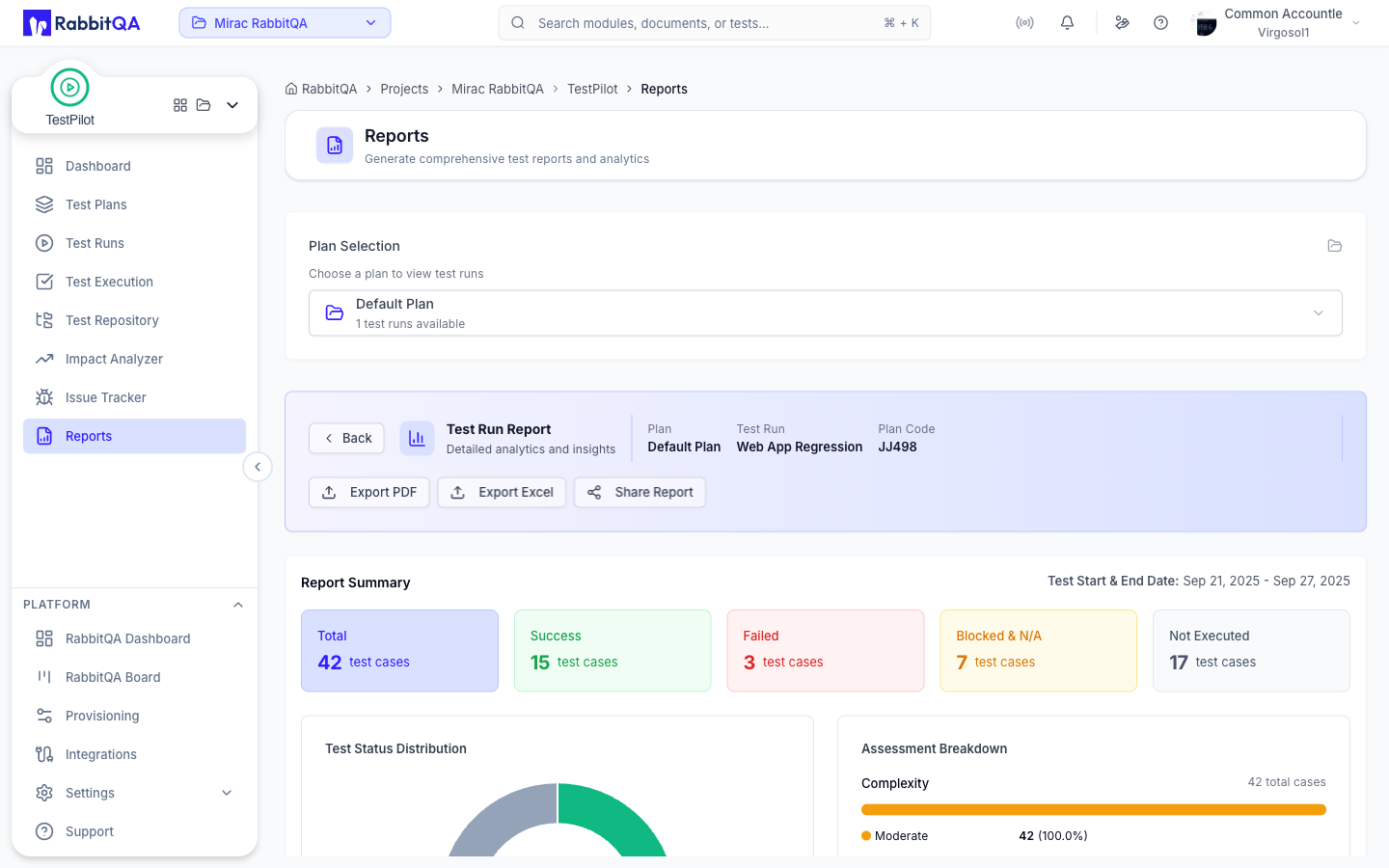
- Go to TestPilot > Reports.
- Choose the plan under Plan Selection, then pick a run from Available Test Runs.
- Read the summary tiles, status distribution, assessment breakdown, issues, and test case list. The report header repeats the plan, the run, and the Plan Code so a shared report is unambiguous.
- Use Export PDF or Export Excel to hand it to stakeholders, or Share Report to copy the link. Back returns you to the run list without losing the selected plan.
Where to go next
| If you want to | Read |
|---|---|
| Watch progress across all plans | Dashboard |
| Understand plan health and nested runs | Test Plans |
| Filter and manage many runs | Test Runs |
| Master the execution screen | Test Executions |
| Work your defects | Issue Tracker |
| Turn a spec change into regression tests | Impact Analyzer |
| Plan and run testing well | Best Practices |
Troubleshooting
| Problem | Cause and fix |
|---|---|
| New Test Run opens a form that will not submit | A test plan is required. Choose one in the Test Plan field. |
| The test case picker looks empty | It is filtered by the run's platforms. Add the platform you need, or clear the filter. |
| The bug action on a row is disabled | Issues can only be raised from tests marked Failed. |
| Create or delete buttons are missing | You do not hold the matching testpilot:testset:* permission. Ask an administrator. |
| The run list looks empty | Check the active filter chips and use Clear All. |
| The execution list looks stale | The page does not poll. Use Refresh. |
| A shared link opens the wrong data | The link carries the project it was taken from. Confirm you are in the right project. |
