Generated Case Review
Every AI-generated case must pass CaseWriter's review lifecycle before it can be saved to the Test Repository. Review is performed inside a completed AI Test Session.
Review case content
Expand a case and verify:
- title and description;
- test type, priority, and complexity;
- preconditions;
- ordered actions and expected results;
- labels or organizational context; and
- alignment with the session's input evidence and testing configuration.
Search, filters, sorting, and grouping help isolate a review slice, but do not replace reading each selected case.
Edit a generated case
Use the case action menu to edit the details, preconditions, and steps. Save the changes only after reviewing the complete case.
Editing improves content but does not approve the case. The case must still pass the review status gate.
Regenerate a case
Use targeted regeneration when a case needs a substantive AI-assisted rewrite:
- Open the regeneration action.
- Enter a specific instruction describing the required change.
- Wait for the regenerated proposal.
- Compare Original and AI Regenerated content.
- Choose Keep Original, Duplicate, or Use Regenerated for the scenario.
- Select Apply Changes to commit the chosen decision.
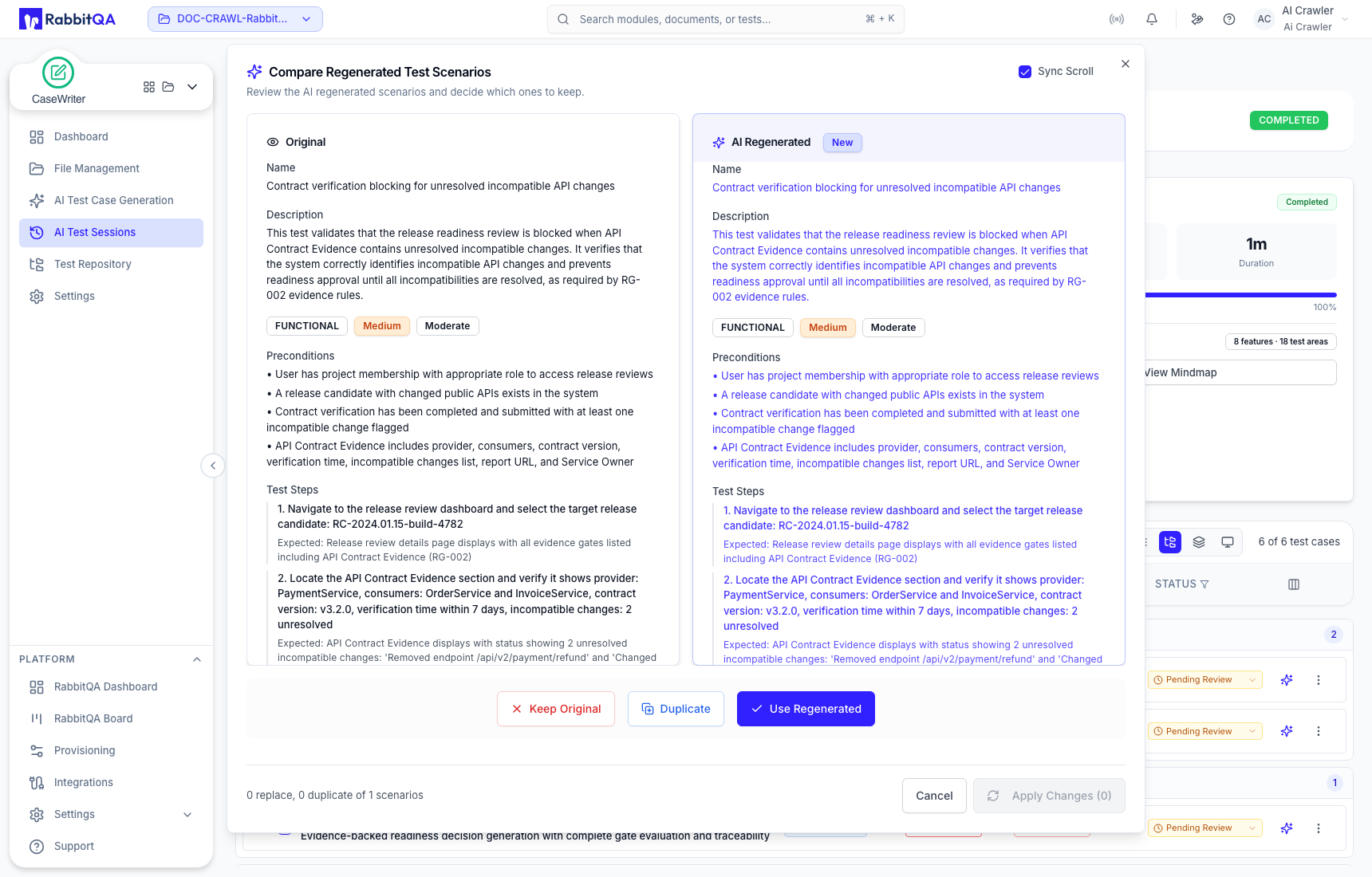
- Keep Original discards the regenerated proposal for that scenario.
- Duplicate preserves the original and creates the regenerated version as another case.
- Use Regenerated replaces the original content with the proposal.
Duplicated or regenerated cases require review. Compare factual details and expected outcomes rather than accepting a change because it is newer.
Review statuses
| Status | Meaning |
|---|---|
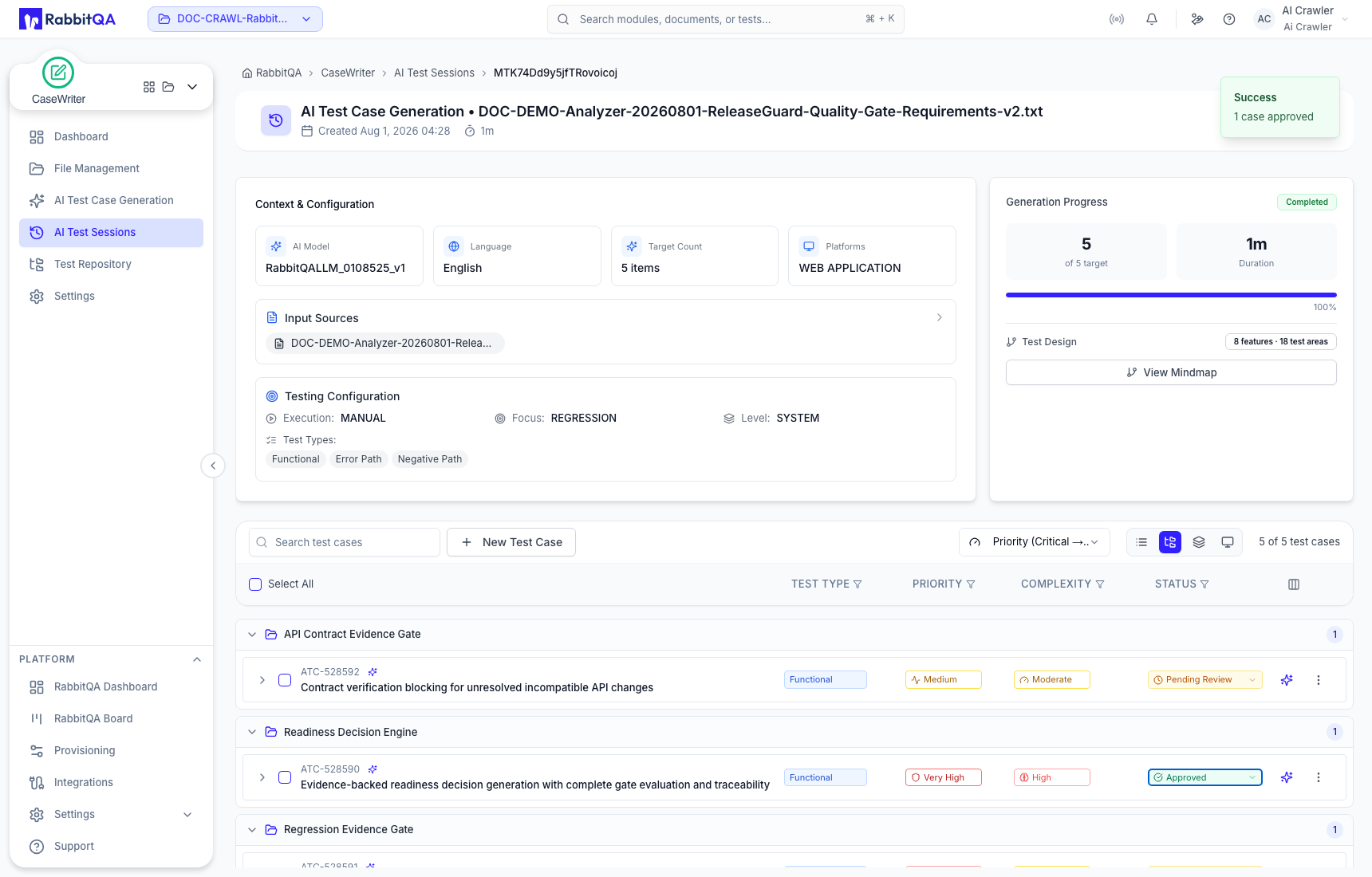
| Pending Review | The case needs a review decision. New and revised cases enter this state. |
| Approved | The reviewer accepted the case; it is eligible for Save to Repository. |
| Rejected | The reviewer returned the case for revision; it is not repository-eligible. |
Approve
Choose Approve only when the case is clear, executable, evidence-aligned, and correctly classified. Approval takes effect immediately.
Reject and revise
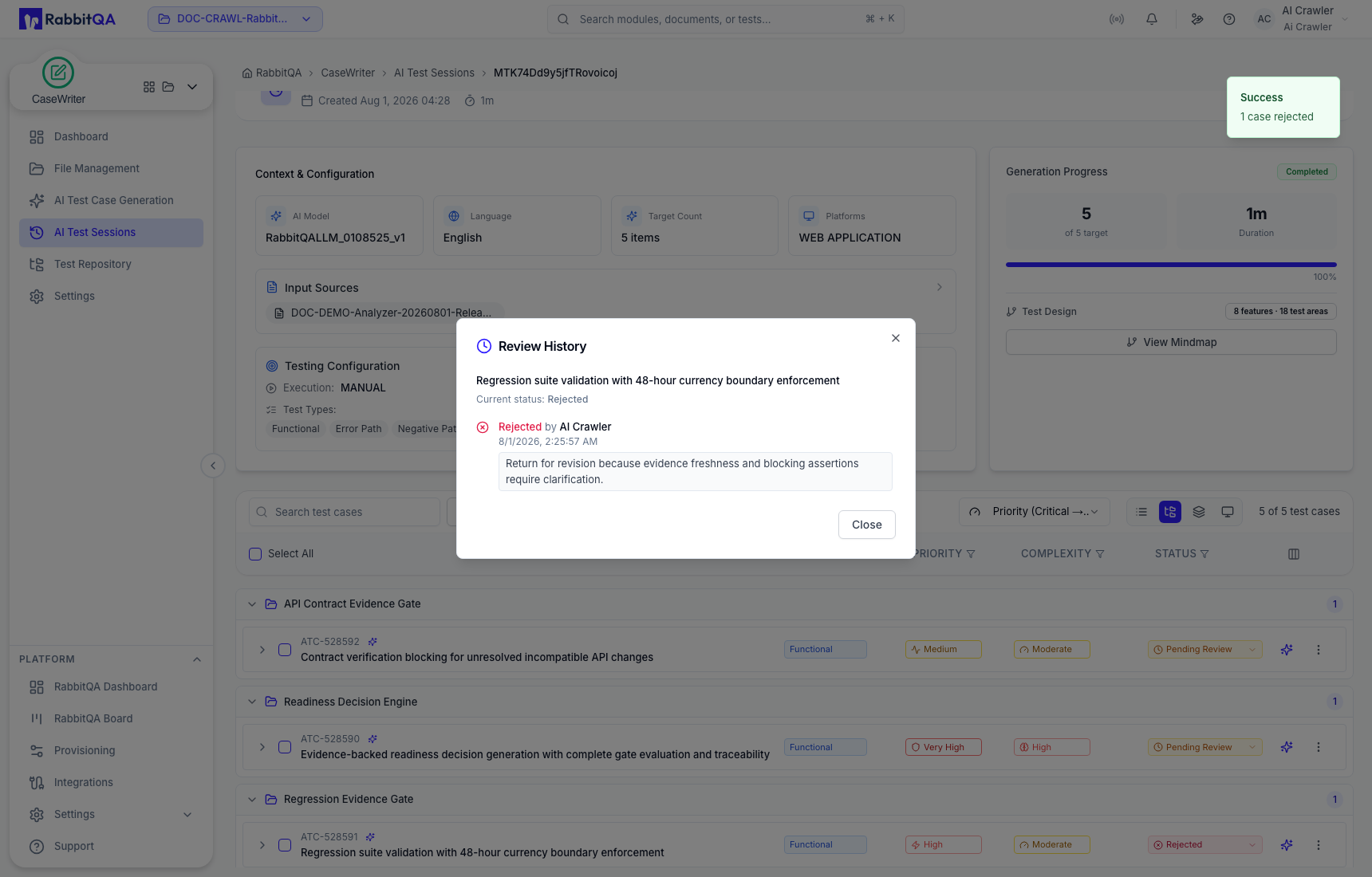
Choose Reject when a case should not pass the gate. Add a useful comment describing what needs to change. A rejected case can be reopened to Pending Review, revised, and submitted to review again.
The review history records status changes, reviewer identity, time, and supplied comments.
Reopen an approved case
Reopen when an approved case needs revision. This intentionally returns it to Pending Review so the updated content cannot bypass the gate.
Bulk review and repository save
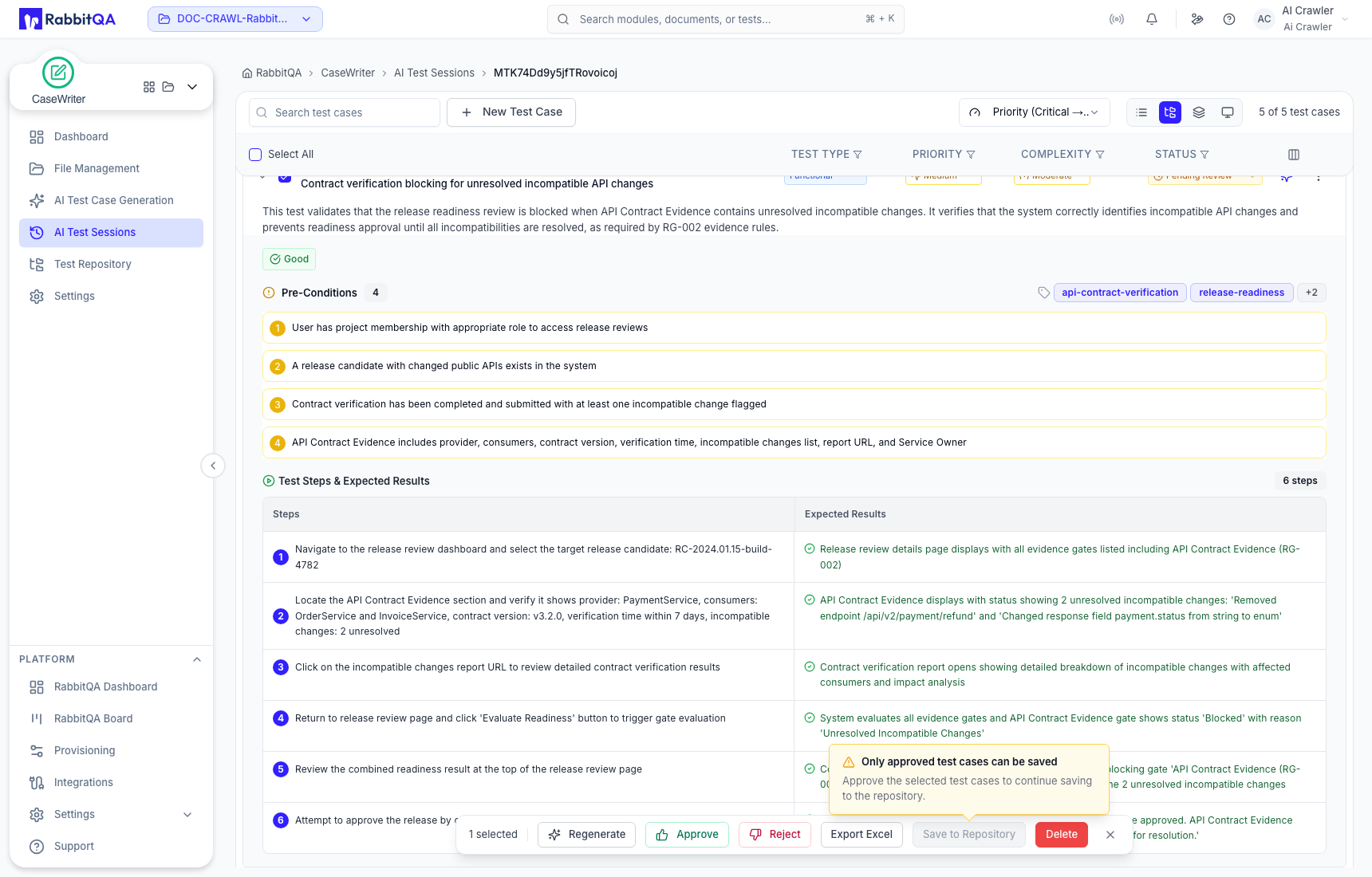
Select multiple cases to expose bulk actions such as regenerate, approve, reject, Excel export, save to repository, or delete. Apply bulk approval only when every selected case has actually been reviewed.
Only Approved selections can be saved to the repository. Mixed or pending selections keep the repository action unavailable.
Create a manual case inside a session
New Test Case lets you add a manually authored case to the generated collection. Complete its details and steps, then send it through the same review lifecycle. Use the repository's manual creation workflow when the case should be authored directly in a test set instead.
Review checklist
- The title describes one observable behavior.
- Preconditions describe state, not hidden execution steps.
- Each step contains a concrete action and an observable expected result.
- Values, roles, routes, and rules are supported by the source.
- Priority and complexity reflect risk and implementation effort.
- The case does not expose real credentials, tokens, personal data, or private environment details.
- The case complements rather than duplicates existing coverage.
- The reviewer records a useful reason when rejecting or reopening.
