AI Test Sessions
AI Test Sessions stores CaseWriter generation runs for the active project. Use it to track run status, reopen completed output, inspect the source context, and manage retained sessions.
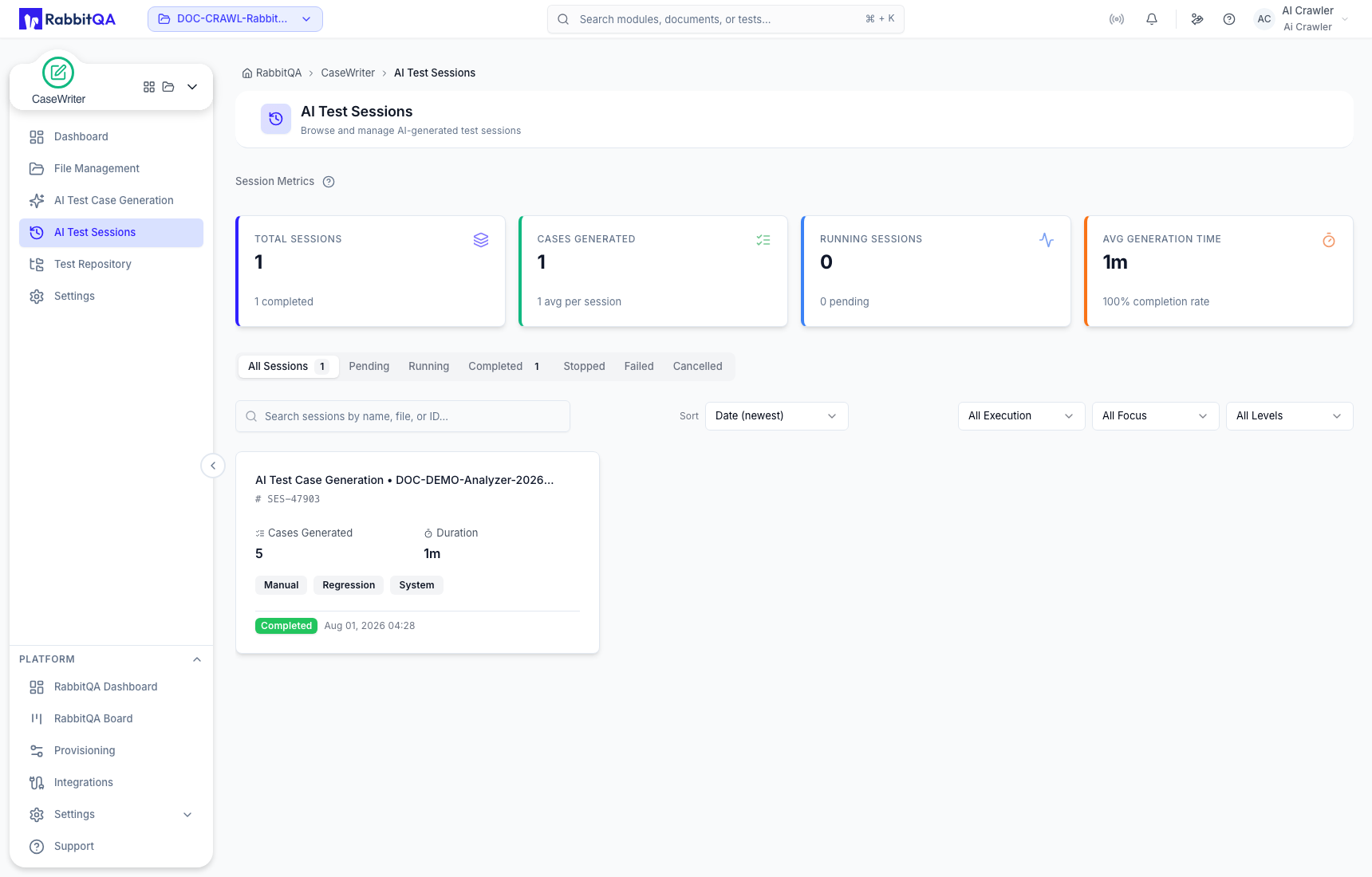
Session metrics and statuses
The page summarizes total sessions, cases generated, running sessions, and average generation time. Use the status tabs to narrow the list:
- Pending — accepted but not yet running;
- Running — generation is in progress;
- Completed — generation finished and cases are available;
- Stopped — the run was stopped;
- Failed — generation did not complete;
- Cancelled — the run was cancelled.
Search by session name, file, or identifier. You can also sort and filter by execution type, testing focus, and test level.
Open and audit a session
A completed session records the selected inputs and testing configuration, including model, language, target count, platforms, source list, execution type, focus, level, and test types.
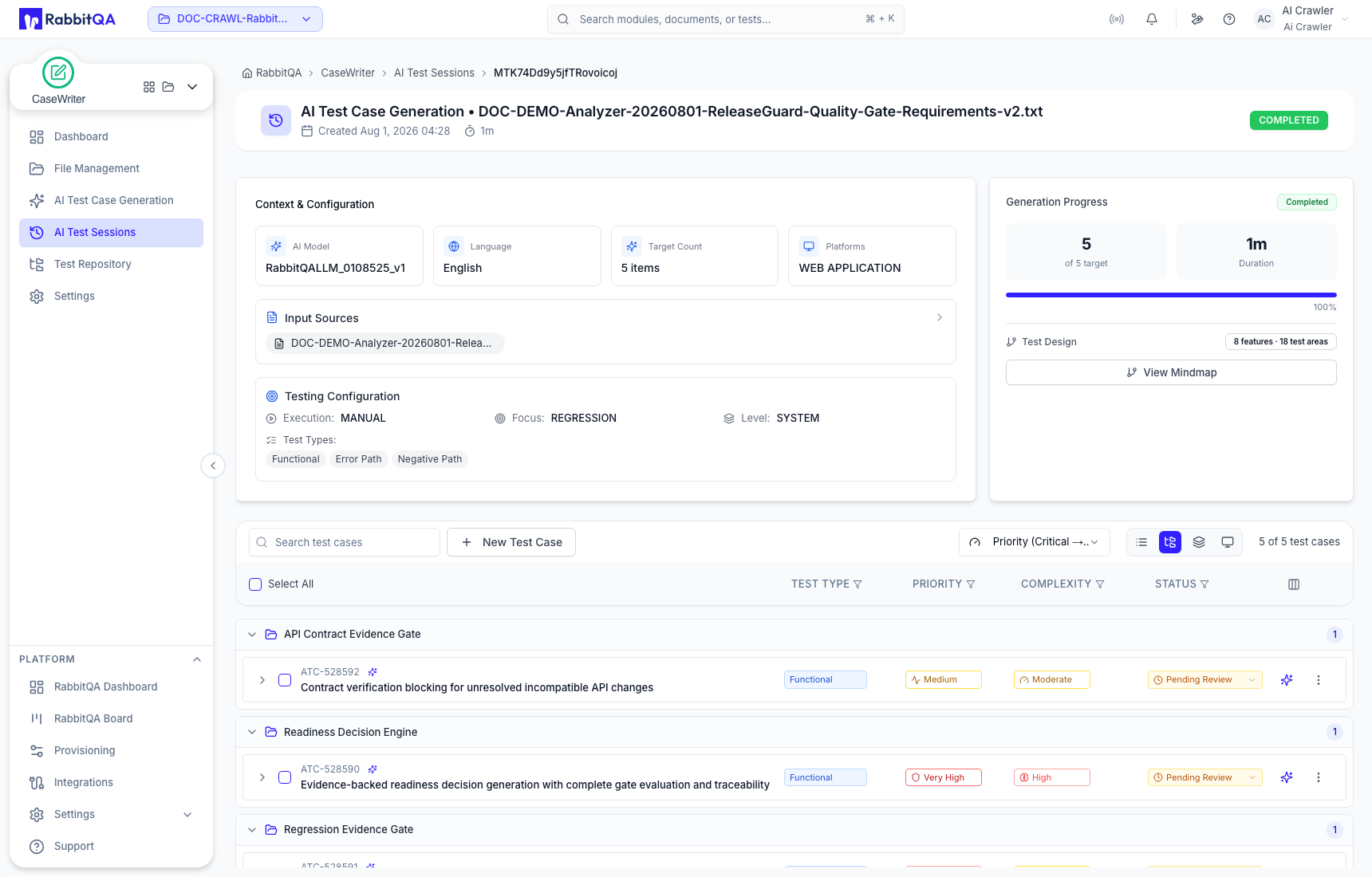
Before reviewing cases, confirm that this stored context matches the intended run. If the wrong document version or testing profile was used, start a corrected generation instead of approving misaligned output.
Review the generated collection
Inside a completed session you can:
- search case content;
- sort by the available order;
- switch between flat list, module, feature, or screen grouping;
- filter by test type, priority, complexity, or review status;
- expand case details; and
- select one or more cases for bulk actions.
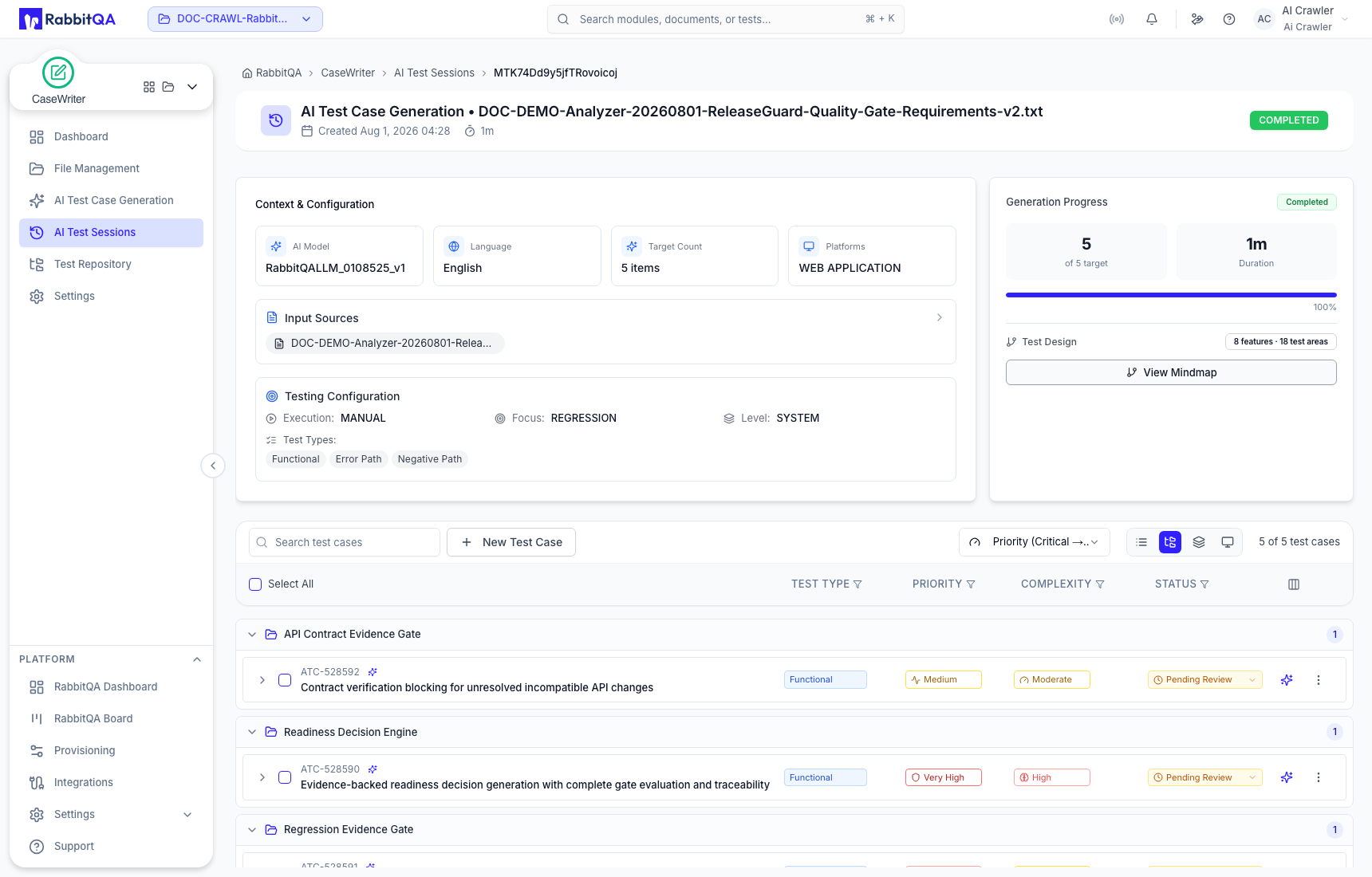
Continue with Generated Case Review for editing, regeneration, approval, rejection, and repository eligibility.
Session actions
Open a session's action menu to:
- Open the session;
- Copy URL for an authorized collaborator;
- Rename the session; or
- Delete the session.
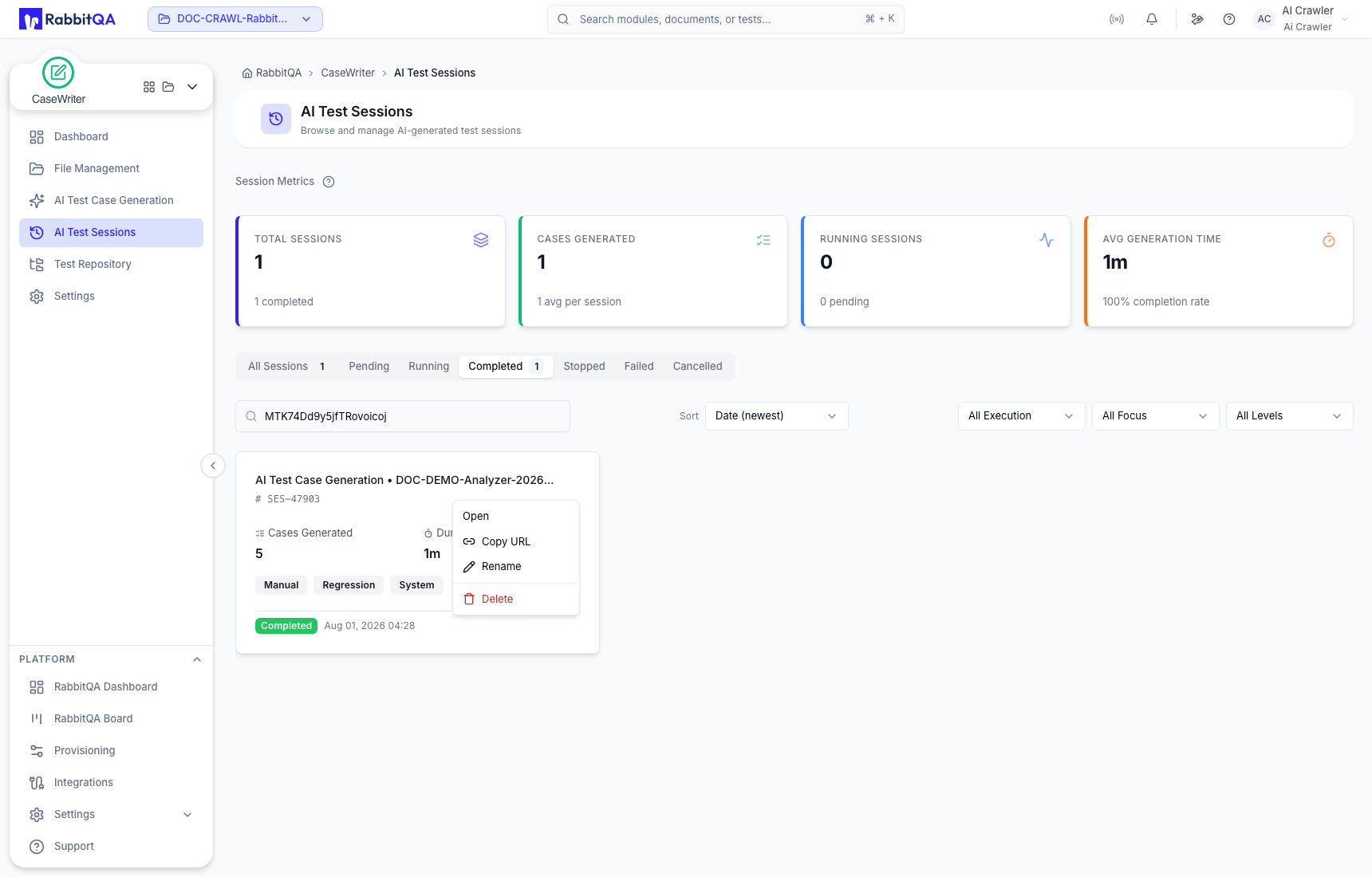
Copying a URL does not grant access; the recipient still needs project and feature permissions. Delete is permanent and removes the session, so use it only when the generation record is no longer needed.
Troubleshooting
A session is not listed
Confirm the active project, clear restrictive filters, check every status tab, and search by file or session identifier.
A run failed or stopped
Open any available failure information, then recheck source availability and the configured AI model. Start a new run only after correcting the cause; do not assume a failed session created usable cases.
A completed session has zero or weak cases
Review the saved input sources, target count, test types, and source quality. Improve the evidence or narrow the scope before regenerating.
