File Management
File Management stores Analyzer documents and their revisions inside the active RabbitQA project. Use it to find a file, open a saved result, upload a related revision, or start a downstream action from the correct file version.
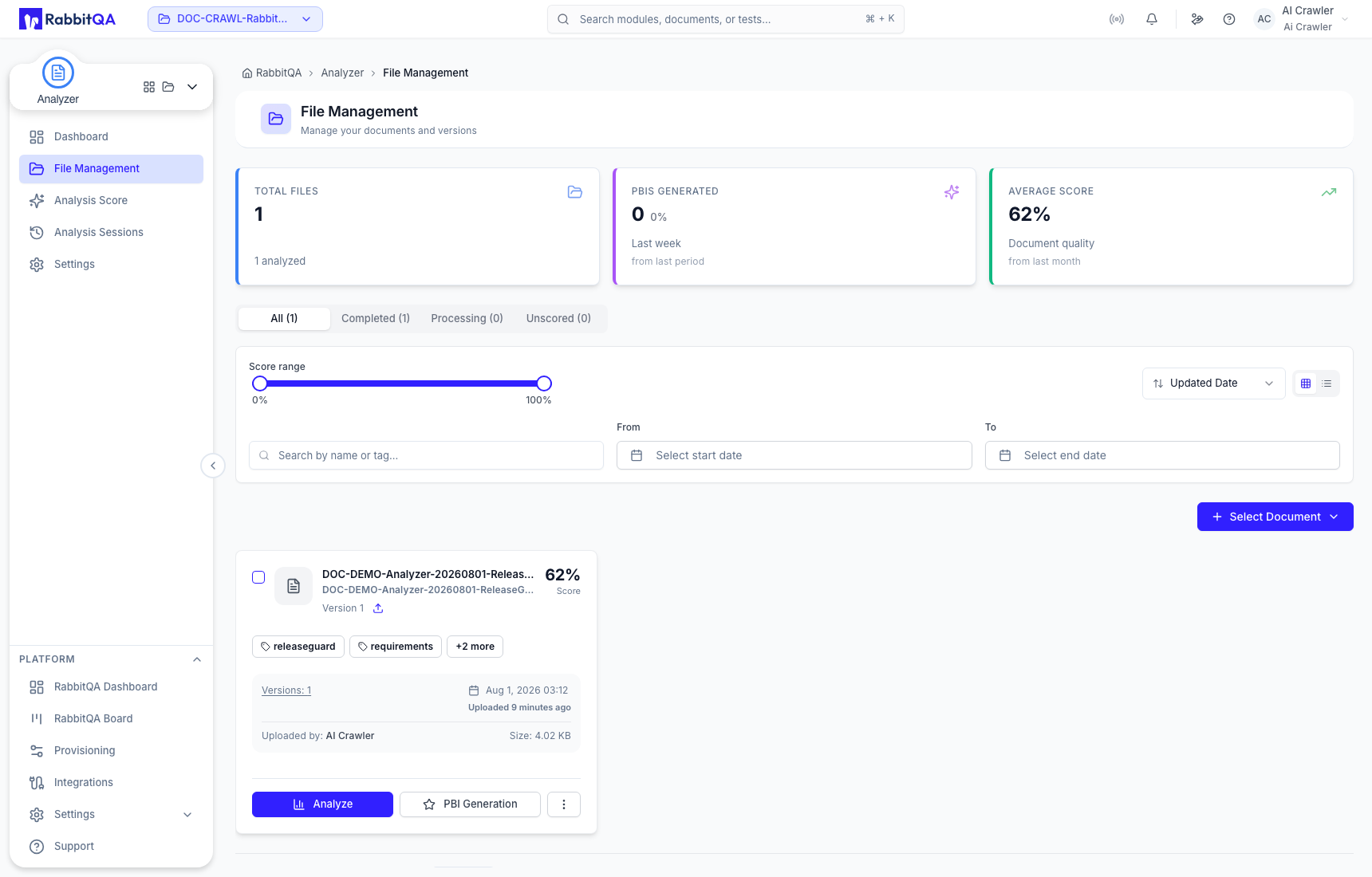
Find a file
Use the All, Completed, Processing, and Unscored status filters to narrow the library. You can also combine file-name or tag search with score range, updated-date range, and sorting. Grid and List views change only the presentation of the same records.
Each record shows its current state, version count, score, tags, uploader, file size, and available actions. Analyze and PBI Generation are direct actions; the action menu also provides test case generation, download, copy information, copy URL, and deletion.
Add a document
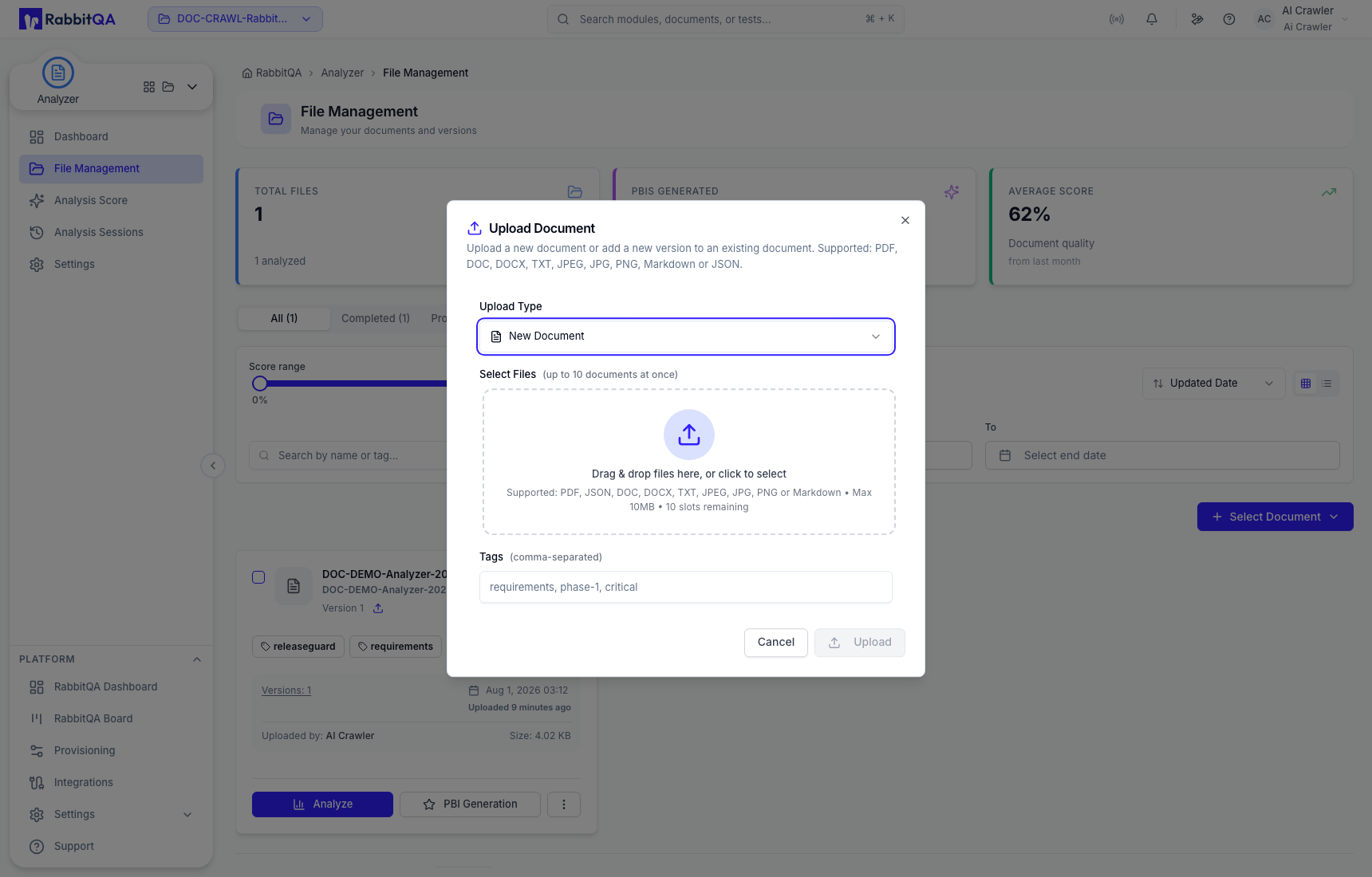
Select Select Document, then choose one of these sources:
- Upload Document: Add up to ten local files and optional comma-separated tags. File Management accepts PDF, JSON, DOC, DOCX, TXT, JPEG, JPG, PNG, and Markdown files up to 10 MB each.
- Upload from Confluence: Import an organization page after a Confluence integration has been configured in Organization Settings.
Uploading stores the file in File Management. It does not start an analysis automatically.
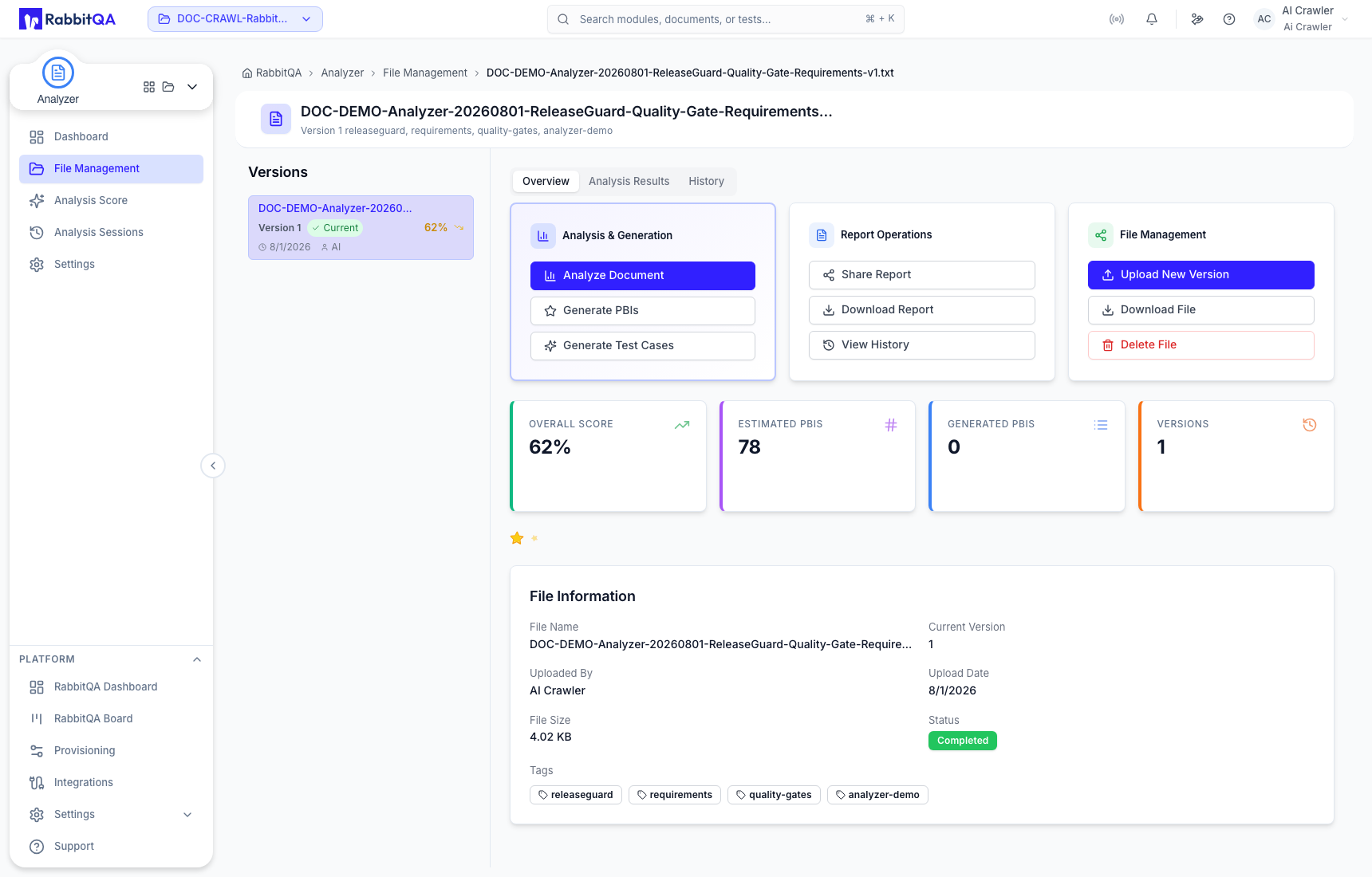
File details
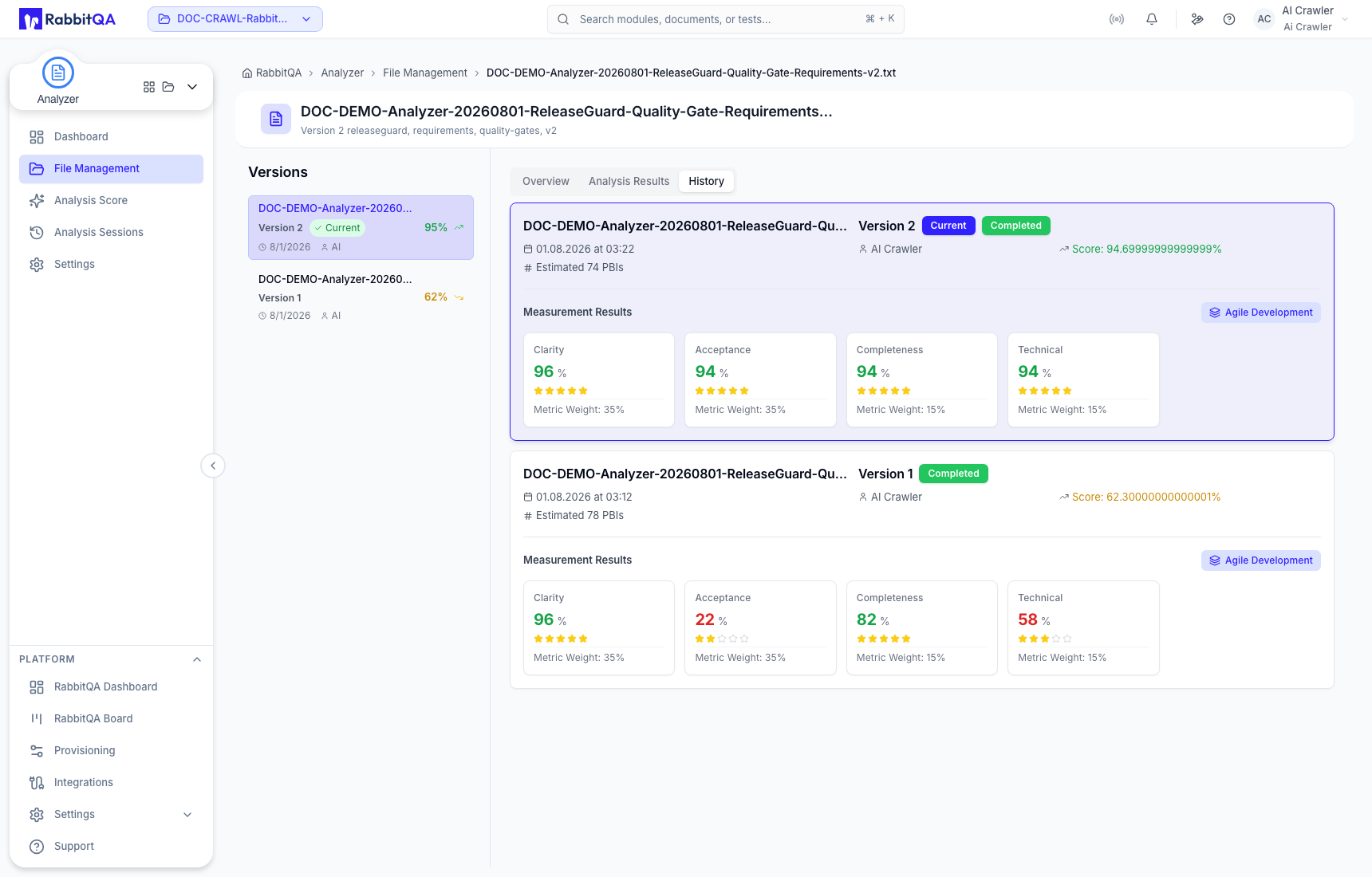
Open a file and select the intended entry in the Versions panel. The details page contains:
- Overview: file metadata, score, tags, and actions such as Analyze Document, Generate PBIs, Generate Test Cases, Share Report, Download Report, View History, Upload New Version, Download File, and Delete File;
- Analysis Results: the selected version's saved score, metric evidence, AI insights, coverage, and estimates;
- History: earlier version measurements and the scoring template used for each result.
Upload a revision
Use Upload New Version when a new document revises the same requirement scope. The drawer shows the next sequential version number and keeps the revision in the existing file group.
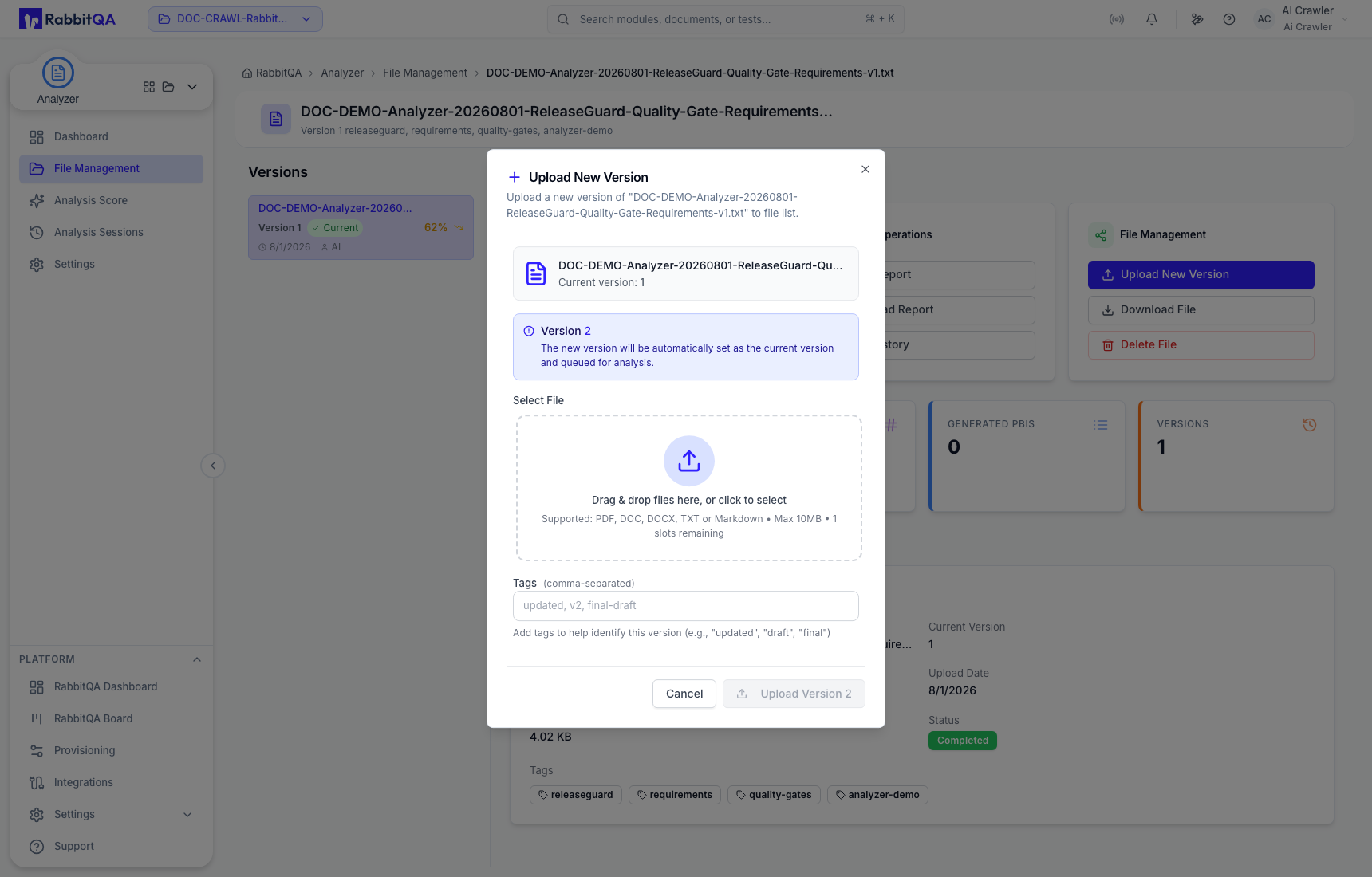
After upload, the revision becomes the current version but remains unscored until its own analysis finishes. Select that version before choosing Analyze Document.
For a meaningful before-and-after comparison, use the same scoring template, metric weights, report language, and result options for both versions.
Delete File removes the file, every version, and all associated analysis results. Check the file name and version history before confirming.
