SmartRequest Generation
SmartRequest Generation turns a described need into a structured request with a title, priority, detailed summary, acceptance criteria, custom-field values, score, and evaluation record.
Before starting, confirm that the active project can access the intended product and that the product contains the correct module.
1. Describe the request
Enter the problem, intended outcome, affected users or process, and important boundaries. The description must contain at least 20 characters.
You can add up to five supporting files, up to 10 MB each: PDF, DOC, DOCX, XLS, XLSX, PNG, JPG, or GIF. Pasted screenshots are also supported. Add only evidence that belongs to this request.
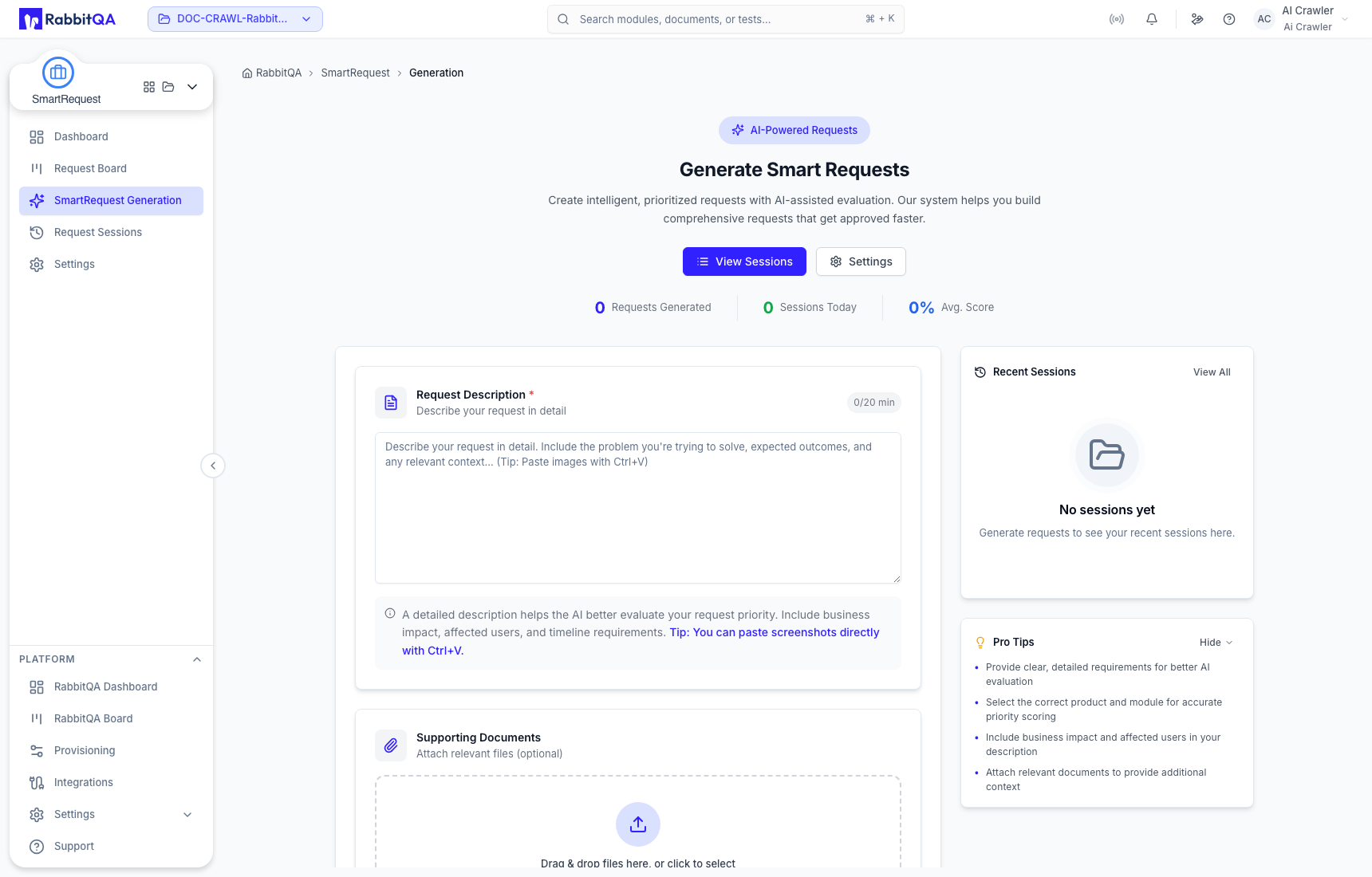
2. Select product, module, and language
Select a product visible to the active project, then the module that owns the request. Their content, documents, custom fields, threshold, and factor order become evaluation context.
Set Interaction Language and Output Language explicitly when required, or use Auto Detect.
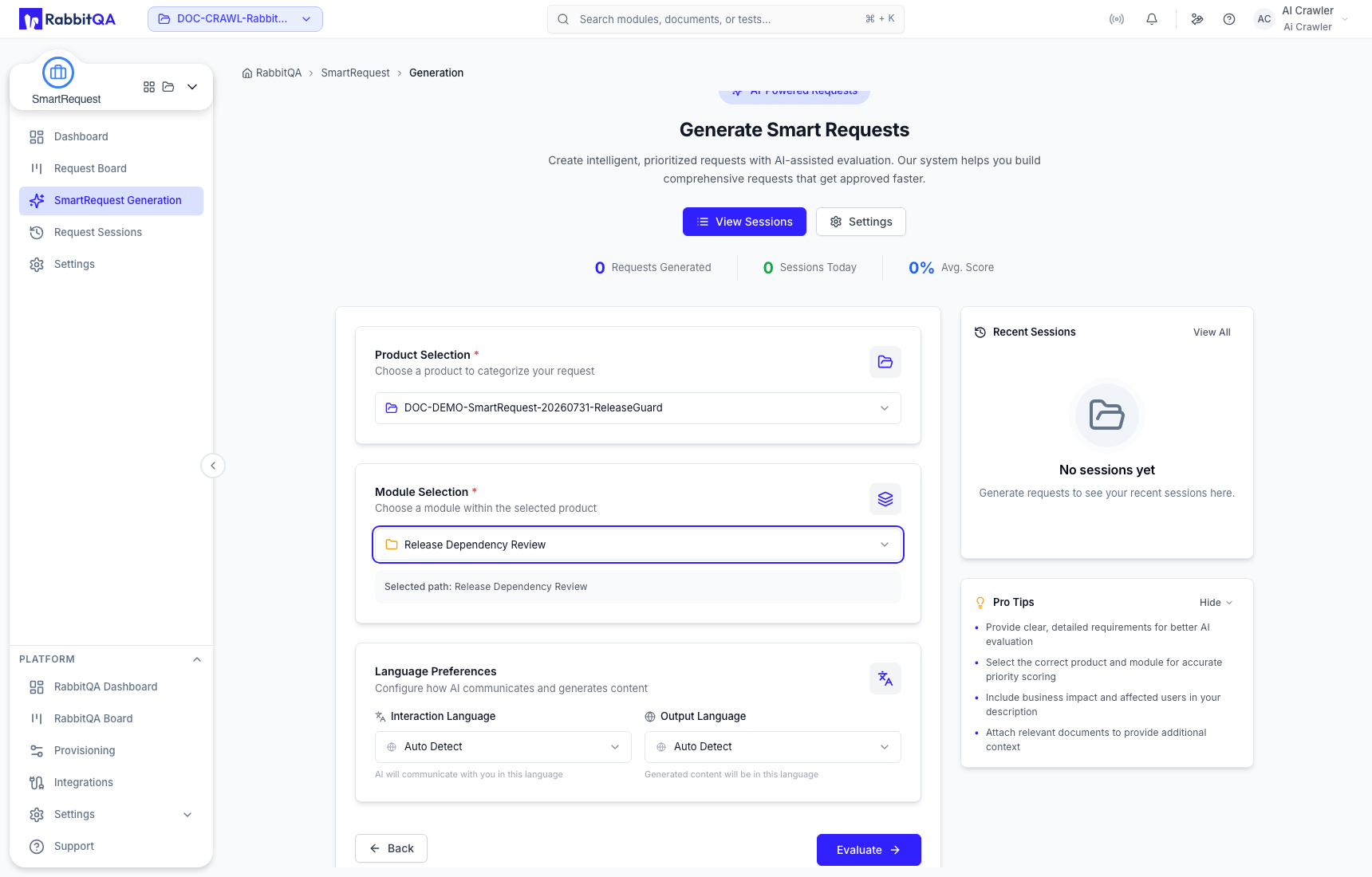
3. Complete AI evaluation
Select Evaluate to create a session and generate adaptive clarification questions. Answers can be single choice, multiple choice, or free text, depending on the question.
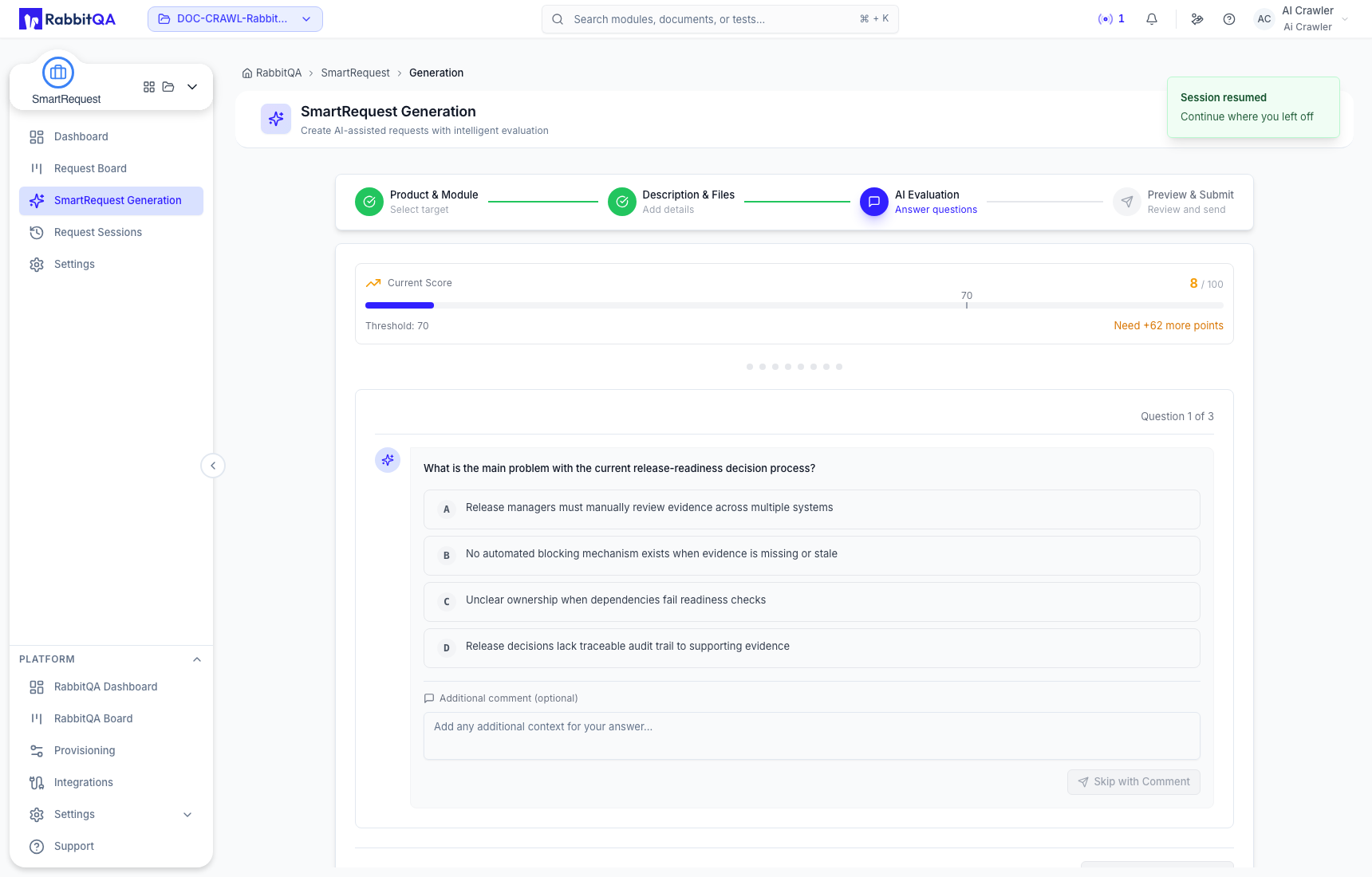
Answer with facts supported by the description, attached documents, or maintained product/module context. Add a comment when the selected option needs a boundary. If no option is supported, use Not sure yet or Skip with Comment instead of inventing a rule.
The score updates after each round. Reaching the configured threshold changes the session to Ready to submit; approval still happens after submission.
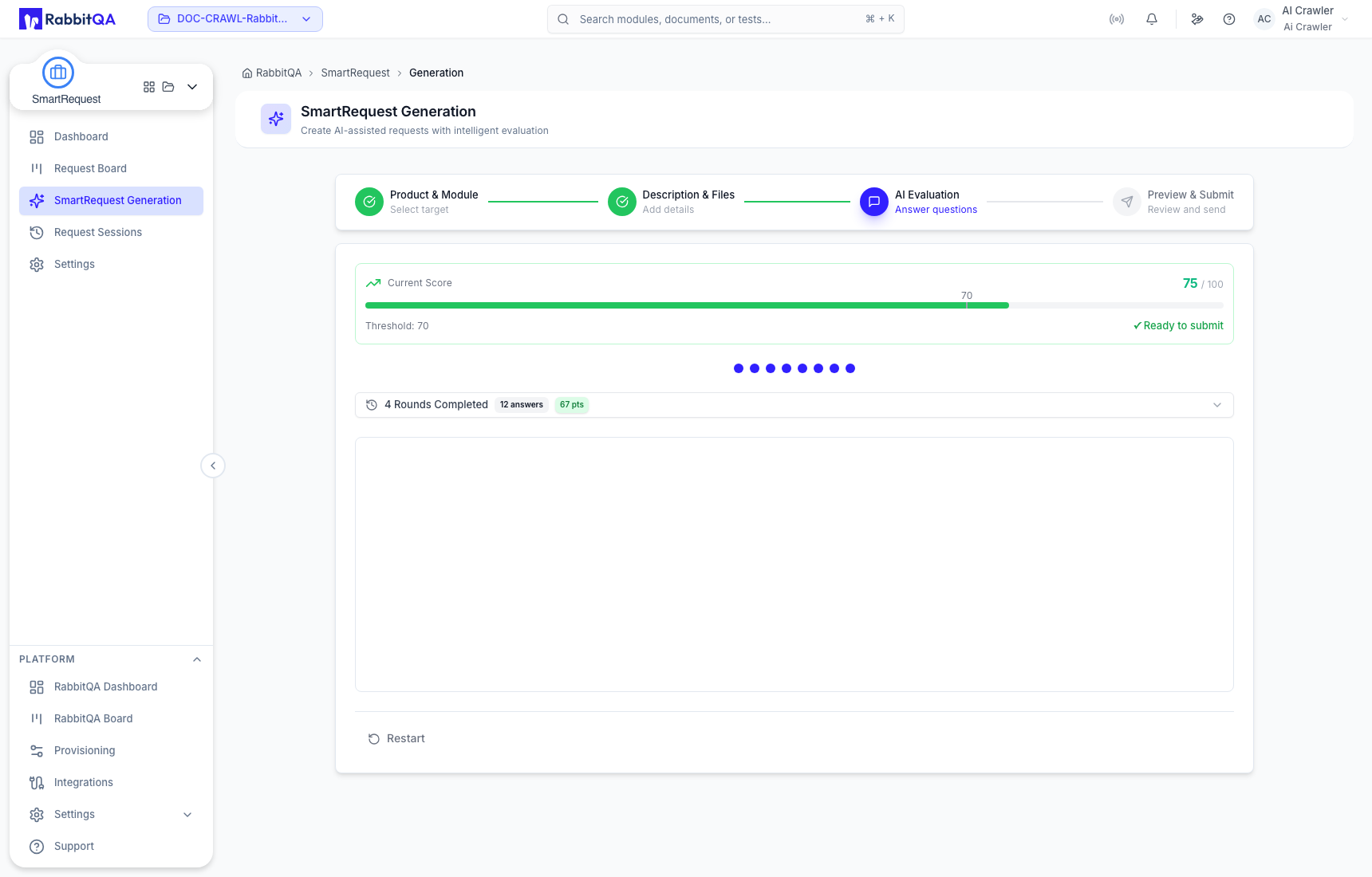
4. Preview and submit
Review all generated content:
- title, priority, score, and short description;
- What You Provided and What AI Understood;
- detailed summary and acceptance criteria;
- custom-field answers and Evaluation Q&A.
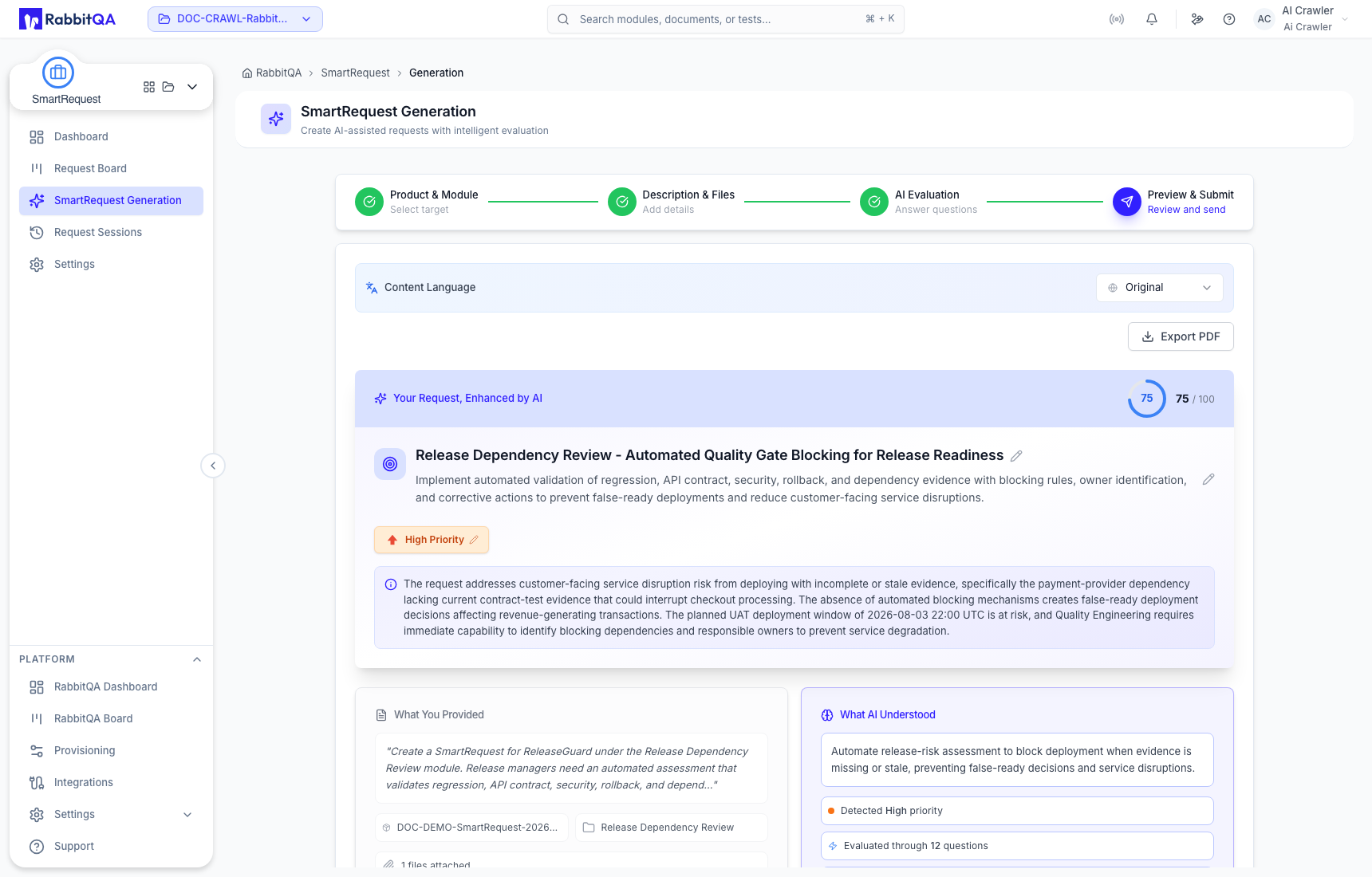
Use Edit Request to correct generated fields, Continue for another evaluation round, or Export PDF for offline review. Select Submit Request only when the generated statements are consistent with the evidence and confirmed answers.
After a successful submission, SmartRequest retains the session and creates a Request Board record.
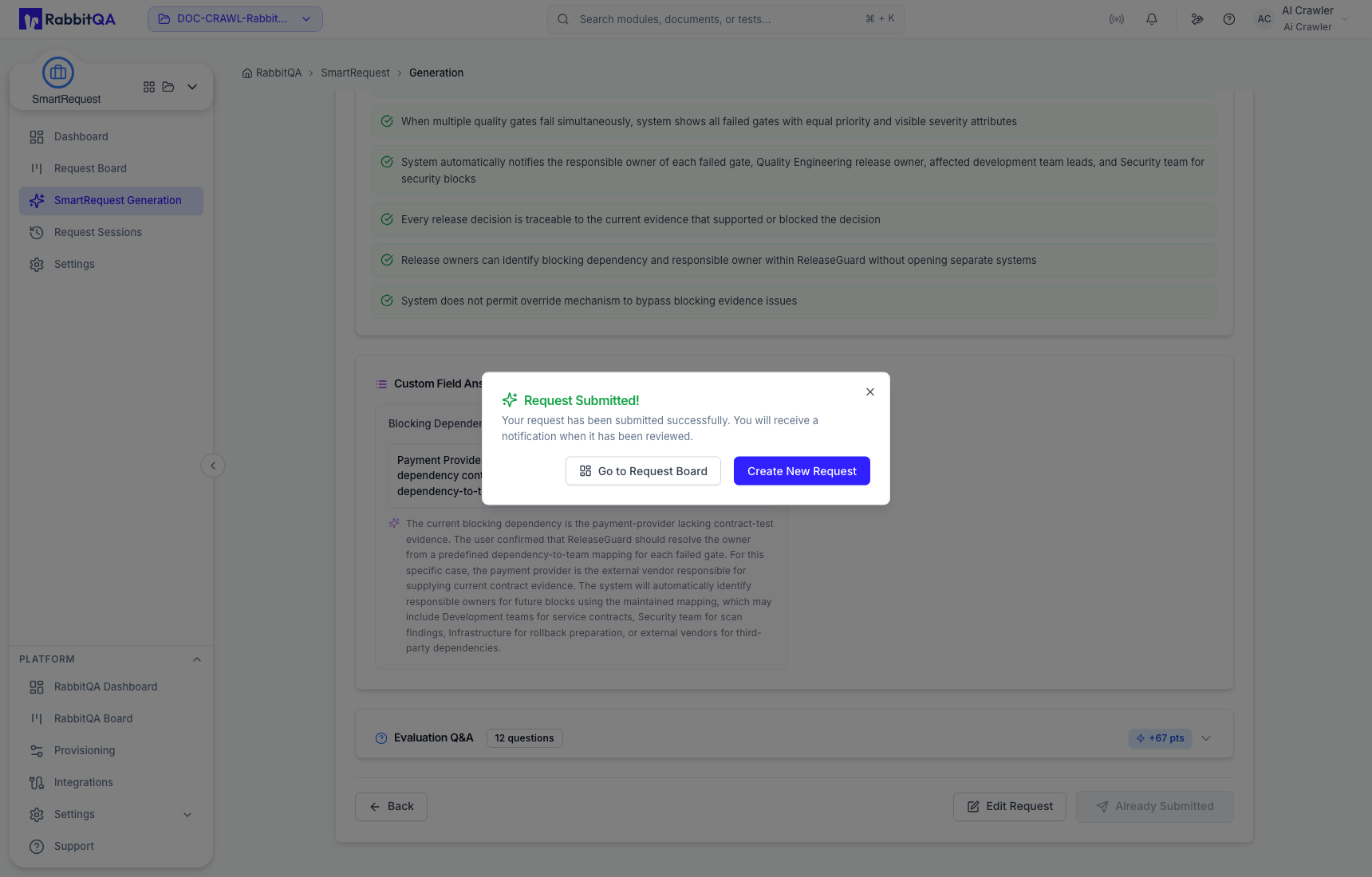
Check Recent Sessions or Request Sessions before starting again. Resume existing work when it represents the same request.
