AI Request Generation
The Generation Wizard uses AI to create comprehensive, well-structured requests through an interactive evaluation process.
Generation Wizard Steps
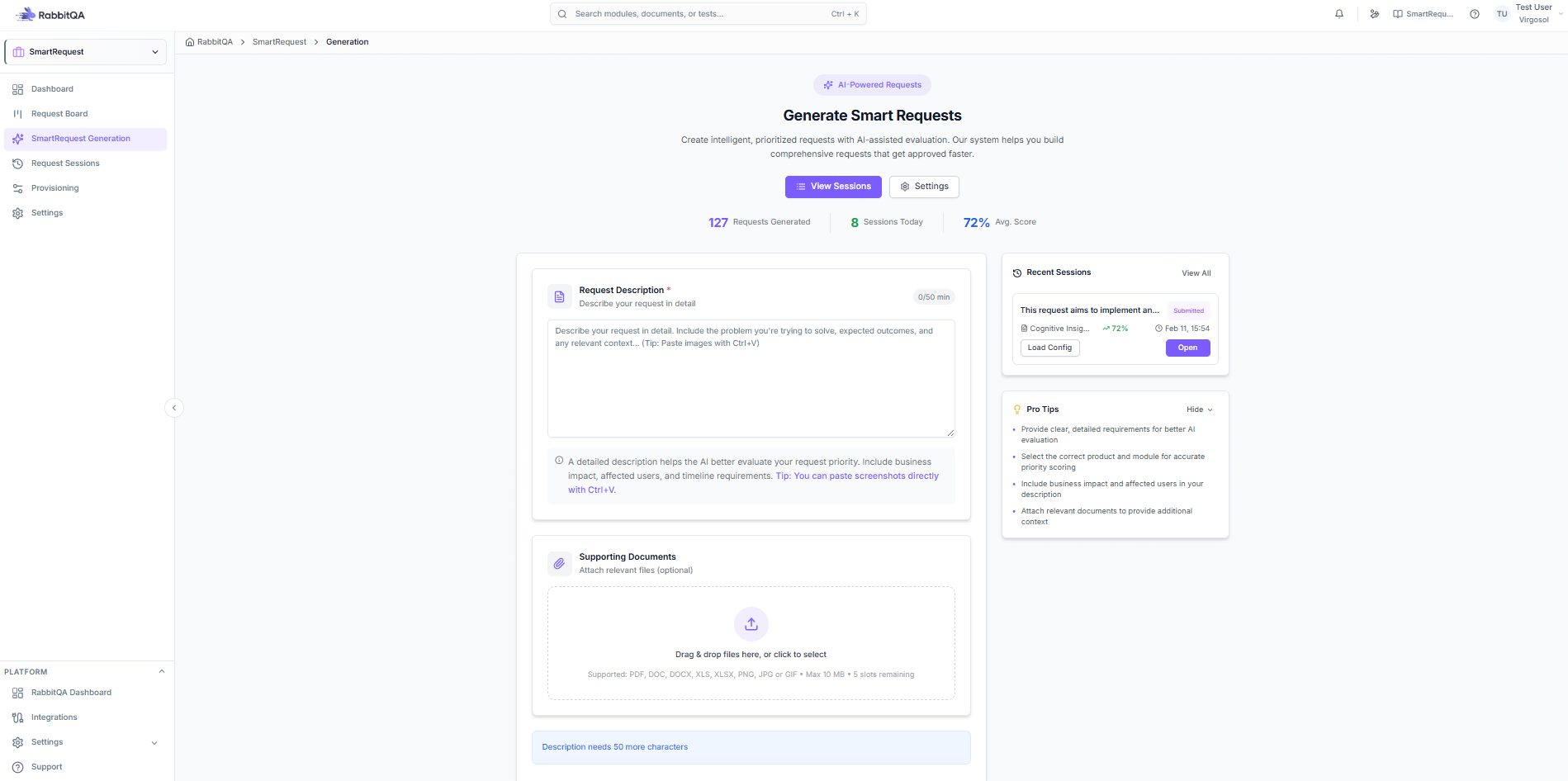
Step 1: Description & Attachments
Enter Description
Provide the initial request description:
- What you need
- Why it's needed
- Expected outcome
- Any constraints
Add Attachments
Support your request with files:
- Documents - Requirements, specs (PDF, DOCX)
- Images - Screenshots, mockups (PNG, JPG)
- Spreadsheets - Data, matrices (XLSX, CSV)
Quick Image Paste
Use Ctrl+V to paste:
- Screenshots from clipboard
- Copied images
- Drag and drop support
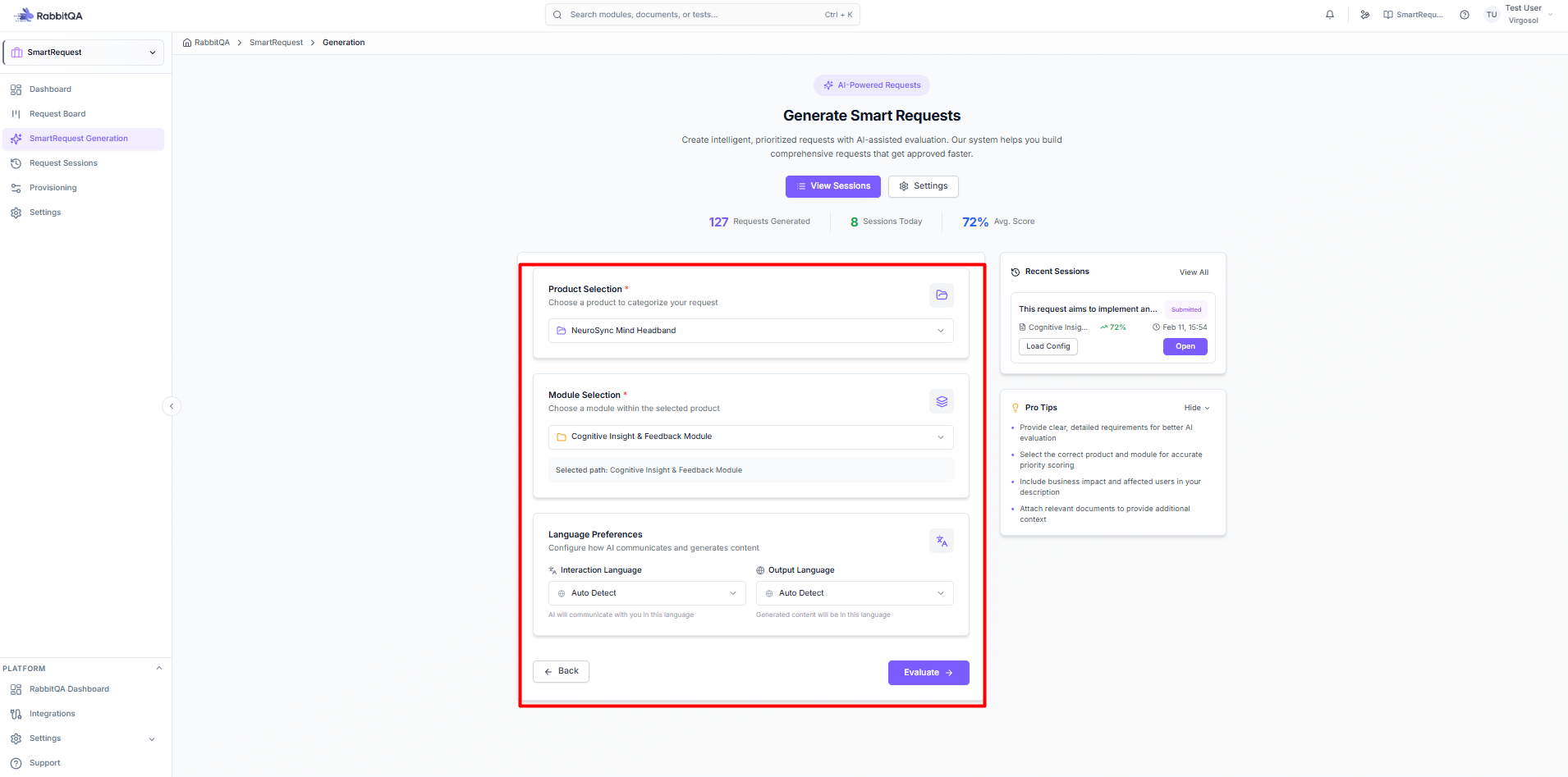
Step 2: Product & Module Selection
Select Product
Choose the relevant product:
- Products configured in Provisioning
- Shows product description
- Affects evaluation context
Select Module
Choose the specific module:
- Modules within selected product
- Hierarchical navigation
- Context for AI evaluation
Language Selection
Choose evaluation language:
- Turkish - Questions and output in Turkish
- English - Questions and output in English
Step 3: AI Evaluation
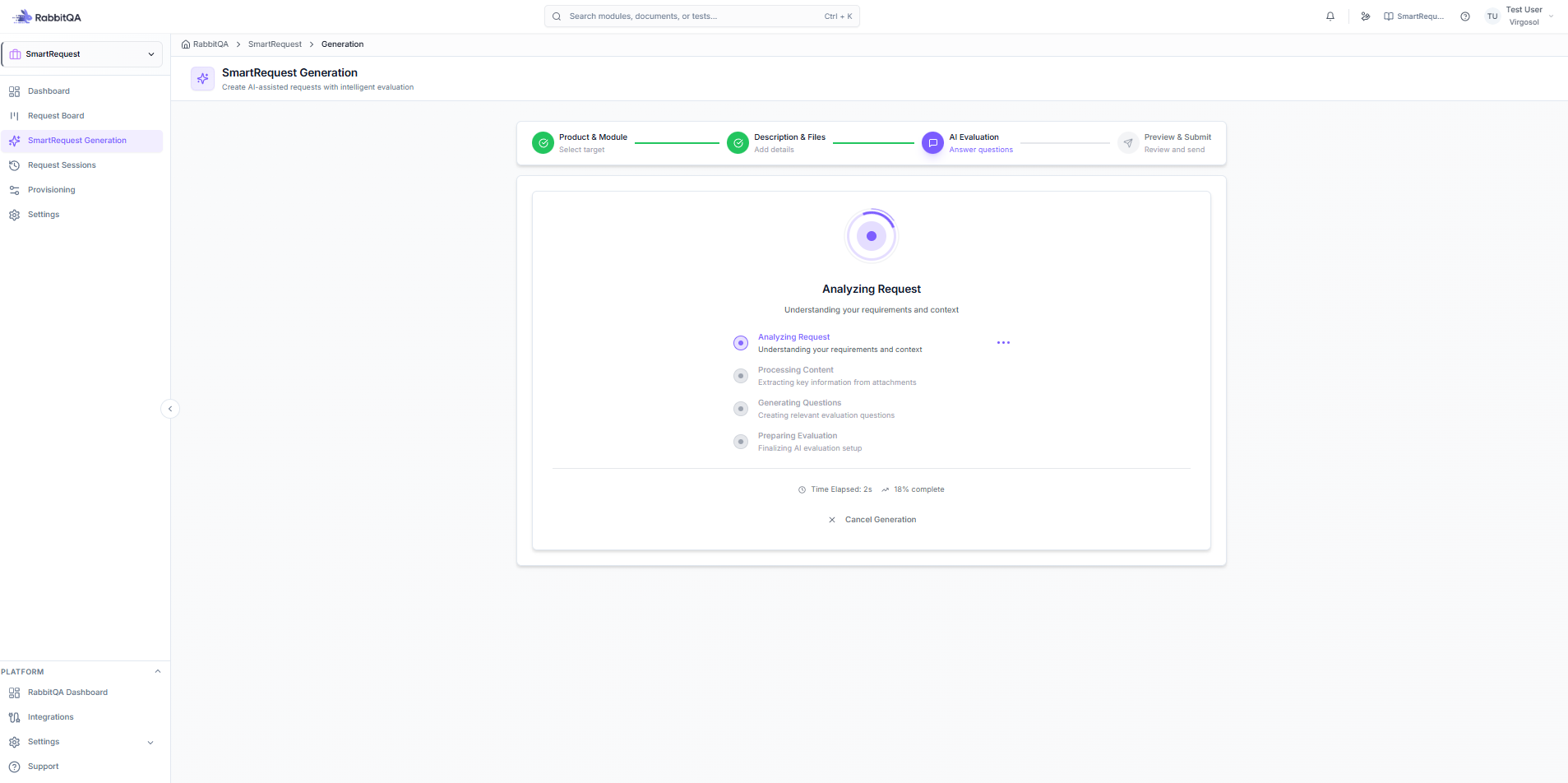
This is the interactive AI evaluation phase.
How AI Evaluation Works
- AI analyzes your description
- Generates clarifying questions
- You provide answers
- AI refines understanding
- Repeat until complete
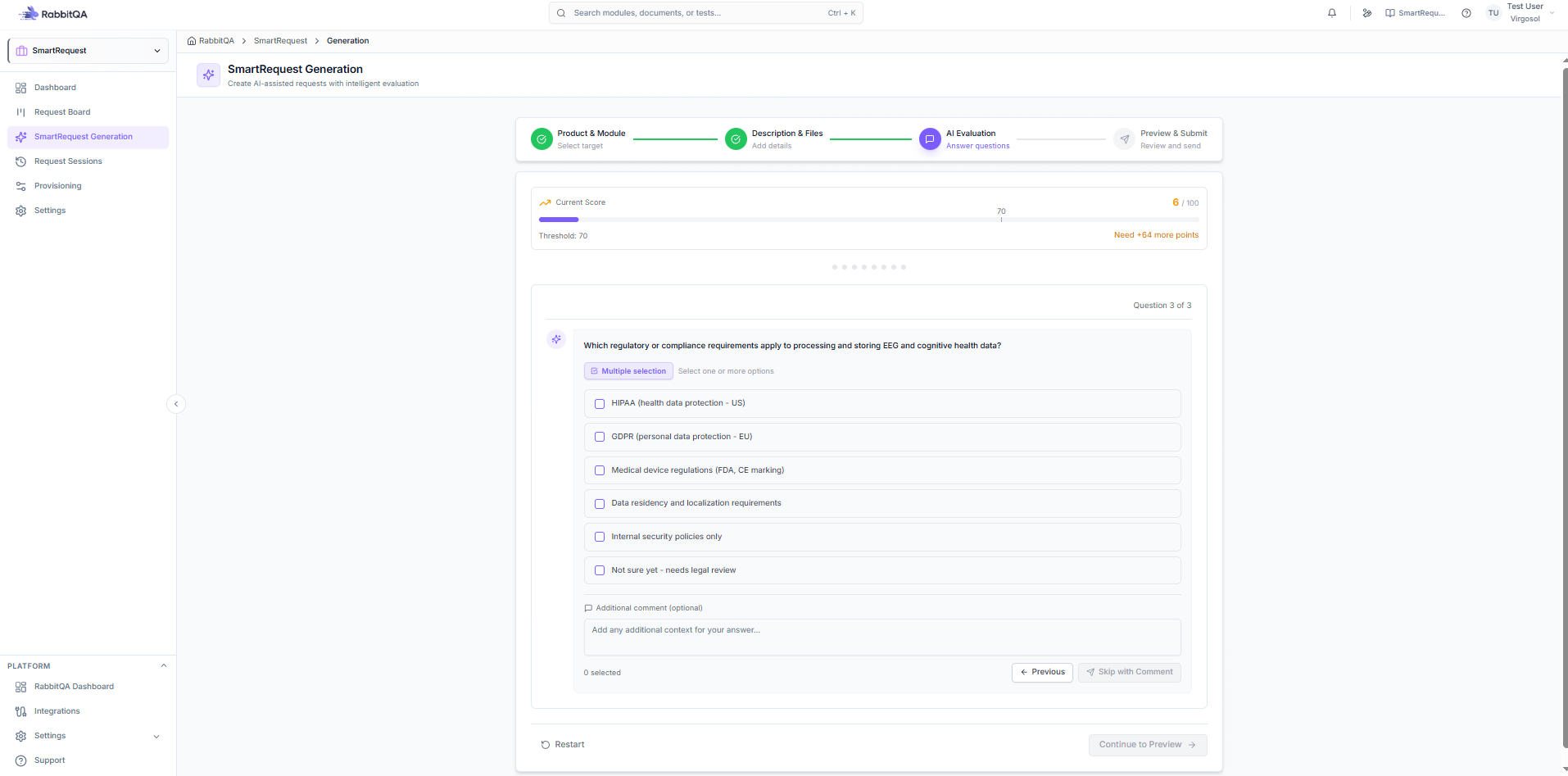
Question Types
| Type | Description | Example |
|---|---|---|
| Single Choice | Select one option | "What is the priority?" |
| Multiple Choice | Select multiple | "Which platforms?" |
| Yes/No | Binary choice | "Is this urgent?" |
| Free Text | Open response | "Describe the use case" |
Answering Questions
For each question:
- Read the question carefully
- Select or type your answer
- Click Next or Submit
- AI processes and may ask follow-ups
Skip Questions
If a question isn't relevant:
- Click Skip
- AI will work with available info
- May affect evaluation quality
Step 4: Preview & Submit
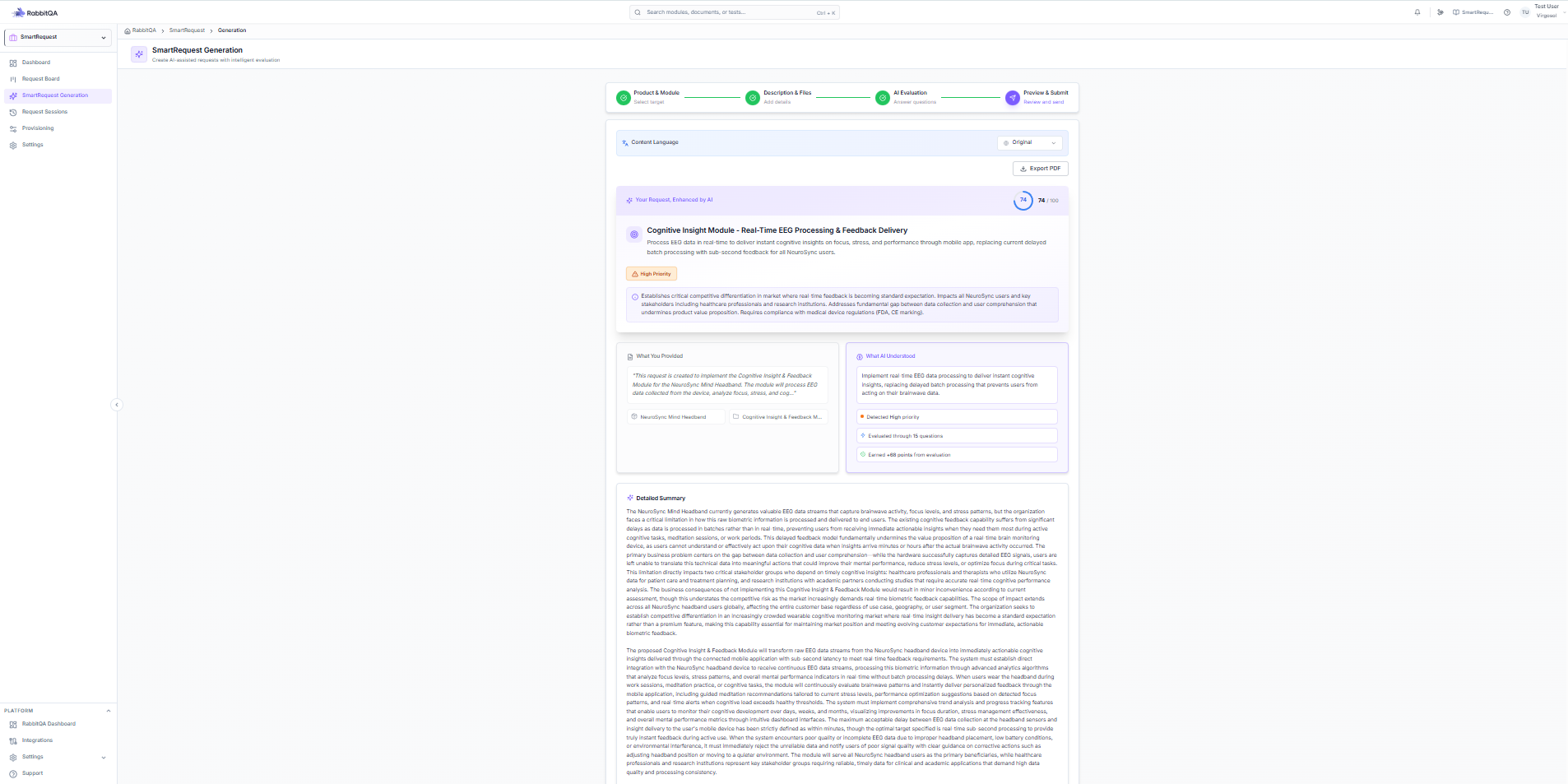
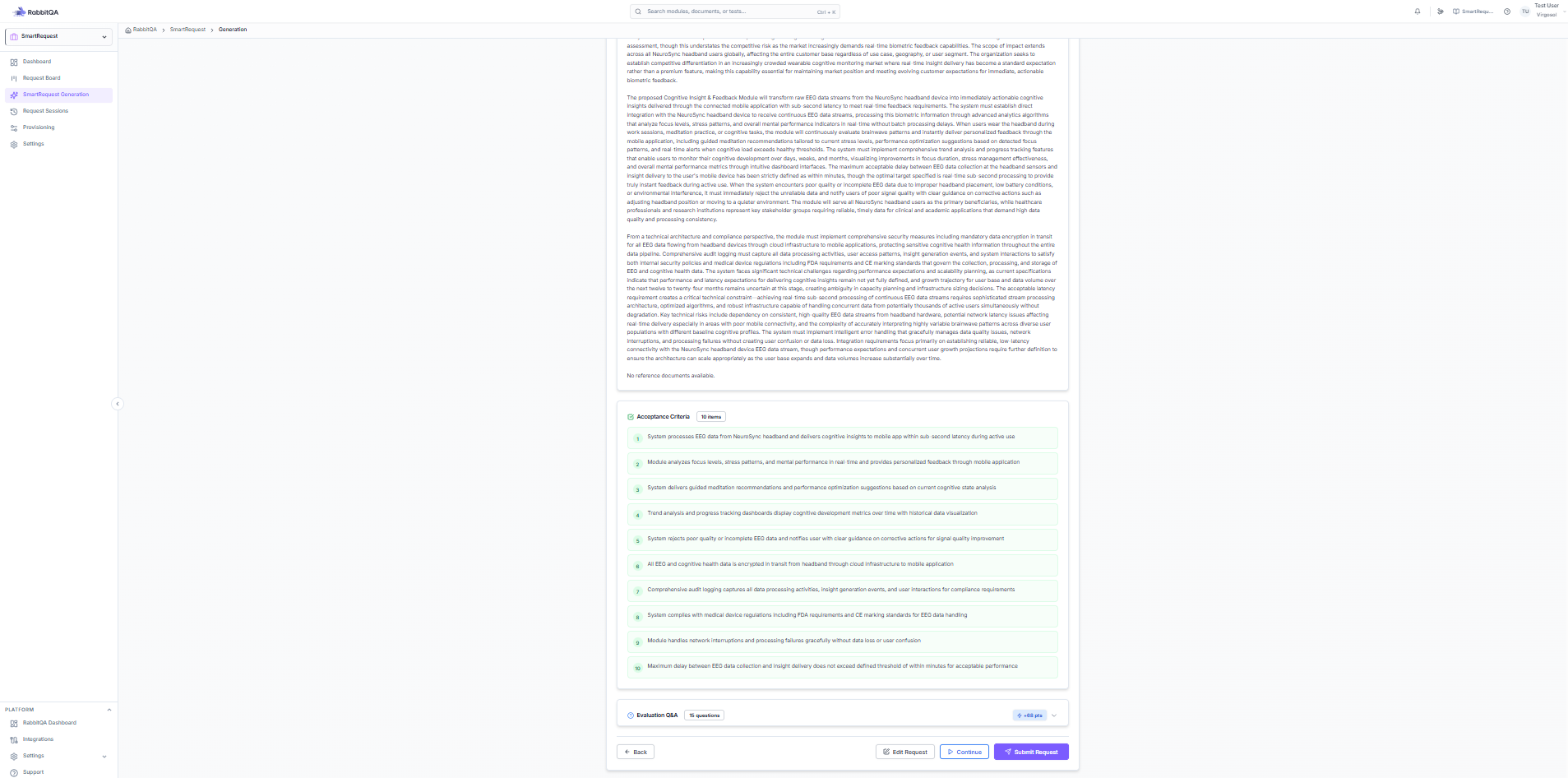
Review AI Summary
The AI generates:
- Summary - Concise overview
- Description - Detailed explanation
- Acceptance Criteria - Clear requirements
- Priority Assessment - Recommended priority
- Recommendations - Action items
Edit Before Submit
Make adjustments:
- Click Edit on any section
- Modify the content
- Save changes
Export Preview
Generate PDF before submitting:
- Full preview report
- Share for pre-approval review
- Keep for records
Submit for Approval
- Review all sections
- Click Submit for Approval
- Request enters approval workflow
- Approvers are notified
Session Management
Save as Draft
Save progress at any time:
- Click Save Draft
- Return later to continue
- Find in Sessions list
Session Status Flow
DRAFT → EVALUATING → EVALUATED → SUBMITTED → APPROVED/REJECTED
| Status | Description |
|---|---|
| Draft | Not yet started evaluation |
| Evaluating | In AI Q&A process |
| Evaluated | Q&A complete, not submitted |
| Submitted | Sent for approval |
| Approved | Approved by approver |
| Rejected | Rejected, needs revision |
Resume Session
Continue a saved session:
- Go to Sessions
- Find your draft
- Click Continue
- Pick up where you left off
AI Evaluation Tips
Provide Good Input
✅ Do:
- Be specific and detailed
- Include context and background
- Mention constraints early
- Attach relevant documents
❌ Don't:
- Use vague descriptions
- Skip important details
- Ignore AI questions
- Rush through evaluation
Answer Questions Thoroughly
- Read questions completely
- Provide complete answers
- Use free text for context
- Don't skip unnecessarily
Review AI Output
- Verify accuracy
- Check completeness
- Edit if needed
- Ensure clarity
Evaluation Scoring
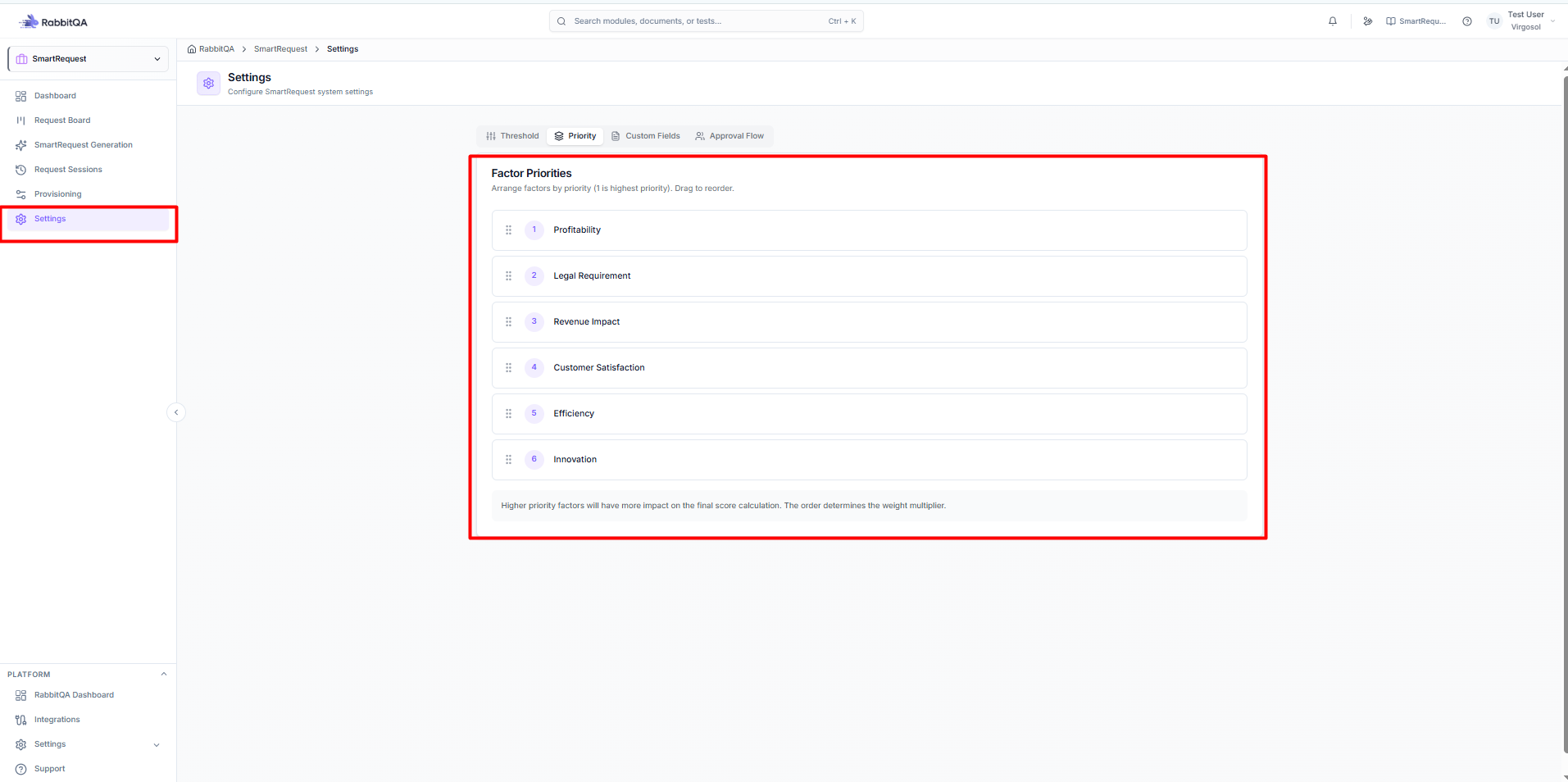
Factor Weights
The AI scores requests on:
| Factor | Weight | Description |
|---|---|---|
| Profitability | Variable | Revenue potential |
| Legal | Variable | Compliance need |
| Revenue | Variable | Direct income |
| Satisfaction | Variable | User impact |
| Efficiency | Variable | Process improvement |
| Innovation | Variable | Strategic value |
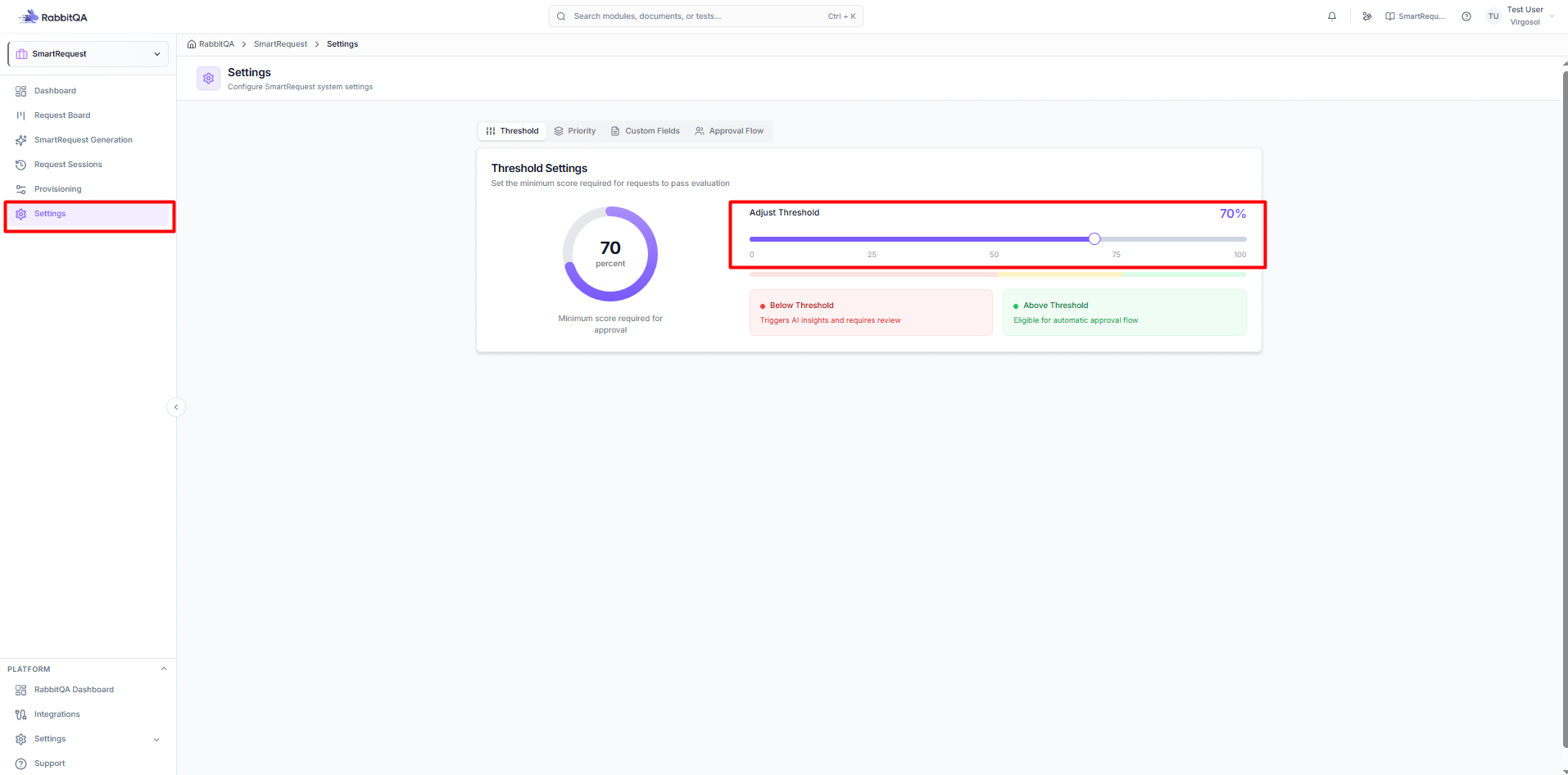
Score Threshold
- Requests above threshold → Auto-prioritized
- Below threshold → Standard review
- Configure in Settings
Score Display
After evaluation:
- Overall score (0-100)
- Factor breakdown
- Priority recommendation
Error Handling
Evaluation Errors
If evaluation fails:
- Error message displayed
- Click Retry
- If persistent, contact support
Lost Progress
To recover:
- Check Sessions for auto-saved draft
- Resume from last saved point
- Re-enter if necessary
Connection Issues
If connection drops:
- Progress auto-saves periodically
- Refresh page to reconnect
- Resume from Sessions
