Mobile Devices
Use Mobile Devices to find a compatible real device, emulator, or simulator and start a live session.
Filter and compare the fleet
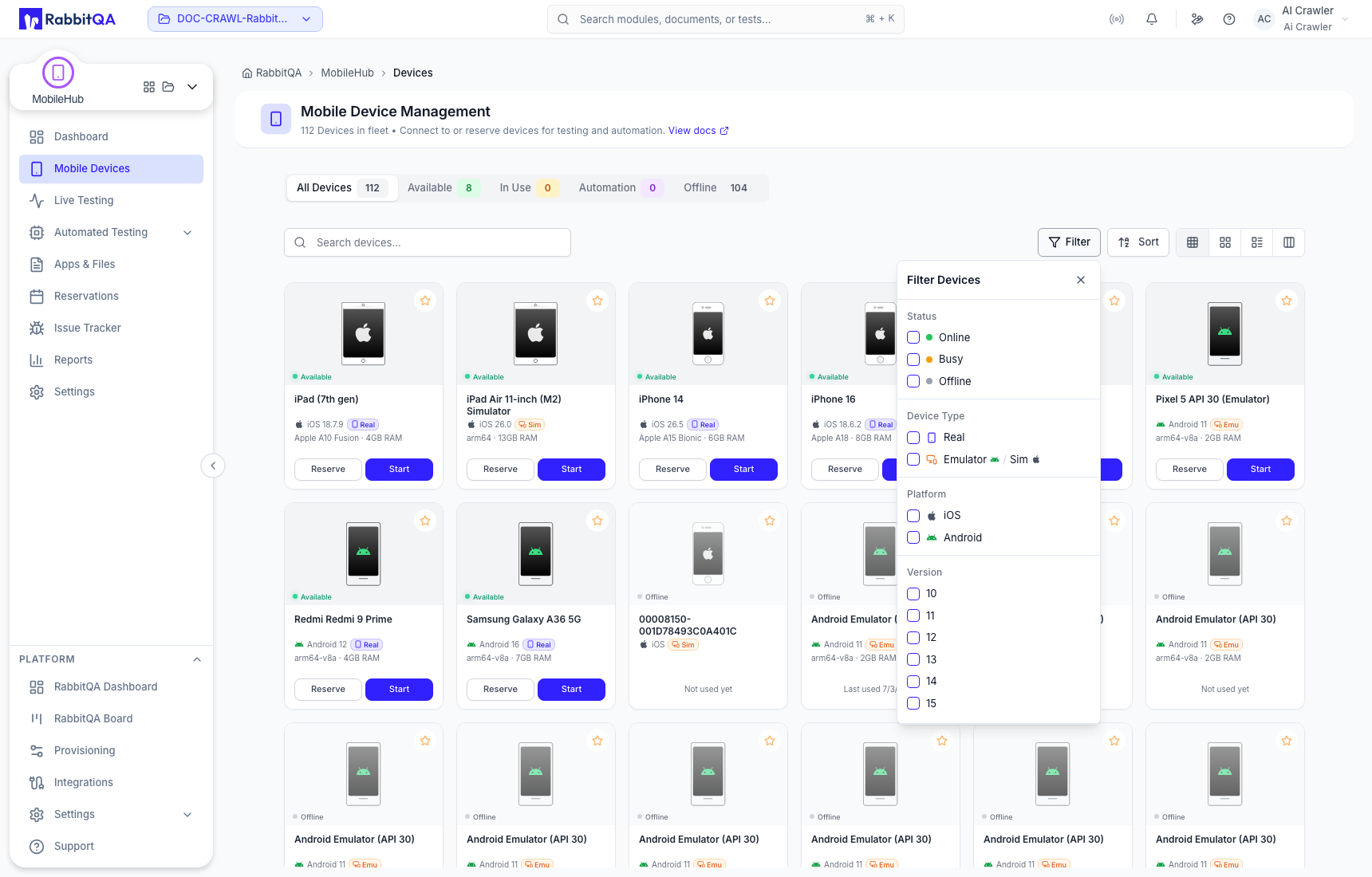
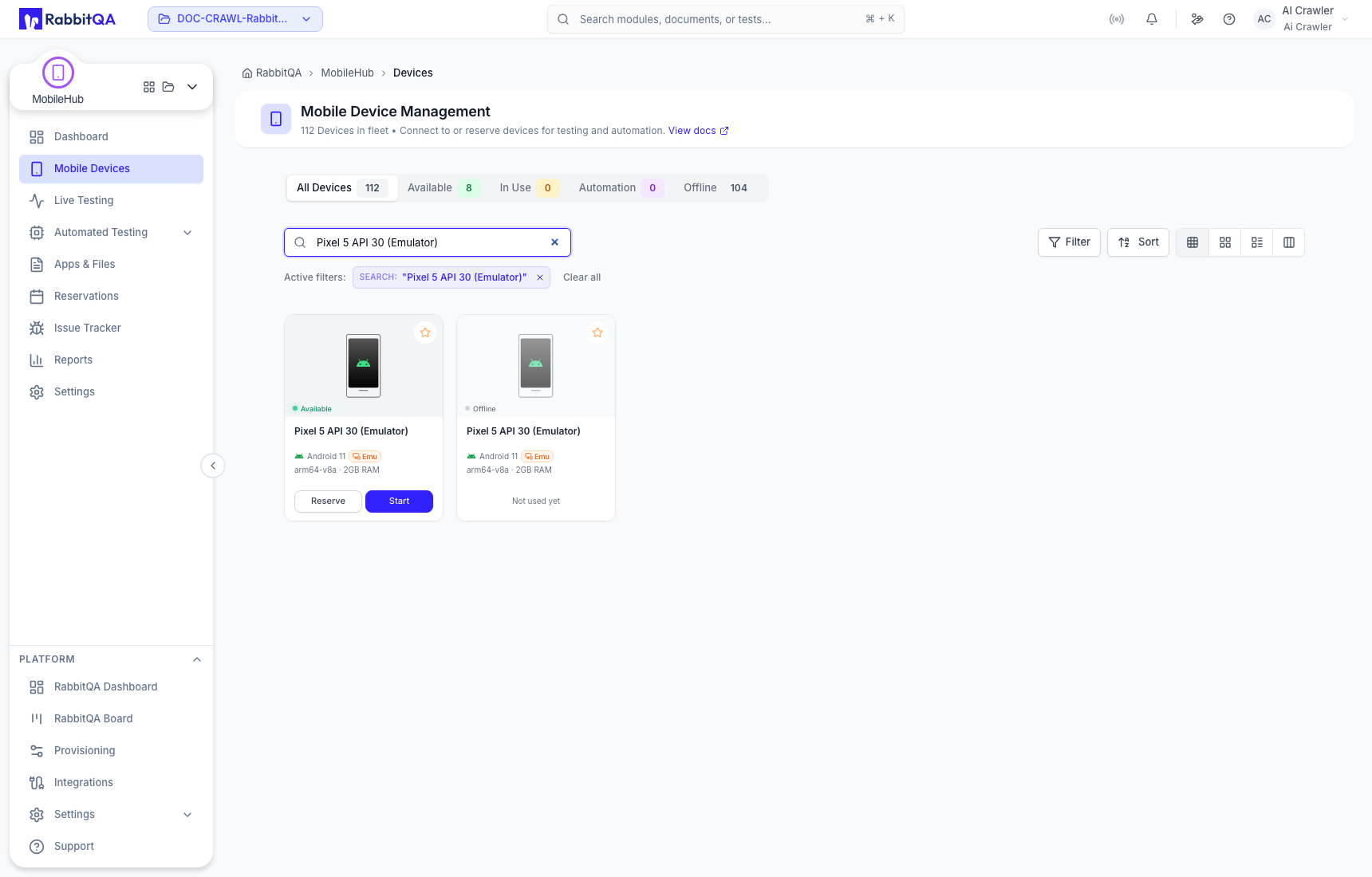
Status tabs separate All, Available, In Use, Automation, and Offline resources. Search by device details, then refine the results by platform, device type, operating-system version, model, or status.
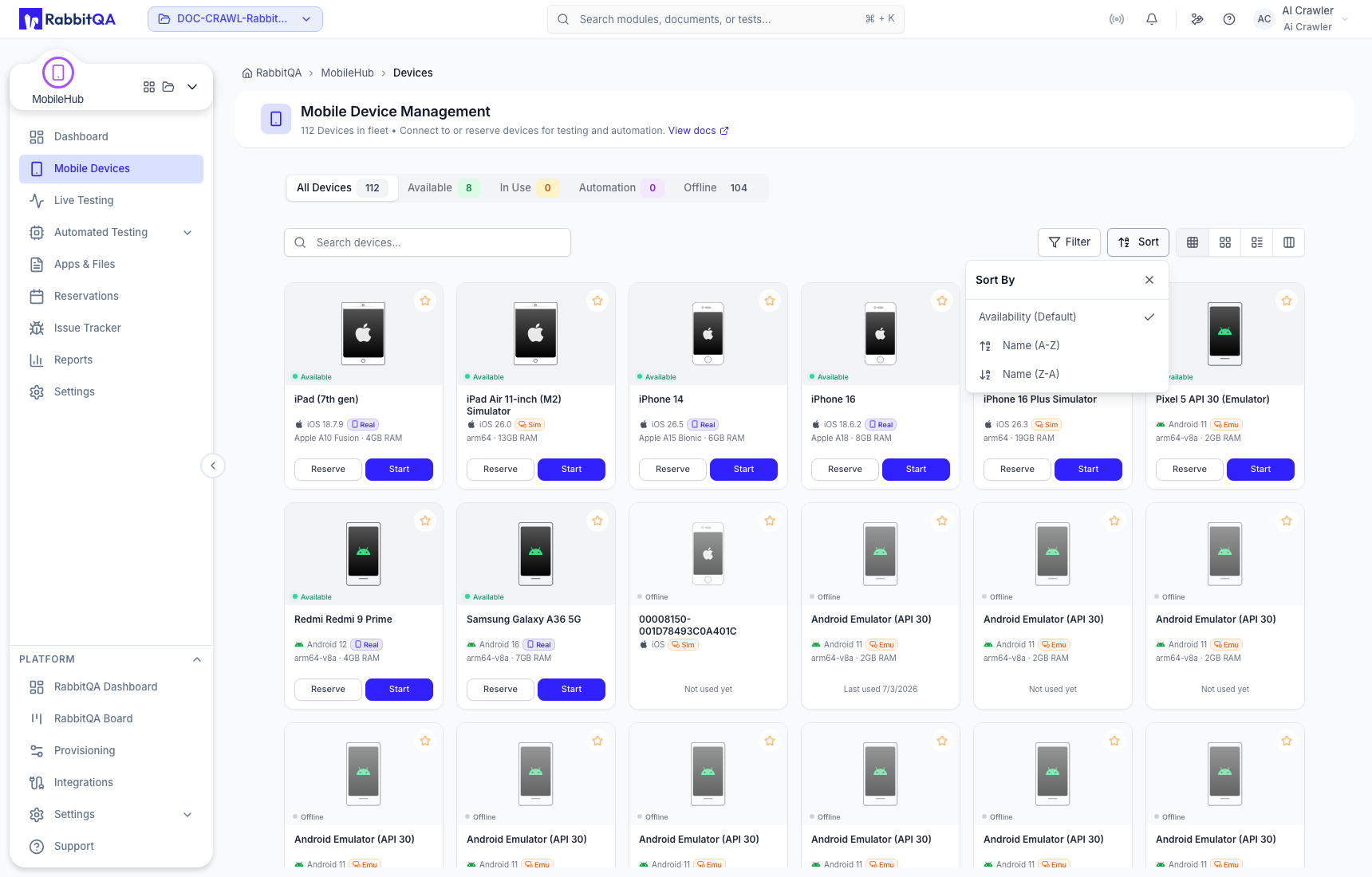
Sort the result by device name, model, platform, OS version, or status. The available sort choices are shown in the current UI.
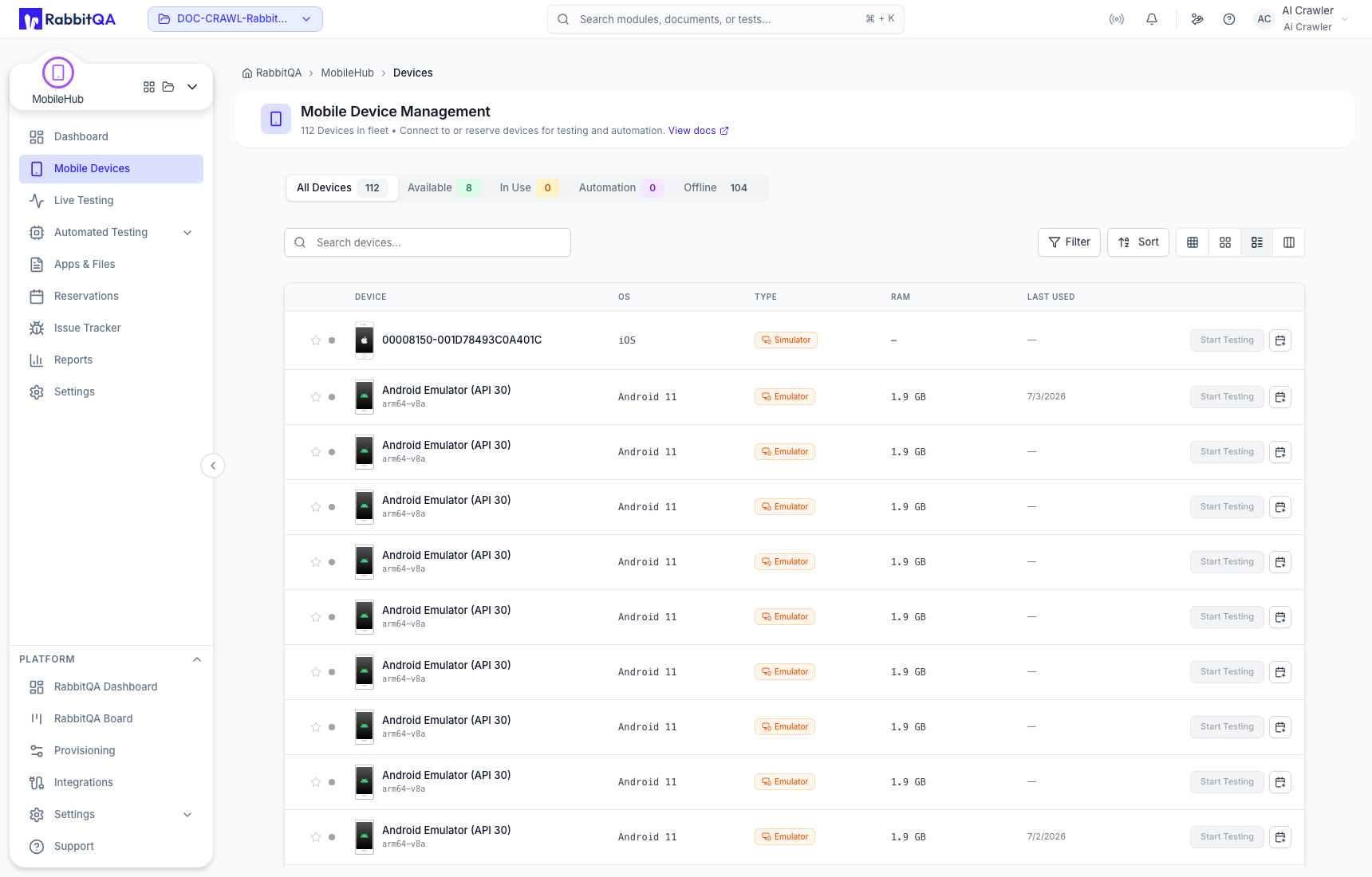
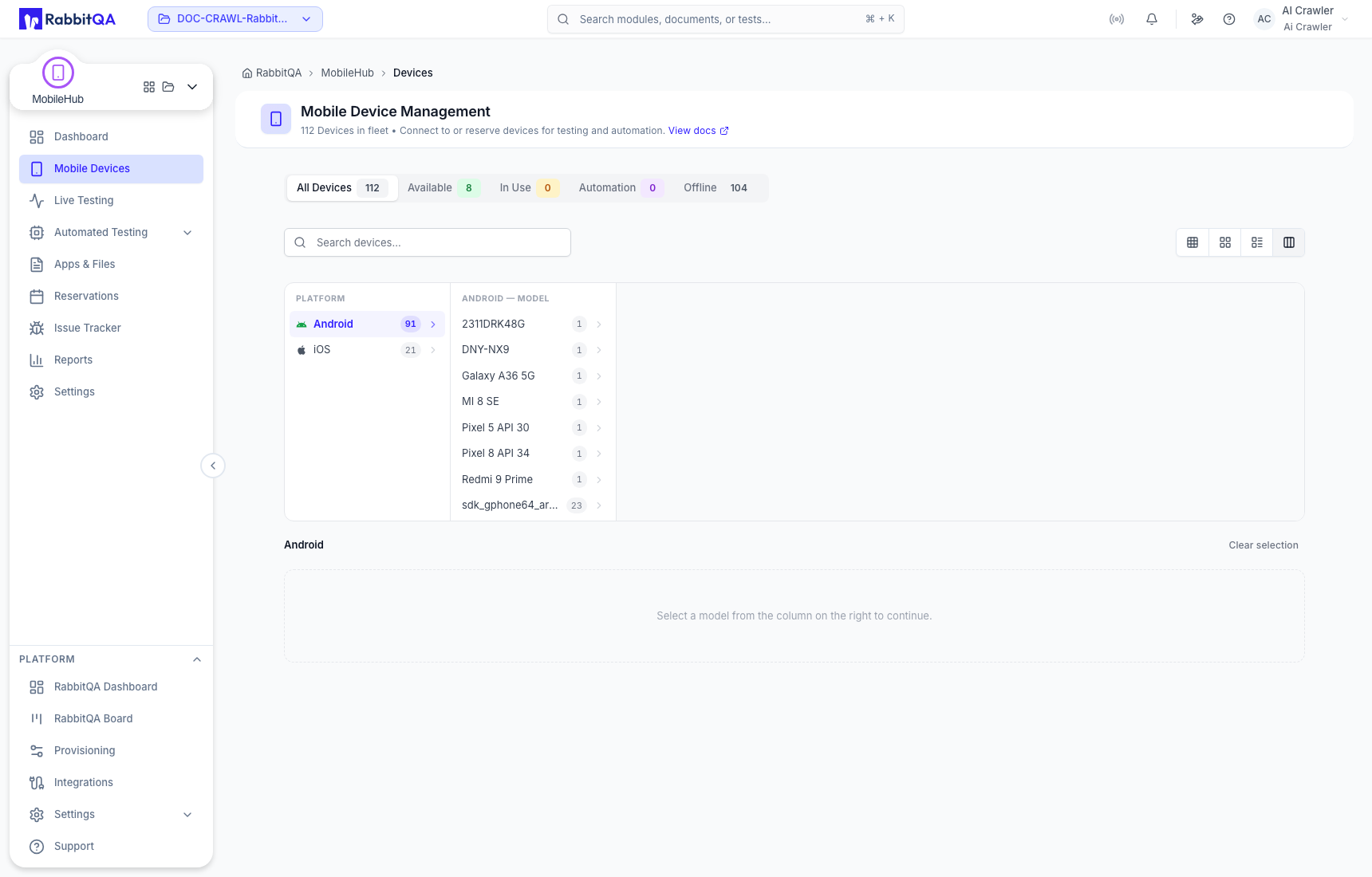
Choose the layout that fits the task:
- List exposes row actions and comparison details.
- Tree groups the fleet by platform and hierarchy.
- Grid provides visual device cards.
- Compact fits more inventory on screen.
Start a live test
- Select an Available device.
- Review its platform, OS version, type, and availability.
- Choose the live-testing action.
- Wait while MobileHub allocates and prepares the device.
- Name the test when the workspace opens.
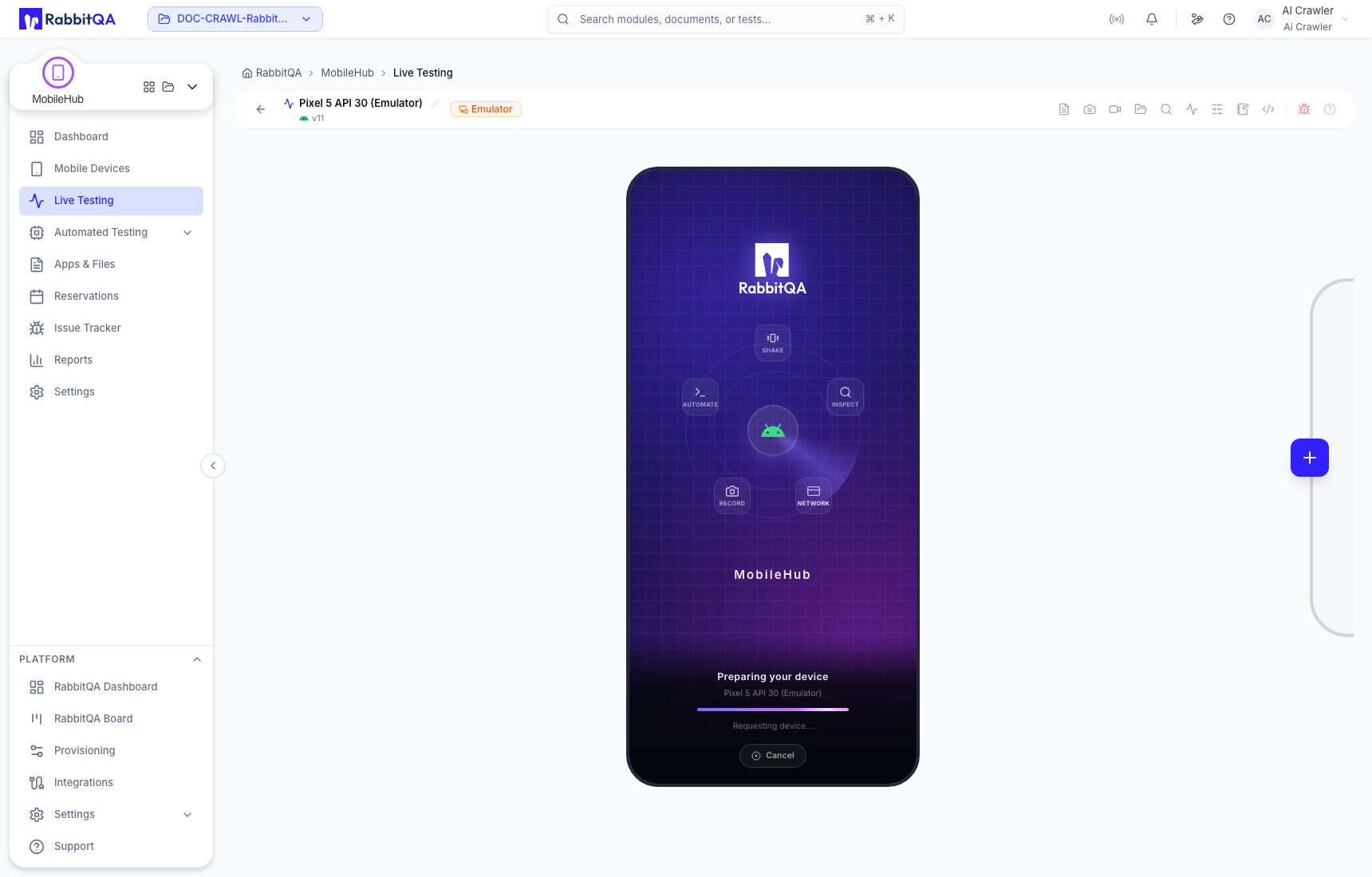
Starting a test allocates shared capacity. End it when finished so the resource becomes available to other users.
If a device is unavailable
- Clear filters and confirm the resource is not under In Use, Automation, or Offline.
- Check Reservations for an upcoming or active booking.
- Confirm your plan's concurrent-session limit in Settings.
- If inventory fails to load, retry when the external Device Farm service is reachable.
