Devices
The device catalog at /devicer/devices.
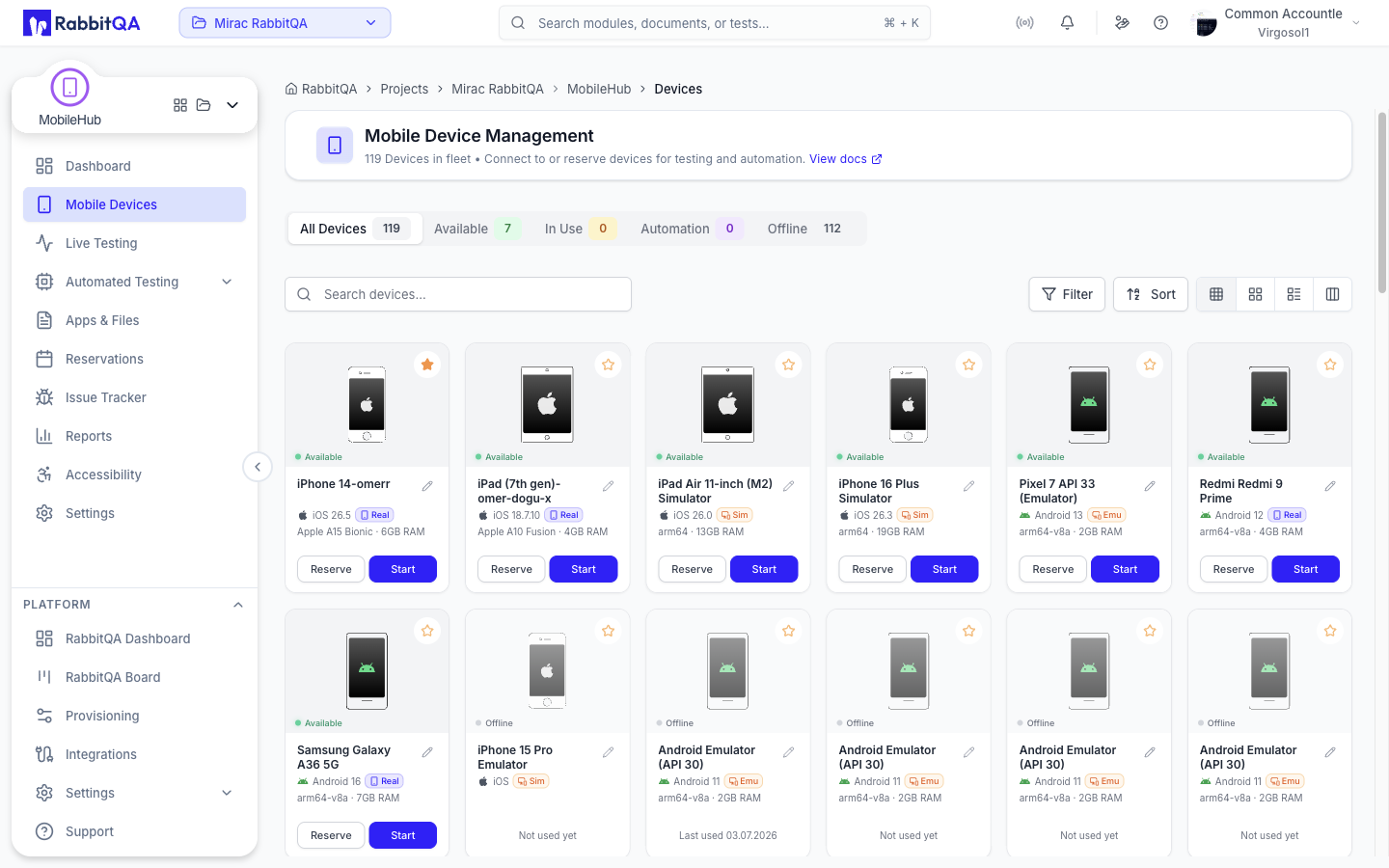
Overview
The page — Mobile Devices in the navigation, headed Mobile Device Management — lists every mobile device connected to the farm. Filtering, sorting, and paging are performed by the backend, so the list stays usable on large fleets. The list refreshes every five seconds while the browser tab is visible, and pauses while a device is being connected.
The current filter state is written to the URL, so a filtered view can be shared as a link.
Status Tabs
| Tab | Shows |
|---|---|
| All Devices | The whole fleet |
| Available | Devices that are online and free |
| In Use | Devices that are busy or reserved |
| Automation | Devices running an automation session |
| Offline | Devices that are not connected |
Each tab carries a count badge taken from the backend fleet statistics.
Search, Filters, and Sort
Search matches as you type, with a short debounce.
The filter menu offers:
| Group | Options |
|---|---|
| Status | Online, Busy, Offline (available on the All Devices tab only) |
| Device Type | Real, Emulator / Sim |
| Platform | iOS, Android |
| Version | Every OS version present in the fleet |
Status, type, platform, and version are all multi-select. Selections appear as removable chips under the toolbar, alongside a Clear all control.
Sort offers Availability (the default), Name (A-Z), and Name (Z-A).
View Modes
Four view modes sit at the right of the toolbar.
| Mode | Description |
|---|---|
| Compact | Dense card grid, the default |
| Grid | Larger detail cards |
| List | Table rows |
| Tree | Platform, model, and version drill-down |
Tree View
Tree view replaces the flat grid with cascading columns: Platform, then Model for that platform, then Version for that model. Each entry shows a count, and each column scrolls independently so the page height stays fixed no matter how large the fleet is.
Choosing a platform reveals the model column, and choosing a model reveals the version column and the matching device cards below. A breadcrumb under the columns tracks the current selection, and Clear selection resets it.
The active status tab scopes both the counts and the device cards, so the tree agrees with the tab above it. The search box still applies; the filter and sort menus are hidden in tree view because the columns take their place.
Device Cards
Each card shows:
- Device name, or its alias when one has been set.
- Platform icon and OS version.
- A type badge: Real, Emu for Android emulators, or Sim for iOS simulators.
- Hardware summary — chipset or CPU architecture and installed RAM, when reported.
- Current status, and who is using the device when it is busy.
- A favorite star.
Hovering a card shows a tooltip with the original device name when an alias is set, the full device type, the RAM and chipset, the current user, and when the device was last used.
Device Types
The backend uses a single Emulator value for both Android emulators and iOS simulators. The interface splits the label by platform, so iOS entries read Simulator and everything else reads Emulator.
iOS simulators accept a .app bundle or a zipped .app rather than an .ipa; real iOS devices accept an .ipa.
Renaming a Device
Administrators, account owners, and managers can give a device an alias. Select the pencil next to the name, type the new name, and confirm. The original device name is preserved and shown in the card tooltip.
Starting a Session
Select Start on an available device.
The session is created and you are taken to /devicer/live-testing/{sessionId}, where a loading screen reports the provisioning progress until the stream is ready.
If the device cannot be used, the page explains why instead of failing silently:
| Message | Meaning |
|---|---|
| Device is in maintenance | The device is in maintenance mode |
| Node is draining | The node hosting the device is being drained |
| Hub is in maintenance | The hub serving the device is in maintenance mode |
| Device unavailable for this session type | The device is not accepting this kind of session right now |
| Hub not connected | The hub is not currently connected |
| Unable to start session | Any other failure, with the reason returned by the service |
Maintenance and draining are shown as warnings because they are expected to clear on their own.
Other Card Actions
| Action | Available when | Description |
|---|---|---|
| Reserve | The device is online and free, with session permission | Opens the reservation form for that device |
| View | The device has a session you can view | Opens the running session |
| Open | The session is still starting | Opens the session that is being provisioned |
| End | You own the session, or you are an admin or manager | Ends the running session |
| Favorite | Always | Stars the device |
See Reservations for the full scheduling flow, and Device Control for what happens once a session is open.
