Notification Settings
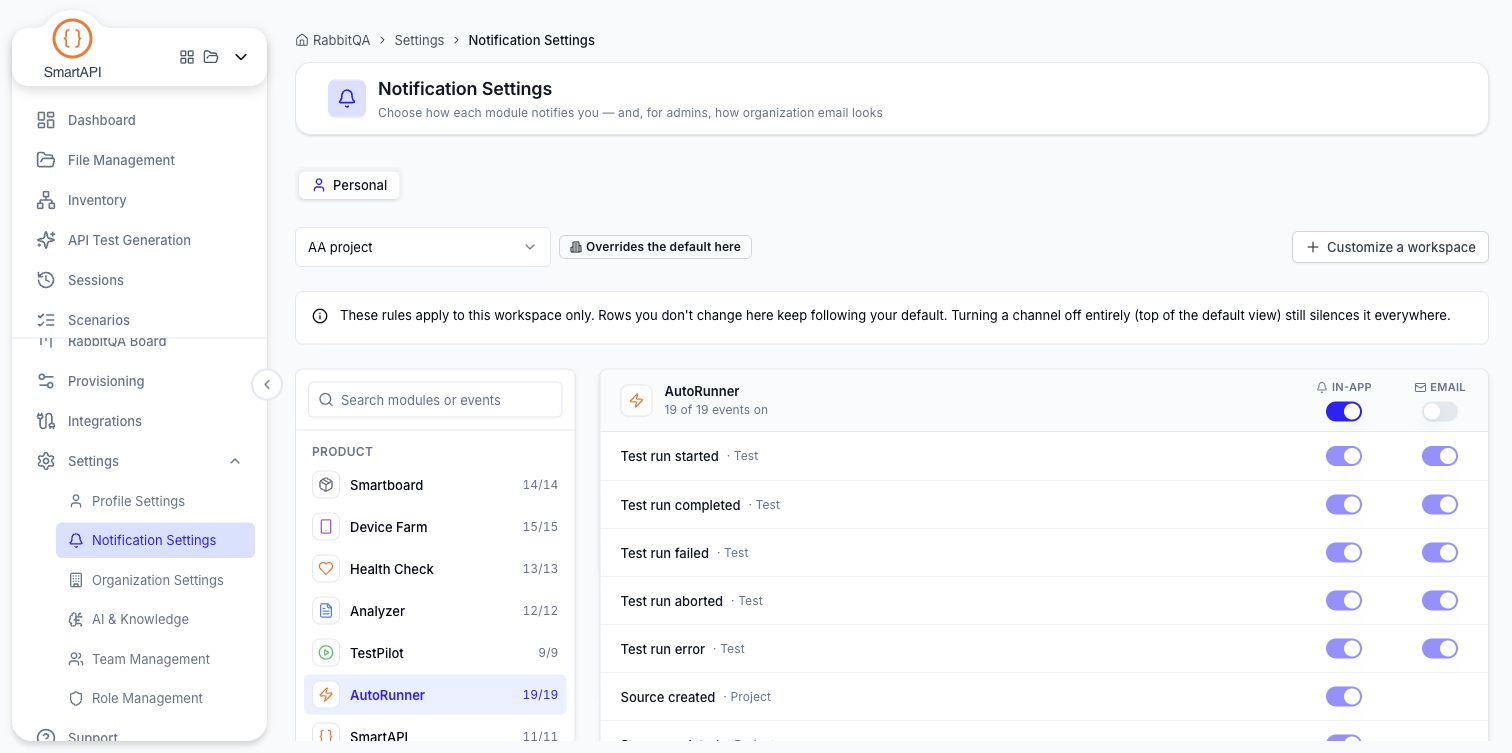
AutoRunner no longer has its own Mail Settings page. Its per-event mail control was folded into the platform-wide Notification Settings screen, which now covers every module in one place.
The old /autorunner/mail-notification link still works — it redirects to /settings/notifications.
Settings → Notification Settings, or go straight to /settings/notifications.
Choose AutoRunner in the module list to review its events.
The two tabs
| Tab | Who sees it | Covers |
|---|---|---|
| Personal | Everyone | How each module notifies you — In-App, email, or neither |
| Organization Email | Admins holding the company notification permission | The sender identity and the wording of every notification |
Both tabs share one save. Any edit raises a You have unsaved changes bar with Discard and Save Changes; Discard only resets the screen, it sends nothing.
Personal
Default notifications
Select Default notifications for the baseline used across your workspaces. A Get notifications master switch sits at the top, with two channel toggles beside it.
| Control | Notes |
|---|---|
| Get notifications | Off means only essential messages — password reset, invites — still arrive |
| In-App | Delivered to the notification center |
| Sent to your account email, which is shown next to the toggle |
Below that, every module that publishes notifications is listed with its events, searchable by module or event name. Each event has its own In-App and email choice, which overrides that event's default. You can set a whole module's row, or a whole channel column, in one click.
Essential (transactional) messages are never switched off, and bulk actions skip them.
Workspace overrides
Choose Customize a workspace, select a workspace, and choose Customize to inspect its personal event rules. Opening this view does not save an override. Change the required events, then use Save Changes to persist them for that workspace.
The scope selector lists Default notifications and your customized workspaces. A workspace view shows Overrides the default here; events you leave unchanged inherit your default choices. Turning a channel off in the default view still silences that channel everywhere.
Reset to default appears for a workspace with saved overrides. It immediately removes that workspace's overrides and restores inheritance; it does not wait for the page's Save Changes.
Organization Email
Sender identity
Applies to every module's outgoing email for the organization.
| Field | Limit | Notes |
|---|---|---|
| Sender name | 120 characters | Shown as the sender in recipients' inboxes. Falls back to RabbitQA |
| Subject prefix | 40 characters | Added before every subject so recipients can filter RabbitQA mail, for example [QA] |
A Preview beside the fields renders an email header and updates as you type, so you can see where the sender name and the prefix land.
There is no language choice on this screen. The product ships English wording only; other-language wording goes in the template itself.
Message templates
Every notification's wording, grouped by module and searchable by module or event name. Default wording is used until you customize an event, so each row carries a Default or Customized badge, and the section header counts how many templates have been customized.
Edit opens the template dialog.
| Field | Notes |
|---|---|
| Channel | Shown as tabs when the event supports more than one |
| Title / Subject | "Title" for In-App, "Subject" for email |
| Body | The message text |
Address facts by name — {suiteName}, {runId} — and a fact the event does not send is left as its
placeholder. Leave the fields empty to fall back to the default wording.
Save template stores the override. Reset to default removes it and is available only once that event has been customized.
Template edits save from the dialog itself, separately from the page's Save Changes bar.
Next Steps
- AutoRunner Schedules — Scheduled runs that trigger these notifications
- AutoRunner Test Runs — The runs these notifications report on
- Platform Settings — Where Notification Settings sits among the other company settings
