Settings
Configure platform-wide settings and preferences.
What are Platform Settings?
Platform Settings provide centralized control over organization-wide configurations, user management, roles and permissions, and notification preferences that apply across all RabbitQA modules.
Access Settings from the platform menu to configure how RabbitQA behaves for your entire organization.
Organization Settings
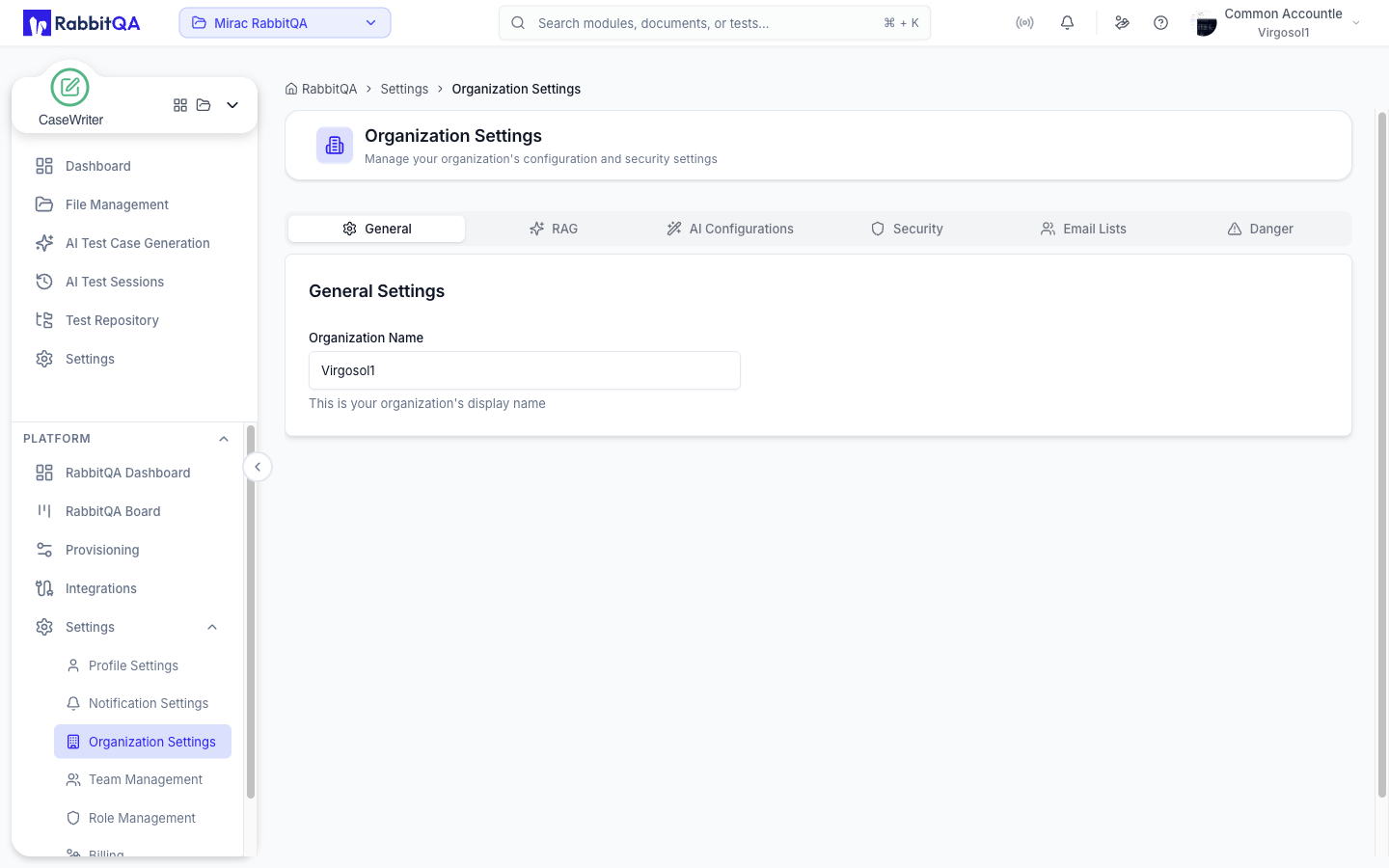
Settings › Organization Settings holds company-wide configuration, split across tabs:
| Tab | Covers |
|---|---|
| General | Company details and organization-wide defaults |
| RAG | The company knowledge base that AI generation draws on for context |
| AI Configurations | AI provider and model configuration for the organization |
| Security | Password policy, password expiry and IP allow-listing |
| Email Lists | Company email lists used for notifications |
| Danger | Destructive organization-level operations |
The page is reached by admin-tier roles or by anyone granted organization:company:read.
Each tab has its own key — organization:company:general, :ai (RAG and AI Configurations), :security, :emaillist, :danger — so a user with only one of them sees only that tab.
Module enablement is not here. Modules are enabled per workspace rather than per company — see Workspaces.
Role Management
Settings › Role Management is where roles are defined and their permission keys assigned, and where custom roles are created. It needs organization:role:read.
Permissions are granular rather than tiered, so a custom role can be given exactly one capability — for example autorunner:testdata:reveal, the ability to reveal automation test data — without granting anything else.
See Team Management for assigning those roles to people.
Team Management
Manage team members, roles, and permissions from the Settings panel. For full details on inviting users, creating custom roles, configuring permissions, and organizing teams, see Team Management.
Notification Settings
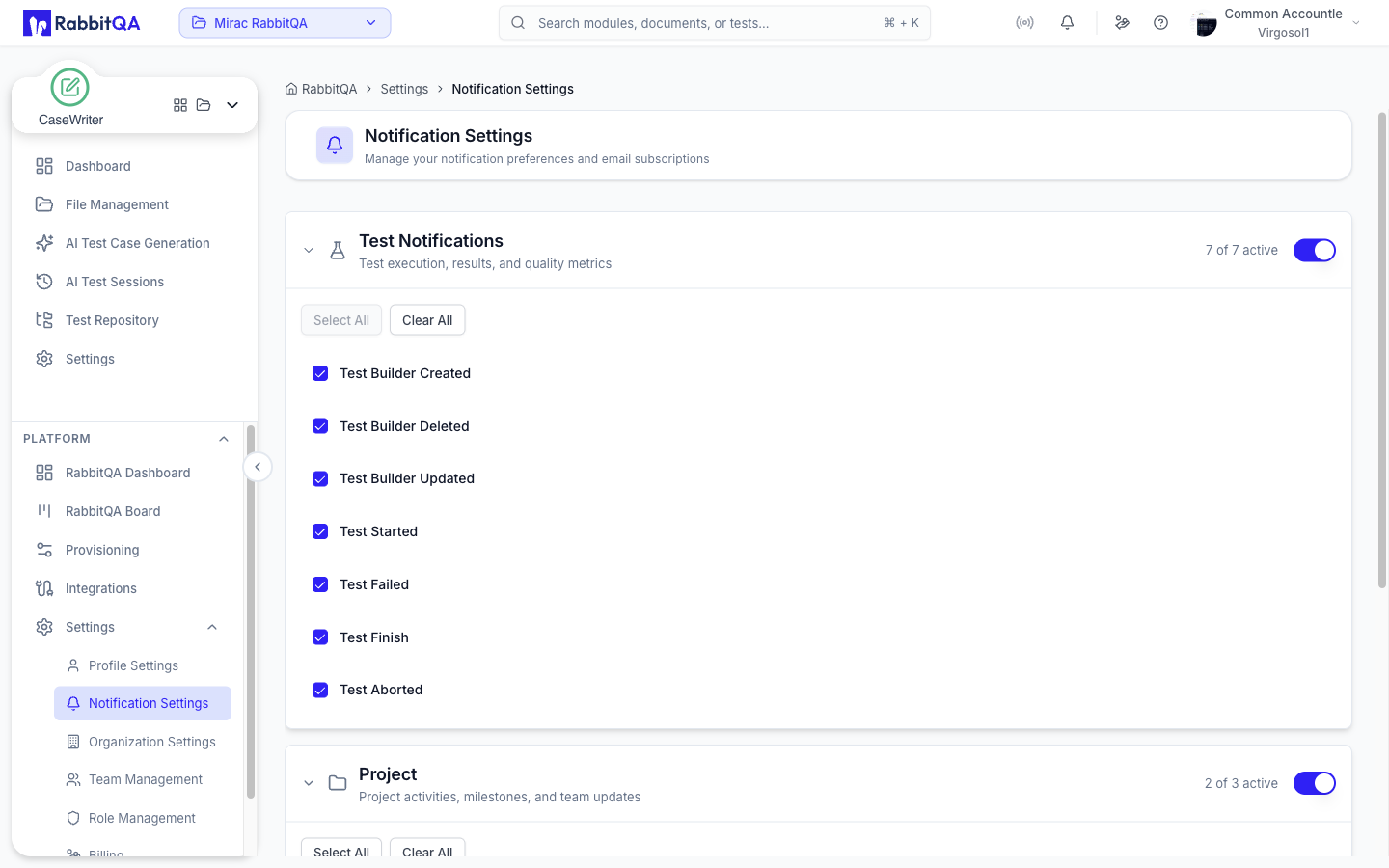
Settings › Notification Settings manages your own notification preferences and email subscriptions, grouped into three collapsible categories:
| Category | Covers |
|---|---|
| Test Notifications | Test execution, results, and quality metrics |
| Project | Project activities, milestones, and team updates |
| News & Campaigns | Product updates, announcements, and promotional content |
Each category has a master switch, and expanding one reveals the individual events you can tick, with Select All and Clear All shortcuts. The header shows how many of a category's events are active.
User Profile
Settings › Profile Settings is your own account, with tabs for Personal details, the Organization you belong to, Security including your password, and Preferences.
