Sign Up / Login
RabbitQA is a hosted platform, so there is nothing to install. You reach it in a browser at your organization's RabbitQA address.
Getting an account
Accounts are created for you — there is no public sign-up page, and /register returns you to the sign-in screen.
An administrator or team lead invites you by email from Settings › Team Management. You receive an invitation and set your own password when you accept it. Until you accept, the account exists but cannot sign in.
If you have not received an invitation, ask your RabbitQA administrator to send one.
Signing in
Enter your email address and password on the sign-in page.
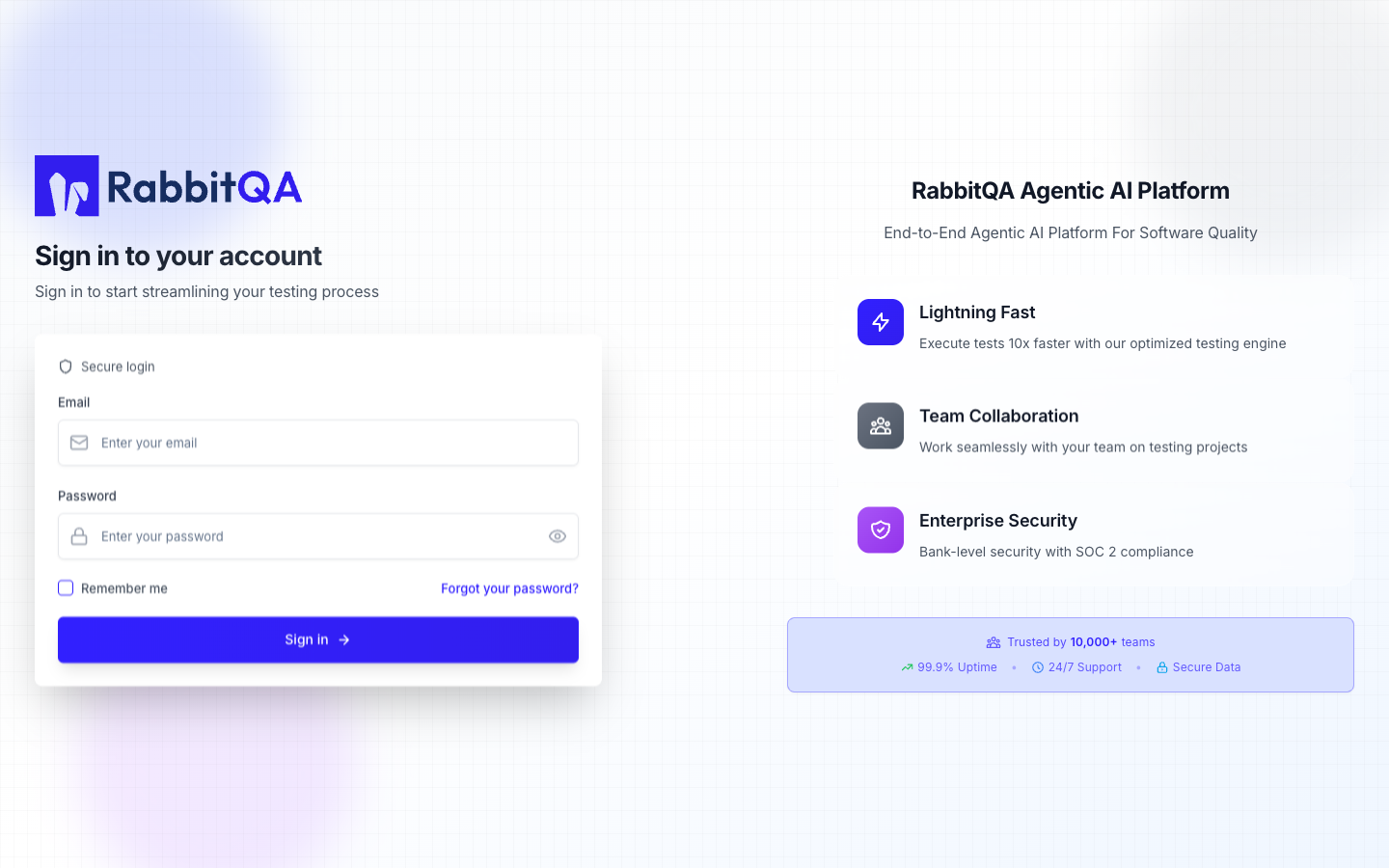
After signing in you land on the platform dashboard, with your workspace selected in the header. If you belong to more than one workspace, check the switcher before you start work — see Quick Start.
Forgot password
Select Forgot your password? on the sign-in page and enter your email address. A reset link is sent to that address, and following it lets you set a new password and sign in.
Password reset requests are rate limited to one per minute for a given address. If the email has not arrived, wait a moment before requesting another rather than submitting repeatedly.
If you cannot sign in
| Symptom | Likely cause |
|---|---|
| "User is disabled" | The invitation has not been accepted yet, or the account was deactivated by an administrator |
| Repeated failures then a lockout message | Sign-in attempts are rate limited after five failures for an account within 15 minutes. Wait and try again, or reset your password. |
| Signed in but no workspace | Your account exists but has not been granted access to a workspace. Ask an administrator. |
| Signed in but a module is missing | The workspace is not entitled to that module. Ask an administrator to enable it. |
Next: Configuration
