AI Studio
Generate, manage, and review AI-powered test scenarios through a full-screen workspace with recording-based generation, Swagger/OpenAPI import, and an intelligent scenario tree.
What is AI Studio?
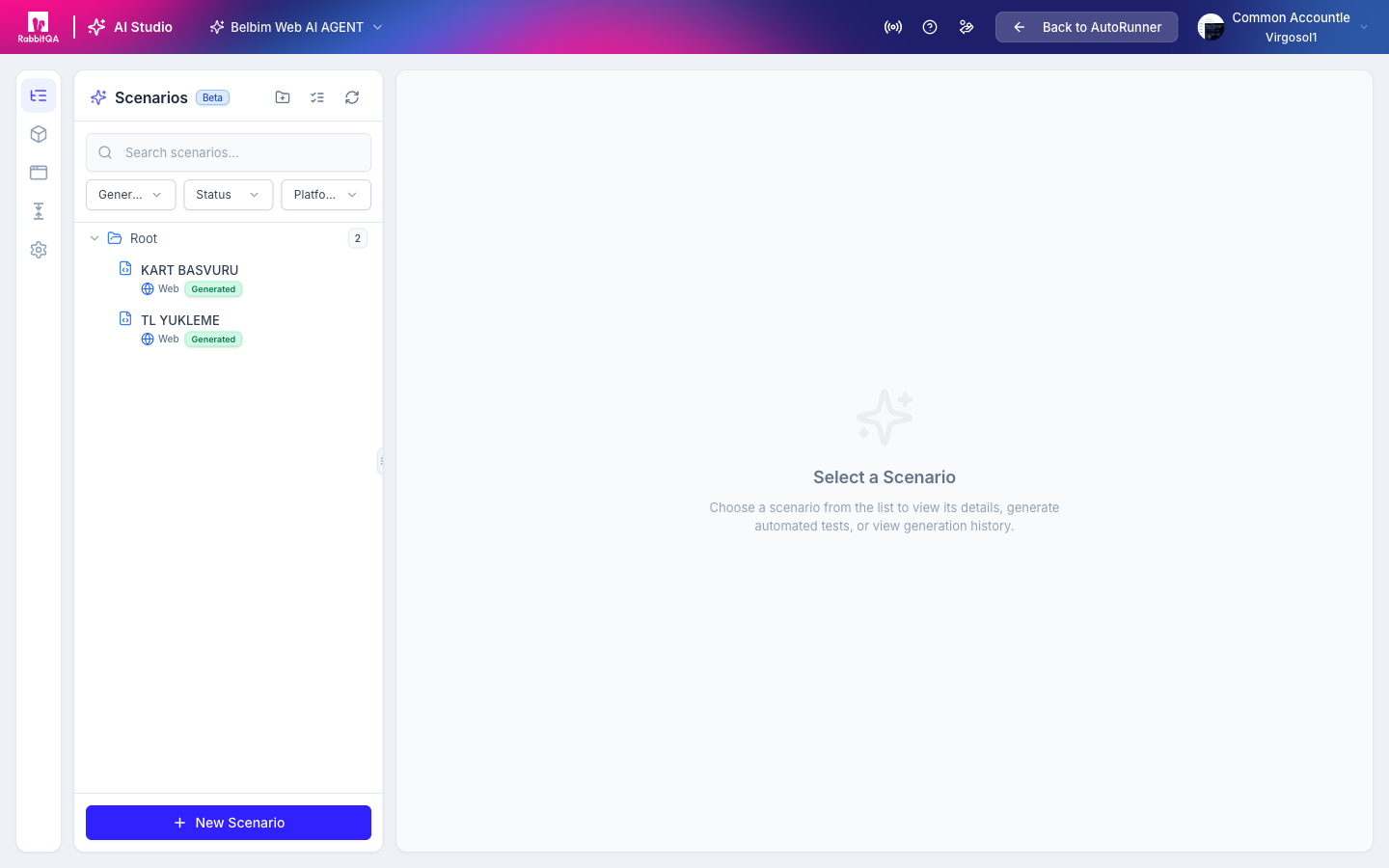
AI Studio is AutoRunner's dedicated interface for AI-assisted scenario management. It provides a full-screen workspace where you can generate test scenarios from user interaction recordings, import and generate scenarios from Swagger/OpenAPI specifications, organize scenarios in a tree structure, and review the output of AI generation sessions. AI Studio is accessible from the main AutoRunner navigation under AI Studio.
Interface Layout
AI Studio uses a two-panel layout:
- Left sidebar -- Tabbed navigation with scenario tree and management tools.
- Main content area -- Displays the active tab's content, including scenario details, generation workflows, and history.
Sidebar Tabs
| Tab | Purpose |
|---|---|
| All Scenarios | Complete scenario tree with folder hierarchy and status indicators |
| Executable | Scenarios ready for execution (fully generated and reviewed) |
| Pending | Scenarios awaiting review or completion |
| Running | Scenarios currently being generated by the AI engine |
| Settings | AI model selection and prompt configuration |
| History | Generation history with session details and outcomes |
Scenario Tree
The scenario tree displays all scenarios in a hierarchical folder structure. Each node shows:
- Scenario name and type icon
- Execution status indicator (passed, failed, pending, not run)
- Flaky badge -- Appears on scenarios with inconsistent pass/fail results across recent runs
Use drag-and-drop to reorganize scenarios between folders. Right-click a scenario or folder to access context actions including run, import, and delete.
Mass Operations
Select multiple scenarios in the tree to perform batch actions:
- Run Selected -- Execute all selected scenarios immediately.
- Import Selected -- Import selected scenarios into a test suite.
- Delete Selected -- Remove selected scenarios with confirmation.
Recording-Based Generation
Generate test scenarios by recording user interactions with your application. The AI analyzes the recording and produces structured BDD scenarios.
Workflow
- Click New Recording in the AI Studio toolbar.
- A browser session opens connected to your target application.
- Perform the user workflow you want to test. AutoRunner captures every click, input, navigation, and assertion.
- Click Stop Recording when finished.
- The AI engine processes the recording and generates one or more test scenarios.
- Review the generated scenarios in the Pending tab.
- For each scenario, click Accept to add it to your scenario tree or Reject to discard it.
Recordings are stored with scenarioType=RECORDING and can be replayed or re-processed at any time. Each recording can produce multiple test scenarios covering different paths through the recorded workflow.
Swagger/OpenAPI Generation
Generate API test scenarios automatically from a Swagger or OpenAPI specification file. This is particularly useful for service-type projects that need broad API coverage quickly.
Workflow
- Click Generate from Swagger in the AI Studio toolbar.
- Upload your Swagger/OpenAPI specification file (JSON or YAML format).
- A generation session is created displaying the detected endpoint count.
- Configure generation options:
| Option | Description |
|---|---|
| Scenario Count | Number of scenarios to generate per endpoint (1 to 20) |
| AI Provider | Select the AI model for generation (GPT-4, Claude, or Gemini) |
- Click Generate to start the asynchronous generation process.
Generation Stages
The generation process progresses through three stages, each tracked with a progress indicator:
| Stage | Description |
|---|---|
| Preprocessing | Parsing the spec file, extracting endpoints, and building context |
| Generation | AI model generates test scenarios for each endpoint |
| Assembly | Scenarios are structured, validated, and organized into folders |
The interface polls for status updates every 3 seconds. If generation does not complete within 10 minutes, the session times out and can be retried.
Large API specifications with many endpoints may approach the 10-minute timeout. If this happens, consider splitting your spec file or reducing the scenario count per endpoint.
Export Options
After generation completes, export the scenarios:
- Run Directly -- Add scenarios to the scenario tree and execute immediately.
- Export as Postman Collection -- Download a
.jsonfile compatible with Postman for external use.
AI Provider Selection
Configure which AI model powers scenario generation from the Settings tab:
| Provider | Model | Best For |
|---|---|---|
| OpenAI | GPT-4 | General-purpose scenario generation with strong reasoning |
| Anthropic | Claude | Complex workflows requiring detailed analysis |
| Gemini | Fast generation for large specification files |
You can also configure custom prompts in the Settings tab to guide the AI's generation behavior, such as emphasizing edge cases, security testing, or specific business rules.
Generation History
The History tab provides a complete record of all AI generation sessions:
- Session timestamp and duration
- AI provider and model used
- Number of scenarios generated
- Stage durations (preprocessing, generation, assembly)
- Final status (completed, failed, timed out)
From the history view, you can:
- Retry a failed or timed-out session with the same configuration.
- Accept or Reject individual scenarios from a completed session.
- Review the original input (recording or spec file) that produced the session.
Import from Repository
The Import from Repository view allows you to pull existing test files from a connected Git repository into AI Studio.
- Select the target repository and branch.
- Browse the file tree to locate test files.
- Select files to import.
- AI Studio parses the files and adds them to the scenario tree.
This is useful for teams migrating existing test automation assets into AutoRunner.
Device Generation
For mobile testing projects, the Generate for Device dialog creates device-specific scenario variants:
- Select a base scenario from the tree.
- Click Generate for Device.
- Choose target device profiles (iOS, Android, screen sizes).
- The AI adapts the scenario for the selected device contexts, accounting for platform-specific interactions.
Next Steps
- BDD Scenarios -- Write and manage test scenarios manually
- Editor -- Edit scenario code in the built-in Monaco editor
- Test Runner -- Execute generated scenarios
- Reports -- Analyze test results from AI-generated scenarios
