Test Suites
Organize your test scenarios into logical suites, monitor their health over time, and configure execution profiles for consistent, repeatable runs.
What is a Test Suite?
A test suite is a container for grouping related test scenarios within a project. Suites let you organize scenarios by feature area, priority, regression scope, or any other logical boundary. Each suite tracks its own health metrics, maintains an independent run history, and can be scheduled for automated execution.
Creating a Test Suite
To create a new suite, open the Create Suite panel from the suite list toolbar.
- Navigate to your project and click New Suite.
- Enter a Suite Name (required, must be unique within the project).
- Select scenarios using the split-panel scenario selector:
- The left panel lists all available scenarios in the project.
- The right panel shows scenarios added to the suite.
- Use drag-and-drop to reorder scenarios within the suite. Execution order follows the sequence you define here.
- Use the search field to filter available scenarios by name or tag.
- Configure the Run Profile (collapsible section):
| Setting | Description |
|---|---|
| Browser | Target browser for execution (Chrome, Firefox, Edge, Safari) |
| Device | Device profile for mobile testing (optional) |
| Parallel Execution | Enable concurrent scenario execution with a concurrency limit |
| Retries | Number of automatic retries for failed scenarios |
| Timeout | Maximum allowed execution time per scenario |
- Select an Environment from the dropdown (e.g., Development, Staging, Production).
- Click Create to save the suite.
The run profile configuration is optional during suite creation. If left unconfigured, the suite inherits the project-level defaults. You can override these settings at any time from the suite detail page.
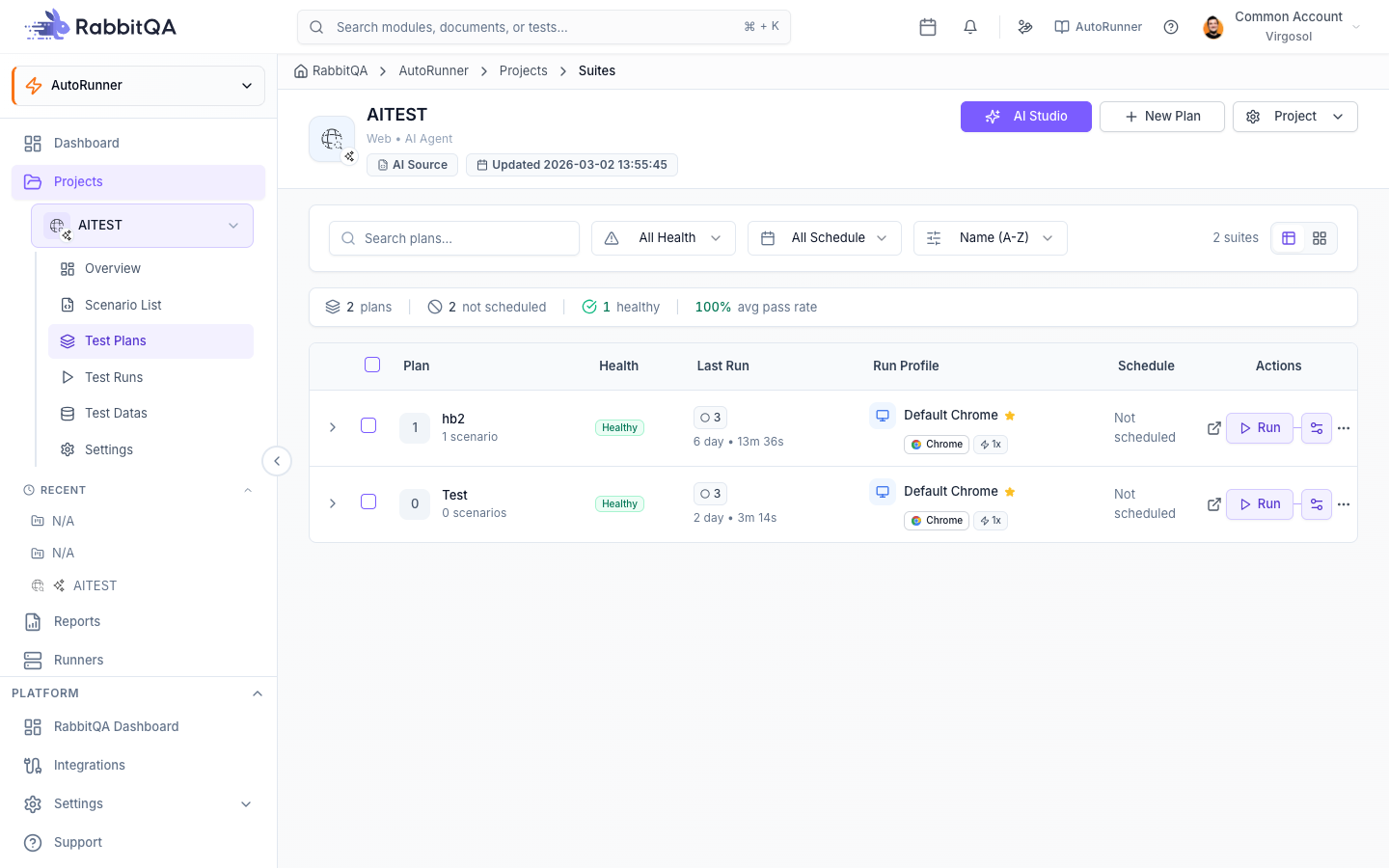
Suite List View
The suite list provides multiple ways to browse, filter, and manage your suites.
View Modes
Toggle between two display modes using the Grid/Table buttons in the toolbar:
- Grid View -- Displays suites as cards with health indicators, pass rate, last run date, and schedule status at a glance.
- Table View -- A compact tabular layout with sortable columns, ideal for projects with many suites.
Search and Sort
Use the search bar to filter suites by name. Sort the list by:
- Suite name (alphabetical)
- Created date
- Last run date
- Health status
Filtering
Apply filters to narrow the suite list:
| Filter Category | Options |
|---|---|
| Health Status | Healthy, At Risk, Critical, Inactive |
| Schedule Status | Scheduled, Unscheduled |
Active filters appear as chips below the toolbar. Click the close icon on any chip to remove it, or click Clear All to reset all filters.
Pagination
The suite list displays 20 suites per page by default. Use the pagination controls at the bottom to navigate between pages.
Favorites
Mark frequently accessed suites as favorites by clicking the star icon on any suite card or row. Favorited suites appear at the top of the list for quick access.
Health Status System
Every suite is assigned a health status based on its recent test results. Health is recalculated after each run completes.
| Health Status | Criteria | Color |
|---|---|---|
| Healthy | Pass rate at or above 90% | Green |
| At Risk | Pass rate between 70% and 89% | Yellow |
| Critical | Pass rate below 70% | Red |
| Inactive | No test runs in the last 30 days | Gray |
Suites that have not been executed in over 30 days are marked as Inactive regardless of their historical pass rate. Schedule regular runs or execute manually to keep suites in an active health state.
Suite Detail Page
Click any suite to open its detail page with three main tabs:
- Scenarios -- Lists all scenarios in the suite with their individual pass/fail status and last execution date. Reorder scenarios with drag-and-drop.
- Runs -- Full run history for the suite with status, duration, pass rate, and trigger type. Click any run to open its Run Detail page.
- Configuration -- Edit the suite name, scenario list, run profile, environment, and quality gate settings.
Quality Gate Configuration
Quality gates define pass/fail thresholds for a suite. When a run completes, the quality gate evaluates the results and reports whether the suite meets your defined criteria.
Configure quality gates from the suite detail Configuration tab:
- Minimum Pass Rate -- The run fails the quality gate if the pass rate falls below this threshold.
- Maximum Failed Scenarios -- The run fails if the number of failed scenarios exceeds this count.
- Maximum Duration -- The run fails the quality gate if total execution time exceeds this limit.
Quality gate results appear in the run detail header and in the suite health summary.
Bulk Operations
Select multiple suites using the checkboxes in the list view to perform bulk actions:
- Bulk Run -- Start a test run for all selected suites simultaneously.
- Bulk Delete -- Delete all selected suites. A confirmation dialog displays the suite names and warns that run history will also be removed.
Bulk runs execute each suite independently. Each suite uses its own run profile and environment configuration.
Suite Duplication
To create a copy of an existing suite:
- Open the suite context menu (three-dot icon) or navigate to the suite detail page.
- Click Duplicate.
- The cloned suite is created with the same scenarios, run profile, and quality gate settings. The name is appended with "(Copy)".
- Edit the duplicated suite to customize as needed.
Next Steps
- BDD Scenarios -- Write and manage test scenarios within your suites
- Test Runner -- Execute suites and monitor active runs
- Scheduling -- Automate recurring suite execution
- Run Detail -- Analyze completed run results in depth
