Test Runs
Core execution units for organizing and running your test campaigns.
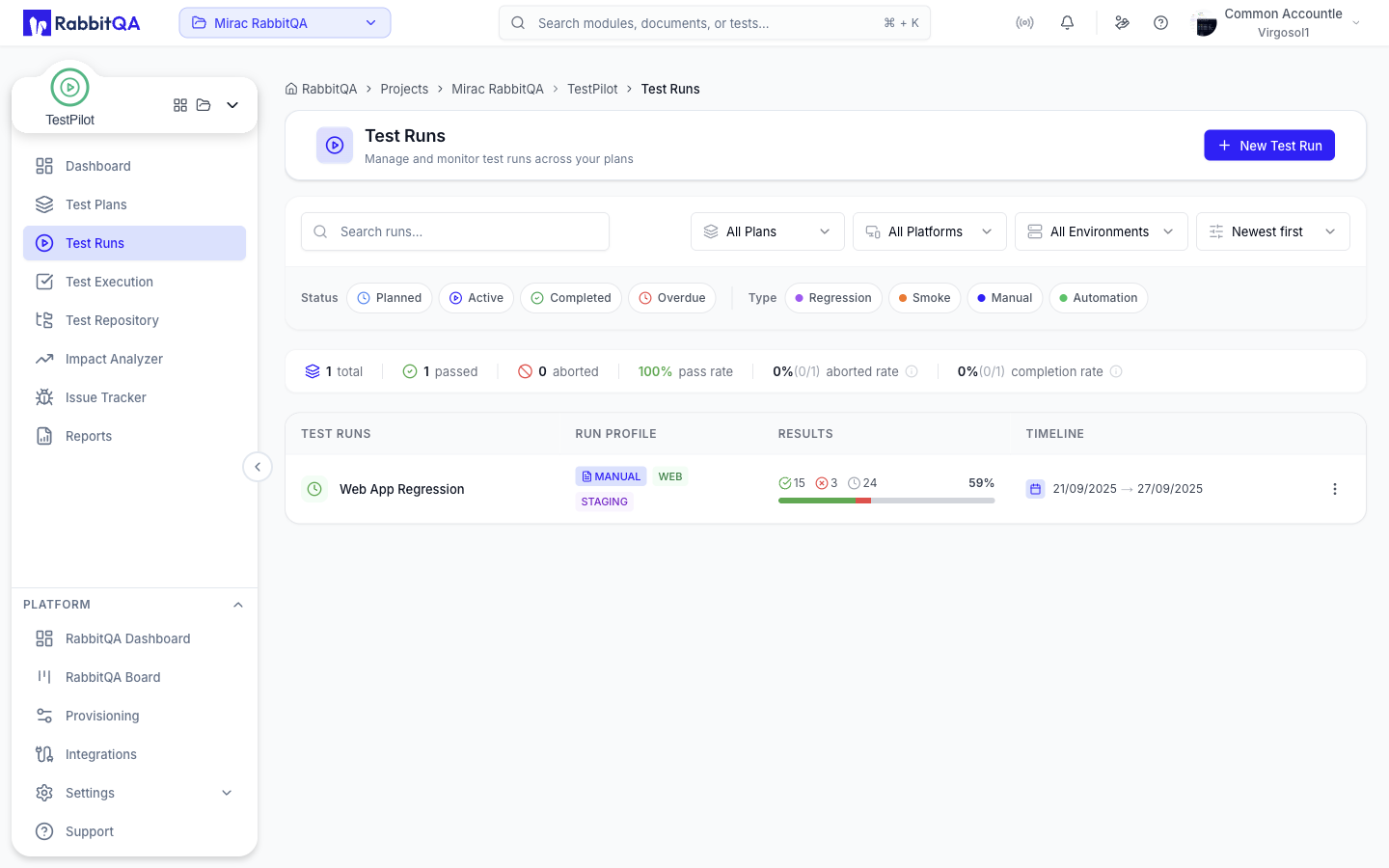
What is a Test Run?
A Test Run represents a collection of test cases executed together against a specific environment and release. Think of Test Runs as your organized testing campaigns - whether you're running regression tests, smoke tests, or sprint-specific validations. Each test run includes test cases, environment configuration, assignees, schedule, and tracks execution progress.
Key Aspects: Organized Campaigns, Environment-Specific, Team Collaboration, Progress Tracking
Test Run Lifecycle
| Status | Description |
|---|---|
| Draft | Test run being prepared, not yet started |
| In Progress | Active execution, team marking test results |
| Paused | Temporarily halted, can be resumed |
| Completed | All tests executed, final results recorded |
| Cancelled | Test run terminated before completion |
Time-Based Status
- On Time: Execution within planned timeline
- At Risk: Approaching deadline, needs attention
- Overdue: Past deadline, requires immediate action
- Not Started: Scheduled but not yet begun
Creating a Test Run
Step 1: Basic Information
- Name: Descriptive name (e.g., "Sprint 23 Regression Tests")
- Project: Parent project for organization
- Description: Purpose and scope of the test run
Step 2: Configuration
- Environment: Development, QA, Staging, Pre-Production, Production
- Test Type: Smoke, Regression, Integration, Acceptance, Exploratory
- Release: Link to specific release or sprint version
Step 3: Test Case Selection
Three methods available:
- From Test Repository: Browse and select from CaseWriter
- Import from File: Excel, CSV, JSON formats supported
- Manual Entry: Create test cases inline
Step 4: Assignment & Scheduling
- Assign test cases to team members
- Set start and end dates
- Configure execution order
- Enable round-robin assignment
Step 5: Review & Launch
Checklist before launching:
- All required fields completed
- Test cases added and reviewed
- Assignees confirmed
- Schedule validated
- Environment access verified
Test Run Actions
View Details
Opens test run dashboard with:
- Overall progress chart
- Test case list with statuses
- Execution timeline
- Team activity log
- Comments and notes
Edit Test Run
Modify test run properties:
- Update name, description
- Change dates and schedule
- Adjust assignments
- Modify configuration
Copy Test Run
Create duplicate for reuse with options:
- Copy test cases: Yes/No
- Copy assignments: Yes/No
- Copy schedule: Yes/No
- Reset statuses: Yes/No
Use Cases:
- Rerun regression tests next sprint
- Create test run for different environment
- Template for similar projects
Add Test Cases
Dynamically expand test coverage:
- Add from repository
- Import from file
- Create new cases
- Clone existing cases
Pause/Resume
Control test execution flow:
Pause:
- Temporarily halt execution
- Preserve current progress
- Notify assigned testers
- Update status to "Paused"
Resume:
- Continue from pause point
- Restore "In Progress" status
- Notify team of resumption
Complete Test Run
Finalize and close test run:
Requirements:
- All tests should be executed
- Generate final report
- Archive test data
- Update project metrics
Completion Checklist:
- All test cases executed
- Failed tests documented
- Bugs logged and linked
- Sign-off obtained
- Reports generated
Filtering & Search
Quick Filters
- Project: Filter by specific project
- Status: Show only active, completed, or all
- Environment: Filter by target environment
- Assigned To: Show your test runs or team's
- Date Range: Custom date filtering
Advanced Search
Search by:
- Test run name
- Test case titles
- Project name
- Release version
- Tester names
- Tags and labels
Search Syntax Examples:
project:ecommerce status:in-progress
release:v2.3.0 assignee:@johndoe
priority:high OR priority:critical
tag:payment tag:security
Test Run Dashboard
When you open a test run, you see a comprehensive execution dashboard with real-time updates:
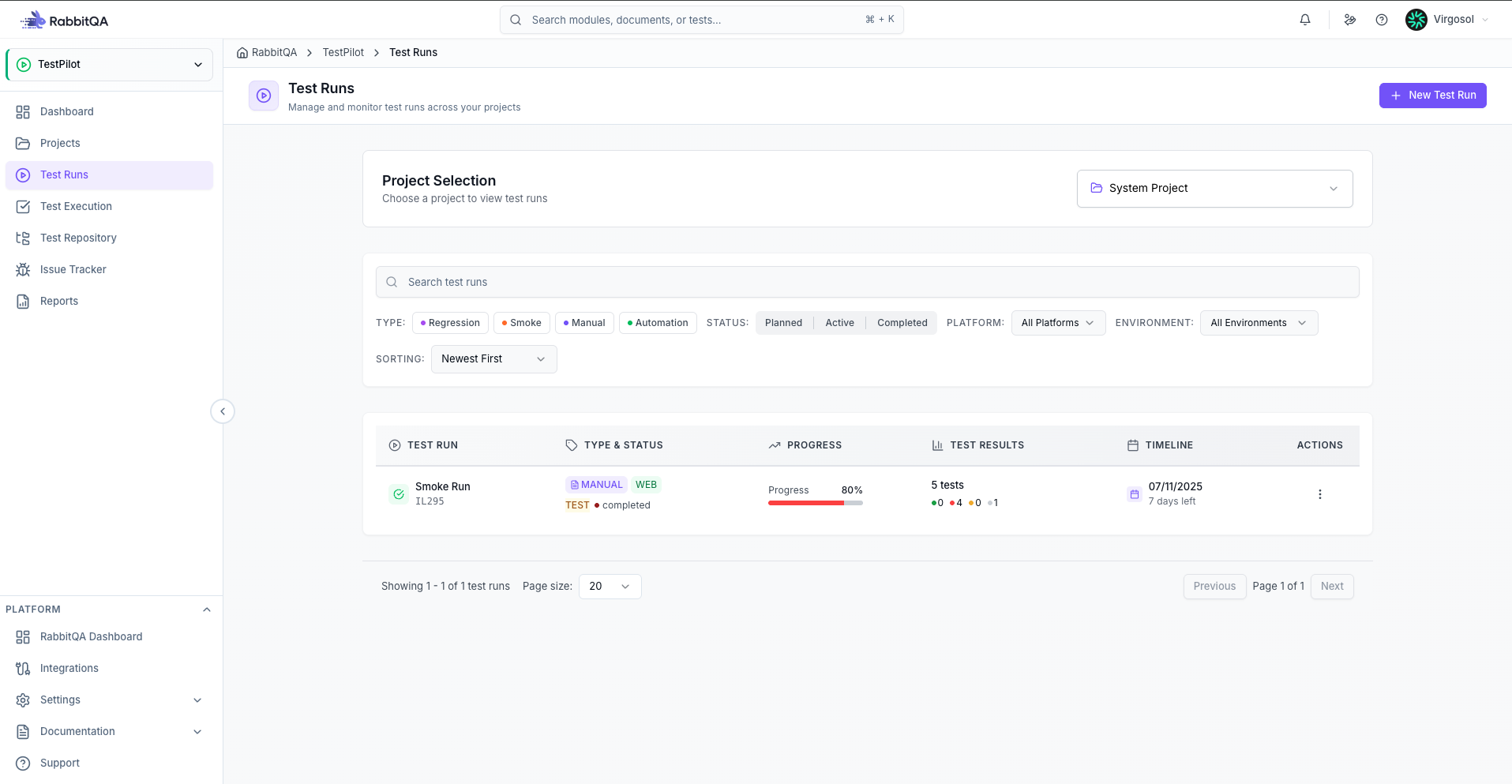
Header Section
- Test Run Name
- Project Badge
- Status Indicators (Execution + Time)
- Progress Percentage
- Action Buttons (Edit, Copy, Delete, etc.)
Quick Stats
Total: 120 (100%)
Passed: 85 (71%)
Failed: 15 (12.5%)
Not Run: 20 (16.5%)
Progress Charts
- Execution Progress (Donut Chart)
- Daily Progress (Line Chart)
- Test Type Distribution
Test Case List
- Click row to view test details
- Inline status updates
- Quick assignment changes
- Add comments directly
- Link bugs on-the-fly
Activity Timeline
Tracks:
- Status changes
- Comments added
- Assignments changed
- Test cases added/removed
- Configuration updates
- Reports generated
Best Practices
For naming conventions, sizing guidelines, assignment strategies, and execution order recommendations, see Best Practices.
Troubleshooting
Tests not appearing in test run
- Verify test cases exist in repository
- Check import was successful
- Refresh test run page
- Review filter settings
- Contact support if persists
Cannot update test status
Possible Causes:
- Insufficient permissions
- Test run is completed/cancelled
- Network connectivity issue
- Test case locked by another user
Solutions:
- Verify your role permissions
- Check test run status
- Refresh browser
- Clear cache and retry
Slow performance with large test runs
Optimizations:
- Enable pagination (50 tests per page)
- Use filters to narrow view
- Disable auto-refresh temporarily
- Export data for offline analysis
- Consider splitting into smaller runs
Next Steps
- Test Executions - Execute and mark test results
- Reports & Analytics - Generate test run reports
