Test Runs
A test run is a set of test cases executed together against one environment and one or more platforms. Every run belongs to a test plan.
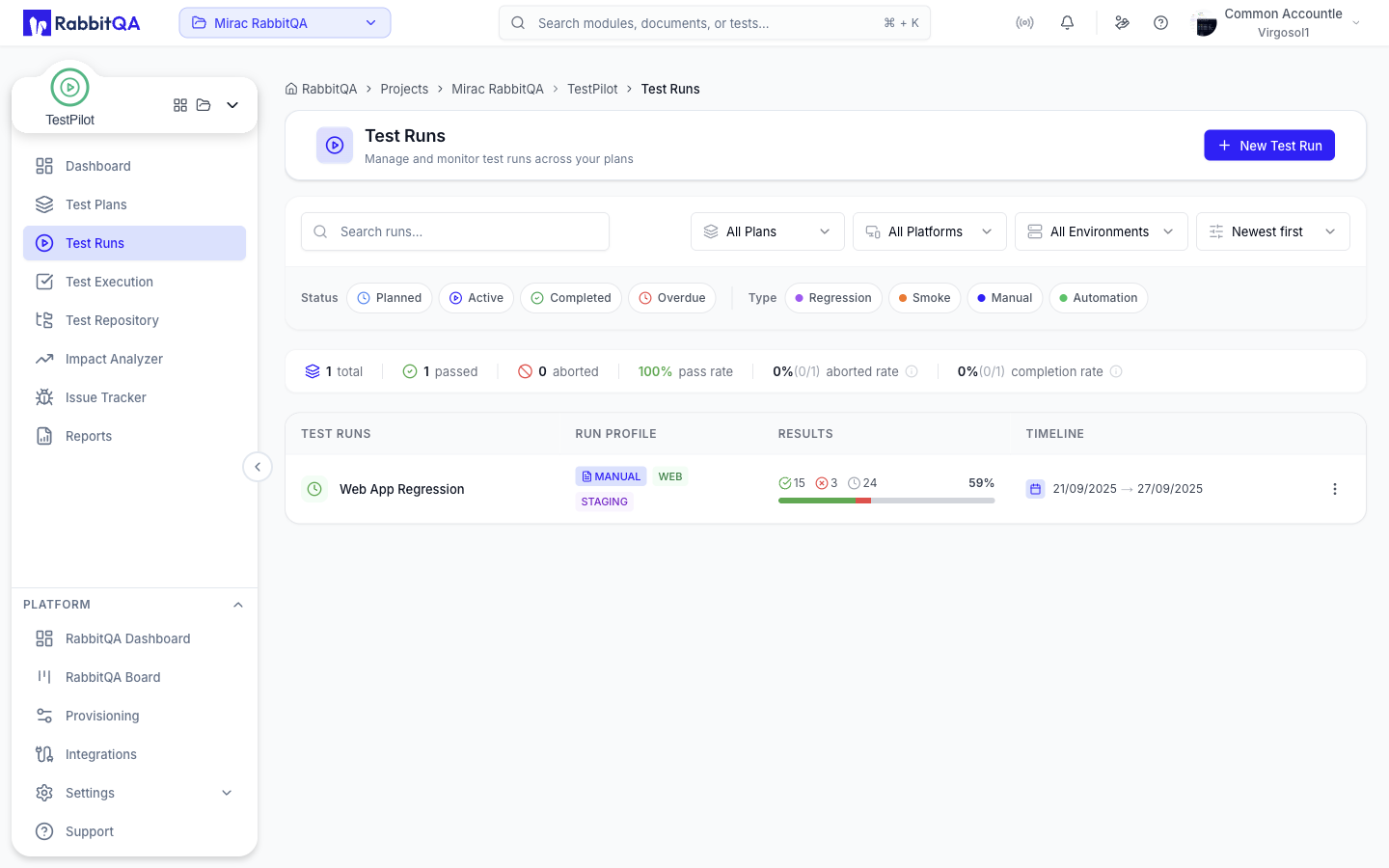
The Test Runs page
Open TestPilot > Test Runs.
By default the page lists every run across all plans.
Selecting a plan, or arriving on a ?planId=<id> link, scopes the list to that plan.
Toolbar
| Control | Options |
|---|---|
| Search | Free text over run names |
| Plan | All Plans, or one plan |
| Platform | All Platforms, Web, Mobile, API, Desktop |
| Environment | All Environments, or one environment |
| Sort by | Newest first, Oldest first, Name (A-Z), Name (Z-A) |
Below the toolbar, pills filter by Status (Planned, Active, Completed, Overdue) and Type (Regression, Smoke, Manual, Automation).
Every active filter appears as a removable chip, including the selected plan.
Clear All resets the filters and drops planId from the address bar.
Summary bar
| Figure | Meaning |
|---|---|
| total | Runs matching the current filters |
| passed | Runs that finished with no failures |
| aborted | Runs that were cancelled or stopped |
| pass rate | Share of non-aborted runs that passed |
| aborted rate | Share of loaded runs that were aborted |
| completion rate | Share of loaded runs that reached completion |
Columns
| Column | Contents |
|---|---|
| Test Runs | Run name and status |
| Run Profile | Type, platforms, and environment |
| Results | Result counters and pass rate |
| Timeline | Start and end dates |
Click a row to open the run's executions. Runs are paged; use the arrows below the table to move between pages.
Run statuses
| Status | Meaning |
|---|---|
| Planned | Created, not yet started |
| In Progress | Currently being executed |
| Completed | Finished |
| Cancelled | Stopped before completion |
| Overdue | Past its end date without completing |
Creating a run
New Test Run behaves differently depending on your current scope:
- With a plan selected, the run is created immediately from that plan's own settings.
It is named
<plan name> - <today's date>, takes the plan's platform, environment, and priority, and uses the plan's dates or a one-week window if the plan has none. - With All Plans selected, the full run form opens and you must choose a plan.
Run form
| Field | Notes |
|---|---|
| Test Plan | Required when creating; locked when editing, so a run cannot be moved between plans here |
| Test Run Name | Required |
| Type | Regression, Smoke, Manual, Automation |
| Platform | Multi-select: WEB, MOBILE, API, DESKTOP |
| Environment | DEVELOPMENT, TEST, STAGING, PRODUCTION |
| Priority | Critical, High, Medium, Low |
| Start Date | Required |
| End Date | Required, and must be after the start date |
| Test Cases | Dual-panel picker for the run's test cases |
Choosing a plan seeds the case selection with the plan's own test cases, which you can then add to or trim.
Multi-platform runs
A run carries a list of platforms rather than a single one, so one run can cover, for example, both Web and Mobile.
The test case picker filters the repository by the platforms you selected, and says so above the list. Test cases that carry no platform information are still shown, so nothing is hidden by the filter.
Test plans also take a platform list, but a run created directly from a plan takes the plan's platform as a single-item list. Edit the run to add more platforms.
Run actions
Each row has an action menu:
| Action | Result |
|---|---|
| Copy URL | Copies a direct link to the run's executions |
| Edit | Reopens the run form |
| Clone | Copies the run under a new name |
| Manage Test Cases | Adds or removes the run's test cases |
| Delete Test Run | Permanently deletes the run |
From inside a plan's expanded run list you also get View Executions and Remove from Plan. See Test Plans.
Cloning a run
Clone asks for a new name and offers four options:
- Include execution attachments
- Include test execution status, which keeps the current results
- Include assignees
- Include linked Jira issues
Leave them all clear to get a fresh copy of the run's test cases with no results.
Permissions
| Action | Permission key |
|---|---|
| Create or clone a run | testpilot:testset:create |
| Edit a run or manage its test cases | testpilot:testset:update |
| Delete a run | testpilot:testset:delete |
Actions you do not hold the permission for are hidden.
Next steps
- Test Executions - run the tests and record results
- Test Plans - group runs and track plan health
- Reports - report on a finished run
- Best Practices - sizing and naming guidance
