Smart PBI Module
Smart PBI is RabbitQA's AI-powered module that automatically generates Product Backlog Items (PBIs) from various sources — documents, free text, images, and SmartRequest data. It analyzes input content using AI to produce properly structured Epics, Features, User Stories, and Acceptance Criteria, streamlining the requirements-to-backlog workflow.
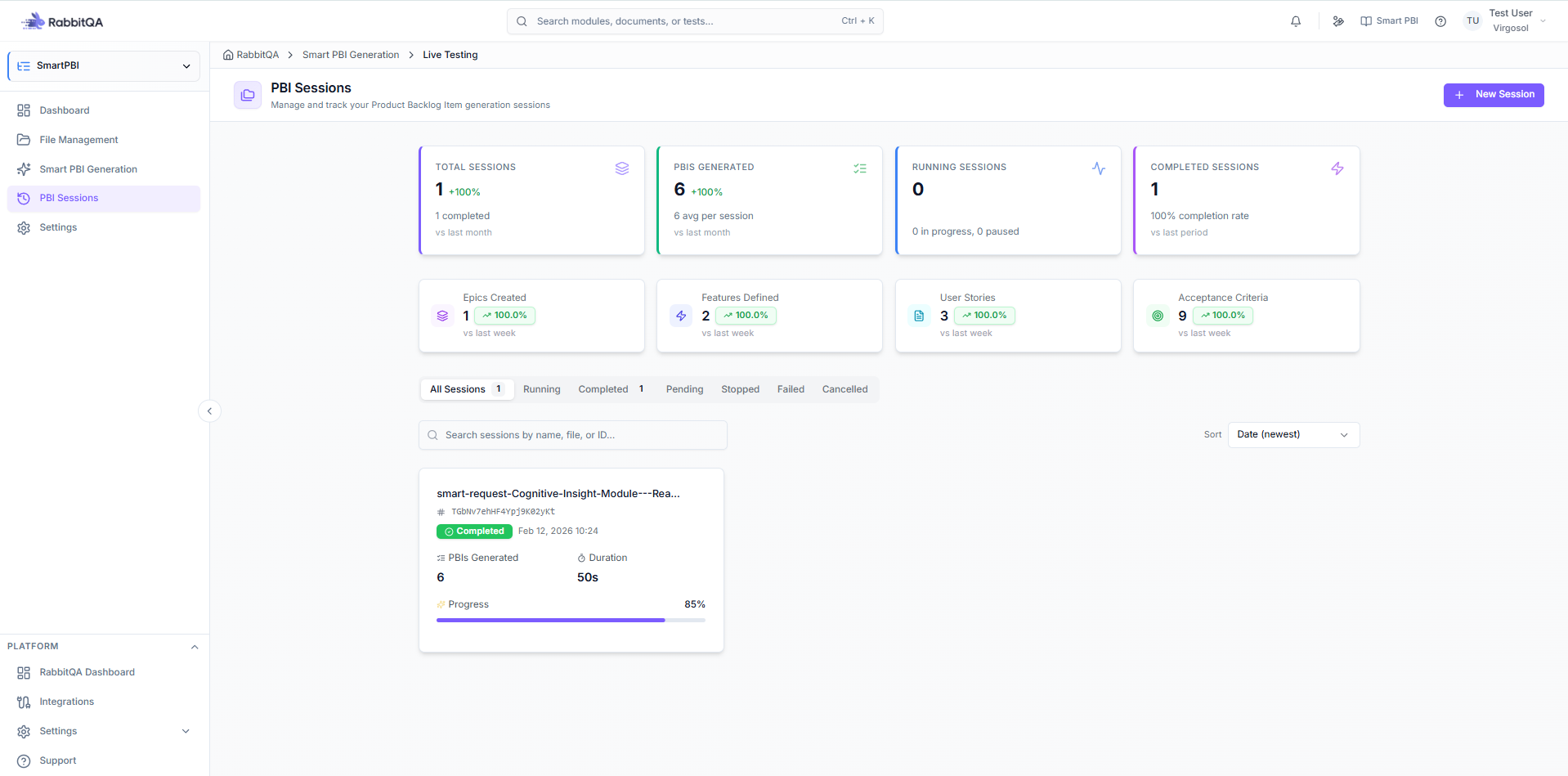
Key Capabilities
- Multi-Source Input — Generate PBIs from Word/PDF documents, free text, images, and SmartRequest data
- AI-Powered Analysis — Intelligent extraction of requirements with context-aware generation
- Hierarchical Output — Properly organized Epics, Features, User Stories, and Acceptance Criteria
- Session Management — Save progress, reuse configurations, and continue work across sessions
- Quality Modes — Choose between Speed, Balanced, or Quality generation levels
- File Management — Upload, organize, and reuse source documents across sessions
- Export Options — Export to Excel, PDF, Jira, and Azure DevOps
How It Works
┌─────────────┐     ┌─────────────┐     ┌─────────────┐     ┌─────────────┐
│   Select    │ ──▶ │  Configure  │ ──▶ │   Analyze   │ ──▶ │   Results   │
│   Sources   │     │   Options   │     │    (AI)     │     │   & Export  │
└─────────────┘     └─────────────┘     └─────────────┘     └─────────────┘
Step 1: Select Sources
Choose your input sources:
- Upload documents (PDF, DOCX, etc.)
- Paste text content
- Add images or mockups
- Select from SmartRequest
Step 2: Configure
Set generation options:
- AI model selection
- Output language (Turkish/English)
- Target platforms
- PBI types and quantities
- Quality level
Step 3: AI Analysis
The AI processes your inputs:
- Extracts requirements
- Identifies user stories
- Generates acceptance criteria
- Creates hierarchical structure
Step 4: Review Results
Review and refine generated PBIs:
- Edit individual items
- Reorganize hierarchy
- Export to various formats
PBI Types
| Type | Description |
|---|---|
| Epic | High-level business objectives spanning multiple sprints, containing multiple features |
| Feature | Distinct user-facing functionality within an epic, deliverable within a sprint or two |
| User Story | Specific requirement from the user perspective ("As a... I want... So that..."), estimatable and testable |
| Acceptance Criteria | Specific, measurable conditions for story completion with clear pass/fail criteria |
For detailed type configuration and combinations, see Settings.
Quality Levels
| Level | Description | Use Case |
|---|---|---|
| Speed | Faster generation, basic output | Quick drafts, brainstorming |
| Balanced | Good balance of speed and quality | Standard development |
| Quality | Thorough analysis, detailed output | Critical features, documentation |
For detailed quality settings and guidance, see Settings.
SmartRequest Integration
When a SmartRequest is approved:
- Click Generate PBIs on the request
- Smart PBI opens with request data pre-loaded
- Select which data to include
- Generate PBIs based on the request
Quick Start
- Upload a Document — Use File Management to add your requirements document.
- Create a Session — Start a new generation session from the Dashboard.
- Generate PBIs — Run the Generation Wizard and review the AI output.
- Configure Preferences — Adjust quality modes and options in Settings.
Start with a well-structured requirements document for the best results. The AI produces more accurate PBIs when the source content has clear sections and detailed descriptions.
Best Practices
Input Quality
- Provide clear, detailed requirements
- Include context and business objectives
- Use structured formats when possible
Review Generated PBIs
- Always review AI-generated content
- Refine acceptance criteria
- Verify story point estimates
Iterative Refinement
- Start with Speed mode for initial drafts
- Use Quality mode for final versions
- Leverage session history for iterations
