CaseWriter Quick Start Guide
Get up and running with CaseWriter in minutes! Create, organize, and execute test cases.
Overview
| Metric | Value |
|---|---|
| Estimated Time | 15-20 minutes |
| Goal | From zero to your first test execution |
What You'll Learn
- Navigate CaseWriter dashboard
- Generate tests using AI
- Create tests manually
- Organize in test sets
- Execute via TestPilot
6-Step Quick Start
Step 1: Explore the Dashboard (2 minutes)
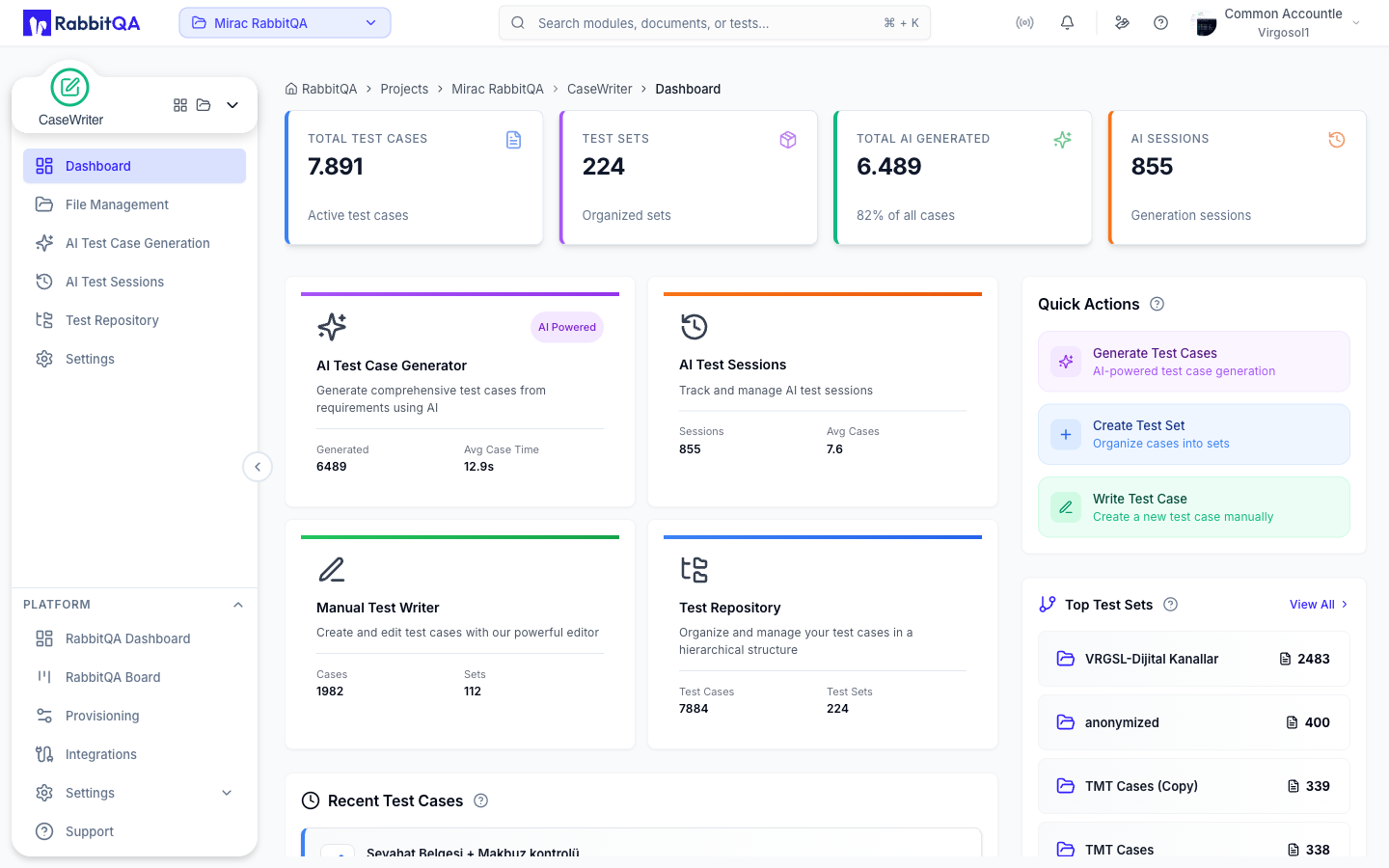
Navigate to CaseWriter:
- Log into RabbitQA
- Click CaseWriter in main navigation
- Land on CaseWriter Dashboard
Dashboard Metrics:
- Total Test Cases: Current count
- Test Sets: Organized collections
- AI Generated: Auto-created tests
- AI Sessions: Generation history
Quick Actions:
- Generate Test Cases - Opens AI Generator
- Create Test Set - New test collection
- Write Test Case - Manual editor
Step 2: Generate Tests with AI (5 minutes)
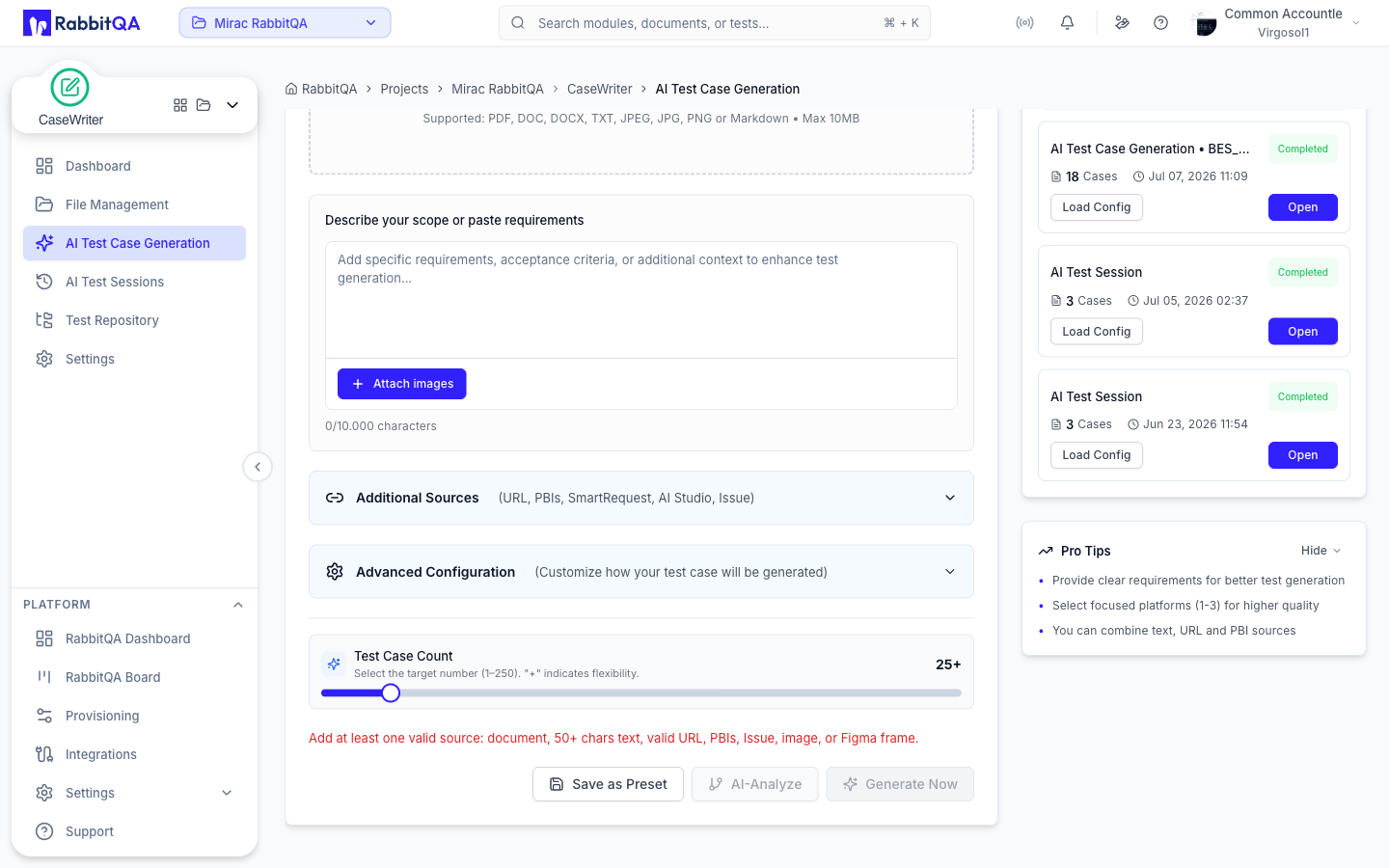
Sample Requirement:
Feature: User Login
As a registered user, I want to log into my account.

Acceptance Criteria:
- User can login with valid email and password
- System shows error for invalid credentials
- Account locks after 5 failed attempts
- Password must be 8+ characters
- Session expires after 30 minutes

Platforms: Web, Mobile (iOS, Android)
Generation Process:
- Click "Generate Test Cases" on dashboard
- Paste requirement or upload document (PDF, DOCX)
- Select platforms: Web, iOS, Android
- Click "Generate" and wait 10-30 seconds
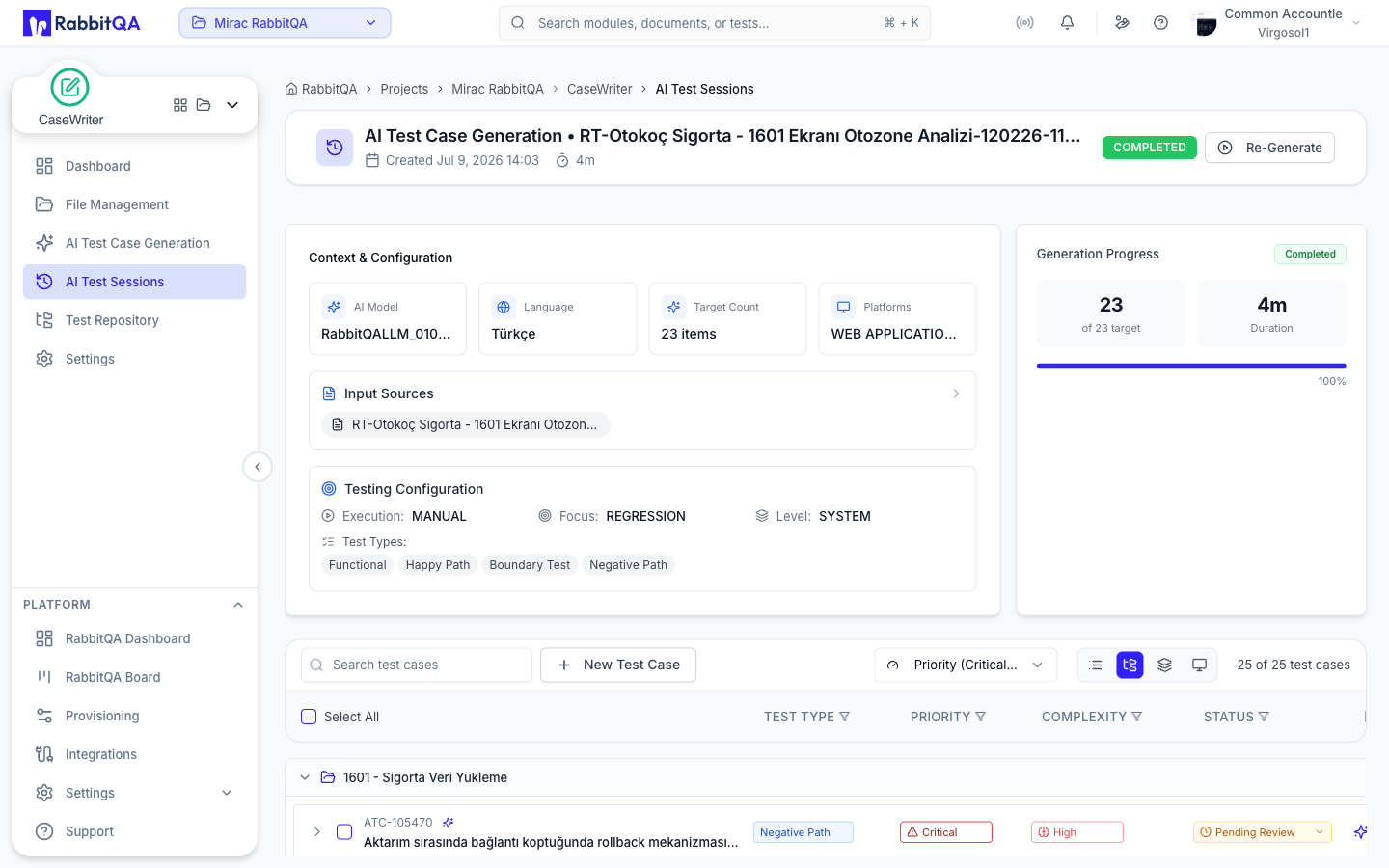
- Review 8-15 generated tests (positive, negative, boundary)
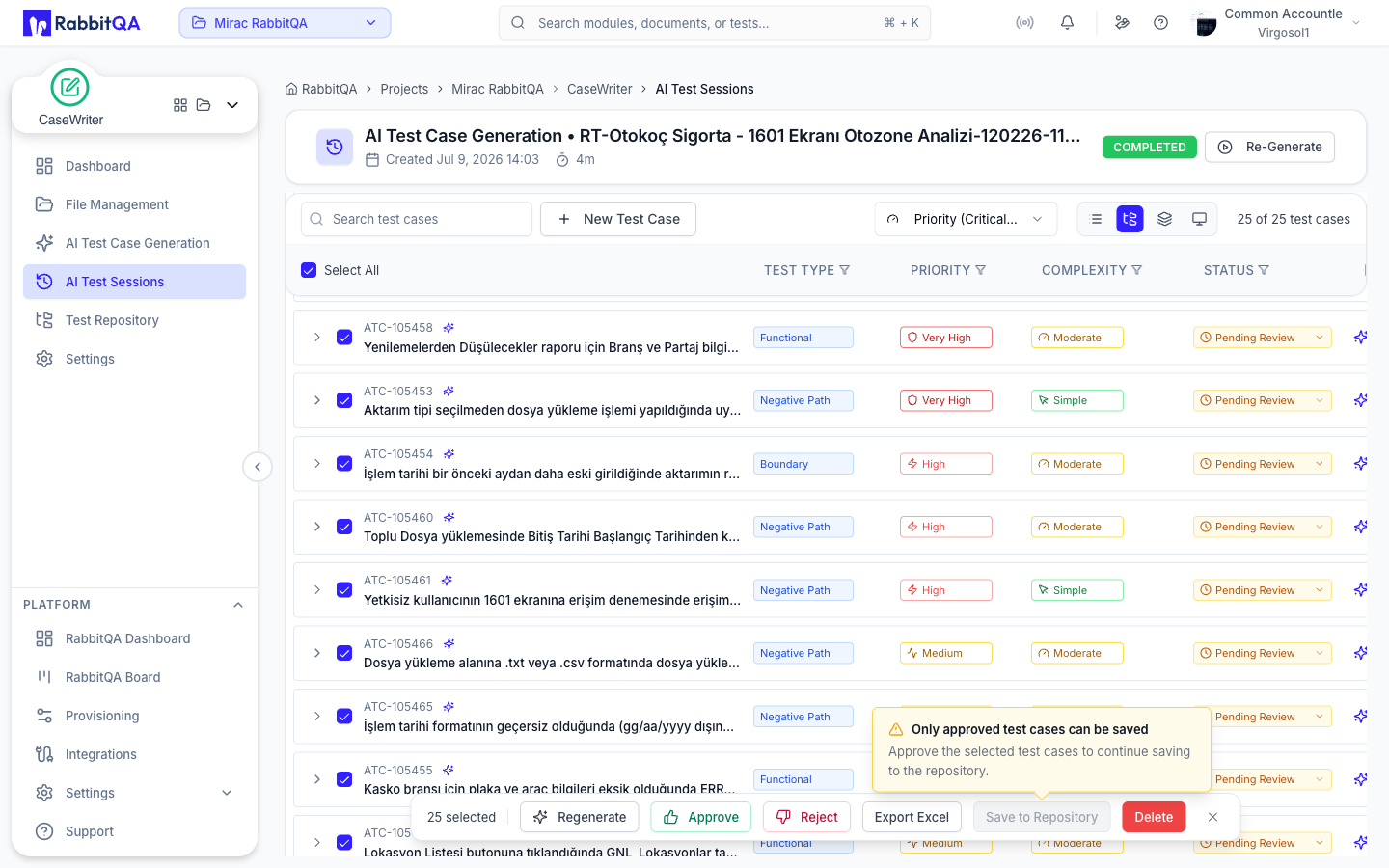
- Select tests and click "Save to Repository"
AI generates three types of tests:
| Type | Description |
|---|---|
| Positive Tests | Successful scenarios |
| Negative Tests | Invalid inputs |
| Boundary Tests | Edge cases |
Step 3: Create Test Manually (3 minutes)
Test Case Structure:
| Field | Example |
|---|---|
| Title | Login with Remember Me option enabled |
| Priority | Medium |
| Complexity | Simple |
Preconditions:
- User has registered account
- User is on login page
- Remember Me checkbox visible
Test Steps:
| Step | Action | Expected Result |
|---|---|---|
| 1 | Enter valid email | Email accepted and displayed |
| 2 | Check "Remember Me" | Checkbox is checked |
| 3 | Click "Login" | Logged in, session persists |
Step 4: Organize Tests (2 minutes)
Create Test Set Hierarchy:
Authentication Module
├── User Login Tests
├── User Registration Tests
└── Password Reset Tests
Apply Labels:
regressionsmoke-testcritical-pathmobile-specific
Step 5: Import/Export (2 minutes)
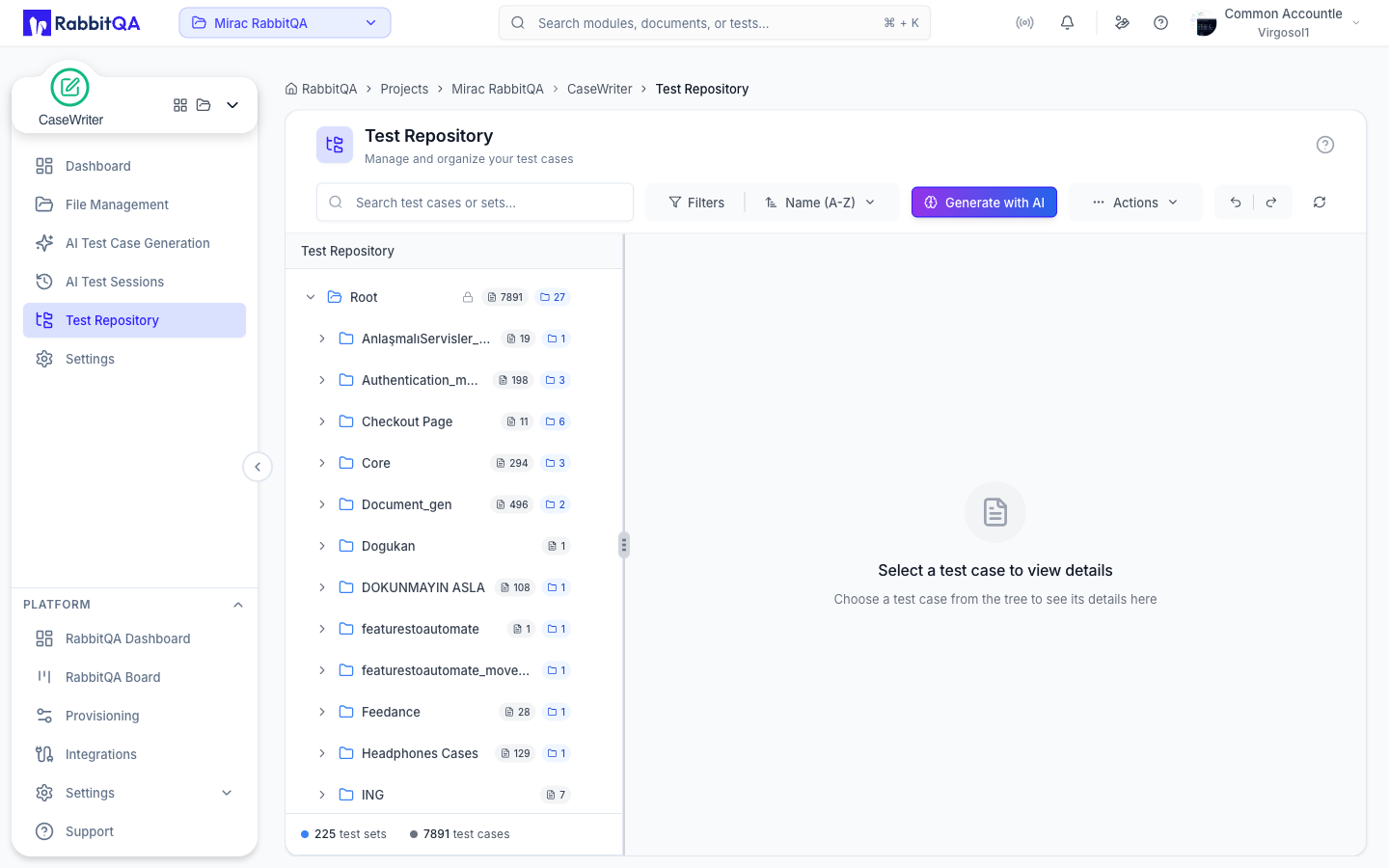
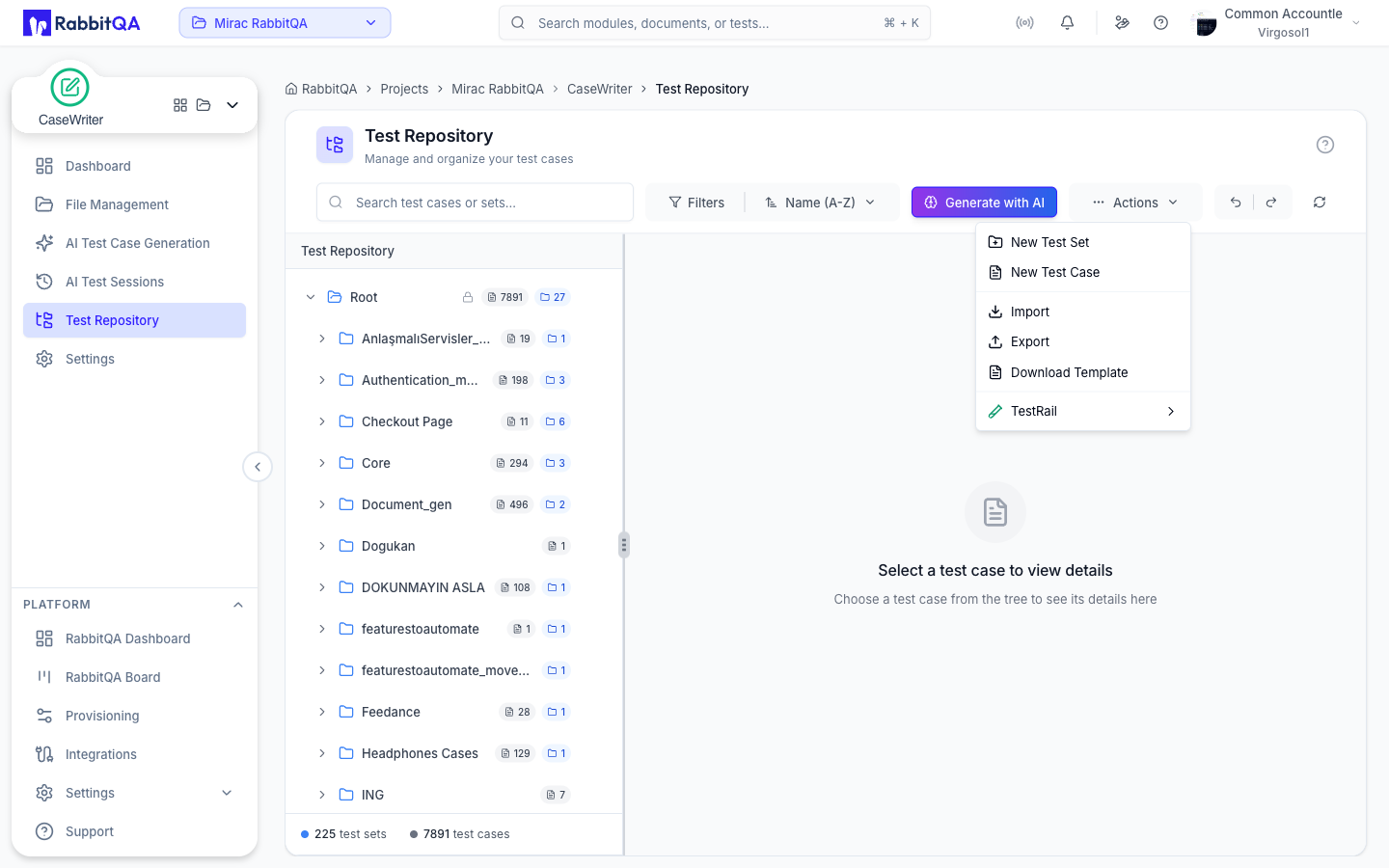
Export to Excel:
- Select test set
- Click "Export"
- Choose Excel format
- Download file
Import from Excel:
- Download template
- Fill with tests
- Upload file
- Review & import
Step 6: Execute Tests (3 minutes)
Create Test Run:
- Select test set in repository
- Click "Create Test Run"
- Configure run (name, environment, assignee)
- Transition to TestPilot module
- Execute tests step-by-step
- Mark steps as Pass/Fail
- Monitor progress dashboard
Common Workflows
AI-First Approach
Best For: New features, comprehensive coverage Time Saving: 80% faster
- Upload requirements to AI Generator
- Select platforms and language
- Review and select generated tests
- Organize in test sets
- Execute via TestPilot
Manual-First Approach
Best For: Specific scenarios, edge cases Time Saving: Full control
- Open manual test editor
- Define preconditions and steps
- Set priority and complexity
- Save to test set
- Execute and document results
Hybrid Approach (Recommended)
Best For: Most real-world projects Time Saving: Speed + Precision
- Generate foundation with AI (70-80%)
- Review and refine AI tests
- Add specific manual tests
- Organize complete suite
- Execute comprehensive testing
Troubleshooting Quick Fixes
Can't Generate Tests
- Check requirements are not empty
- Ensure platform is selected
- Try simpler requirements first
- Refresh page and retry
Can't Save Tests
- Verify tests are selected
- Check test set is chosen
- Ensure write permissions
- Try creating new test set
Can't Find Tests
- Check selected test set
- Clear active filters
- Use search by name
- Verify not deleted
Tests Won't Execute
Summary
Congratulations! You've successfully completed the CaseWriter Quick Start! You now know how to:
- Explore CaseWriter dashboard
- Generate tests using AI
- Create tests manually
- Organize in test sets
- Export and import tests
- Execute via TestPilot
Time to Value: ~20 minutes to full productivity
Next Steps
- AI Test Generator Guide - Master AI generation techniques
- Manual Test Creation - Best practices for writing tests
- Test Sets Management - Organization strategies
- Best Practices - Industry standards & guidelines
