TestPilot Quick Start Guide
Get started with test execution and orchestration in 10 minutes.
Estimated Time: 15-20 minutes This guide walks you through creating your first test run, importing test cases, assigning to team, executing tests, and generating reports.
Prerequisites
Before you begin, ensure you have:
- TestPilot access - Ensure you have TestPilot module enabled
- User permissions - Tester, Test Lead, or Admin role required
- Test cases ready - Have test cases in CaseWriter or import files prepared
- Test environment - Access to QA/Staging environment for testing
Step-by-Step Guide
Step 1: Create a Project
Duration: 2 minutes
Organize tests by release or sprint.
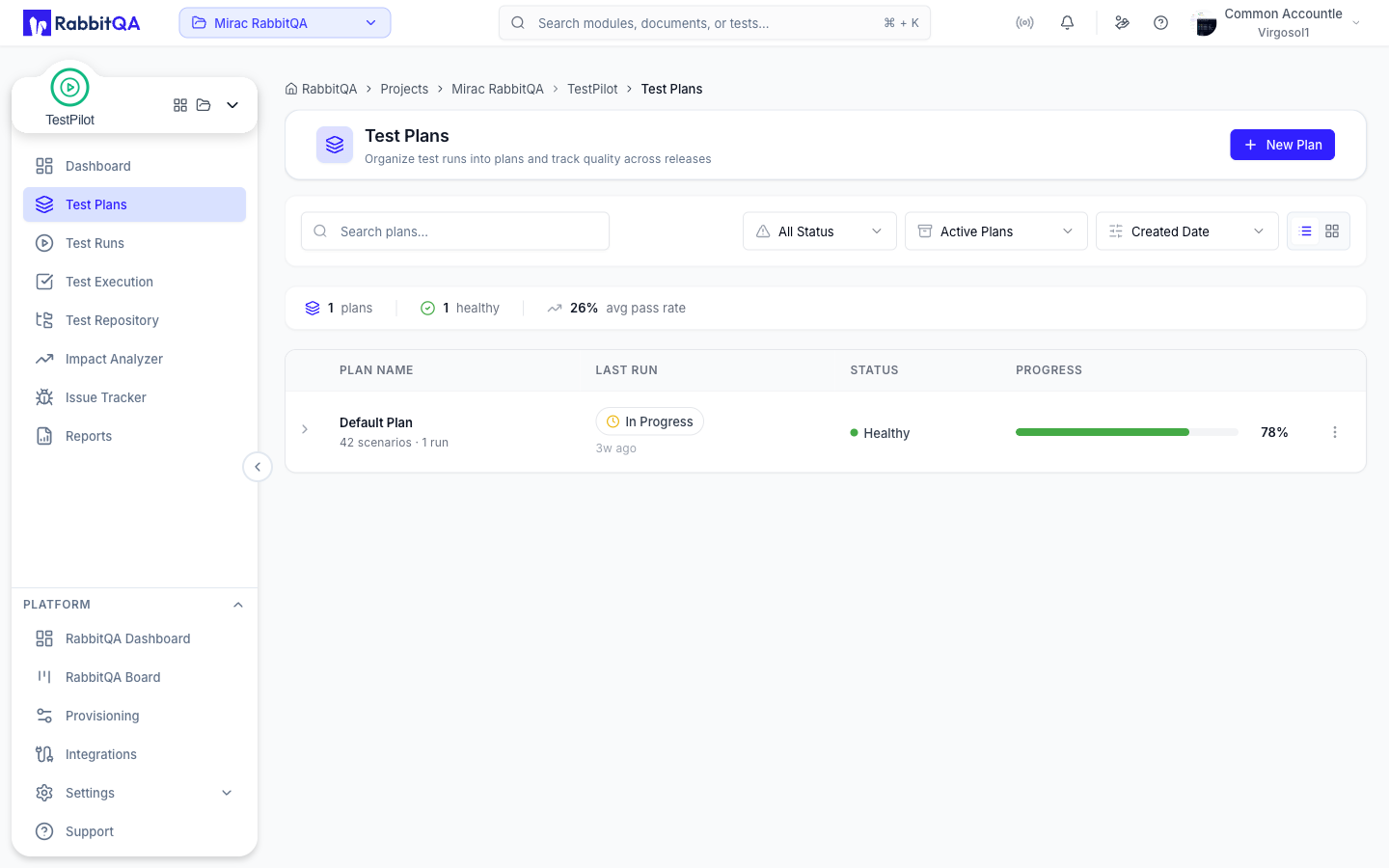
- Navigate to TestPilot module
- Click "Projects" in sidebar
- Click "New Project" button
- Enter project name (e.g., "Sprint 23 Testing")
- Set start and end dates
- Add description
- Click "Create"
Step 2: Create a Test Run
Duration: 3 minutes
Configure test execution campaign.
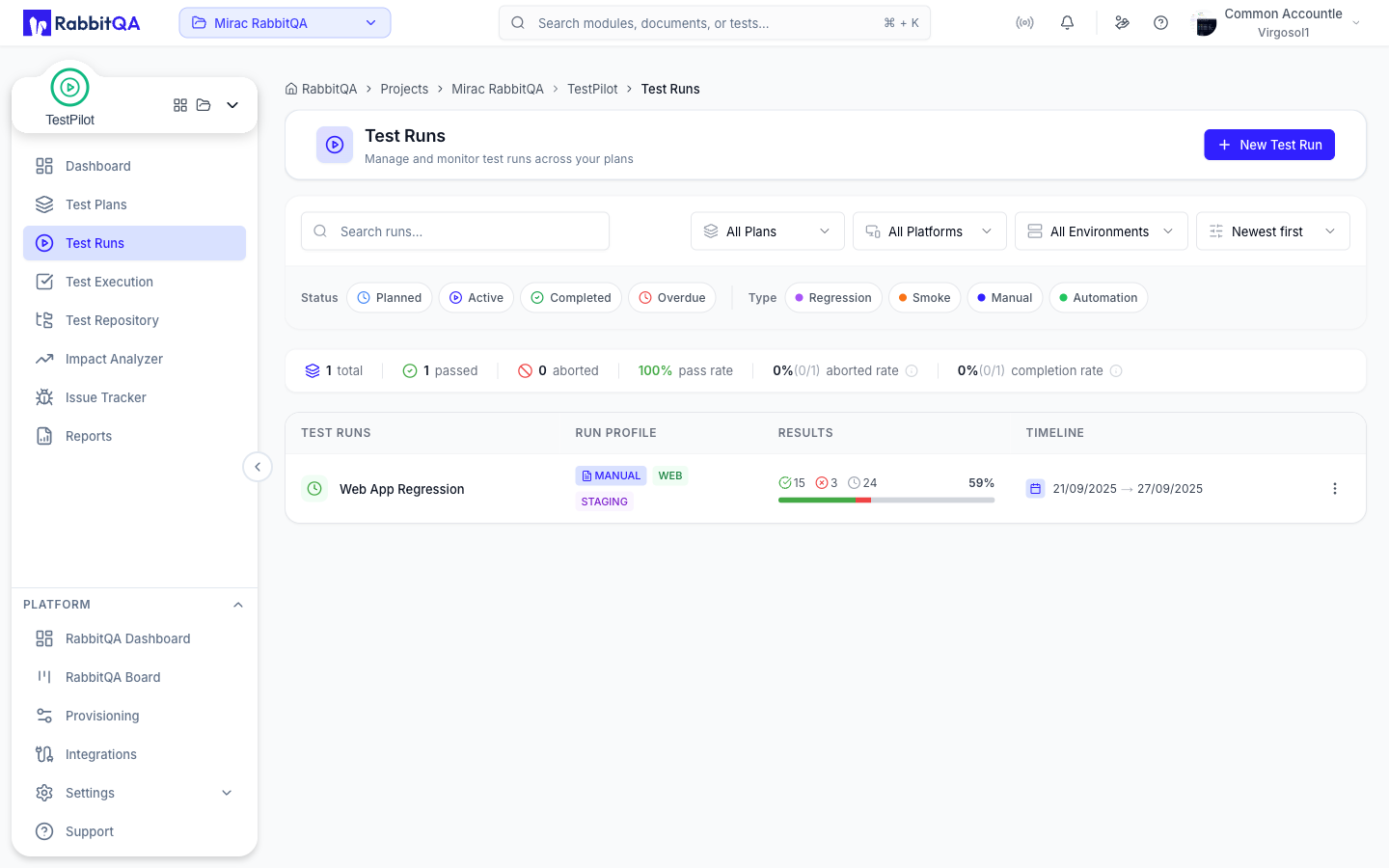
- Go to "Test Runs" page
- Click "New Test Run"
- Enter test run name (e.g., "Payment Module Regression")
- Select project from dropdown
- Choose environment (QA, Staging, etc.)
- Select test type (Regression, Smoke, etc.)
- Set schedule dates
- Click "Create"
Step 3: Import Test Cases
Duration: 5 minutes
Add tests from CaseWriter or files.
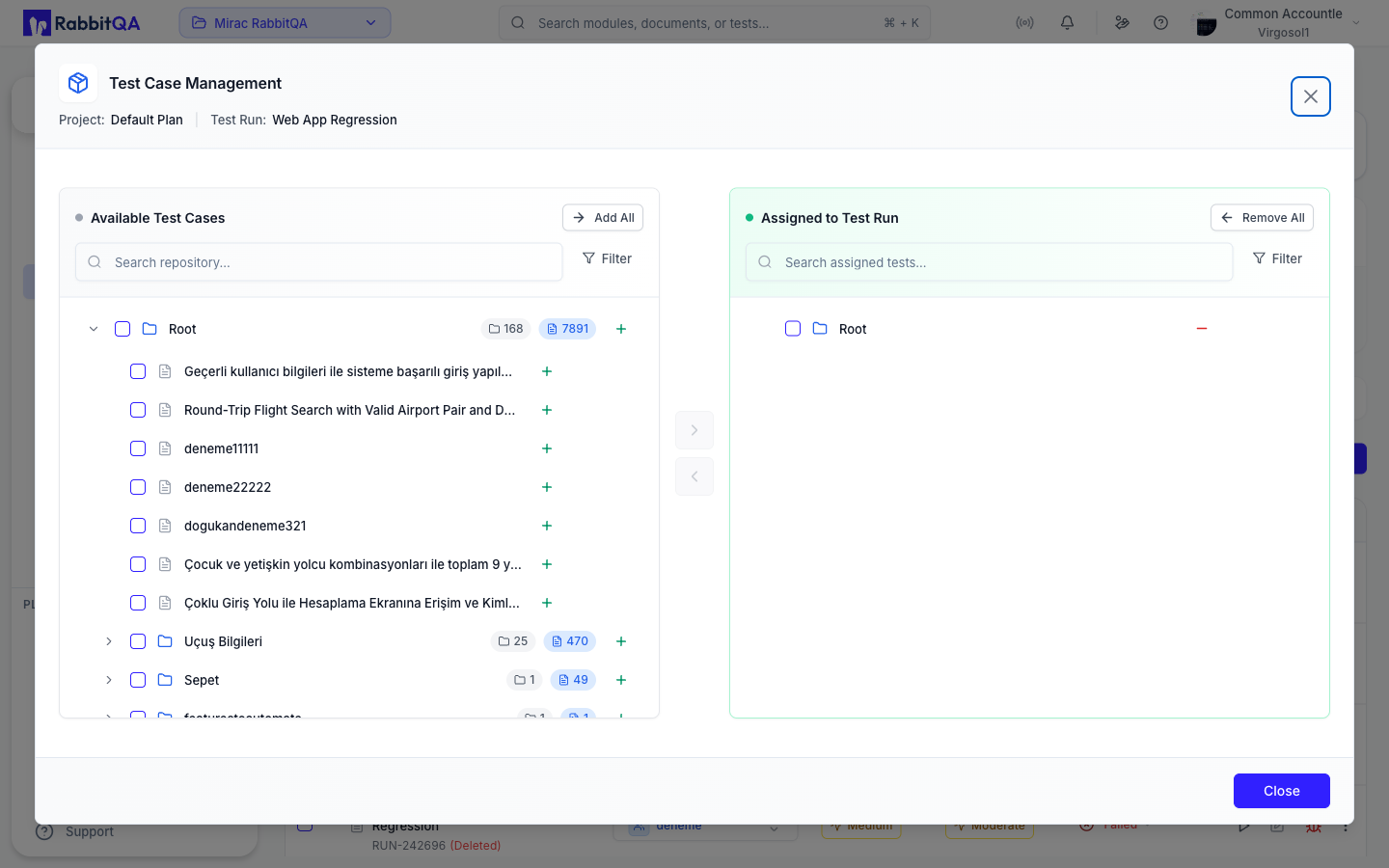
- Open your test run
- Click "Add Test Cases"
- Choose import method:
- From CaseWriter repository
- Import from file (Excel, CSV, JSON)
- Create new test case
- Select tests or test sets
- Click "Add to Test Run"
- Verify tests added successfully
Step 4: Assign Tests to Team
Duration: 3 minutes
Distribute workload across testers.
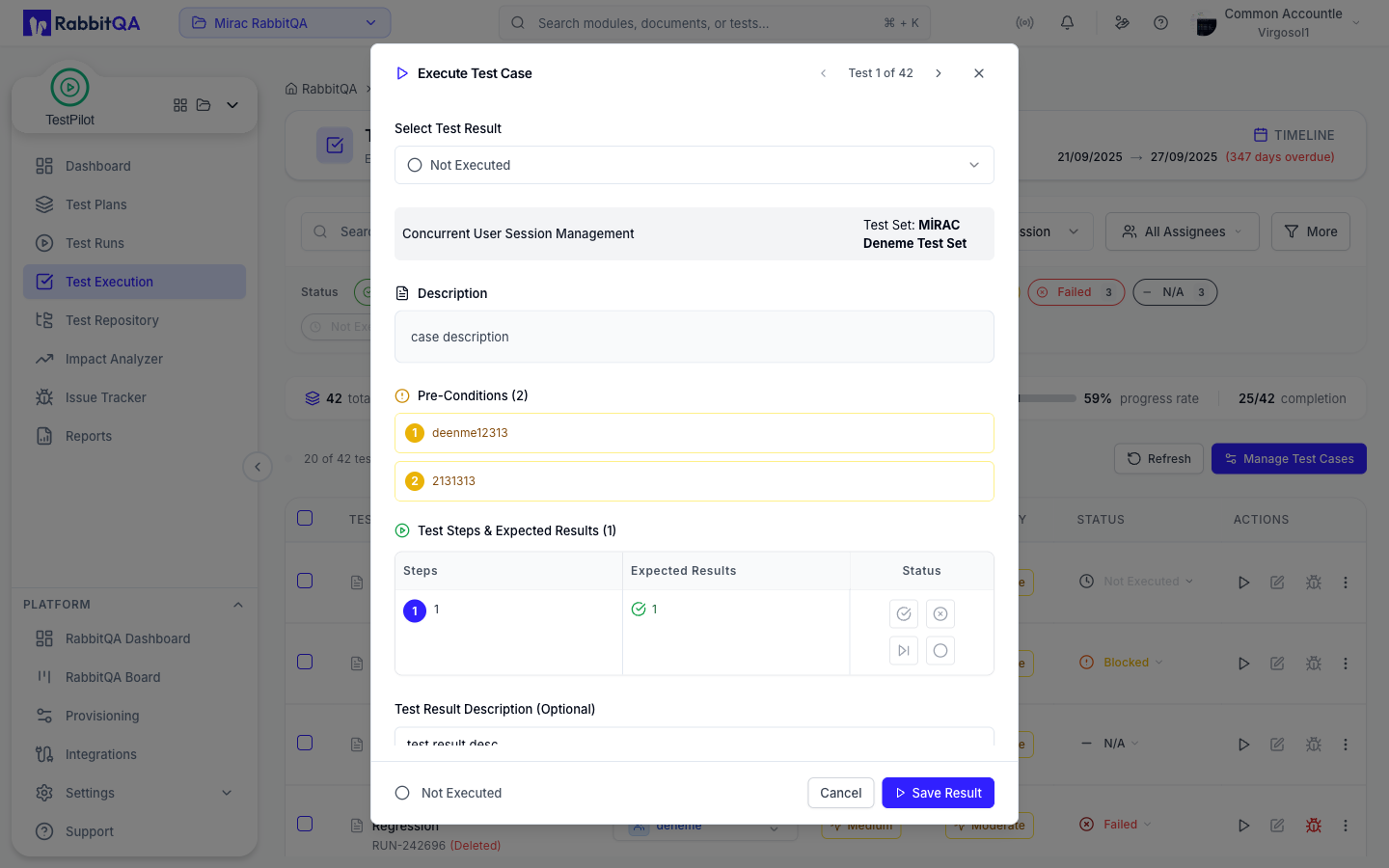
- In test run, view test case list
- Select tests to assign
- Click "Bulk Actions" → "Assign"
- Choose assignee from dropdown
- Or use "Auto-Assign" for balanced distribution
- Enable notification to assignee
- Click "Assign"
- Team members receive notification
Step 5: Execute & Mark Results
Duration: 2-60 minutes per test
Run tests and record outcomes.
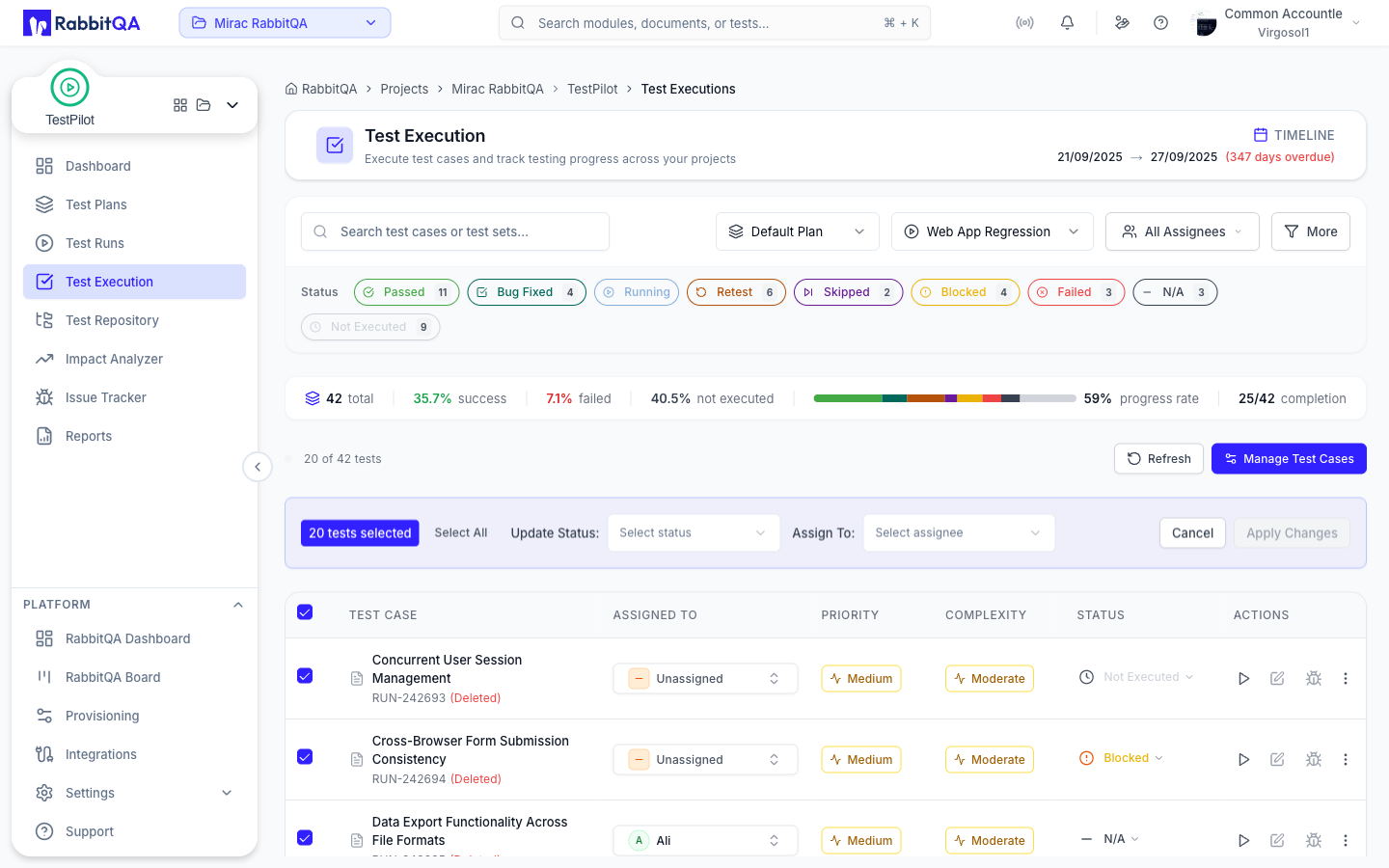
- Navigate to "Test Executions" page
- Select your project and test run
- Open a test case (click row)
- Read test steps and expected results
- Execute test steps
- Mark each step (Pass/Fail/Blocked)
- Set overall test status
- Add notes and evidence (screenshots)
- Log defect if test failed
- Save and move to next test
Step 6: Monitor & Report
Duration: 5 minutes
Track progress and generate reports.
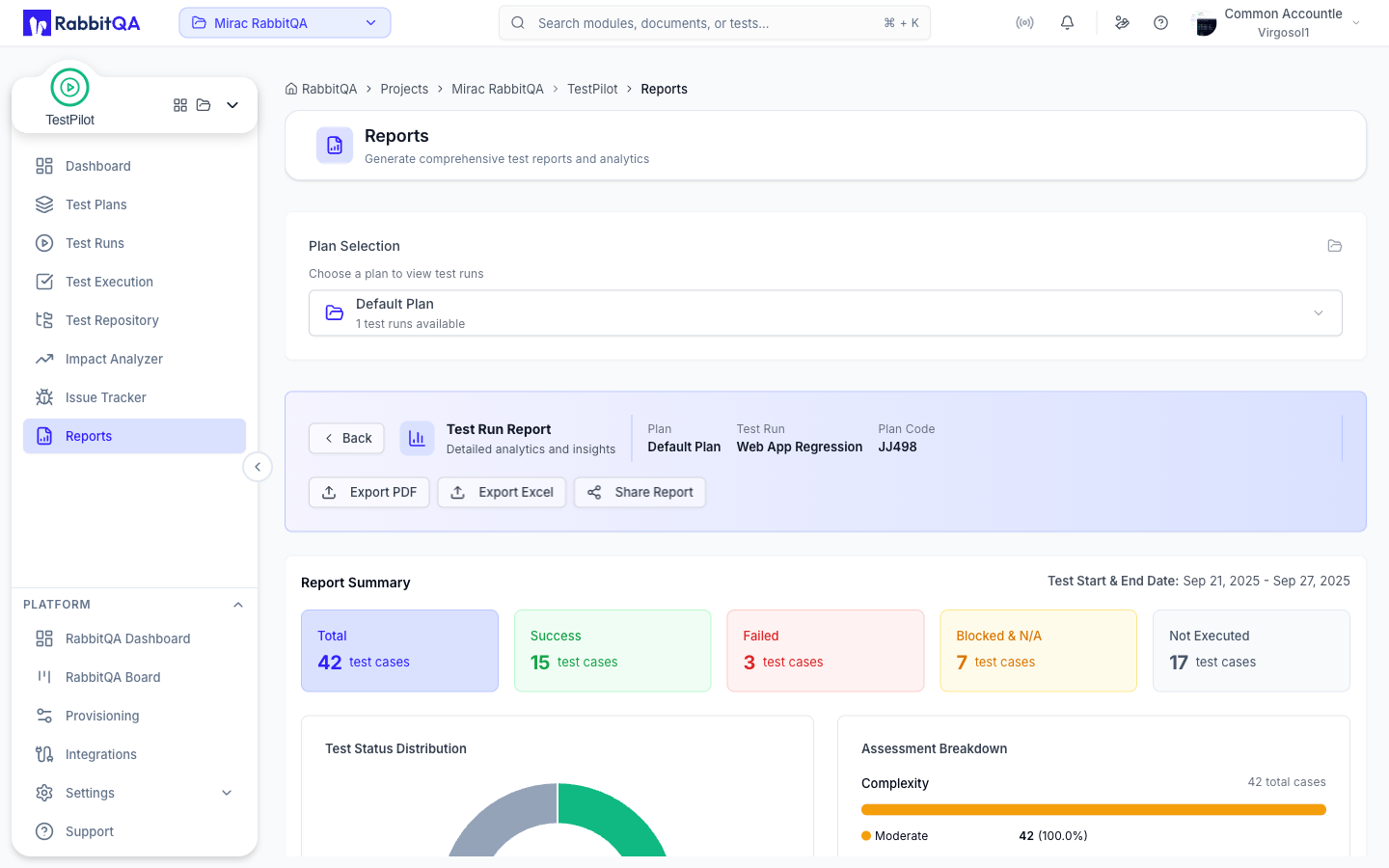
- View Dashboard for live metrics
- Check pass/fail rates
- Monitor execution progress
- Review blocked tests
- Navigate to "Reports" page
- Select project and test run
- Choose report type (Executive, Detailed, etc.)
- Export to PDF or Excel
- Share with stakeholders
Common Workflows
Sprint Testing Workflow
End-to-end sprint regression testing:
- Create project: "Sprint 23"
- Create test run: "Sprint 23 Regression"
- Import test cases from CaseWriter
- Assign tests to team (round-robin)
- Execute tests over 1 week
- Log defects in real-time
- Retest fixed bugs
- Generate final report
- Present in retrospective
Smoke Testing Workflow
Quick validation of critical paths:
- Create test run: "Daily Smoke Tests"
- Import 10-15 critical tests
- Assign to on-duty tester
- Execute in 30-60 minutes
- Report any failures immediately
- Block release if smoke fails
Hotfix Validation Workflow
Rapid testing of production fixes:
- Create project: "Hotfix 2.2.1"
- Create test run: "Login Fix Validation"
- Add related test cases
- Execute impacted tests
- Verify bug fix
- Run smoke tests
- Approve deployment
Tips for Success
Start Small
Begin with 10-20 tests to familiarize yourself with the platform before scaling up.
Use Test Templates
Create reusable test run templates for recurring testing cycles (sprints, releases).
Leverage Automation
Integrate with AutoRunner to automate repetitive tests and focus manual efforts on exploration.
Collaborate Early
Involve the team in test planning. Balanced assignments and clear communication drive success.
Troubleshooting
| Issue | Solution |
|---|---|
| Cannot create test run | Ensure you have created a project first. Test runs must belong to a project. |
| Tests not importing | Check file format (Excel, CSV, JSON supported). Verify column mapping matches TestPilot fields. |
| Cannot update test status | Verify test run is "In Progress" status. Completed or cancelled runs are read-only. |
| Reports not generating | Ensure at least one test is executed. Empty test runs cannot generate reports. |
Next Steps
- Dashboard Overview - Monitor metrics and progress
- Test Runs Deep Dive - Advanced test run management
- Test Execution Guide - Master test execution workflow
- Best Practices - Proven strategies for success
Need Help?
If you encounter any issues, check out the TestPilot documentation or contact your organization's RabbitQA administrator for assistance.
