Analyzer
AI-powered document analysis and Product Backlog Item generation.
What is Analyzer?
The Analyzer module uses artificial intelligence to analyze your requirement documents, provide quality scores, and automatically generate Product Backlog Items (PBIs).
It transforms your requirements documents into actionable insights, test scenarios, and well-structured PBIs for agile teams.
Key Features
Intelligent Requirement Extraction
Automatically identify and extract functional and non-functional requirements from any document format (PDF, DOC, DOCX, TXT, MD).
AI-Generated Test Scenarios
Create comprehensive test cases directly from analyzed requirements.
Quality Assessment
Evaluate document completeness, clarity, and identify potential gaps with detailed scoring across multiple dimensions.
Smart PBI Generation
Transform requirements into well-structured Product Backlog Items organized as Epics, Features, and User Stories with acceptance criteria and priority levels.
Dashboard
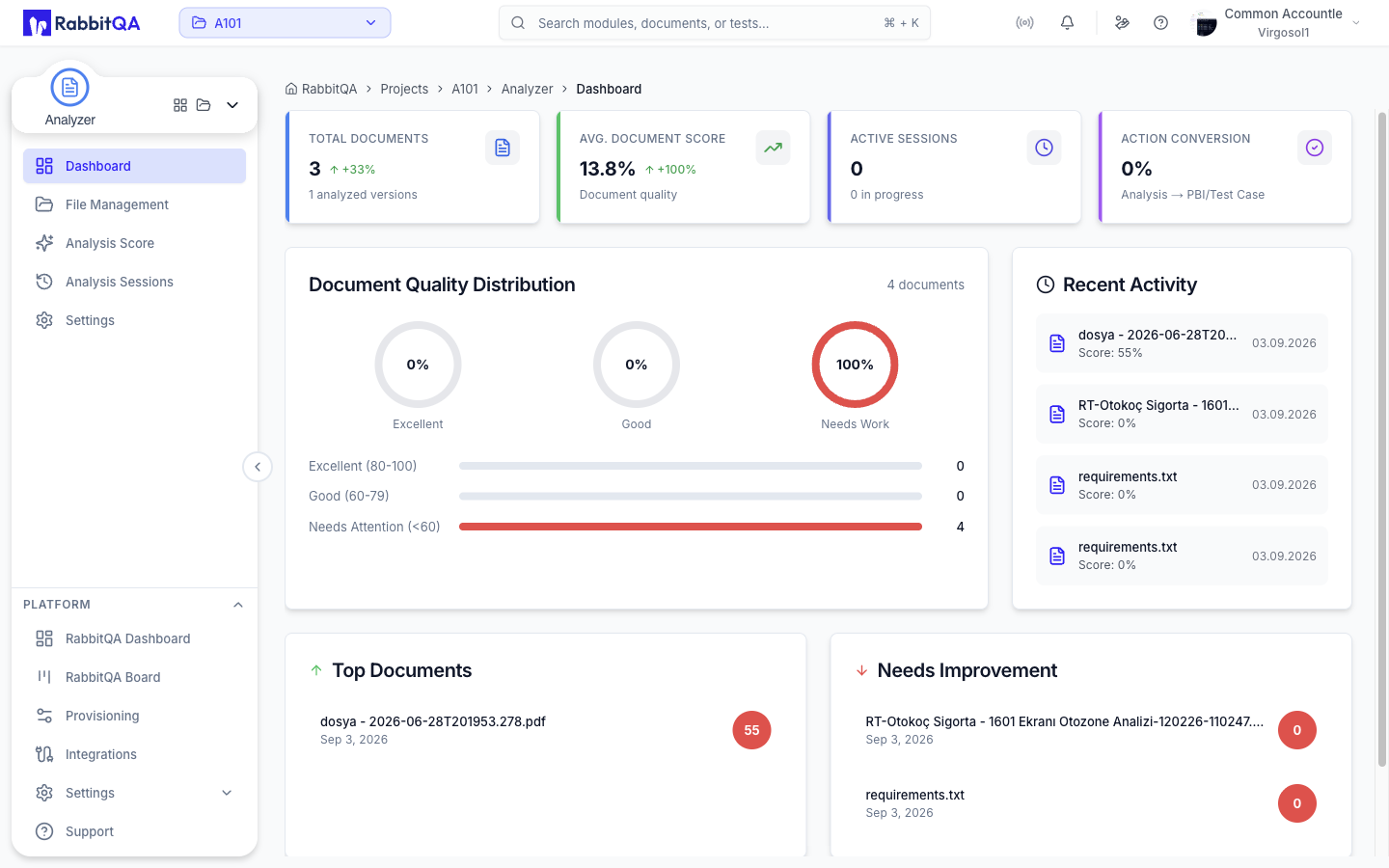
The Analyzer Dashboard is the central control panel for monitoring all analysis activities from a single screen. It provides real-time information about document quality scores, PBI generation statistics, and system performance.
Metric Cards
The dashboard offers customizable KPI cards that visualize important metrics including total files, average score, generated PBIs, completed exports, active sessions, and connected integrations.
Use the "Customize KPIs" button to select your preferred metrics from up to 14 different KPIs. Your selections are automatically saved.
Trend Indicators
Each metric card shows change compared to previous period with green up arrow for increase, red down arrow for decrease, and percentage change rate.
Quality Overview
Chart visualizing document quality distribution: Excellent (80-100), Good (60-79), and Needs Attention (below 60). Click segments to filter, export as image, or download data.
Top/Bottom Documents
Shows highest and lowest scored documents with file name, score value, uploader name, upload date, and quick actions (View, Re-analyze, Delete).
Use this to identify best practices and find documents needing improvement.
Recent Activity
Lists last 5 analysis activities in chronological order including activity type (analysis, export, etc.), document name, score information, timestamp, and user avatar.
Getting Started
1. Upload Documents
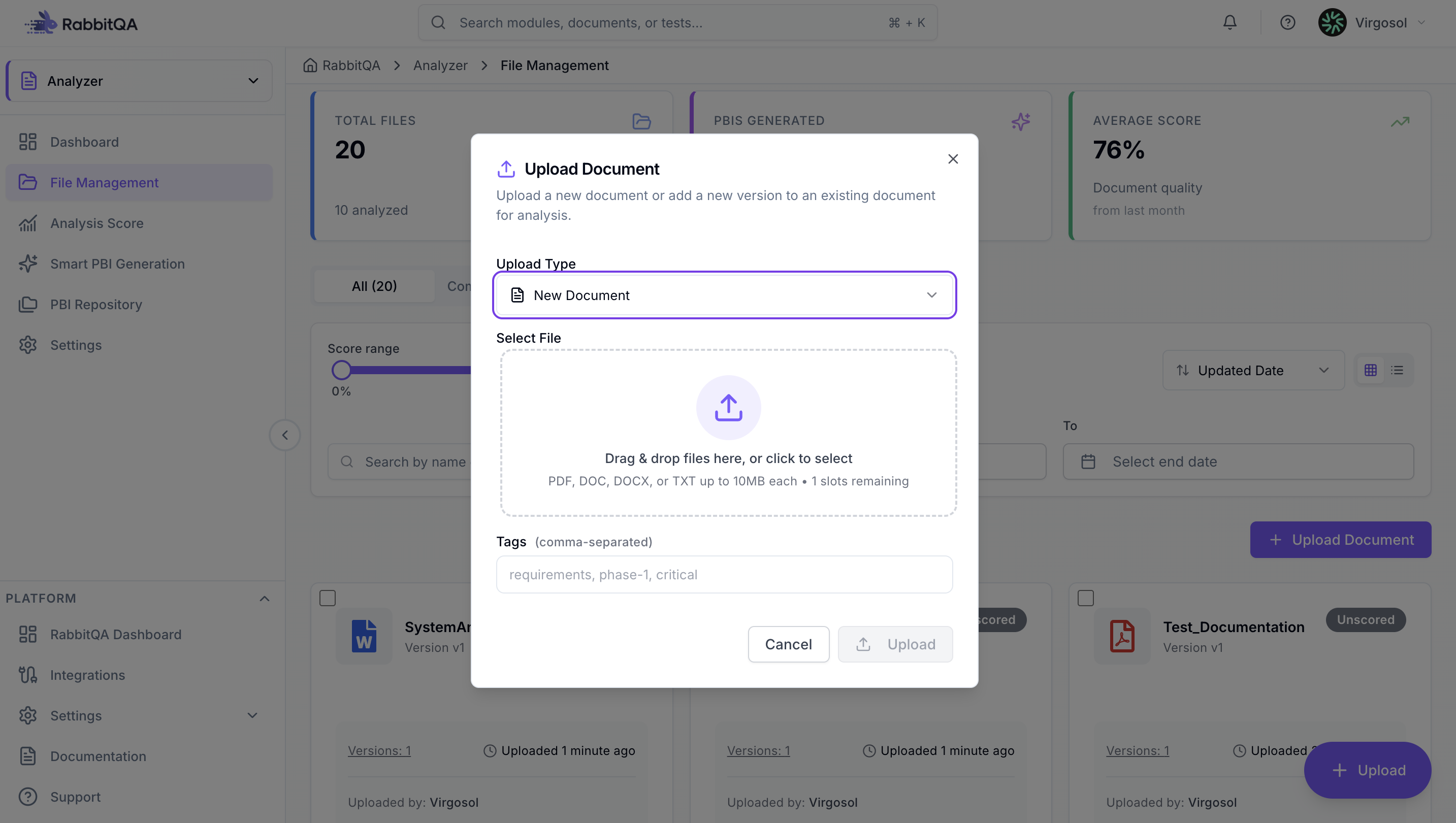
Navigate to the Analyzer module and click "Upload Document" or drag and drop files. Supported formats: PDF, DOC, DOCX, TXT, MD. Maximum file size: 10 MB per file.
2. Review Analysis Results
After the document is uploaded and analyzed, view the analysis results including score breakdown, AI recommendations, and benchmark comparisons.
3. Generate PBIs
Create a PBI session, configure generation settings, and let AI automatically generate Product Backlog Items. Review, edit, and export them to project management tools like Jira or Azure DevOps.
