AI Request Generation
The Generation Wizard uses AI to create comprehensive, well-structured requests through an interactive evaluation process.
Generation Wizard Steps
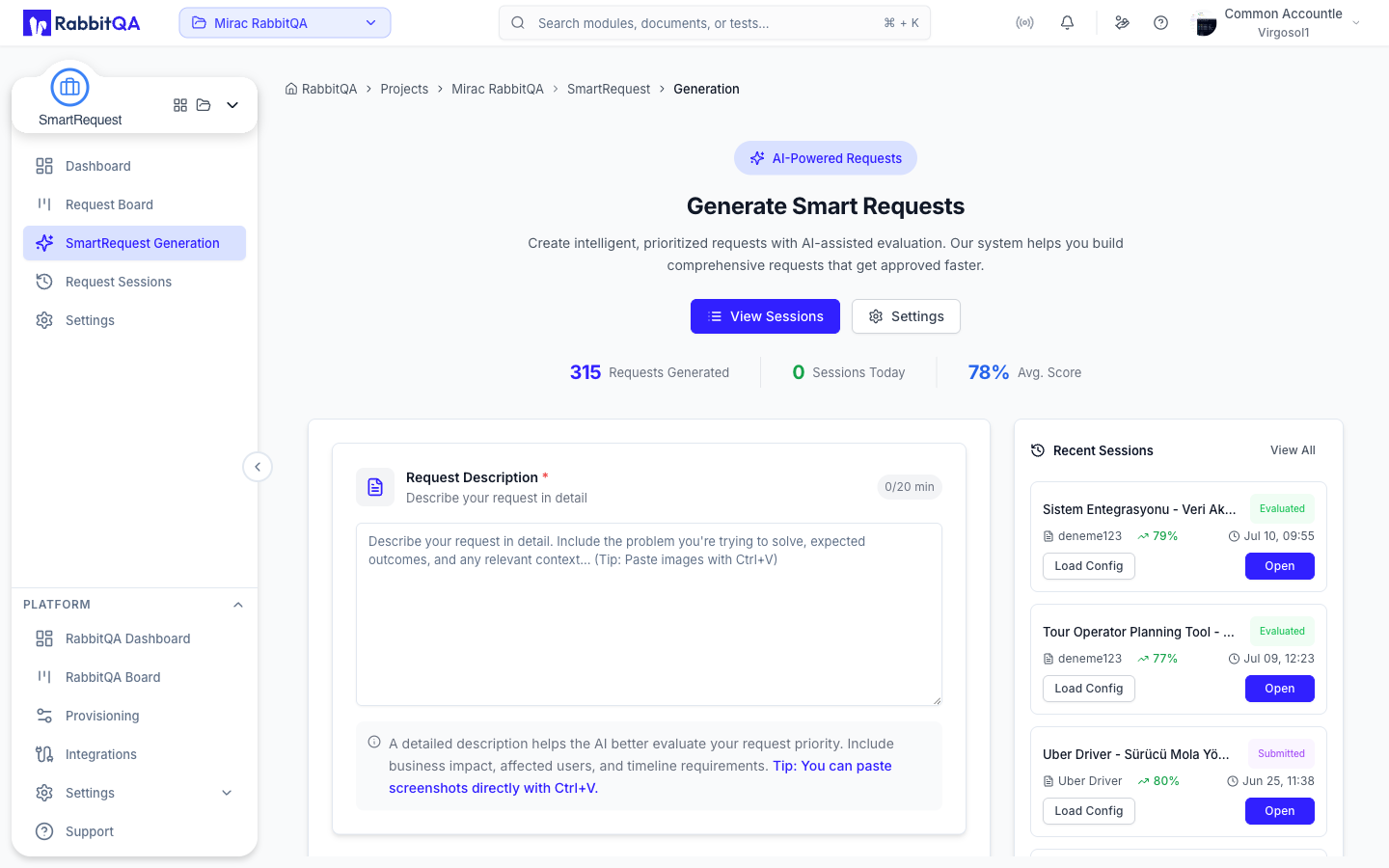
Step 1: Description & Attachments
Enter Description
Provide the initial request description:
- What you need
- Why it's needed
- Expected outcome
- Any constraints
Add Attachments
Support your request with files:
- Documents - Requirements, specs (PDF, DOCX)
- Images - Screenshots, mockups (PNG, JPG)
- Spreadsheets - Data, matrices (XLSX, CSV)
Quick Image Paste
Use Ctrl+V to paste:
- Screenshots from clipboard
- Copied images
- Drag and drop support
Step 2: Product & Module Selection
Select Product
Choose the relevant product:
- Products configured in Provisioning
- Shows product description
- Affects evaluation context
Select Module
Choose the specific module:
- Modules within selected product
- Hierarchical navigation
- Context for AI evaluation
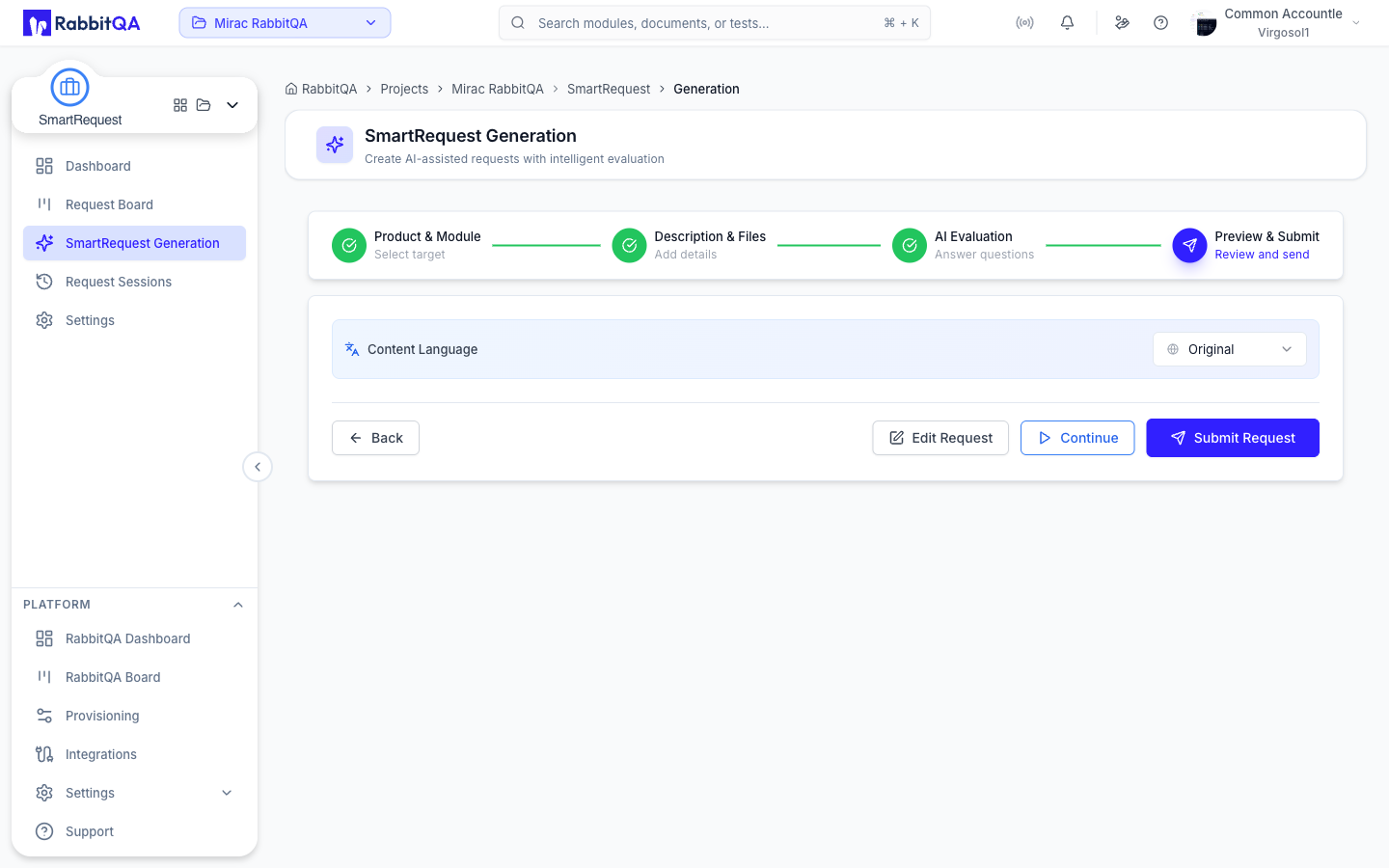
Language Selection
Choose evaluation language:
- Turkish - Questions and output in Turkish
- English - Questions and output in English
Step 3: AI Evaluation
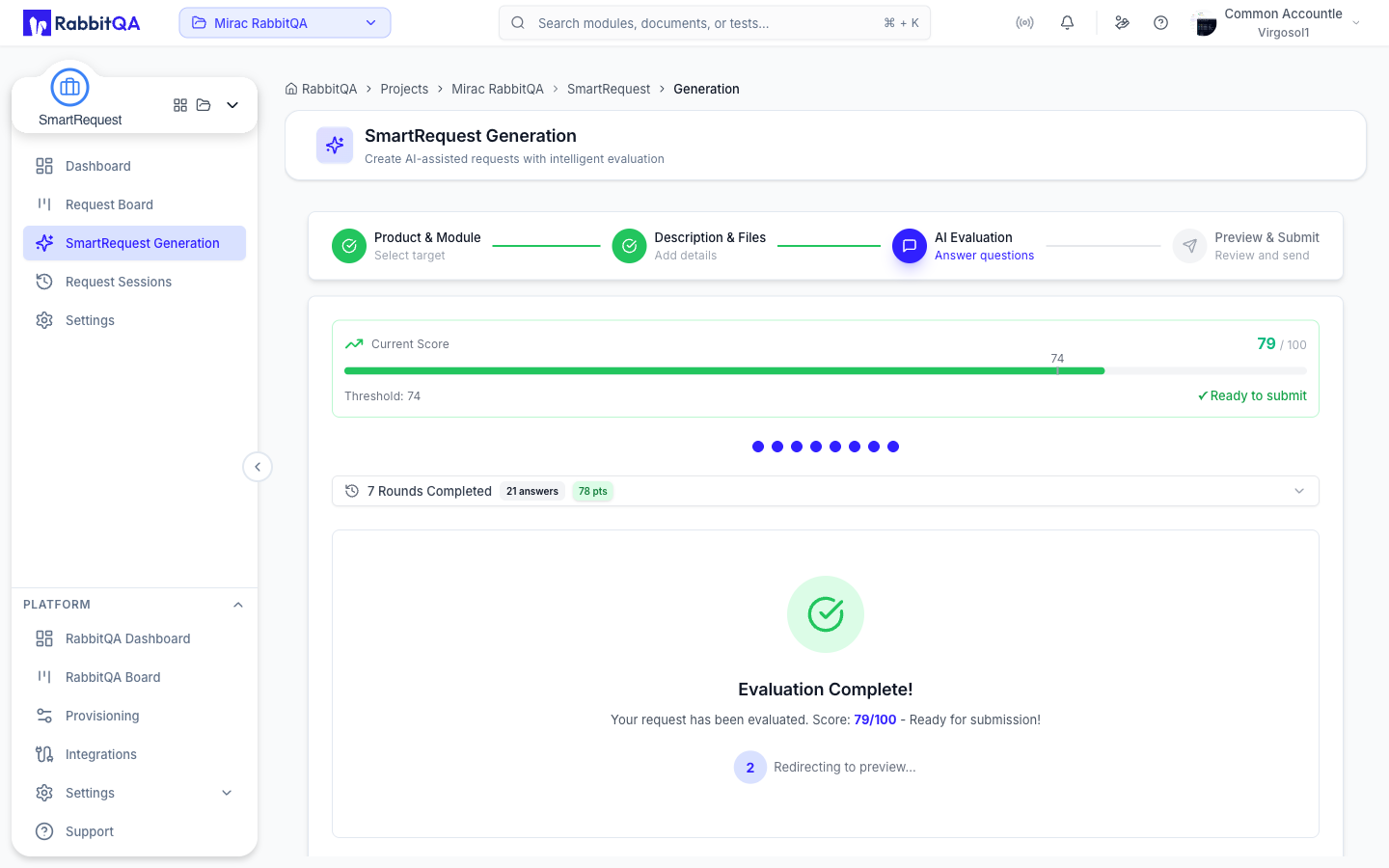
This is the interactive AI evaluation phase.
How AI Evaluation Works
- AI analyzes your description
- Generates clarifying questions
- You provide answers
- AI refines understanding
- Repeat until complete
Question Types
| Type | Description | Example |
|---|---|---|
| Single Choice | Select one option | "What is the priority?" |
| Multiple Choice | Select multiple | "Which platforms?" |
| Yes/No | Binary choice | "Is this urgent?" |
| Free Text | Open response | "Describe the use case" |
Answering Questions
For each question:
- Read the question carefully
- Select or type your answer
- Click Next or Submit
- AI processes and may ask follow-ups
Skip Questions
If a question isn't relevant:
- Click Skip
- AI will work with available info
- May affect evaluation quality
Step 4: Preview & Submit
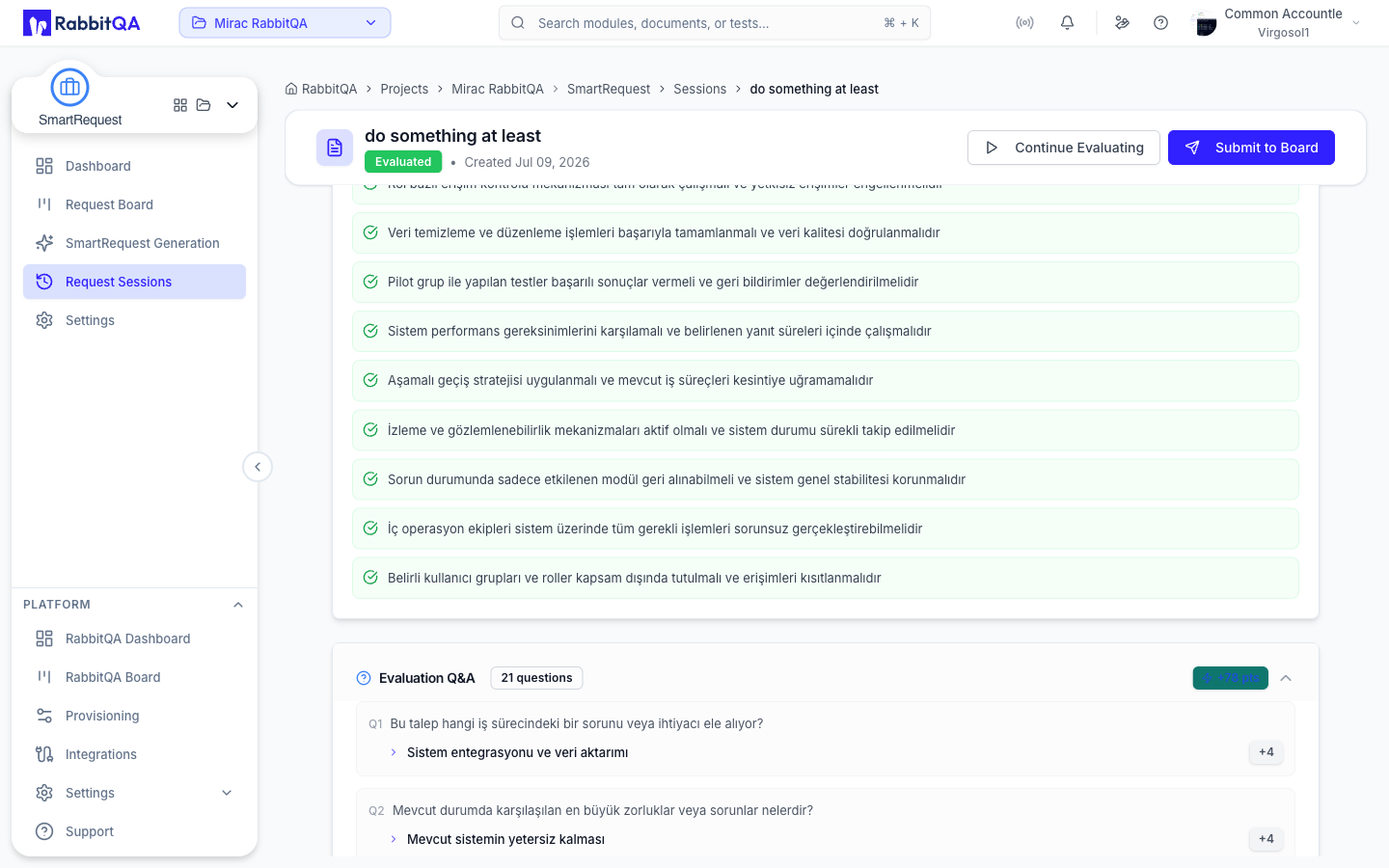
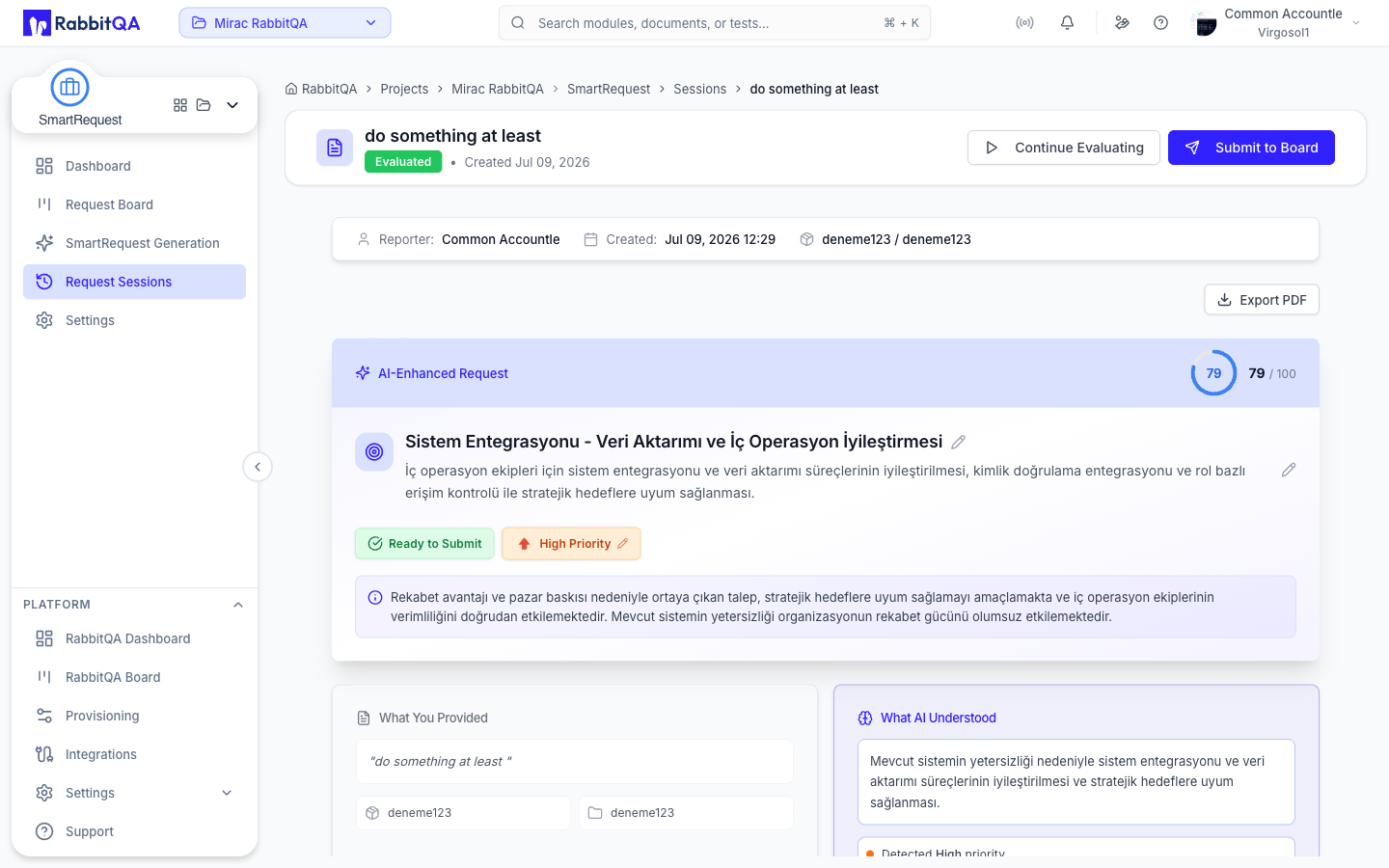
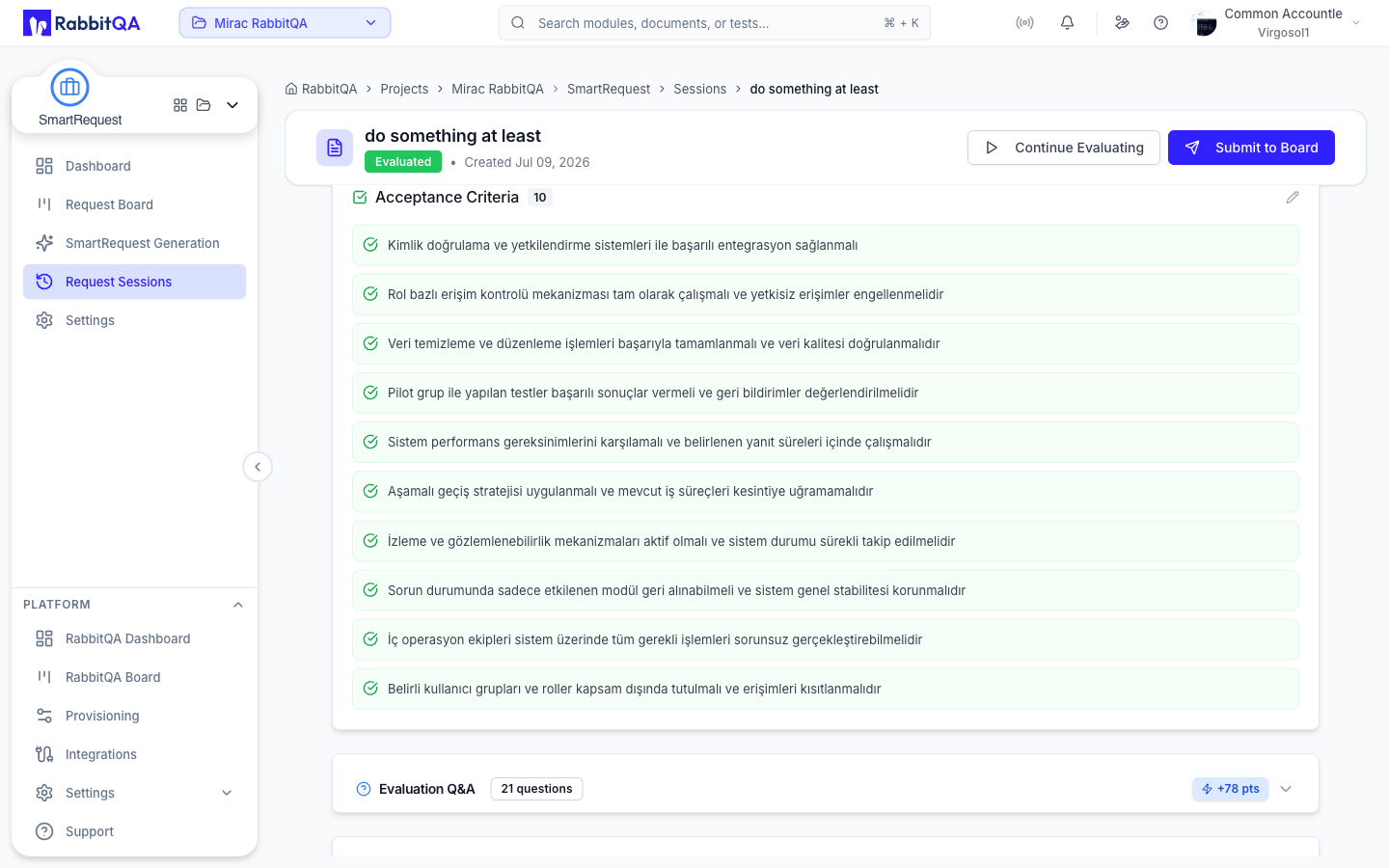
Review AI Summary
The AI generates:
- Summary - Concise overview
- Description - Detailed explanation
- Acceptance Criteria - Clear requirements
- Priority Assessment - Recommended priority
- Recommendations - Action items
Edit Before Submit
Make adjustments:
- Click Edit on any section
- Modify the content
- Save changes
Export Preview
Generate PDF before submitting:
- Full preview report
- Share for pre-approval review
- Keep for records
Submit for Approval
- Review all sections
- Click Submit for Approval
- Request enters approval workflow
- Approvers are notified
Session Management
Save as Draft
Save progress at any time:
- Click Save Draft
- Return later to continue
- Find in Sessions list
Session Status Flow
DRAFT → EVALUATING → EVALUATED → SUBMITTED → APPROVED/REJECTED
| Status | Description |
|---|---|
| Draft | Not yet started evaluation |
| Evaluating | In AI Q&A process |
| Evaluated | Q&A complete, not submitted |
| Submitted | Sent for approval |
| Approved | Approved by approver |
| Rejected | Rejected, needs revision |
Resume Session
Continue a saved session:
- Go to Sessions
- Find your draft
- Click Continue
- Pick up where you left off
AI Evaluation Tips
Provide Good Input
✅ Do:
- Be specific and detailed
- Include context and background
- Mention constraints early
- Attach relevant documents
❌ Don't:
- Use vague descriptions
- Skip important details
- Ignore AI questions
- Rush through evaluation
Answer Questions Thoroughly
- Read questions completely
- Provide complete answers
- Use free text for context
- Don't skip unnecessarily
Review AI Output
- Verify accuracy
- Check completeness
- Edit if needed
- Ensure clarity
Evaluation Scoring
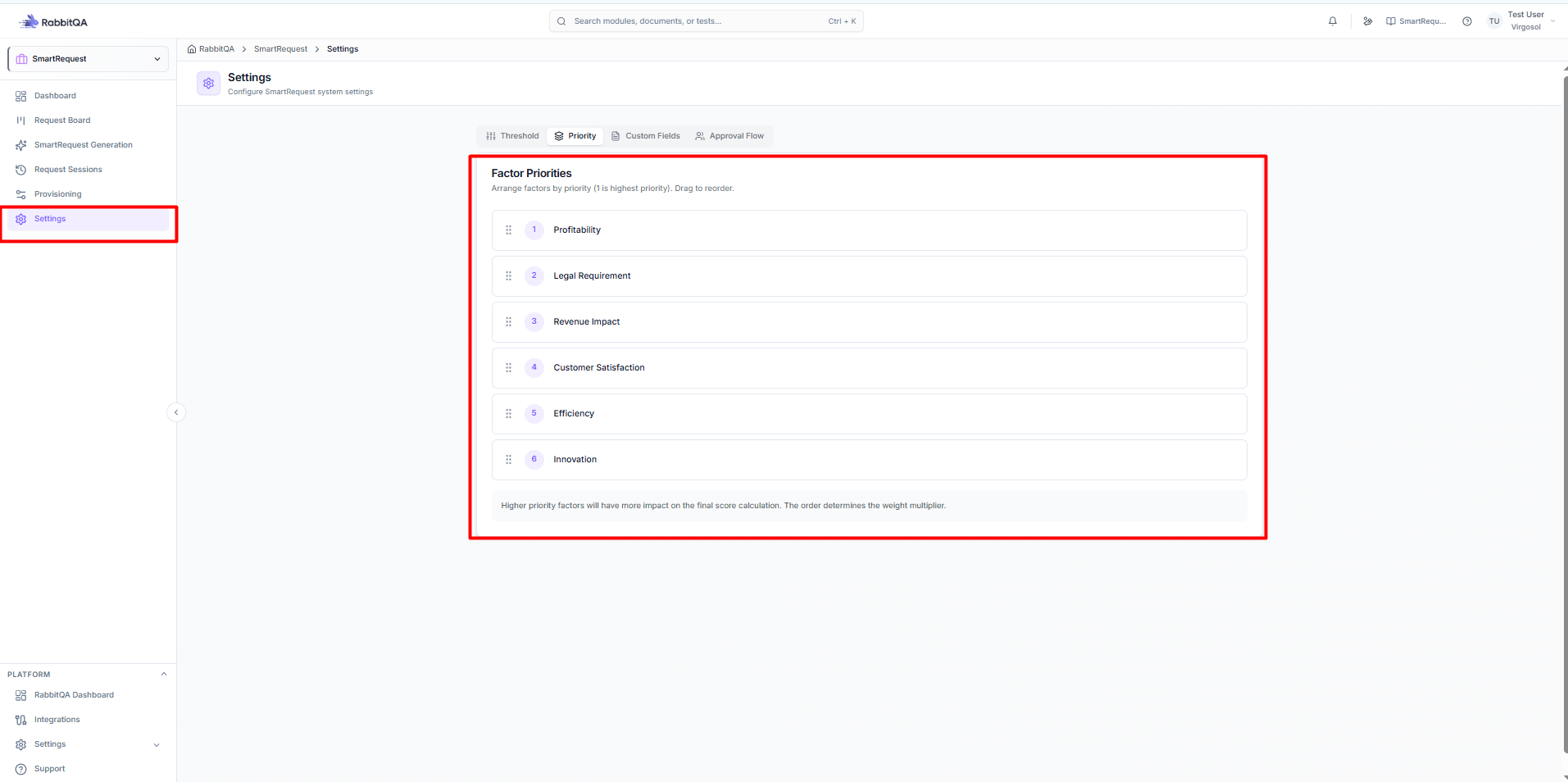
Factor Weights
The AI scores requests on six factors (Profitability, Legal Requirement, Revenue, Customer Satisfaction, Efficiency, and Innovation). Scoring factors and their weights are configured in Settings.
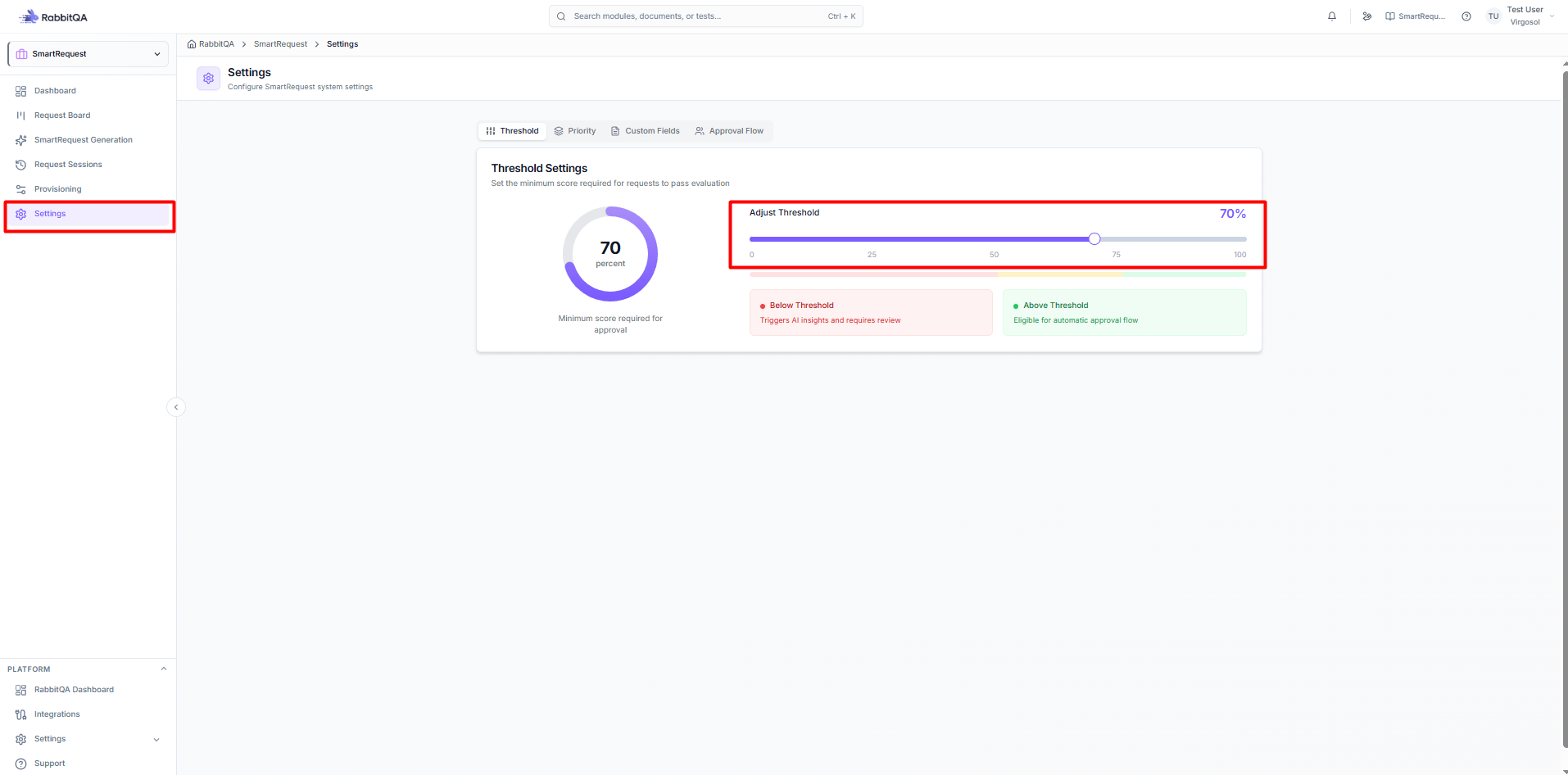
Score Threshold
- Requests above threshold → Auto-prioritized
- Below threshold → Standard review
- Configure in Settings
Score Display
After evaluation:
- Overall score (0-100)
- Factor breakdown
- Priority recommendation
Error Handling
Evaluation Errors
If evaluation fails:
- Error message displayed
- Click Retry
- If persistent, contact support
Lost Progress
To recover:
- Check Sessions for auto-saved draft
- Resume from last saved point
- Re-enter if necessary
Connection Issues
If connection drops:
- Progress auto-saves periodically
- Refresh page to reconnect
- Resume from Sessions
