Integrations
Connect HealthCheck to external services so monitoring data and alerts flow into the tools your team already uses.
What are Integrations?
Integrations extend HealthCheck by connecting it to third-party platforms — incident management systems, communication tools, CI/CD pipelines, and custom automation endpoints. Once connected, HealthCheck can push alert data, status updates, and incident reports directly into these services.
Available Integrations
| Integration | Type | Description |
|---|---|---|
| Slack | Communication | Post alerts and status updates to Slack channels |
| Microsoft Teams | Communication | Send alert cards to Teams channels |
| PagerDuty | Incident Management | Create and resolve PagerDuty incidents automatically |
| OpsGenie | Incident Management | Trigger OpsGenie alerts with priority mapping |
| Jira | Issue Tracking | Create Jira tickets from incidents |
| Custom Webhook | Automation | Send HTTP POST payloads to any endpoint |
Connecting an Integration
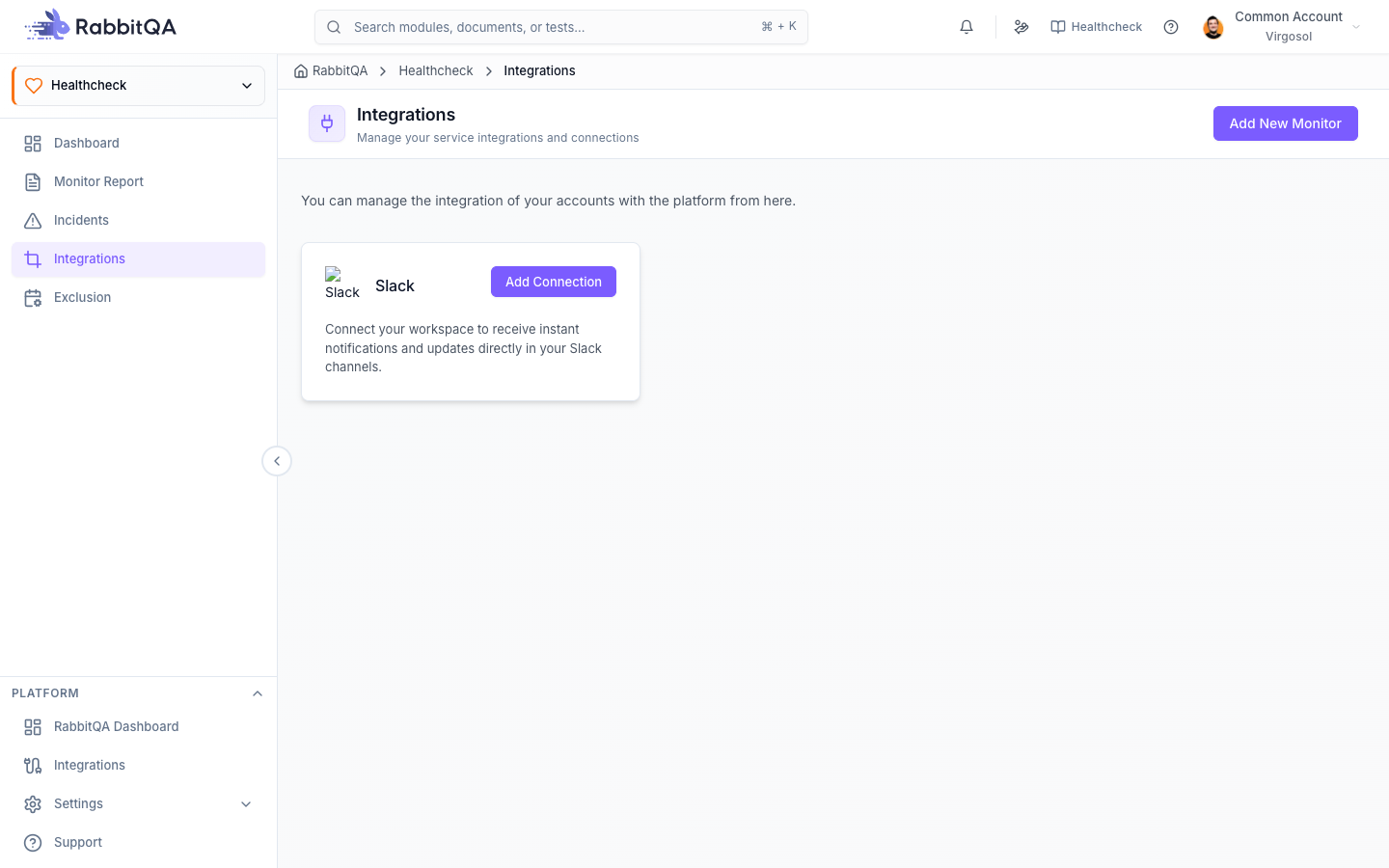
- Navigate to HealthCheck → Integrations from the sidebar.
- Browse the list of available integrations.
- Click Connect on the integration you want to set up.
- The connection modal opens with configuration fields specific to that integration.
Connection Fields
Each integration requires different credentials and settings. Common fields include:
| Field | Description |
|---|---|
| Name | A label to identify this connection |
| API Key / Token | Authentication credential for the external service |
| Endpoint URL | Target URL (for webhooks and some integrations) |
| Channel / Project | Where to send data within the external service |
- Fill in the required fields and click Test Connection to verify.
- If the test succeeds, click Save to activate the integration.
Always test the connection before saving. A successful test confirms that HealthCheck can reach the external service and that your credentials are valid.
Webhook Configuration
Custom webhooks offer the most flexibility for integrating with any system that accepts HTTP requests.
Payload Format
HealthCheck sends a JSON payload on each alert event:
{
  "event": "monitor.down",
  "monitor": {
    "name": "Production API",
    "url": "https://api.example.com/health",
    "type": "HTTP"
  },
  "status": "down",
  "response_time": 0,
  "failure_reason": "Connection timeout after 30s",
  "timestamp": "2026-02-25T10:30:00Z",
  "incident_id": "inc_abc123"
}
Event Types
| Event | Trigger |
|---|---|
monitor.down | Monitor has failed beyond the failure threshold |
monitor.up | Monitor has recovered after an incident |
monitor.degraded | Response time exceeds the warning threshold |
Security
- Use HTTPS endpoints to encrypt webhook payloads in transit.
- Add a custom
Authorizationheader to authenticate incoming requests on your server. - Validate the
X-HealthCheck-Signatureheader to verify payloads originate from RabbitQA.
Integration Status
After connecting, each integration displays a status indicator on the Integrations page:
| Status | Meaning |
|---|---|
| Connected | Integration is active and sending data |
| Error | Last delivery attempt failed — check credentials or endpoint |
| Disabled | Integration is paused by the user |
Click any integration to view delivery logs, retry failed deliveries, or update the configuration.
Troubleshooting
| Issue | Solution |
|---|---|
| Test connection fails | Verify the API key or token is correct and has the required permissions |
| Alerts not arriving | Check that the integration status is Connected, not Error or Disabled |
| Webhook returns 4xx errors | Confirm the endpoint URL is correct and accepts POST requests |
| Webhook returns 5xx errors | The external service may be down — check its status page |
| Duplicate notifications | Verify that the same channel is not configured both as a monitor notification and an integration |
If an integration enters the Error state, HealthCheck retries delivery up to three times. After three consecutive failures, the integration is marked as Error and stops sending until you manually resolve the issue.
Next Steps
- Configure alert channels to combine direct notifications with integration-based alerts.
- Review incidents to verify that integration events are being created correctly.
- Set up exclusion rules to suppress integration events during maintenance.
