PBI Sessions
Manage and track your PBI generation sessions.
What are PBI Sessions?
The PBI Sessions page is the central management hub for your AI-powered Product Backlog Item generation processes. It lists all your sessions, tracks progress, and provides detailed reporting.
Session Management
Create New Session
Click "New Session" or "Create Session" button. Select source file, configure generation settings (AI model, language, quality level, platforms), and start PBI generation. You'll be automatically redirected to the session detail page.
View Sessions
Filter sessions by status (All, Running, Completed, Pending, Stopped, Failed, Cancelled).
Search by session name, file name, or ID. Sort by newest, oldest, most PBIs, least PBIs, or alphabetical order.
Session Details
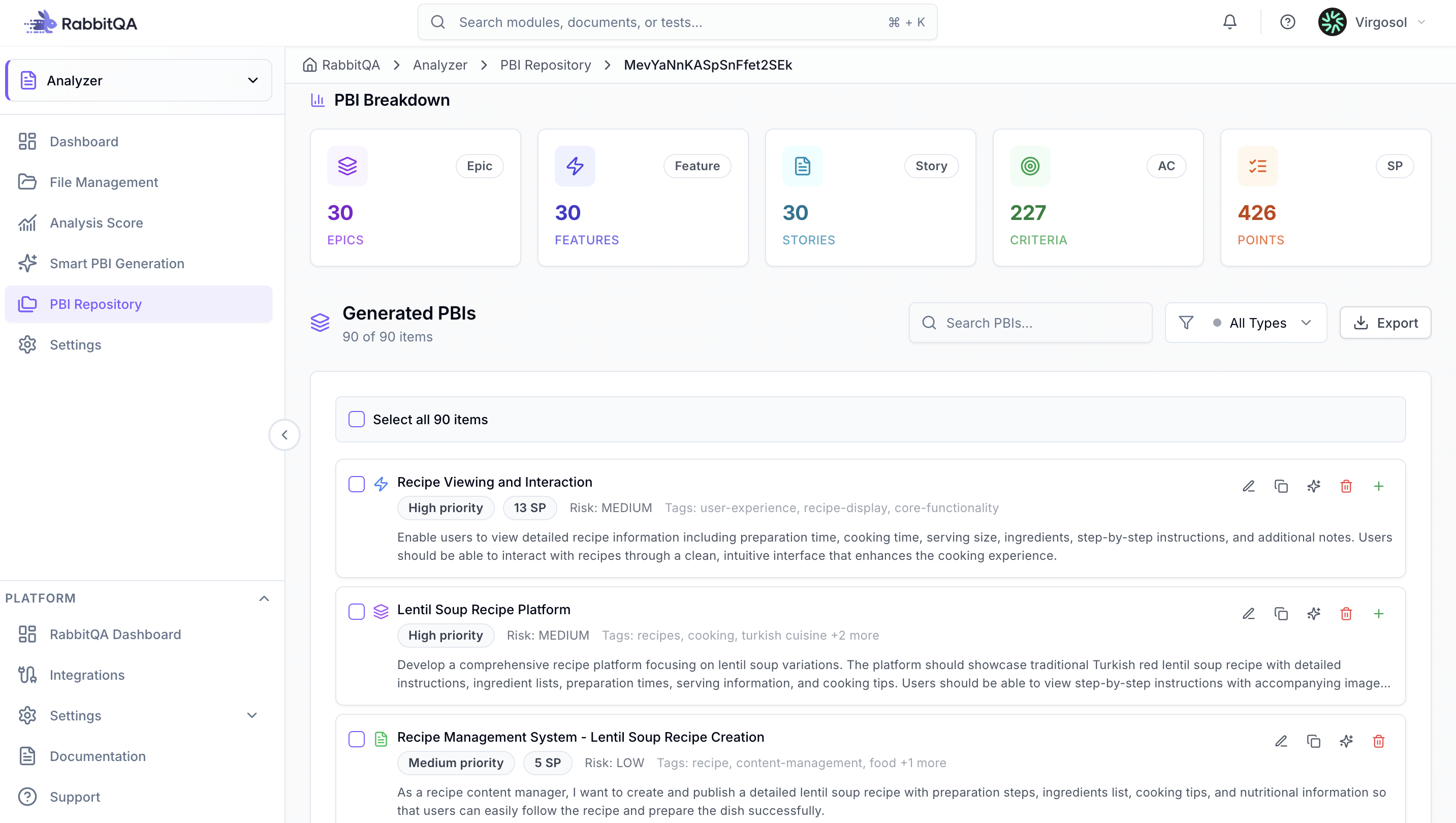
Click on any session to view its detail page. The detail page shows session information, generation progress, and all generated PBIs in hierarchical structure (Epic > Feature > User Story > Acceptance Criteria).
Dashboard Metrics
The sessions page displays key metrics including total sessions, completed sessions, PBIs generated, average per session, running sessions count, and average generation time.
Also shows epics created, features defined, user stories count, and acceptance criteria count with trend indicators.
PBI Management
View and Edit PBIs
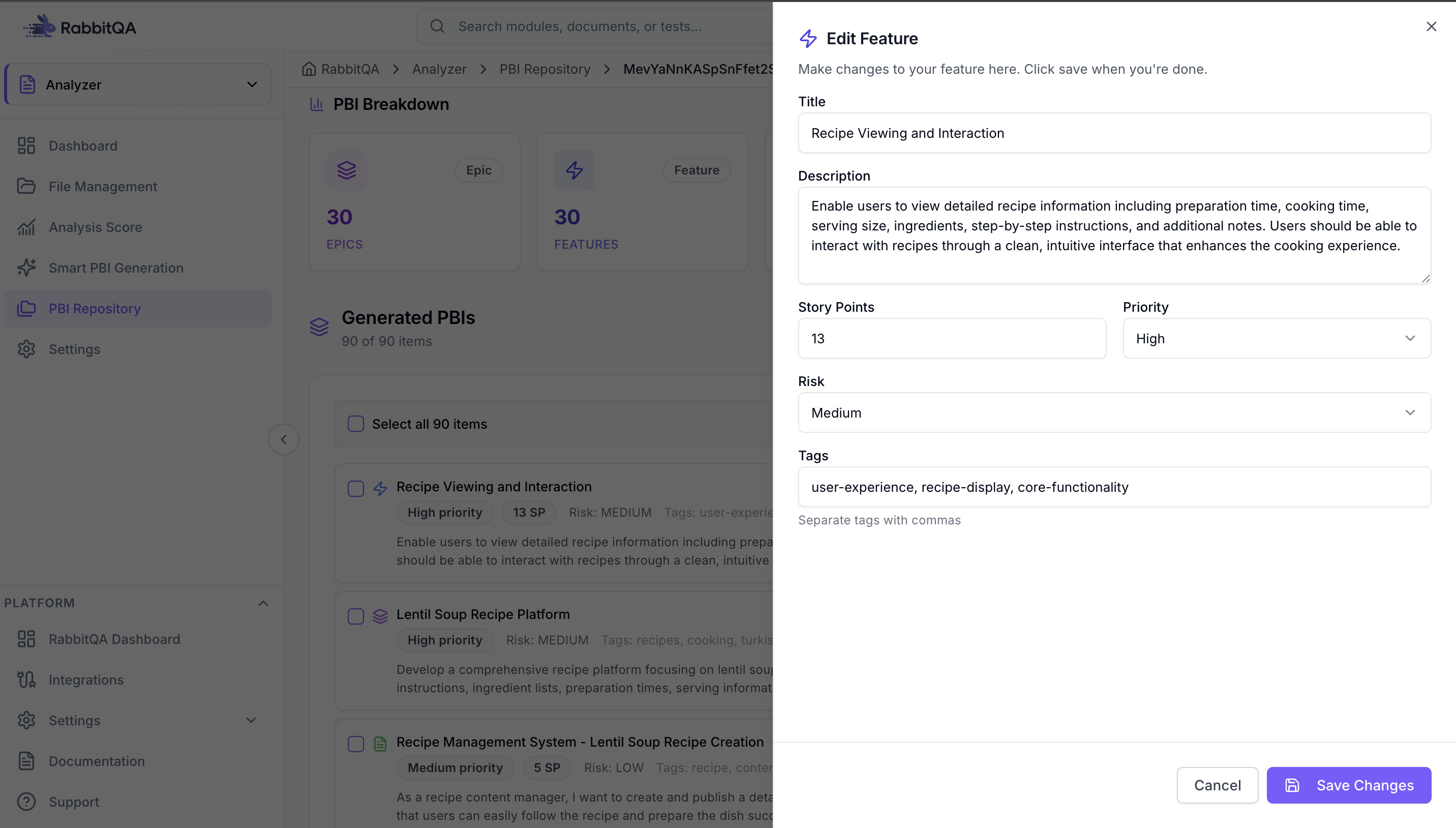
From the session detail page, expand the hierarchical tree to view all PBIs. Click on any PBI to edit its title, description, priority, story points, tags, and acceptance criteria.
Use bulk operations to edit multiple PBIs at once.
Export Options
Export selected PBIs or entire session to Jira, Azure DevOps, Excel, or JSON format.
Configure field mappings for Jira and Azure DevOps exports. Export can be done from the session detail page.
Regenerate PBIs
For completed sessions, you can regenerate individual PBIs or bulk regenerate multiple PBIs.
Provide additional instructions to guide the regeneration process. Compare original and regenerated versions before accepting changes.
Session Actions
For each session, you can view details, continue paused sessions, download PBIs, delete sessions, pause running sessions, stop active sessions, and export results.
Use the action menu (3-dot icon) on each session card to access these options.
