Test Repository
/casewriter/test-repository is the central store for test sets and test cases.
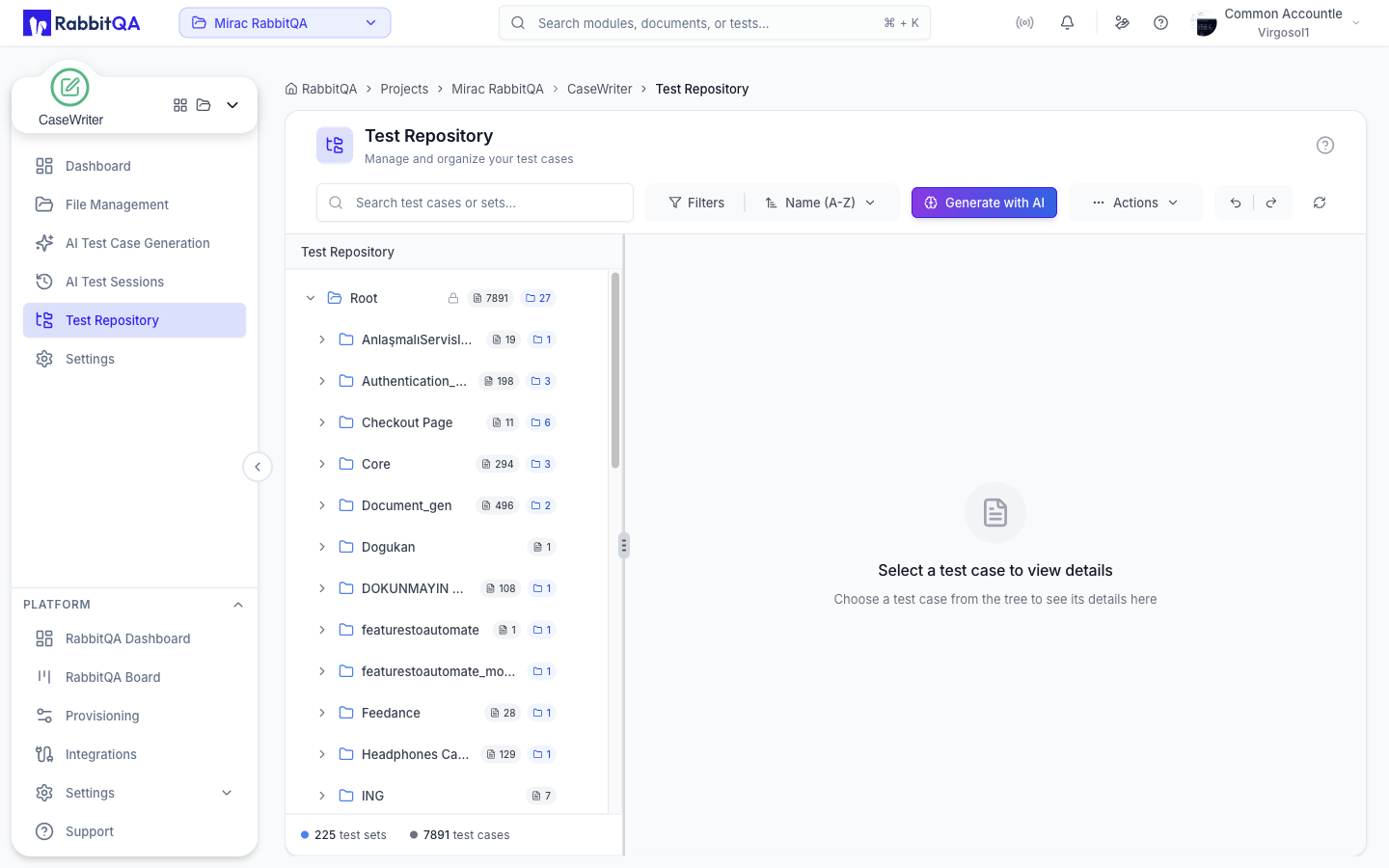
Layout
The page is a resizable tree on the left and a detail pane on the right. Drag the divider to widen either side.
The tree holds test sets (folders) and test cases, nested as deeply as you need.
The list view and the clipboard copy and paste controls are still placeholders. Work in the tree view.
Toolbar
| Control | What it does |
|---|---|
| Search | Matches names, descriptions, and labels; accepts up to 100 characters and warns when you reach the limit |
| Filter | Narrows by priority, complexity, and labels; the button shows the active filter count |
| Sort | Name A–Z or Z–A, created date newest or oldest, updated date newest or oldest |
| Generate with AI | Opens the generator, targeting the selected test set |
| Actions | New Test Set, New Test Case, Import, Export, Download Template, and the TestRail submenu |
| Undo / Redo | Reverses or replays the last structural change |
| Refresh | Reloads the tree |
Search, filters, sort, and the selected node are kept in the URL, so a copied link reopens the same view.
Undo and Redo
Undo and redo apply to structural changes such as moves. A move is processed as a background job, so undoing one runs to completion before the tree refreshes. The buttons disable themselves when the server reports there is nothing left to undo or redo.
Test Sets
Test sets are folders that group related test cases.
Creating a Test Set
New Test Set asks for:
- Test Set Name (required)
- Parent Test Set — leave empty for the root level
- Description (optional)
Managing Test Sets
- Edit a set to change its name, description, or parent.
- Move a set to a different parent; a set cannot be moved into its own descendant.
- Delete a set — the confirmation warns that its test cases and sub-sets go with it, and offers to remove them from active test runs as well.
- Duplicate a set into a target folder.
Duplicating a large set runs as a background job. An indicator in the toolbar shows how many duplications are in flight; opening it shows each job's phase, progress, item counts, and start time, with a Cancel Duplicate button while it is still cancellable.
Test Cases
Creating a Test Case
New Test Case opens a drawer with three tabs — Details, Steps, and Review. Preconditions are edited on the Steps tab; Review is a read-back of everything before you save.
Required fields:
| Field | Notes |
|---|---|
| Test Case Name | The title |
| Test Set | Where it is stored |
| Priority | Business impact |
| Complexity | Effort |
Optional: description, test data, labels, preconditions, and any number of steps. Each step has an Action and an Expected Result; steps and preconditions can be reordered by dragging.
For guidance on titles, steps, and priorities, see Best Practices.
The Detail Pane
Selecting a case opens it on the right.
- Details — title, description, test set, priority, complexity, labels, preconditions, steps, expected results, test data, and attachments
- History — the audit trail of field changes, with the old value, the new value, who changed it, and when
A meta bar summarizes the case, and previous and next buttons walk through adjacent cases without going back to the tree.
Attachments can be previewed in place or downloaded.
Case Actions
| Action | Notes |
|---|---|
| Regenerate | Rewrite the case with AI |
| Edit | Opens the editor with Details and Test Steps tabs |
| Duplicate | Creates a copy |
| Export | Opens the Excel export dialog |
| Copy URL | A link that reopens this case |
| Approve / Reject / Re-review | Review actions — see Review Workflow |
| Delete | Removes the case, optionally from active test runs too |
The same actions are on the tree's right-click menu, which also offers New Test Set, New Test Case, Generate Test Cases with AI, Move, Import, Export, Scan Duplicates, and GitHub Scan.
Read-Only Mode
Without a repository write permission, the page renders read-only and a banner at the bottom says so.
Bulk Actions
Selecting more than one test case replaces the detail pane with a bulk action panel.
| Action | Notes |
|---|---|
| Regenerate | Up to 10 test cases at a time |
| Duplicate | Copy the selection into a target folder |
| Move | Move the selection into a target folder |
| Export | Export the selection to Excel |
| Delete | Delete the selection |
| Scan Duplicates | Available when the selection sits in a single test set |
| GitHub Scan | Available when the selection sits in a single test set and a GitHub provider is connected |
Exceeding the regeneration limit disables the button and says so.
Regeneration From the Repository
Regenerate asks the AI to rewrite one or more repository cases.
The dialog takes Additional Instructions (required) and an optional Target Platform, then queues the job and reports its status while it runs.
When the job finishes, the Compare Regenerated Test Scenarios dialog opens with each original beside its regenerated version, and you choose Use Regenerated, Duplicate, or Keep Original for each pair before applying. This is the same comparison flow described in AI Test Case Generation.
Reopening the repository with an operationId in the URL reopens the comparison for that job.
Duplicate Detection
Scan Duplicates looks for test cases that say the same thing twice.
- Start the scan. The dialog reports preparation, then scanning, and can be cancelled while it runs.
- Results are grouped. Each group has a primary member and the cases that resemble it, each with a similarity type — exact, near, or semantic — and a score.
- For each group, select the cases you want and decide Keep Selected or Delete Selected.
- Apply Changes commits every decision.
If the scan finds nothing, the dialog says so and offers to rescan.
The same scan is offered during Save to Repository from an AI session, where the apply button reads Save and runs the export.
Git Scan
GitHub Scan keeps a test set in step with a source repository.
The scan supports GitHub and GitHub Enterprise. The button only appears when the company has at least one enabled provider of those types.
Configuring a Scan
| Field | Notes |
|---|---|
| GitHub connection | One of the connected providers |
| Repository | Loaded from the selected connection |
| Branch | Loaded from the selected repository |
| Root folder | A single folder path — wildcards are not allowed. Leaving it empty scans the entire repository, so a subfolder is recommended |
| Scan mode | Manual (scan on demand) or Auto (scheduled) |
| Schedule | For Auto mode: a standard cron expression, with presets for nightly, morning, end of day, hourly, Mondays, and weekday mornings |
One test set binds to one repository. A set that is already bound says so; unbind it before changing the provider or repository.
Running a Scan
Scan Now (or Save & Scan for a scheduled setup) starts the job and reports its phase.
| Phase | Shown as |
|---|---|
FETCHING_DIFF | Fetching changes |
MATCHING_CASES | Finding affected cases |
REGENERATING | Updating cases |
CREATING_NEW | Creating new cases |
MARKING_OBSOLETE | Marking removed files |
PERSISTING | Saving |
Results
The result reports four numbers: Files changed, Updated, New, and Obsolete.
Obsolete marks cases whose source files were removed from the repository.
If nothing changed since the last scan, the dialog says No changes detected. Starting a scan while one is already running is skipped rather than queued.
Deep Links
| Link | Effect |
|---|---|
?testCase=<id> | Opens the repository with that case selected |
?testSet=<id> | Opens the repository with that set selected |
?action=create-set | Opens the new test set dialog |
?action=create-case | Opens the new test case editor |
AutoRunner AI Studio uses the first of these: a scenario linked to a repository test case shows a CaseWriter badge that opens ?testCase=<id> in a new tab, carrying the active project.
Related
- Review Workflow — review status in the repository
- Import and Export — Excel and TestRail
- Best Practices — writing and organizing test cases
