Smart Data Generation
Smart Data Generation contains three workflows: single-value generation, dataset generation, and dataset enlargement.
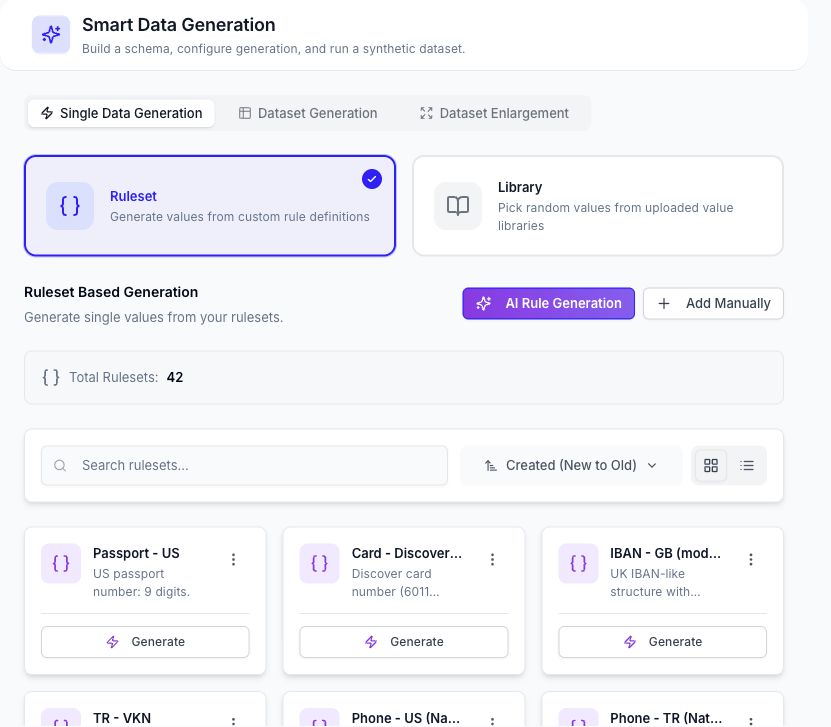
Single Data Generation
Use Single Data Generation when you need individual values rather than a complete table.
The page separates reusable inputs into:
- Ruleset — Pattern-oriented generators such as identifiers, cards, codes, and validated structured values.
- Library — Values selected from a saved library.
Search or switch the card layout, then select Generate on a rule or library. Generated values can be regenerated or copied. Library actions can also upload, rename, or delete a user-managed library when permitted.
Dataset Generation
Use Dataset Generation to create a complete output file through a five-step workflow.
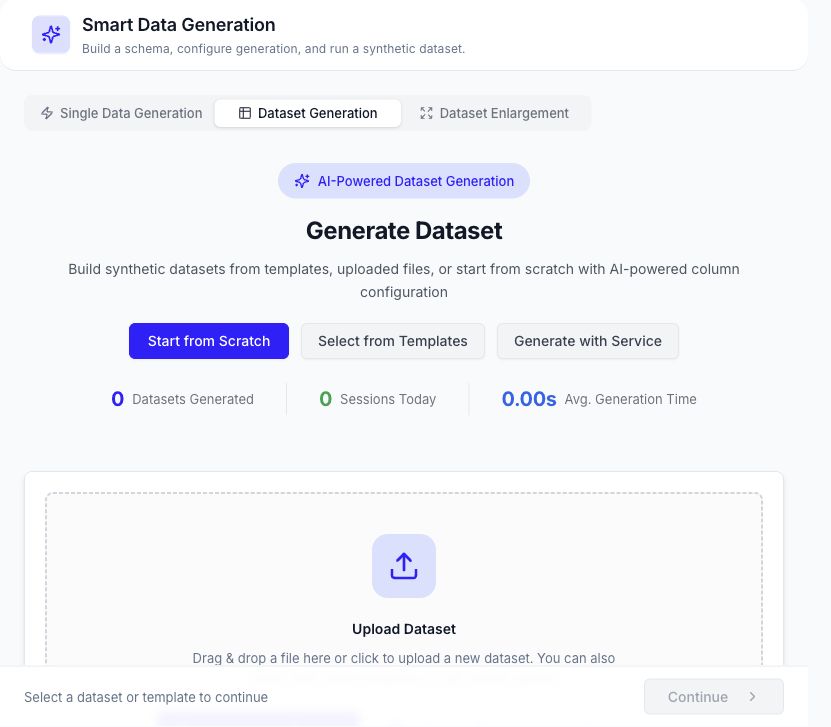
1. Select a Source
Start from one of the sources offered by the current page:
- Upload a new CSV, Excel, or JSON dataset.
- Choose an uploaded dataset.
- Choose a reusable template.
- Start from scratch.
- Configure the supported service-to-table source.
Frequently or recently used datasets are shown for faster selection. Advanced configuration exposes the AI model choices enabled for the workspace.
2. Configure Columns or a Service
For table generation, review the detected or template-defined columns. Available generation methods can include:
| Method | Purpose |
|---|---|
| AI | Generate values from the column name, type, description, prompt, and available context. |
| Ruleset | Apply a selected structured rule. |
| Library | Select values from a reusable library. |
| CTGAN | Generate statistically similar values when the workflow and source data support it. |
| Randomize / As Is | Reuse or randomize source-oriented values according to the current configuration. |
Service-to-table generation supports REST and SOAP requests. Configure the endpoint, method, request body where applicable, response path, target rows, retry controls, and output settings. gRPC is shown as unsupported in this generation workflow.
3. Review
Review the selected source, column configuration, target rows, and available seed preview before submitting the run. Return to an earlier step if the source or schema is incorrect.
4. Generate
Choose the output file name, target folder, and supported output format. Current output choices are CSV, TSV, Excel, JSON, JSON Lines, and Parquet.
Submitting the workflow creates a DataCrate run. Progress, runtime messages, and final status depend on the configured DataCrate runtime and policy.
5. Result
When generation completes, use the available result actions to preview or download the artifact. The run is also available in Data Sessions.
Dataset Enlargement
Use Dataset Enlargement to add generated rows based on an uploaded dataset.
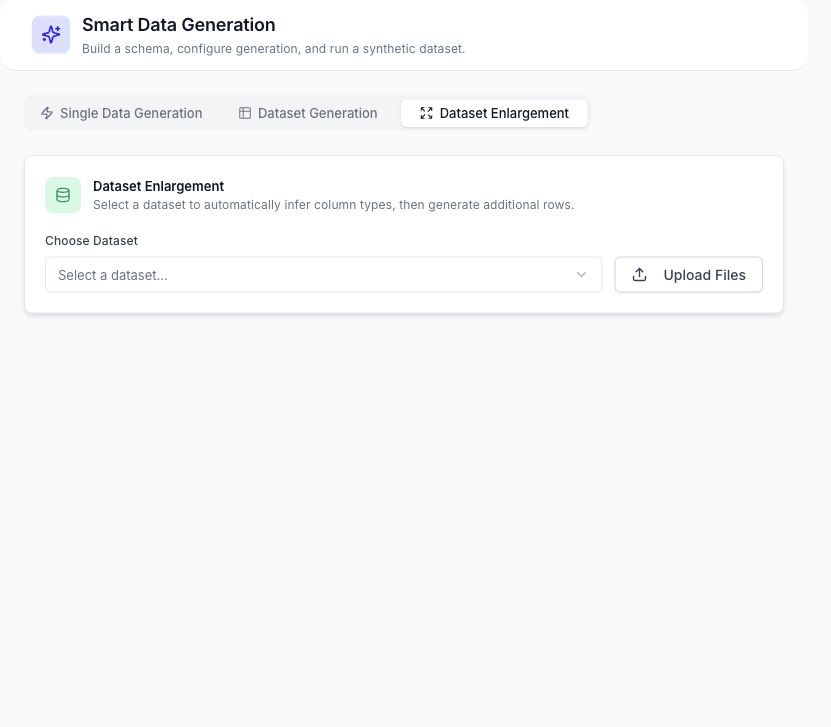
- Choose a dataset.
- Wait for DataCrate to derive its columns.
- Review or change the generation method for every column.
- Enter a target row count greater than the source size.
- Configure the output file and folder.
- Submit the enlargement run and follow it in Data Sessions.
The methods, AI models, row limits, and runtime paths available to you are controlled by the workspace's DataCrate policy and provider configuration.
Reusing a Previous Configuration
Recent dataset-generation sessions can load their saved configuration back into the wizard. Review the loaded source, target row count, generation methods, and output location before creating a new run.
