Smart Data Generation
Smart Data Generation is where runs are configured and started. Build a schema, decide how each column is filled, and produce a dataset.
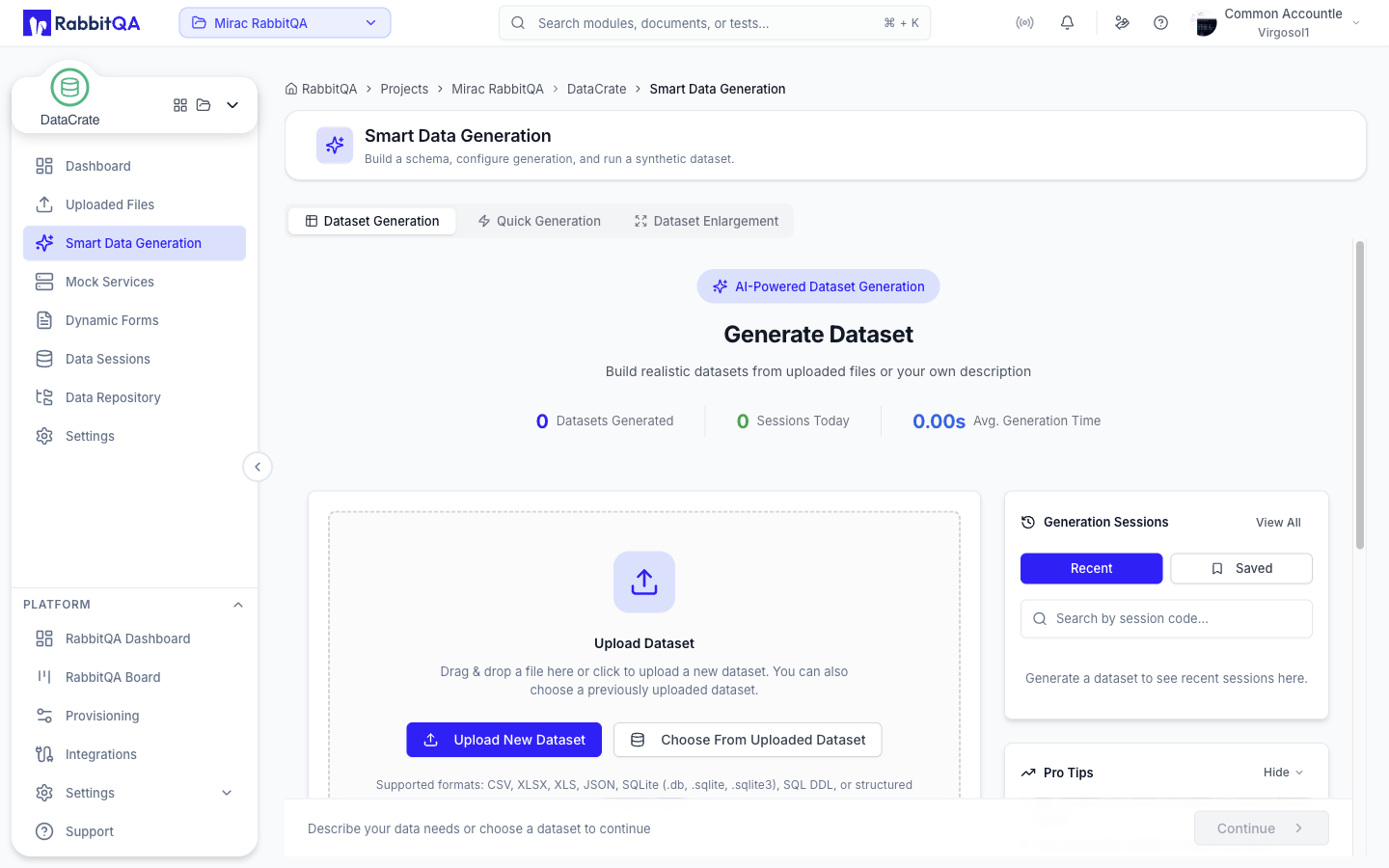 The page has three tabs:
| Tab | Purpose |
|---|---|
| Dataset Generation | Build a full dataset through a guided wizard |
| Quick Generation | Generate a single value from a reusable template |
| Dataset Enlargement | Produce more rows that follow an existing dataset's patterns |
The active tab is kept in the page URL.
Dataset Generation
The wizard has five steps, plus an optional questions step.
| Step | What you do |
|---|---|
| Data Source | Choose data or add guidance |
| Questions | Confirm details, when clarification is enabled |
| Configuration | Set up columns and row count |
| Review | Review the setup and a generated sample |
| Generate | Choose output settings and run |
| Result | Inspect, edit, and download the result |
Completed steps can be revisited by selecting them in the stepper. Navigation is locked while a run or an analysis is in progress.
Step 1 — Data Source
Start from data you already have, or from a written description.
- Upload New Dataset accepts
.csv,.xlsx,.xls,.json,.db,.sqlite,.sqlite3, and.sql. - Choose From Uploaded Dataset opens a picker with search and Frequent, Recent, Name, Date, and Rows ordering, and a detail panel showing rows, columns, created date, and creator.
- AI Guidance is a free-text description of the data you need. Analyze guidance turns it into a column plan.
Two switches control how the analysis behaves:
| Switch | Default | Effect |
|---|---|---|
| Ask questions for ambiguity | On | Adds a Questions step when the guidance is unclear |
| Data privacy | On | Keeps uploaded values private. Turning it off lets the AI use a small sample from the uploaded data for a closer match |
Additional Sources offers two alternative starting points:
- Start from Scratch — define every column by hand, with no source dataset.
- Generate with Service — call an external service and collect its responses instead of synthesizing rows. See Service Generation.
Advanced Configuration exposes an AI model picker, available to users who can update DataCrate settings.
The sidebar shows recent and saved sessions, and the page header shows datasets generated, sessions today, and average generation time.
Step 2 — Configuration
Each column gets a name and a generation method. Use the arrows to reorder columns and the trash icon to remove one. Add Column is available when there is no source dataset — dataset-backed columns come from the file.
Dataset Size (Rows) sets how many rows to produce, from 1 to 5000.
Generation Methods
| Method | What it does |
|---|---|
| AI | Generates values from the column's context and your guidance |
| Generated Pattern | Produces consistent values from a reusable Quick Data Template |
| Library | Picks values at random from a Value Library |
| Distribution Preserving Generation | Creates new values whose patterns resemble the uploaded data |
| Randomize | Fills rows by shuffling and resampling the source dataset's own values |
Which methods are offered depends on what the run is based on:
| Situation | Available methods |
|---|---|
| From scratch, no dataset | AI, Library, Generated Pattern |
| Backed by an uploaded dataset | AI, Library, Generated Pattern, Distribution Preserving Generation, Randomize |
| Dataset enlargement | AI, Generated Pattern, Distribution Preserving Generation, Randomize |
Each method reveals its own field:
- AI shows an AI Guidance box for that column.
- Library shows a Value Library picker with search, plus Upload new to add a
.txtor.jsonlist of values. - Generated Pattern shows a Quick Data Template picker.
- Distribution Preserving Generation and Randomize show a short explanation instead of a field.
Column data types are inferred, from the AI plan or from the source file, rather than chosen by hand. The inferred type changes what else appears:
- Numeric columns get Min Value and Max Value constraints.
- Email columns get an Email Domain Choice of random uniform, company domain, or custom domain.
If the AI cannot produce a valid plan for every column, the wizard stops and asks you to refine your guidance rather than substituting a fallback.
Step 3 — Review
A summary card shows the source, the columns and their methods, and the row count, alongside a Generated Sample Preview built from a small sample run. If the preview is not ready, Retry Preview replaces the continue button.
Step 4 — Generate
Output Configuration controls what gets written:
| Setting | Description |
|---|---|
| Format | CSV, TSV, Excel (.xlsx), Excel 97-2003 (.xls), JSON, JSON Lines, or Parquet |
| Output Name | Filename for the artifact. Required |
| Target Folder | Destination folder in the Data Repository |
New Folder creates a destination without leaving the wizard, and a preview line shows the full output path.
Generate Data starts the run. Progress is reported live while it runs.
Step 5 — Result
When the run completes:
- Review & Edit Data opens the generated data in an editor.
- Download File saves the artifact.
- Save these generation details stores the run's configuration so it can be reused later.
- Go to Mock Services, Go to Data Sessions, and Start Another Generation move you on.
Linked Tables
The wizard plans linked tables instead of a single table when the analysis decides the data is relational. That happens in two ways:
- The selected dataset carries a relational schema — it was uploaded as a SQLite database (
.db,.sqlite,.sqlite3), a SQL DDL file (.sql), or a JSON file whose top level is atableslist. - Analyze guidance on a from-scratch run decides your description needs multiple related tables.
Step 2 becomes a plan review where you can inspect each table, its columns, and its Foreign Keys & Attribute Relationships. Add Relationship adds a foreign key; composite keys are entered as comma-separated column names in matching order. Columns that participate in a key or a relationship are marked Linked Key Generation or Linked Attribute Generation rather than being given their own method.
Linked runs always output a linked SQLite database — Format is locked to Linked SQLite database (.sqlite). On the result step, Review Linked Tables, Download Database, and Download Excel replace the usual result actions.
Reusing Generation Details
The Generation Sessions panel on Step 1 lists earlier runs under two filters:
- Recent — the latest dataset generation sessions.
- Saved — sessions whose configuration was explicitly saved.
Saved sessions offer Use these details, which replaces your current selections with that session's settings and drops you on the configuration step. DataCrate confirms first, and verifies that the referenced dataset still exists before overwriting your work.
To save a configuration, use Save these generation details on the result step or in a session's Actions card. Only successfully completed dataset, database, scratch, schema-based, and template runs can be saved — service generation runs cannot.
Service Generation
Generate with Service collects data by calling an external endpoint and storing the responses, rather than synthesizing values.
Service Request
| Field | Notes |
|---|---|
| Protocol | REST or SOAP. gRPC is not supported yet |
| Method | GET, POST, PUT, PATCH, or DELETE. SOAP is always POST |
| Endpoint URL | The service to call |
| Headers and Query Parameters | Key-value pairs sent with each request |
| Request Body | Payload template |
| Response Path | Dot-notation path to the repeating list inside the response |
SOAP requests add SOAP Action and SOAP Operation.
Per-Row Input
Data Source & Field Binding decides what drives each request:
| Source | Behavior |
|---|---|
| None | Calls the service directly, with no per-row input |
| Dataset | Sends one request per dataset row |
| Manual rows (JSON) | Sends one request per row in a JSON array you paste in |
With a dataset or manual rows selected, you can pick a saved form schema to define the request fields, or use the source columns directly.
Field Mapping matches fields to columns automatically by name, and the Request Body Template builds the payload using {{form.fieldKey}} and {{row.columnName}} placeholders.
Generate from mapping writes a starting template for you, and a preview shows the body produced for the first row.
Output and Advanced Settings
Output settings cover the run name, Target Rows (1 to 5000 — rows collected, not requests made), output format, filename, and destination folder.
Advanced settings cover the request timeout, initial and maximum retry delay, maximum consecutive failures, maximum empty batches, how often preview rows are flushed, and a switch to include request details such as the request index and status code in the output.
Generate creates the run and opens its session.
Dataset Enlargement
Enlargement produces more rows that follow an existing dataset's patterns.
- Choose Dataset — pick an existing dataset, or use Upload Files to bring in a new one.
- Columns are derived automatically and a method is suggested for each. Columns still using the suggested method are marked as AI suggested.
- Adjust methods in the column table if you want something different.
- Set output format, name, and destination folder.
- Set Target Row Count, from 1 to 5000.
- Select Enlarge Dataset.
If the analysis cannot prepare every column, enlargement stops and offers Retry AI analysis rather than falling back to a guessed plan.
A running enlargement can be stopped with Cancel. When it finishes, the page opens the session automatically.
Quick Generation
Quick Generation produces a single value at a time from a Quick Data Template — a reusable definition of a data pattern such as an email address, a phone number, an identifier, a credit card number, or an IBAN.
- Search templates, sort by name or creation date, and switch between card and list views. The list loads more as you scroll.
- Generate on a template produces a value, which appears in an editable field with a copy button. Regenerate produces another.
- The
...menu offers View, which shows the template definition read-only, and Delete.
Generate Quick Data Template creates a new template with AI. Enter the Column Name the template is for and describe the pattern under AI Guidance. AI works best with common patterns; the generated template is saved under the column's name and becomes available to every Generated Pattern column.
Related Pages
- Data Sessions — watch runs and inspect their output
- Data Repository — where generated artifacts are stored
- Settings — manage the saved Value Libraries used by Library columns
