Settings
API keys, integrations, and preferences at /devicer/settings.
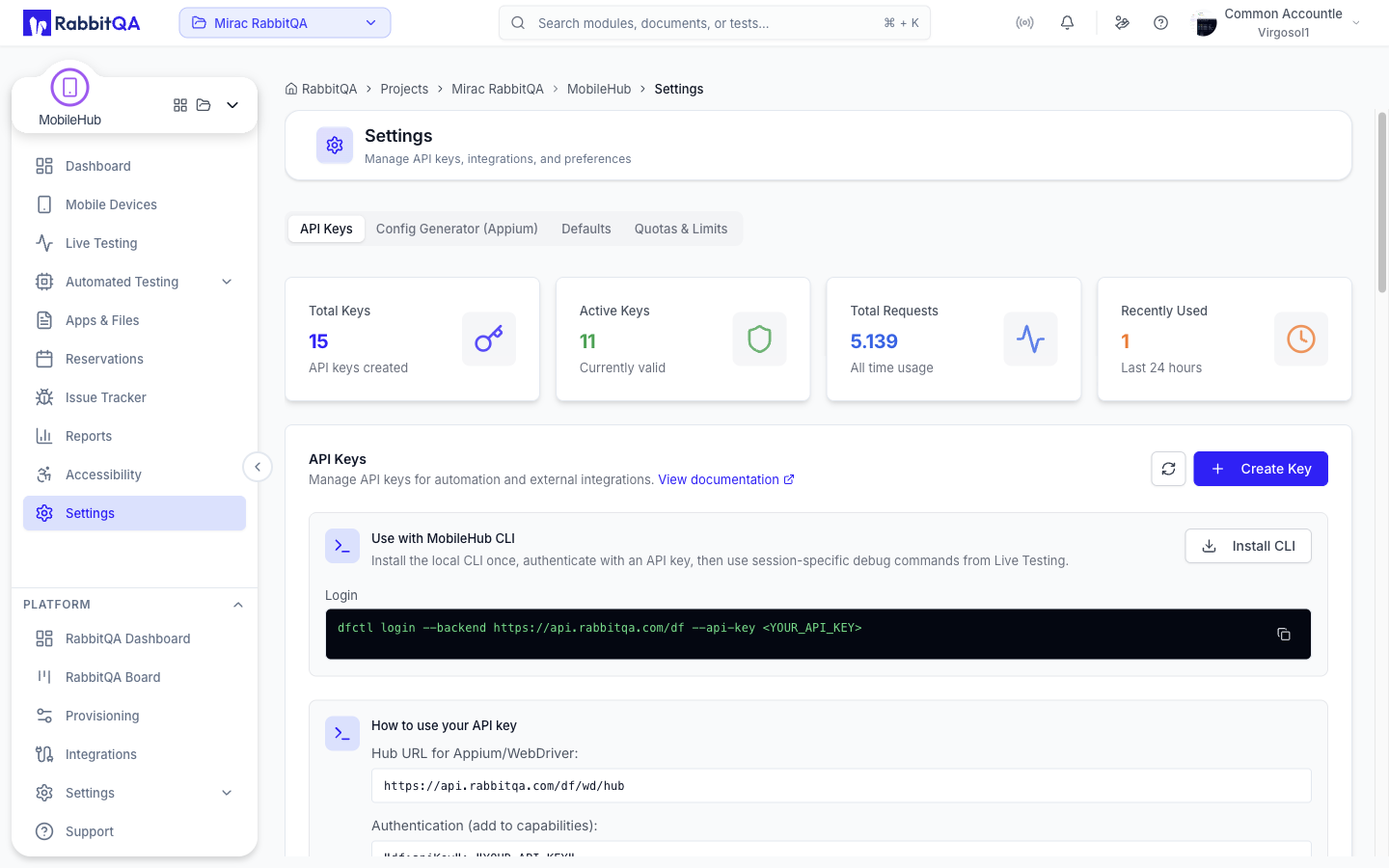 The page has four tabs, each addressable by URL:
| Tab | URL |
|---|---|
| API Keys | /devicer/settings |
| Config Generator (Appium) | /devicer/settings?tab=config |
| Defaults | /devicer/settings?tab=defaults |
| Quotas & Limits | /devicer/settings?tab=quotas |
API Keys
API keys authenticate automation against MobileHub.
Creating a Key
| Field | Description |
|---|---|
| Type | Automation for Appium and WebDriver runs, or User for general API access |
| Name | Required, for example "CI/CD Pipeline" |
| Description | Optional |
| Expiration | 30 days, 90 days, 6 months, 1 year, or never expires |
| Permissions | For User keys only |
User keys carry an explicit permission set:
| Permission | Grants |
|---|---|
device:read | List and view device details |
device:control | Start tests and control devices |
session:create | Create new device tests |
session:read | List and view test details |
session:terminate | End active tests |
file:upload | Upload app binaries and other files |
file:download | Download artifacts and files |
The full key value is shown once, at creation. Afterwards only its prefix is displayed.
Using a Key
Automation keys are sent as a capability:
{
  "df:apiKey": "df_auto_xxxxx"
}
They can also be sent as an X-API-Key header.
The Appium hub URL is shown on the tab:
https://api.rabbitqa.com/df/wd/hub
Managing Keys
Each key card shows the key prefix, its type, when it was created, and when it was last used. Opening a key shows its full details, and a key can be revoked. Revoking is permanent.
Store keys as secrets in your CI/CD platform. Rotate them periodically, and use separate keys per environment so an incident is contained and auditable.
CLI
The tab also offers the MobileHub CLI, used for session-specific debug commands from Live Testing. Install it once, authenticate with an API key, and the session's Developer Tools panel gives you the exact command for that session.
Config Generator (Appium)
The config generator builds a capability set from dropdowns instead of by hand.
- Pick the platform — Android or iOS.
- Pick the app: from the Catalog or from Distribution (Firebase App Distribution). You can also leave it empty to use an app already on the device.
- Pick a version, or take the latest compatible one.
- Pick a device, or leave it as any available device.
- Optionally enable the accessibility audit API.
The generated capabilities are shown as JSON, together with a runnable code example in Java, Python, Node.js, or cURL. Both can be copied in one step.
Only devices matching the chosen platform are offered, and only app versions compatible with the target are selectable.
See Appium Config for what each capability does.
Defaults
Defaults apply to newly created interactive sessions. Only administrators can change them.
Apps
Delete installed app after session automatically uninstalls apps that were installed during a session when the session ends.
Session
| Setting | Description |
|---|---|
| Default idle timeout | The idle timeout for new interactive sessions; the maximum is 5 minutes |
| Company app protection list | Bundle or package identifiers protected from kill-all operations |
The protection list is entered one identifier at a time, or pasted as comma-separated or newline-separated values. Protections inherited from global administrator defaults are shown separately and cannot be removed here. The tab shows the effective list — inherited plus company — that will actually be applied during kill-all and cleanup operations.
Quotas & Limits
Current consumption and the limits that come with your plan.
| Section | Contents |
|---|---|
| Storage | Current usage against the storage limit |
| Active Tests | Concurrent tests, live tests, and automated tests in progress |
| Plan Limits | The ceilings that apply to new work |
Plan limits cover the maximum live test duration, the maximum automated test duration, daily reservations, the maximum file size, files per test, and viewers per test.
Every value on this tab comes from the plan attached to your company, so the numbers differ between accounts.
