Browsers
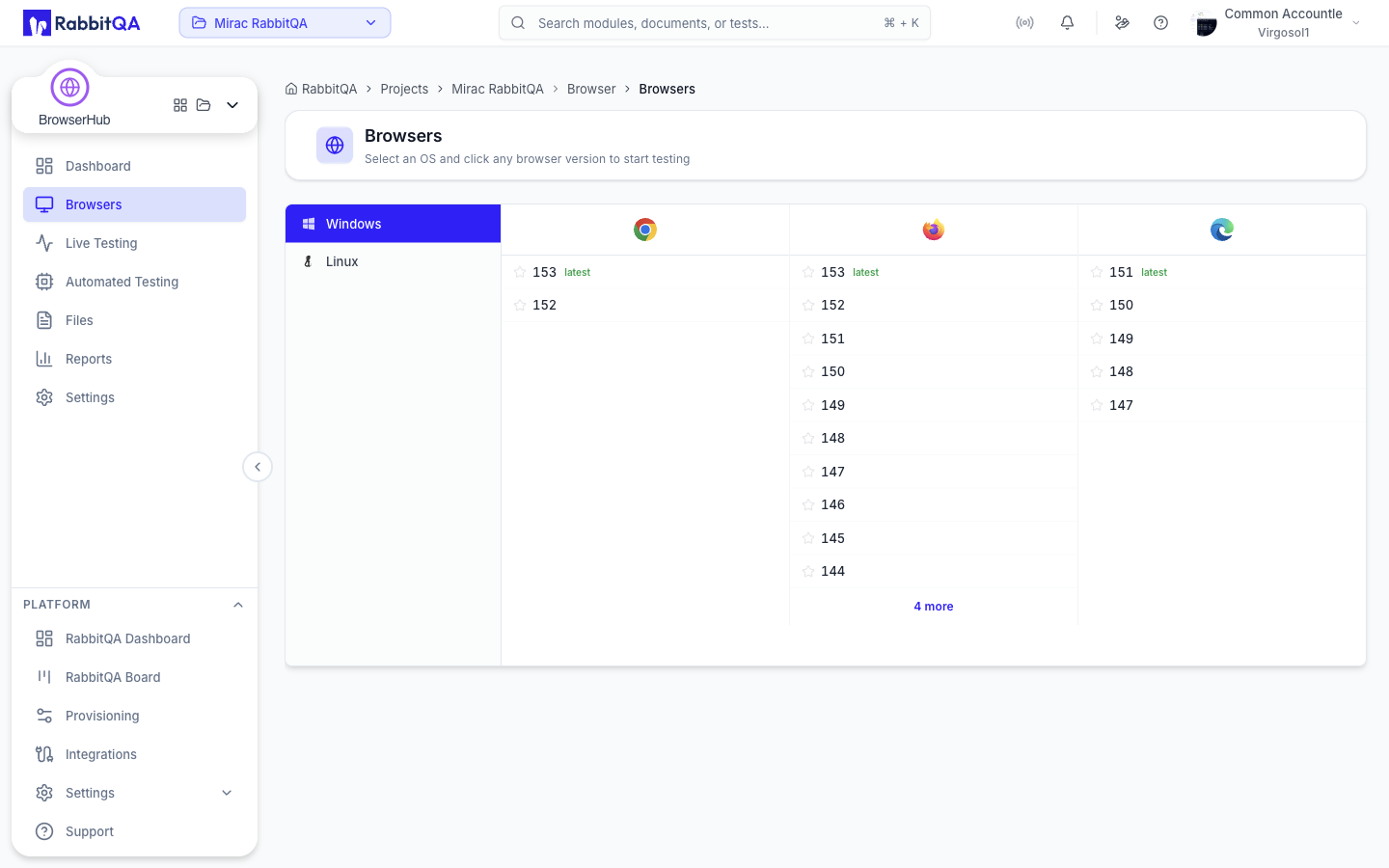
The browser picker at /browser/browsers.
This is where a live session starts: choose an operating system on the left, then select a browser version on the right.
The Picker
The page is a two-panel selector.
Operating system tree
The left panel lists the operating systems the service currently offers, grouped by family and ordered Windows, Mac, Linux. A family with several versions expands to show them; a family with a single entry is selectable directly. The first available operating system is selected when the page loads.
Browser version grid
The right panel shows one column per browser available on the selected operating system, with its versions as rows. Browsers and versions that do not support the selected operating system are not listed.
Each version row can carry a tag.
| Tag | Meaning |
|---|---|
| latest | The newest version the service offers for that browser |
| beta | A beta build |
| dev | A dev or canary build |
The first ten versions of a browser are shown inline. If there are more, an N more link — where N is the number left over — opens a dialog listing every version for that browser, with a search box for finding a specific one.
Long version strings are shortened to their major number, both in the grid and in the dialog. The search box still matches against the full version string.
Version rows are disabled when you do not have the browserhub:session:create permission.
Starting a Session
Selecting a version starts a session immediately. There is no confirmation step.
If an instance is free, the session starts at once. Otherwise the service provisions one, and a full-screen provisioning view takes over while it boots.
The provisioning view
The provisioning view names the browser, version, and operating system being started, and counts the seconds elapsed while cycling through progress messages.
- Cancel stops the attempt and ends the session that was being created.
- If provisioning fails, the view shows the reason and offers Go Back.
When the browser is ready you land on the session detail page at /browser/live-testing/<session id>.
Provisioning an exact browser version on a fresh instance can take several minutes. The client waits for the budget the service advertises for that request rather than applying a fixed timeout, so let it run instead of retrying.
Active Sessions
Below the picker, up to six currently active sessions appear as cards showing the browser, version, platform, and how long the session has been running. The list refreshes every five seconds.
- Selecting a card opens that session.
- View All Sessions opens Live Testing.
- When more than six sessions are active, a link beneath the cards opens the full list.
The section is hidden when nothing is active.
When Nothing Is Available
If the service returns no operating systems, the page shows an empty state with a Refresh action. If the capability lookup fails, it shows the error with a Retry action.
