Apps & Files
The app catalog and file repository at /devicer/files.
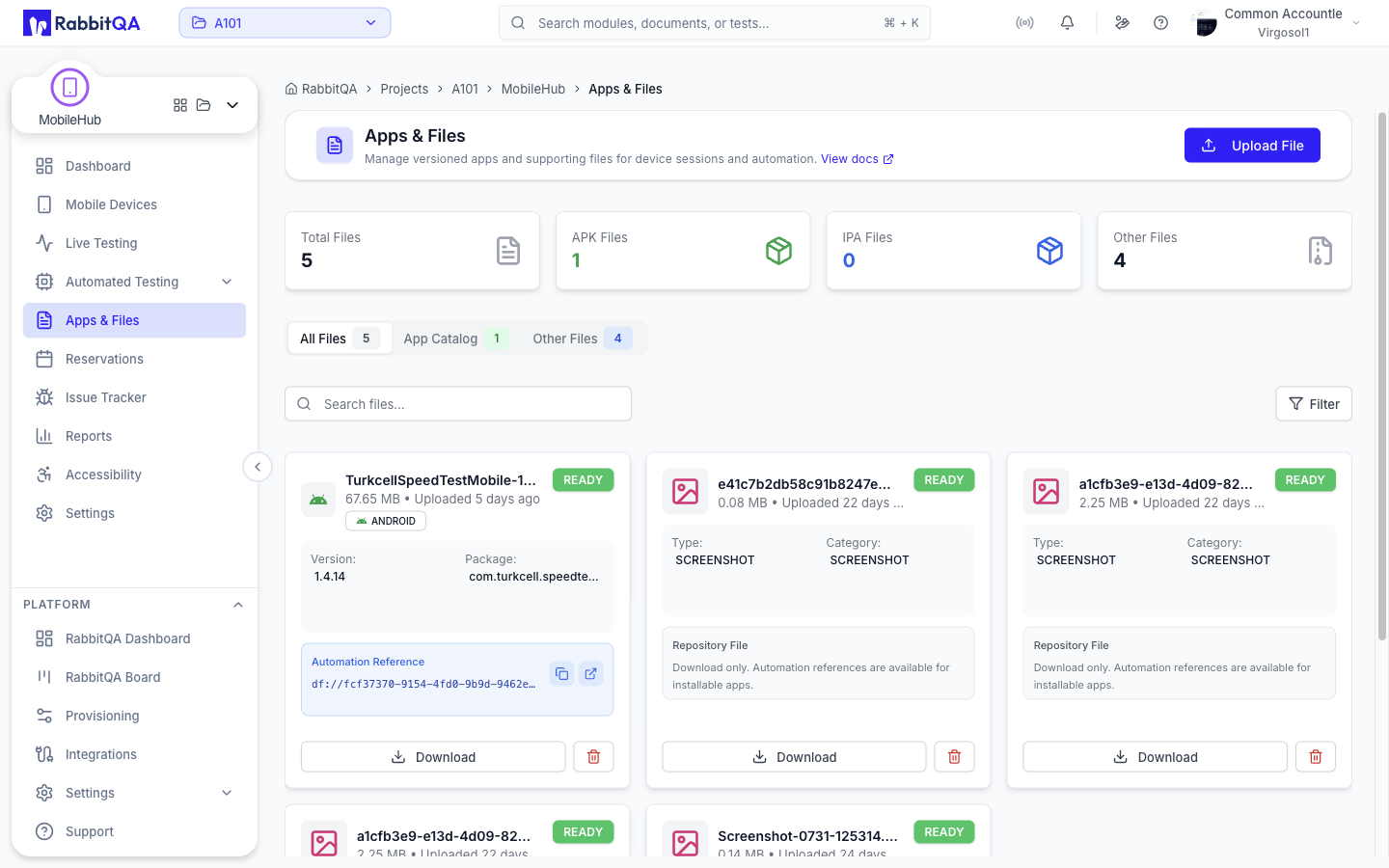
Tabs
| Tab | Contents |
|---|---|
| All Files | Everything in the repository |
| App Catalog | Apps, grouped by application with their versions |
| Other Files | Files that are not app binaries |
Each tab carries a count badge.
App Catalog
The catalog groups uploads into applications so you can track versions over time instead of a flat list of binaries.
Each app card shows the platform, the latest version label, the number of versions, and the automation reference for the latest version — a df://app-version/{versionId} URL.
| Action | Description |
|---|---|
| Copy Latest | Copies the latest version's df:// reference |
| View Versions | Opens the app's version history |
| Use in Config | Opens the config generator with this app preselected |
| Delete App | Soft-deletes every cataloged file, removes all versions from the catalog, and hides the app |
Version History
The app detail page lists every version with its label, and marks the latest one.
For each version you can copy its df:// reference, download the binary, or delete the version.
Building the Catalog from Existing Files
If you uploaded binaries before the catalog existed, the page offers a backfill action that scans existing files and catalogs them. It reports how many files it scanned and how many it cataloged.
File Types
| Category | Accepted extensions |
|---|---|
| App | .apk, .ipa, .aab, .app, .zip |
| Screenshot | .png, .jpg, .jpeg, .webp, .gif |
| Log | .log, .txt, .json, .xml, .csv |
| Attachment | Any other type |
Executable and script extensions are blocked, including .exe, .bat, .cmd, .msi, .dll, .vbs, .js, .ps1, and .reg.
A macOS .app bundle is zipped in the browser before upload; the progress indicator shows both the zipping and the upload stage.
Uploading
Upload by dragging files onto the page or with the upload dialog. A progress bar reports the upload, and an upload in progress can be cancelled.
Size Limits
| Limit | Value |
|---|---|
| Maximum file size | 5 GB |
| Single-request upload up to | 100 MB |
| Multipart chunk size | 50 MB |
Anything over 100 MB is uploaded in 50 MB parts automatically.
Search and Filters
Search matches file names. The filter menu narrows the list by file type, and the active search and type filters are shown as removable chips.
File Actions
| Action | Description |
|---|---|
| Download | Downloads the file |
| Delete | Removes the file from the repository |
App files also show their automation reference, which can be copied in one step.
Referencing a File from Automation
Use a df:// URL in appium:app.
| Form | Points at |
|---|---|
df://app-version/{versionId} | A specific version in the app catalog — the preferred form |
df://{fileId} | A raw file in the repository |
df://firebase/{connectionId}/{projectNumber}/{appId}/{releaseId} | A Firebase App Distribution release |
{
  "platformName": "Android",
  "appium:automationName": "UiAutomator2",
  "appium:app": "df://app-version/YOUR_VERSION_ID",
  "df:apiKey": "YOUR_API_KEY"
}
The Config Generator picks the app and version from a dropdown and writes the correct df:// URL for you.
Upload API
Uploads go directly to storage through a presigned URL, so the API server only issues and confirms them.
All paths below are relative to the gateway host, for example https://api.rabbitqa.com.
Single Upload
For files of 100 MB or less.
1. POST /df/api/files/presigned-upload
2. PUT  {uploadUrl}
3. POST /df/api/files/{fileId}/confirm
Step 1 — request the upload URL.
{
  "filename": "app-debug.apk",
  "category": "APP",
  "contentType": "application/vnd.android.package-archive",
  "sizeBytes": 15728640,
  "description": "Debug build for QA testing",
  "tags": ["android", "debug"]
}
| Field | Description |
|---|---|
filename | File name with extension |
category | APP, SCREENSHOT, LOG, or ATTACHMENT |
contentType | MIME type |
sizeBytes | File size in bytes |
description | Optional description |
tags | Optional tags |
The response carries the fileId and the uploadUrl.
Step 2 — upload the bytes with a PUT to uploadUrl, setting the same Content-Type.
Step 3 — confirm with POST /df/api/files/{fileId}/confirm.
The file is not usable until it has been confirmed.
Multipart Upload
For files over 100 MB, in 50 MB parts.
| Step | Request |
|---|---|
| Initiate | POST /df/api/files/multipart/initiate |
| Get part URL | GET /df/api/files/multipart/{fileId}/part/{partNumber} |
| Upload part | PUT {uploadUrl} — keep the ETag from each response |
| Complete | POST /df/api/files/multipart/{fileId}/complete |
| Abort | DELETE /df/api/files/multipart/{fileId} |
The initiate body takes the same fields as the presigned request, with totalSizeBytes in place of sizeBytes plus partSizeBytes.
The complete body sends every part back:
{
  "parts": [
    { "partNumber": 1, "eTag": "etag-from-the-part-response" },
    { "partNumber": 2, "eTag": "etag-from-the-part-response" }
  ]
}
If an upload fails partway through, abort it so the incomplete parts are discarded.
Authentication
Presigned upload and confirm accept an API key in the X-Api-Key header, or a bearer token.
Every other file endpoint uses a bearer token.
Store the API key and any auth token as secrets in your CI/CD platform rather than in a script.
See API Reference for the rest of the module's endpoints.
