Automated Testing
Appium, Selenium, and CI/CD test runs, at /devicer/automated-testing.
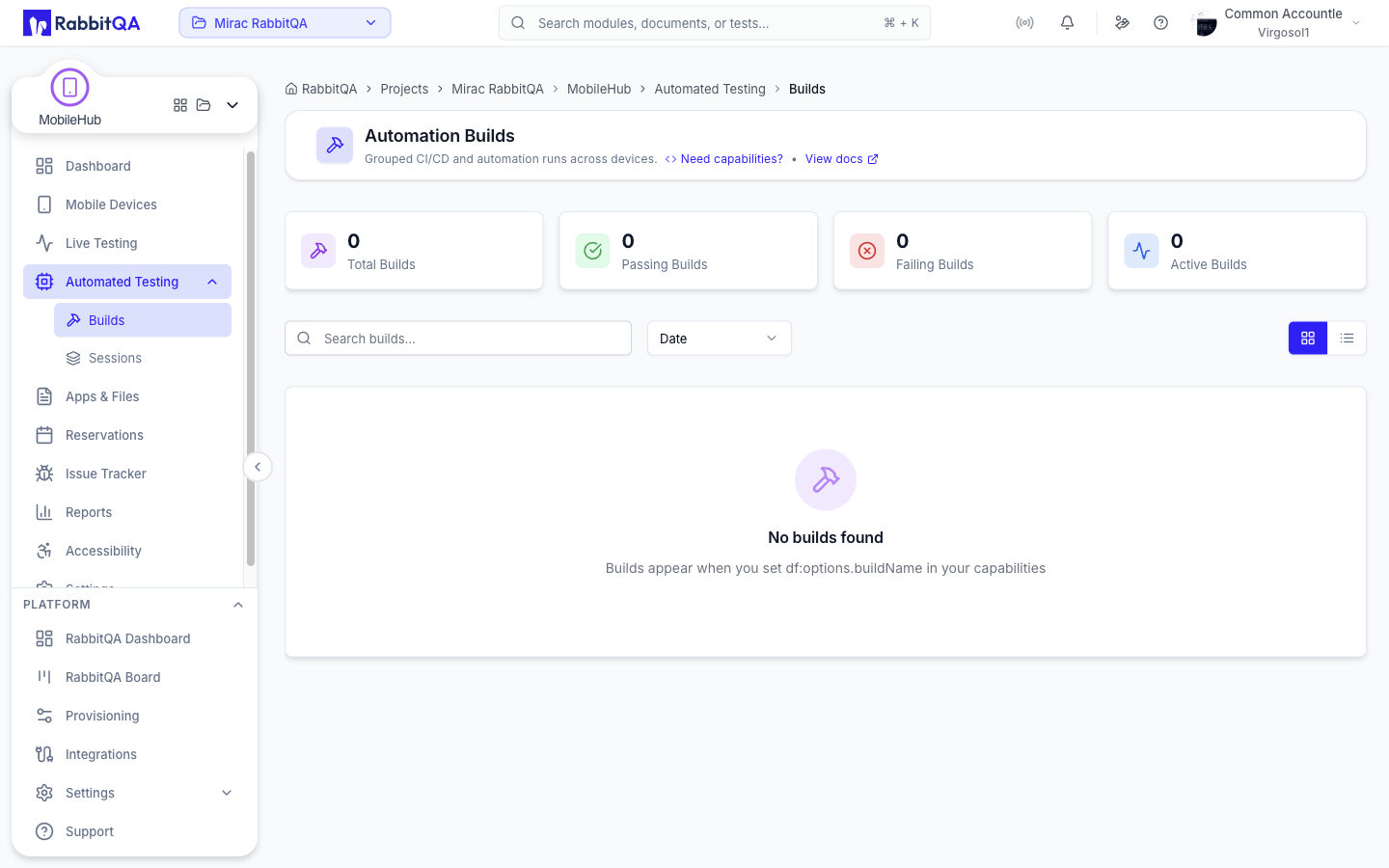 The section has two views, which are also the two entries under Automated Testing in the navigation:
- Builds at
/devicer/automated-testing/builds— runs grouped by build name. - Sessions at
/devicer/automated-testing/sessions— the individual automation sessions.
Builds
A build groups automation sessions that reported the same build name.
Builds appear once you set df:options.buildName in your capabilities; sessions without a build name show up under Sessions only.
Four cards summarize the list: Total Builds, Passing Builds, Failing Builds, and Active Builds.
Each build card shows its name, the project names its sessions reported, the session and test counts, the pass rate, and the total duration. A build with no reported test events reads No results reported.
Build Details
Selecting a build opens /devicer/automated-testing/builds/{buildName}, which shows:
- Sessions, passed, failed, running, tests, and total duration.
- Every session in the build, as cards or as a table.
You can rename a build grouping in place, or delete the grouping.
Sessions
The Sessions view lists automation sessions with five cards: Total Sessions, Active Sessions, Pending Sessions, Completed Sessions, and Test Failed.
| Tab | Shows |
|---|---|
| All | Every automation session |
| Active | Sessions running now |
| Pending | Sessions waiting to start |
| Completed | Sessions that finished |
| Failed | Sessions whose tests failed |
Search matches build and session text. Three dropdowns narrow the list: All Projects, All Builds, and All Devices. Session cards show the device, platform, and version, the build and project names, tags, the duration, and the artifact counts.
Automation Session Detail
Opening an automation session shows the device alongside a panel with four tabs.
| Tab | Contents |
|---|---|
| Tests | The test execution timeline for this session |
| Logs | Device logs captured during the run |
| Screenshots | Screenshots captured during the run |
| Activities | The WebDriver commands and other actions performed |
While a run is in progress, the header shows the current test and, when enough events have been reported, an estimate of the remaining time.
The device stream is shown when the run was started with df:liveView enabled.
Input is refused unless df:deviceControl is also enabled — see Appium Config.
Test Events
Test results are not inferred from the WebDriver traffic. Your test framework reports them to MobileHub over the test event API, and the session's Tests tab shows what it received.
If a session has reported nothing, the tab shows a short integration guide with the endpoint and the event types.
Base URL and Authentication
All test event calls go through the gateway's /df/api/automation/** prefix.
https://api.rabbitqa.com/df/api/automation
Authenticate with the same API key you use for the Appium hub, in the X-API-Key header.
X-API-Key: YOUR_API_KEY
Create and manage keys on the Settings page.
Report an Event
POST /df/api/automation/sessions/{sessionId}/test-events
The payload describes one test event.
{
  "type": "TEST_PASSED",
  "testName": "testLogin",
  "suiteName": "LoginTests",
  "duration": 1250
}
| Field | Description |
|---|---|
type | The event type |
testName | The test method or function name |
suiteName | The test class or suite the test belongs to; used for grouping |
duration | Duration in milliseconds |
For a failure, include an error object with a message and, where you have one, a stackTrace.
Both are rendered in the Tests tab.
Event Types
| Type | Reported when |
|---|---|
TEST_STARTED | A test begins |
TEST_PASSED | A test passes |
TEST_FAILED | A test fails |
TEST_SKIPPED | A test is skipped |
TEST_STEP | A step inside a test completes |
TEST_STEP events are grouped under the suite they belong to and shown as sub-steps beneath their test.
Read Events and Progress
GET /df/api/automation/sessions/{sessionId}/test-events
GET /df/api/automation/sessions/{sessionId}/test-events/progress
The progress response drives the header counters and the estimate: it carries the total, passed, failed, and skipped counts, the current test, and the estimated remaining seconds.
/api/automation/... on its own is not a routable path.
The gateway registers /df/api/automation/** and strips the /df prefix before forwarding, so your client must send /df/api/automation/....
Reviewing Results
The Tests tab lists each test with its status, suite, and duration. You can filter by passed, failed, or skipped, search across test and suite names, and sort by name or duration. Expanding a failed test shows the error message and the stack trace.
Where to Go Next
- Appium Config for the hub URL, the
df:capabilities, and generated code examples. - Apps & Files for uploading a build and referencing it with a
df://URL. - Settings for API keys and the config generator.
- API Reference for the other gateway prefixes.
