Files
Upload and manage app binaries and test files.
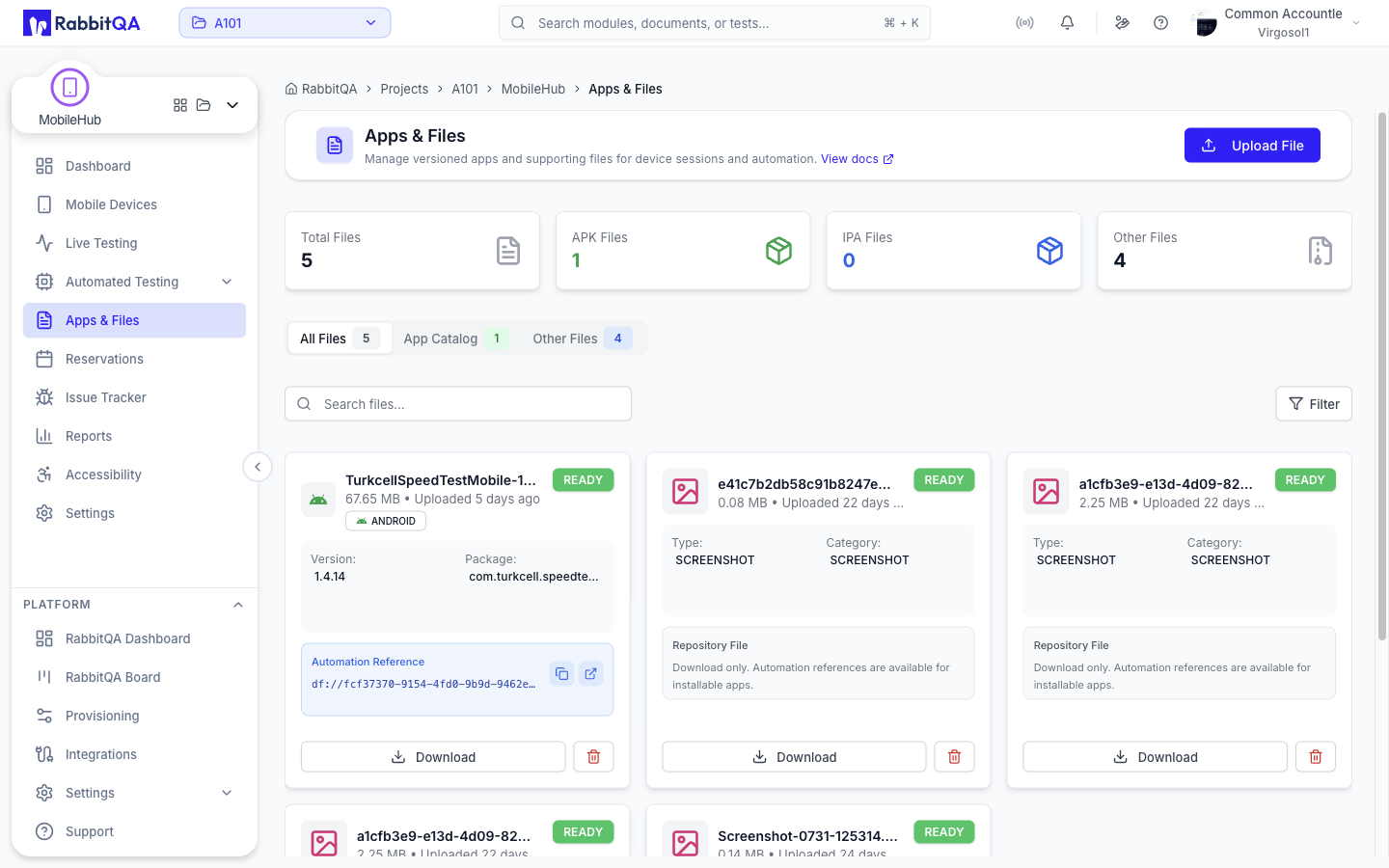
Overview
The Files page serves as your file repository for Device Farm. Upload app binaries (APK, IPA, AAB)
for installation and test data files for your automation scripts. Files can be referenced in Appium
capabilities using the df:// URL scheme.
Supported File Types
App Binaries
Mobile application packages for installation on devices.
| Extension | Description |
|---|---|
| .apk | Android Package |
| .ipa | iOS App Store Package |
| .aab | Android App Bundle |
| .app | macOS App Bundle (auto-zipped) |
Other Files
Test data, media, and configuration files.
| Extension | Description |
|---|---|
| .json | Test data, config |
| .csv | Data files |
| .png/.jpg | Image assets |
| .zip | Archives |
Uploading Files
Upload files using any of these methods:
Drag & Drop
Drag files directly onto the Files page. A drop zone will appear when hovering over the page. Multiple files can be dropped at once.
Upload Button
Click the "Upload Files" button in the header to open the file picker. Select one or more files to upload.
.app Bundle Support
Drag a macOS .app bundle directly - it will be automatically converted to a ZIP file before upload. Progress shows both zipping and upload stages.
Upload Progress
A progress bar shows upload status. Large files may take time depending on your connection speed. You can cancel an upload in progress.
Limits & Storage
File upload and storage limits based on your plan:
| Limit Type | Value |
|---|---|
| Maximum file size | 5 GB per file |
| Total storage | Based on your plan quota |
| File retention | Files are retained indefinitely while active |
| Concurrent uploads | Up to 5 files simultaneously |
Check your current storage usage in the Dashboard or Settings page. Delete unused files to free up space when approaching your limit.
Using Files in Automation
Reference uploaded files in your Appium capabilities using the df:// URL scheme:
{
  "platformName": "Android",
  "appium:automationName": "UiAutomator2",
  "appium:app": "df://your-file-uuid-here",
  "df:apiKey": "your-api-key"
}
Finding the File ID
Click on any file card to view its details. The file ID (UUID) is shown in the details panel and can be copied with one click.
Use the Config Generator to select files
from a dropdown and automatically generate capabilities with the correct df:// URL.
API Upload
Upload app binaries programmatically via the REST API. This is useful for CI/CD pipelines, automation scripts, or any workflow where you need to upload files without the UI.
Device Farm uses a presigned URL upload flow. Files are uploaded directly to cloud storage, keeping the API server lightweight. For full API details, see the API Reference.
Authentication
All API requests require a Bearer token:
Authorization: Bearer YOUR_AUTH_TOKEN
Upload Flow
Uploading a file is a 3-step process:
1. Request presigned URL  →  POST /df/api/files/presigned-upload
2. Upload file to storage →  PUT  {presignedUrl}
3. Confirm upload         →  POST /df/api/files/{fileId}/confirm
For files over 100 MB, use multipart upload instead.
Step 1: Request Presigned Upload URL
POST /df/api/files/presigned-upload
{
  "filename": "app-debug.apk",
  "category": "APP",
  "contentType": "application/vnd.android.package-archive",
  "sizeBytes": 15728640,
  "description": "Debug build for QA testing",
  "tags": ["android", "debug", "qa"]
}
| Field | Type | Required | Description |
|---|---|---|---|
filename | string | Yes | File name with extension |
category | string | Yes | APP, SCREENSHOT, LOG, or ATTACHMENT |
contentType | string | Yes | MIME type of the file |
sizeBytes | number | Yes | File size in bytes |
description | string | No | File description |
tags | string[] | No | Tags for organization |
Common content types:
| Extension | Content Type |
|---|---|
| .apk | application/vnd.android.package-archive |
| .ipa | application/octet-stream |
| .aab | application/x-authorware-bin |
| .zip | application/zip |
Response:
{
  "fileId": "a1b2c3d4-e5f6-7890-abcd-ef1234567890",
  "uploadUrl": "https://storage.example.com/presigned-url...",
  "expiresAt": "2025-06-15T10:45:00Z"
}
Step 2: Upload File to Storage
Upload the binary directly to the presigned URL:
curl -X PUT "${UPLOAD_URL}" \
  -H "Content-Type: application/vnd.android.package-archive" \
  --data-binary @./app-debug.apk
The presigned URL expires shortly after creation (see expiresAt). Start the upload immediately.
Step 3: Confirm Upload
POST /df/api/files/{fileId}/confirm
Response:
{
  "id": "a1b2c3d4-e5f6-7890-abcd-ef1234567890",
  "filename": "app-debug.apk",
  "category": "APP",
  "status": "READY",
  "sizeBytes": 15728640,
  "uploadedAt": "2025-06-15T10:30:00Z",
  "description": "Debug build for QA testing",
  "tags": ["android", "debug", "qa"],
  "appPackageName": "com.example.myapp",
  "appVersion": "1.2.3"
}
The id field is the file UUID you'll use in Appium capabilities with df://.
Complete Examples
Android APK
AUTH="Authorization: Bearer YOUR_AUTH_TOKEN"
BASE="https://api.rabbitqa.com"

# 1. Request presigned URL
RESP=$(curl -s -X POST "$BASE/df/api/files/presigned-upload" \
  -H "$AUTH" -H "Content-Type: application/json" \
  -d '{
    "filename": "app-debug.apk",
    "category": "APP",
    "contentType": "application/vnd.android.package-archive",
    "sizeBytes": 15728640,
    "description": "Debug build",
    "tags": ["android", "debug"]
  }')

FILE_ID=$(echo "$RESP" | jq -r '.fileId')
UPLOAD_URL=$(echo "$RESP" | jq -r '.uploadUrl')

# 2. Upload to storage
curl -X PUT "$UPLOAD_URL" \
  -H "Content-Type: application/vnd.android.package-archive" \
  --data-binary @./app-debug.apk

# 3. Confirm
curl -s -X POST "$BASE/df/api/files/$FILE_ID/confirm" -H "$AUTH"
echo "File ID: $FILE_ID"
iOS IPA
AUTH="Authorization: Bearer YOUR_AUTH_TOKEN"
BASE="https://api.rabbitqa.com"

RESP=$(curl -s -X POST "$BASE/df/api/files/presigned-upload" \
  -H "$AUTH" -H "Content-Type: application/json" \
  -d '{
    "filename": "MyApp.ipa",
    "category": "APP",
    "contentType": "application/octet-stream",
    "sizeBytes": 52428800,
    "tags": ["ios", "release"]
  }')

FILE_ID=$(echo "$RESP" | jq -r '.fileId')
UPLOAD_URL=$(echo "$RESP" | jq -r '.uploadUrl')

curl -X PUT "$UPLOAD_URL" \
  -H "Content-Type: application/octet-stream" \
  --data-binary @./MyApp.ipa

curl -s -X POST "$BASE/df/api/files/$FILE_ID/confirm" -H "$AUTH"
echo "File ID: $FILE_ID"
Multipart Upload (Over 100 MB)
Files larger than 100 MB must use multipart upload with 50 MB chunks:
| Step | Method | Endpoint |
|---|---|---|
| Initiate | POST | /df/api/files/multipart/initiate |
| Get part URL | GET | /df/api/files/multipart/{fileId}/part/{partNumber} |
| Upload part | PUT | {partUploadUrl} |
| Complete | POST | /df/api/files/multipart/{fileId}/complete |
| Abort | DELETE | /df/api/files/multipart/{fileId} |
Initiate request:
{
  "filename": "large-app.apk",
  "category": "APP",
  "contentType": "application/vnd.android.package-archive",
  "totalSizeBytes": 524288000,
  "partSizeBytes": 52428800
}
Complete request (send all part ETags collected from upload responses):
{
  "parts": [
    { "partNumber": 1, "eTag": "\"etag-from-response\"" },
    { "partNumber": 2, "eTag": "\"etag-from-response\"" }
  ]
}
Size Limits
| Limit | Value |
|---|---|
| Single upload max | 100 MB |
| Multipart chunk size | 50 MB per part |
| Maximum file size | 5 GB |
| Concurrent uploads | Up to 5 |
Using the Uploaded App
After upload, use the file ID with df:// in your Appium capabilities:
{
  "platformName": "Android",
  "appium:automationName": "UiAutomator2",
  "appium:app": "df://a1b2c3d4-e5f6-7890-abcd-ef1234567890",
  "df:apiKey": "YOUR_API_KEY"
}
For iOS:
{
  "platformName": "iOS",
  "appium:automationName": "XCUITest",
  "appium:app": "df://a1b2c3d4-e5f6-7890-abcd-ef1234567890",
  "df:apiKey": "YOUR_API_KEY",
  "df:resign": true
}
End-to-End CI/CD Example
Upload an app and start an Appium test session in one script:
#!/bin/bash
AUTH_TOKEN="YOUR_AUTH_TOKEN"
API_KEY="YOUR_API_KEY"
BASE="https://api.rabbitqa.com"
APK="./app-release.apk"
SIZE=$(stat -f%z "$APK" 2>/dev/null || stat -c%s "$APK")

# 1. Request presigned URL
RESP=$(curl -s -X POST "$BASE/df/api/files/presigned-upload" \
  -H "Authorization: Bearer $AUTH_TOKEN" \
  -H "Content-Type: application/json" \
  -d '{
    "filename": "app-release.apk",
    "category": "APP",
    "contentType": "application/vnd.android.package-archive",
    "sizeBytes": '"$SIZE"',
    "tags": ["ci", "build-'"${BUILD_NUMBER}"'"]
  }')

FILE_ID=$(echo "$RESP" | jq -r '.fileId')
UPLOAD_URL=$(echo "$RESP" | jq -r '.uploadUrl')

# 2. Upload to storage
curl -X PUT "$UPLOAD_URL" \
  -H "Content-Type: application/vnd.android.package-archive" \
  --data-binary @"$APK"

# 3. Confirm
curl -s -X POST "$BASE/df/api/files/$FILE_ID/confirm" \
  -H "Authorization: Bearer $AUTH_TOKEN"

echo "Uploaded: $FILE_ID"

# 4. Start Appium session
curl -s -X POST "$BASE/df/wd/hub/session" \
  -H "Content-Type: application/json" \
  -d '{
    "capabilities": {
      "alwaysMatch": {
        "platformName": "Android",
        "appium:automationName": "UiAutomator2",
        "appium:app": "df://'"$FILE_ID"'",
        "df:apiKey": "'"$API_KEY"'"
      }
    }
  }'
Store your auth token and API key as secrets in your CI/CD platform (GitHub Actions, GitLab CI, Jenkins). Never hardcode credentials in scripts or version control.
Filtering & Search
Category Tabs
Filter by category: "Apps" shows APK/IPA/AAB binaries, "Files" shows all other file types.
| Tab | Shows |
|---|---|
| All | All uploaded files |
| Apps | APK/IPA/AAB binaries |
| Files | All other file types |
Search
Search by file name. Results filter as you type.
Type Filter
Use the filter button to show only specific file types (APK, IPA, etc.).
File Actions
| Action | Description |
|---|---|
| Download | Download the file to your computer |
| Install | Install app on a device (requires active test) |
| Delete | Permanently remove the file from storage |
File Card Details
Each file card displays:
| Field | Description |
|---|---|
| File Name | Original filename as uploaded |
| Type Badge | APK, IPA, AAB, or file extension |
| Size | File size in human-readable format |
| Uploaded | Upload timestamp (relative or absolute) |
| Platform | iOS or Android (for app binaries) |
Statistics
The header shows quick stats about your file repository:
- Total Files - Number of files in your library
- APK - Android app count
- IPA - iOS app count
- Other - Other file types count
