Accessibility
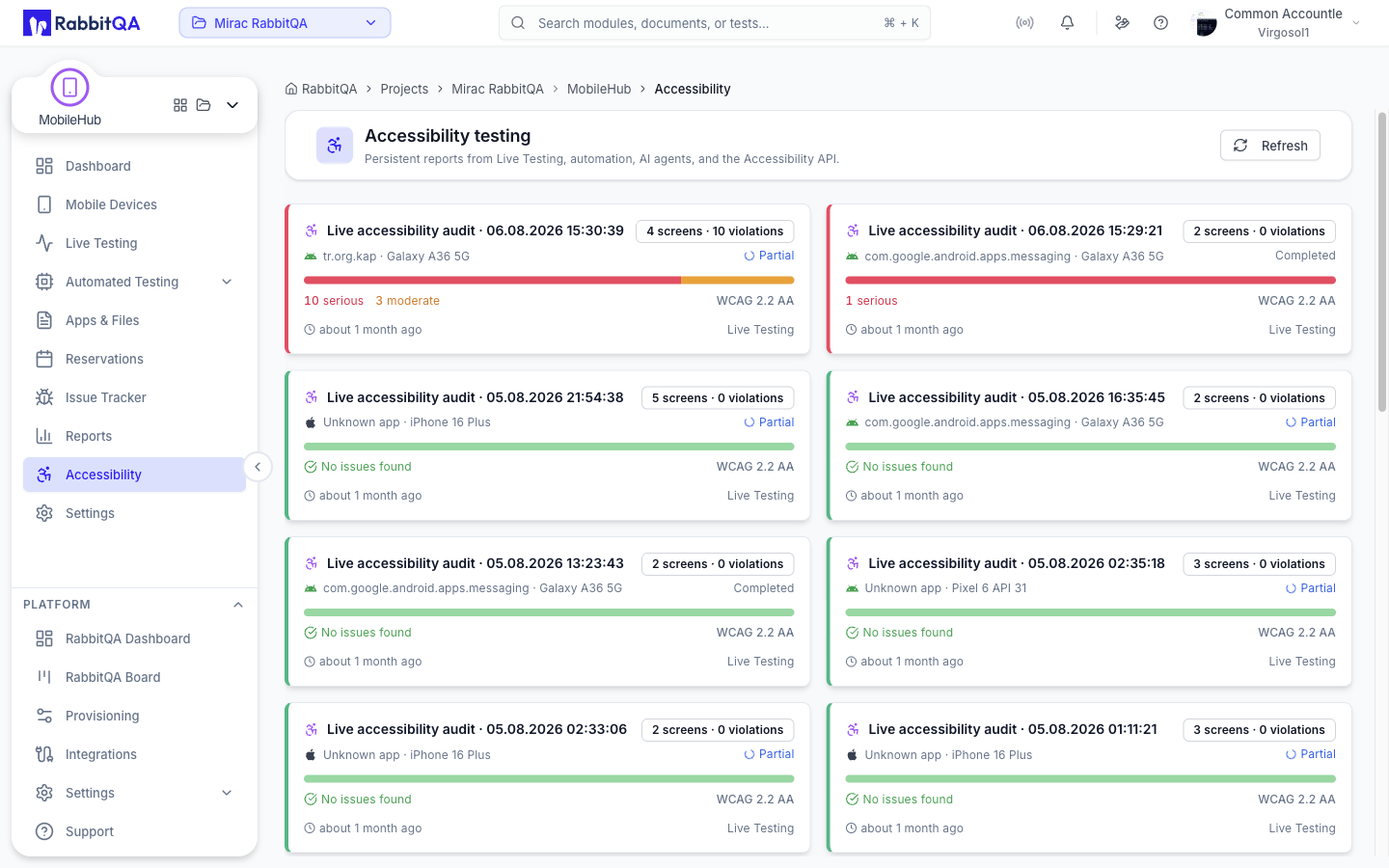
Accessibility testing at /devicer/accessibility.
MobileHub can audit the screen currently on a device and keep the result as a persistent report. Reports are shared: a scan started from Live Testing, from an automation run, from an AI agent, or from the standalone Accessibility API all land in the same store and are read the same way.
This is the device-level accessibility workspace inside MobileHub. It is separate from the standalone Accessibility module, which audits web pages.
Reports List
The Accessibility page lists saved audit reports, twenty per page.
Each card shows:
- The report name.
- The application and the device it was run against.
- The number of screens and the number of violations.
- The report status.
- The standard, its version, and the conformance level.
- The source the scan came from.
| Source | Meaning |
|---|---|
| Live Testing | Started by hand from a session |
| Automation | Started by an automation run |
| AI agent | Started by an agent |
| Accessibility module | Started from the standalone module |
| Legacy API | Started through the older API |
| Status | Meaning |
|---|---|
| Created | The report exists but nothing has been scanned |
| Running | A scan is in progress |
| Completed | The report is closed |
| Partial | Some scans did not finish |
| Failed | The run failed |
| Cancelled | The run was cancelled |
| Unstable | The run finished with unreliable results |
| Out of scope | The target was outside the evaluated scope |
Selecting a card opens the full report.
Running an Audit from a Session
Check accessibility in the device toolbar opens the audit panel next to the stream. The panel stays open while you keep using the device, so you can walk through a flow and scan each screen as you reach it.
- Give the screen a name, so the report reads as a journey rather than a list of numbers.
- Choose the surface: Native app or Mobile web.
- For mobile web, pick a Web target.
- Select Run audit.
The first scan starts a persistent report. Each later scan is added to the same report as another screen, until you select Complete. New report starts a fresh one, and Full report opens the report page.
Web Targets
For a mobile web audit, the panel discovers the debuggable pages and WebViews on the device and lists them. While it is searching it shows Discovering pages and WebViews, and Refresh re-runs the discovery.
If nothing is found, the panel says so. A debuggable target requires a debug build or a WebView with debugging enabled; a release build exposes no targets.
Results
Immediately after a scan, the panel summarizes what the engine returned:
| Count | Meaning |
|---|---|
| Errors | Rules that failed |
| Warnings | Advisory findings |
| Incomplete | Checks the engine could not decide |
| Passes | Rules that passed |
The audit engine and its version are recorded with each scan and shown in the report. Native and mobile-web scans are evaluated with the axe accessibility rule engine.
The scan history in the panel lists each screen you have scanned in the current report, in order, with its thumbnail and its issue count.
The Report
Opening a report shows the whole audit at /devicer/accessibility/audits/{auditId}.
Summary
The header carries the standard and level, the confirmed violation count, the screen count, and severity totals.
| Severity |
|---|
| Critical |
| Serious |
| Moderate |
| Minor |
A separate Needs review total covers items that automated checks could not settle. Severity totals include both confirmed violations and items still needing manual review.
Where the engine reports reliable pass and applicability data, the report also shows an accessibility score derived from the weighted rule outcomes. Engines that do not report that data show no score rather than an unreliable one.
Automated checks cover only detectable issues and do not establish full accessibility conformance. Manual and assistive-technology testing is still required.
The report labels its coverage as an automated subset: an evaluation target rather than a conformance claim. EN 301 549, the European Accessibility Act, and Section 508 are related references and are not evaluated by the automated audit. Findings outside the evaluated profile are marked Advisory and are kept for awareness only — they do not affect the totals, the score, or the quality gate.
Context
Two panels record what was audited: the Application under audit and a Device snapshot.
Audited Screens
The report can be read two ways:
- Screens — every scanned screen in order, each with its screenshot and its findings.
- Rules — findings grouped by the rule that produced them, so a single problem repeated across screens reads as one item.
On a screen, findings are highlighted on the screenshot where the engine returned an element location. Selecting a finding highlights it.
Findings can be filtered to All, Violations, Needs review, or Advisory.
| Outcome | Meaning |
|---|---|
| Violation | The rule failed |
| Needs review | Automated checks could not decide |
| Pass | The rule passed |
| Inapplicable | The rule did not apply to this screen |
Finding Detail
Expanding a finding shows, where the engine provides them:
- User impact — who this affects and how.
- Observed behavior and Expected behavior.
- How to fix and How to verify.
- Standards the finding maps to.
- A platform code example.
- Rule guidance linking to the rule's documentation.
Repeated findings are marked as duplicates with an occurrence count. Where the engine returned no affected element, the finding says so and asks you to verify it on the screen by hand.
Scans taken before iOS screenshot coordinate normalization keep their screenshot but hide their highlights, because the coordinates cannot be trusted. Run the audit again to capture accurate element locations.
Triage
Each finding carries a triage status you can set and save.
| Status | Use when |
|---|---|
| Open | Not yet reviewed — the default |
| Acknowledged | Confirmed and accepted into the backlog |
| False positive | The engine is wrong about this one |
| Accepted risk | Real, but knowingly not being fixed |
| Fixed | Resolved |
Triage is saved on the report, so the next reader sees the decision rather than re-litigating it.
Exports
A report can be exported in several formats.
| Format | Use for |
|---|---|
| HTML report | Sharing a readable report |
| PDF report | Attaching to a document or an audit record |
| JSON data | Feeding another tool |
| CSV spreadsheet | Analysis in a spreadsheet |
| JUnit XML | A CI quality gate |
| EARL (RDF) | Evaluation and Report Language interchange |
Exports are generated on the server; the report page reports progress and tells you if one fails.
In Automation
Automation runs can produce the same reports.
Enable Accessibility audit API in the config generator on the Settings page, which adds the df:accessibilityAudit capability and its options.
| Option | Effect |
|---|---|
| Report name | Names the persistent report |
| Capture screenshots | Stores a screenshot with each scan |
| Include passing rules | Keeps passing rules in the report |
Audits run this way are evaluated against WCAG 2.2 AA and fail the quality gate on critical or serious findings.
In a Session's History
An ended session has an Accessibility tab listing the reports saved during that session, with the screen count, the violation count, and the standard for each.
