Settings
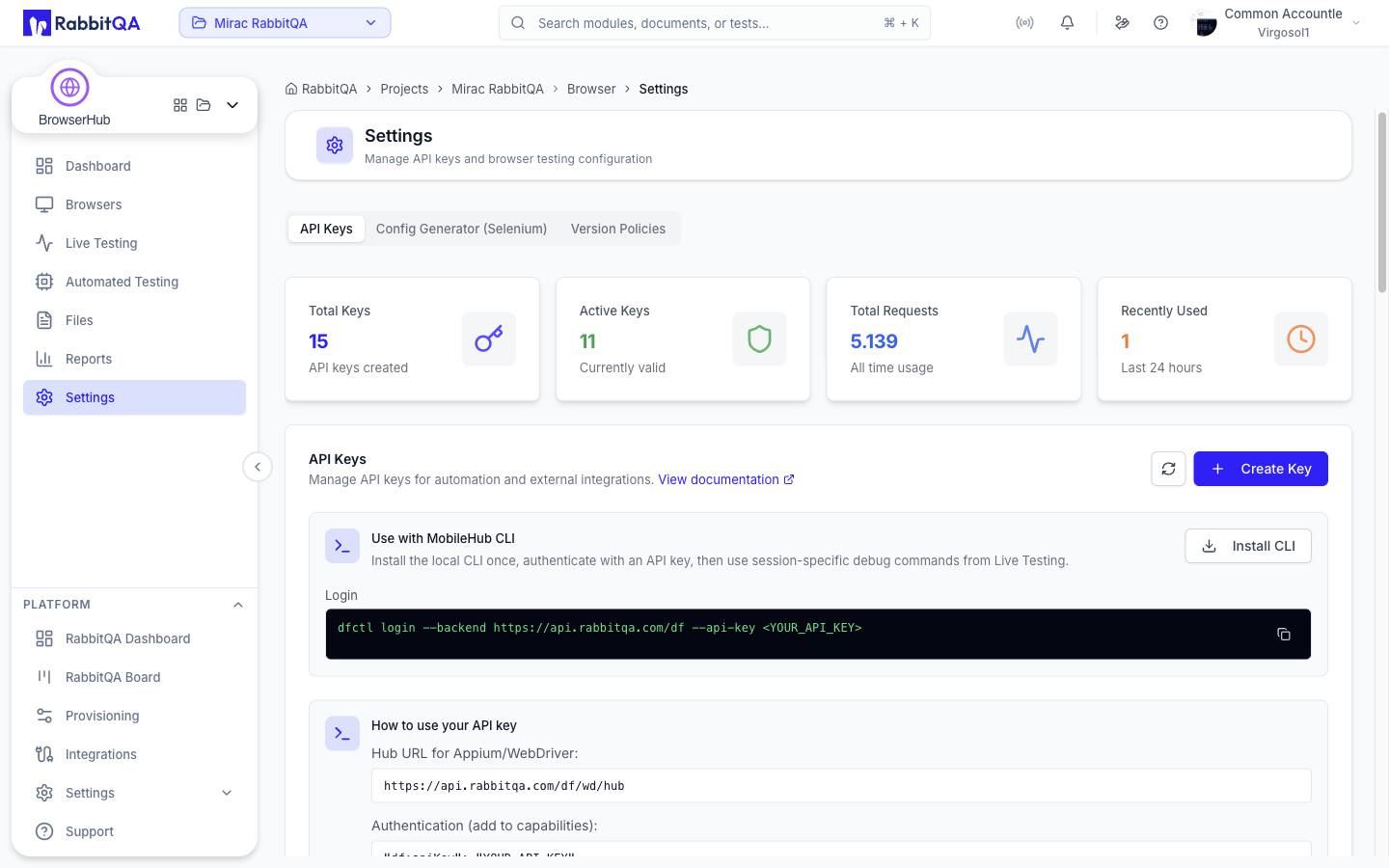
Module settings at /browser/settings, in three tabs.
| Tab | Covers |
|---|---|
| API Keys | The keys your test clients authenticate with |
| Config Generator (Selenium) | Generated W3C capabilities and client code |
| Version Policies | How many browser versions are kept available |
Each tab has a direct link: ?tab=api-keys, ?tab=config, and ?tab=version-policies.
API Keys
The API Keys tab is the same component MobileHub uses, so a key created in either module is the same kind of key. See MobileHub for how keys are created and managed.
Config Generator (Selenium)
This is the practical starting point for connecting an existing Selenium suite. You choose a target, and the page produces the capabilities and the client code to reach it.
Choose a target
| Field | Notes |
|---|---|
| Selenium Server URL | Read-only, with a copy button. The hub endpoint your client connects to |
| Operating System | Windows, macOS, or Linux. Options with no capacity are disabled |
| OS Version | Appears once an operating system is chosen |
| Browser | Chrome, Firefox, Edge, or Safari. Browsers unavailable on the chosen OS version are disabled |
| Browser Version | Optional. Omit it to get the latest available version |
The options come from the same capability data the Browsers page uses, so the generator only offers combinations the service can actually provide.
The hub endpoint
The Selenium server lives on the API host, not the application host:
https://api.rabbitqa.com/df/wd/hub
Copy the value from the field rather than typing it, so you get the exact host for your environment.
Generated capabilities
The right side shows the W3C capabilities for your selection as JSON, with Copy JSON. For example, Chrome 120 on macOS 14.5 produces:
{
  "browserName": "chrome",
  "browserVersion": "120",
  "platformName": "mac",
  "df:osVersion": "14.5"
}
platformName is the W3C spelling of the operating system you picked: Windows, mac, or Linux.
The JSON on screen omits df:apiKey; the copied JSON adds it with the placeholder value df_auto_xxxxx, which you replace with your own key.
Need an API key? links to the API Keys tab.
Code examples
Below the capabilities, the same configuration is rendered as working client code in four tabs: Java, Python, Node.js, and cURL. Each example is syntax-highlighted and has a copy button.
The examples authenticate twice over, and both parts matter:
df:apiKeyis sent as a capability when the session is created.- The same key is sent as HTTP Basic auth, as the user
apikey, on the hub URL. Selenium repeats it on every command.
That is why the generated code rewrites the server URL to embed the credentials:
https://apikey:[email protected]/df/wd/hub
Replace df_auto_xxxxx with your own key from the API Keys tab.
Capability reference
The tab also documents the capabilities the hub accepts.
W3C standard
| Capability | Type | Required | Description |
|---|---|---|---|
browserName | string | Yes | chrome, firefox, edge, or safari |
browserVersion | string | No | A specific version. Omit for the latest |
platformName | string | No | Windows, mac, Linux, or any |
Vendor capabilities
| Capability | Type | Default | Description |
|---|---|---|---|
df:apiKey | string | – | API key for authentication. Required |
df:osVersion | string | – | A specific OS version, such as 14.5 for macOS or 22.04 for Ubuntu |
df:screenResolution | string | 1920x1080 | Browser window resolution |
df:liveView | boolean | false | Stream live video during automation |
df:recordVideo | boolean | false | Record video of the session |
df:recordLogs | boolean | true | Capture browser console logs |
df:sessionTimeout | number | 300 | Idle timeout in seconds |
Version matching
browserVersion matches by prefix, so a partial version selects the newest build under it.
browserVersion | Matches | Does not match |
|---|---|---|
"120" | 120.0.6099.109 | 121.x, 119.x |
"120.0" | 120.0.6099.109 | 120.1.x |
| Omitted | The latest available version | – |
All sessions use the W3C WebDriver protocol. The older JSON Wire protocol is not supported.
Sessions end after five minutes of inactivity by default.
Raise df:sessionTimeout if your suite has long idle gaps between commands.
Sessions run in parallel, each in its own isolated browser instance.
Version Policies
This tab controls how many browser versions the service discovers, keeps available, and retires. It lists one section per browser it manages, ordered Chrome, Firefox, Edge, Opera.
| Setting | Range | Controls |
|---|---|---|
| Stable versions | 1–100 | How many stable versions are retained |
| Beta versions | 0–30 | How many beta versions are retained |
| Dev versions | 0–10 | How many dev versions are retained |
| Sync interval (hours) | 1–168 | How often new versions are discovered |
| Retire delay (days) | 1–365 | How long a version stays after it falls out of the retention window |
| Auto sync | On or off | Whether discovery runs on the interval above |
The versions offered on the Browsers page and in the config generator come from these retention windows. Older versions are retired and cleaned up after the retire delay.
Save policy applies the changes for one browser and is enabled only when that browser's values have changed.
Only administrators can change version retention policies. Everyone else sees the current values read-only, with a notice on the tab.
